It is now possible to set up a true openSSH remote link which works across the internet with Windows, see directions below.
OpenSSH on Windows
Remote machines have to be set up with PowerShell command as follows:
Add-WindowsCapability -Online -Name OpenSSH.Server~~~~0.0.1.0
Set-Service -Name sshd -StartupType ‘Automatic’
#Check firewall
Get-NetFirewallRule -Name *ssh*
Add-WindowsCapability -Online -Name OpenSSH.Server~~~~0.0.1.0
Set-Service -Name sshd -StartupType ‘Automatic’
#Check firewall
Get-NetFirewallRule -Name *ssh*
Remote kernel in cmd shell can be launched with
user@ipaddress which automatically goes to port 22, which has been cleared through router to the remote computer.
The cmd shell then asks for password
Once the shell shows it is on the remote machine, a terminal kernel can be launched with:
“C:\Program Files\Wolfram Research\Mathematica\12.3\wolfram.exe”
within a few seconds the terminal window is securely linked to a kernel.
user@ipaddress which automatically goes to port 22, which has been cleared through router to the remote computer.
The cmd shell then asks for password
Once the shell shows it is on the remote machine, a terminal kernel can be launched with:
“C:\Program Files\Wolfram Research\Mathematica\12.3\wolfram.exe”
within a few seconds the terminal window is securely linked to a kernel.
This works
This works
The local router is set to allow internet access to ports 9000, 9001 on local machine.
The front end notebook kernel is egg0 (you can use any name), set up according to the picture below.
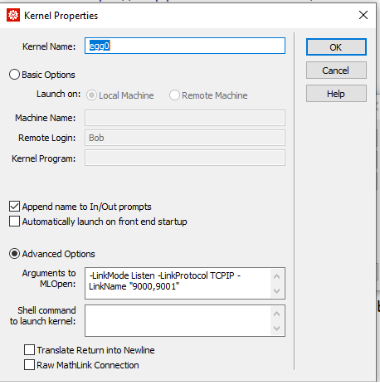
A local Mathematica and a notebook is opened to Listen on the kernel, as shown above.
Next the code below is evaluated in the remote kernel on the remote machine. The best way to do this in Windows is to do this via remote desktop. It can be done with a local shell command to the remote, but then you end up with a command shell running on the local computer to keep the link open. The x’s represent the local machine IP address.
Next the code below is evaluated in the remote kernel on the remote machine. The best way to do this in Windows is to do this via remote desktop. It can be done with a local shell command to the remote, but then you end up with a command shell running on the local computer to keep the link open. The x’s represent the local machine IP address.
(*$ParentLink=LinkConnect["9000@xxx.xxx.xxx.xxx,9001@xxx.xxx.xxx.xxx",LinkProtocol"TCPIP"]*)
After while a Messages window announces something like:
LinkObject[9000@xxx.xxx.xxx.xxx,9001@xxx.xxx.xxx.xxx, 187, 2]
Then you can use the link.
LinkObject[9000@xxx.xxx.xxx.xxx,9001@xxx.xxx.xxx.xxx, 187, 2]
Then you can use the link.
(egg) In[]:=
$Version
(egg) Out[]=
12.3.1 for Microsoft Windows (64-bit) (June 19, 2021)
$MachineName and $LicenseID will show that you are on the remote computer.
(egg) In[]:=
$MachineName
(egg) Out[]=
egg
(egg) In[4]:=
$LicenseID
The link should stay open as long as there is a notebook on the local computer connected to the remote.