General Instructions
General Instructions
Quick Start
Quick Start
Scroll down to the Run Once section and run each of the three sections.
If it’s your first time using this, you’ll need to update the models to reflect the ones you have installed (or install some models via Powershell - there are ample instructions on Ollama.com and elsewhere for running Ollama via command line).
If it’s your first time using this, you’ll need to update the models to reflect the ones you have installed (or install some models via Powershell - there are ample instructions on Ollama.com and elsewhere for running Ollama via command line).
Install
Install
Ollama is required to run this, as well as a model file (or a few).
Ollama is available from Ollama.com
Once Ollama is installed, you can use Powershell in Windows to download models. There are many quick and lengthy tutorials online about this, but briefly you’ll use the “ollama” command, or possibly need to run the “ollama” command from %AppData%\Local\Programs\Ollama .
There is a library of models on Ollama.com as well.
You will likely need to add an Ollama environment variable “OLLAMA_ORIGINS” with a value of “*://localhost” to allow you to call an instance of Ollama running on your own computer with this code. (I don’t completely understand using Ollama on a server or calling Ollama from a server, and that information is a bit beyond scope anyway.)
Ollama environment variables may be set in Windows 10 under Start -> Settings -> System -> About -> Advance system settings -> Advanced tab -> Environment Variables -> User Variables (use New or Edit).
Also, as a quality-of-life change, you may want to add or change the value of “OLLAMA_MODELS” to a different directory, as even smaller models are in the gigabyte-range, and it’s easy to run out of space on the local drive downloading model files.
Ollama is available from Ollama.com
Once Ollama is installed, you can use Powershell in Windows to download models. There are many quick and lengthy tutorials online about this, but briefly you’ll use the “ollama” command, or possibly need to run the “ollama” command from %AppData%\Local\Programs\Ollama .
There is a library of models on Ollama.com as well.
You will likely need to add an Ollama environment variable “OLLAMA_ORIGINS” with a value of “*://localhost” to allow you to call an instance of Ollama running on your own computer with this code. (I don’t completely understand using Ollama on a server or calling Ollama from a server, and that information is a bit beyond scope anyway.)
Ollama environment variables may be set in Windows 10 under Start -> Settings -> System -> About -> Advance system settings -> Advanced tab -> Environment Variables -> User Variables (use New or Edit).
Also, as a quality-of-life change, you may want to add or change the value of “OLLAMA_MODELS” to a different directory, as even smaller models are in the gigabyte-range, and it’s easy to run out of space on the local drive downloading model files.
Operation
Operation
Once you have Ollama installed and running, you should be able to load a model and run a test query via Powershell. You will also need to download any new models via Powershell, as well as check any default parameters, template, or system prompt information in Powershell, as none of that has been built into this document (this is mostly intended as a tutorial and things are getting complicated enough).
This also does not automatically pull models, you will have to edit the “Text Only” and “Vision” models yourself.
With the environment variables set, the last check is to confirm that Wolfram Mathematica is allowed to access the Internet (Edit -> Preferences -> Internet & Mail tab).
If that all works, run the three-part “Run Once” section, scroll down to the bottom, enter a User Prompt, confirm the model and other settings are correct, and click “Submit”.
This also does not automatically pull models, you will have to edit the “Text Only” and “Vision” models yourself.
With the environment variables set, the last check is to confirm that Wolfram Mathematica is allowed to access the Internet (Edit -> Preferences -> Internet & Mail tab).
If that all works, run the three-part “Run Once” section, scroll down to the bottom, enter a User Prompt, confirm the model and other settings are correct, and click “Submit”.
Buttons
Buttons
The other buttons used to interact are “Interrupt”, which stops the server from responding. “Save” and “Load”, which will both save and load previous conversations based on a dropdown menu, and “Full Clear” which empties the current conversation.
Is it working or just slow?
Is it working or just slow?
Open Task Manager (either right-click on the Start Menu and go to Task Manager, or hit Ctrl+Shift+Esc). Click “More Details” on the bottom (if needed), and go to the “Performance” tab. You should have a list of your major internal devices. Go to the “GPU” device on the left-sidebar (if you have one - if not, most of this won’t apply and you’ll just show very high CPU usage while Ollama runs).
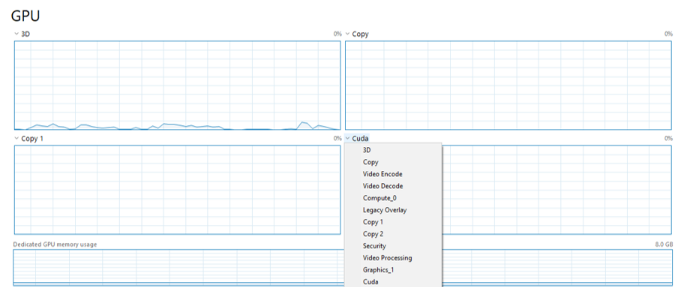
On the GPU tab, use the dropdown selectors to change the tasks being monitored on the GPU to show “Copy”, “Copy 1”, and “Cuda” (I recommend putting “Cuda” on the bottom right so you can see it align with the Dedicated GPU memory usage a bit):
On the GPU tab, use the dropdown selectors to change the tasks being monitored on the GPU to show “Copy”, “Copy 1”, and “Cuda” (I recommend putting “Cuda” on the bottom right so you can see it align with the Dedicated GPU memory usage a bit):
What you will see when you run a command:
The first time: The drive that the model is saved on will show heavy use, then the CPU will briefly have high usage as Wolfram compiles the HTTP request data. Then, when Ollama receives the command, your Dedicated GPU memory usage will start jumping up, probably nearly max out. Depending on the size of your model, you may also see activity in the Copy and Copy 1 windows. When the GPT reads the input, there will be a very brief spike in Cuda, and when the GPT responds, the Cuda will show consistent (and also typically high) activity. This will continue for the duration of its reply.
What you will see when you run a command:
The first time: The drive that the model is saved on will show heavy use, then the CPU will briefly have high usage as Wolfram compiles the HTTP request data. Then, when Ollama receives the command, your Dedicated GPU memory usage will start jumping up, probably nearly max out. Depending on the size of your model, you may also see activity in the Copy and Copy 1 windows. When the GPT reads the input, there will be a very brief spike in Cuda, and when the GPT responds, the Cuda will show consistent (and also typically high) activity. This will continue for the duration of its reply.
Crash Recovery
Crash Recovery
If you’re not sure if it’s crashed, check the Context dropdown to see if it’s returned an empty message.
If it continues to return an empty context:
Check the template
Uncheck the context
Check the variables ollamaVarCurrentQueryBodyChunksList and ollamaVarCurrentQueryAssociation to see what query was sent and if any errors were returned.
If it continues to return an empty context:
Check the template
Uncheck the context
Check the variables ollamaVarCurrentQueryBodyChunksList and ollamaVarCurrentQueryAssociation to see what query was sent and if any errors were returned.
If you are not seeing activity when you attempt a command, these are usually the best troubleshooting steps:
Click "Interrupt" first to stop any current request.
Try unchecking the image or context and resending the command (or other variables).
Click "Interrupt" first to stop any current request.
Try unchecking the image or context and resending the command (or other variables).
If all queries are failing:
Restart the Ollama application.
Rerun the "Run Once" for all of the functions (not the variables - you can and should keep your conversations and history).
Restart the Ollama application.
Rerun the "Run Once" for all of the functions (not the variables - you can and should keep your conversations and history).
Naming Conventions
Naming Conventions
All the variables and functions are in camelCase, they all start with “ollama”. The naming convention mostly applies. The names are long, but I felt that was better than making them too short and ambiguous (you can always do a find-and-replace).
ollamaVar - Variables that are used by the workbook
ollamaInput - Variables that are generally directly passed to the Ollama server
ollamaUse - Boolean variables that usually determine if an option is used in the Ollama HTTP request submission
ollamaFunc - Functions
ollamaFuncInput - Functions that generate variables directly passed to the Ollama server upon query submission
ollamaFuncButton - Functions that are used by buttons and don’t return a data type
ollamaInterface - Functions that make parts of the interface controls
The final words in the variable name are usually the data type.
ollamaVar - Variables that are used by the workbook
ollamaInput - Variables that are generally directly passed to the Ollama server
ollamaUse - Boolean variables that usually determine if an option is used in the Ollama HTTP request submission
ollamaFunc - Functions
ollamaFuncInput - Functions that generate variables directly passed to the Ollama server upon query submission
ollamaFuncButton - Functions that are used by buttons and don’t return a data type
ollamaInterface - Functions that make parts of the interface controls
The final words in the variable name are usually the data type.
Run Once
Run Once
Models
Models
Variables
Variables
Functions
Functions
Variables
Variables
HTTP Request
HTTP Request
Worksheet Functions
Worksheet Functions
Input Manipulation
Input Manipulation
Controls & Settings Interfaces
Controls & Settings Interfaces
Handler Functions
Handler Functions
Response Parsing
Response Parsing
Chat
Chat
In[]:=
Dynamic[ollamaInterfaceEverything]
ollamaInterfaceEverything
Responses
Responses
Current Response
Current Response
In[]:=
Dynamic[ollamaFuncBodyChunksToTextResponseString[ollamaVarCurrentQueryBodyChunksList]]
Out[]=
ollamaFuncBodyChunksToTextResponseString[ollamaVarCurrentQueryBodyChunksList]
Response Chain
Response Chain
In[]:=
Dynamic[ollamaFuncParseFullConversationChain[ollamaVarContextSelectedInt]]
Out[]=
ollamaFuncParseFullConversationChain[1]
CITE THIS NOTEBOOK
CITE THIS NOTEBOOK
Setup local AI with Ollama and Wolfram: A step-by-step guide for configuring on Windows systems
by Cameron Kosina
Wolfram Community, STAFF PICKS, June 29, 2024
https://community.wolfram.com/groups/-/m/t/3201543
by Cameron Kosina
Wolfram Community, STAFF PICKS, June 29, 2024
https://community.wolfram.com/groups/-/m/t/3201543