Make mobile maps: navigation app for images’ GPS locations
by Martin Siegenthaler
by Martin Siegenthaler
I present a set of smart phone applications that capture images and render maps using Wolfram Cloud. The Mobile applications are:
• Using the phone’s hardware, capturing photos and GPS locations and saving them to the Wolfram Cloud.
• On the phone, browse the captured photos, and generate directions to the capture point from the current location.
In addition to the Mobile applications, a Notebook application to browse and edit captured points.
• Using the phone’s hardware, capturing photos and GPS locations and saving them to the Wolfram Cloud.
• On the phone, browse the captured photos, and generate directions to the capture point from the current location.
In addition to the Mobile applications, a Notebook application to browse and edit captured points.
Overview Applications Flow
Overview Applications Flow
I've produced a suite of three applications to collect features, provide return direction to them and edit them. Features are locations that I may want to return. A feature consists of an image, GPS, location, type and note. The Collect and Return applications run on a smartphone utilizing the GPS and camera. Collect writes to a DataBin[], Return uses a DataStore[] and Edit updates the DataStore[]
1
.The ‘Feature Collect’ application on the smartphone, collects the current location, image and class of ‘feature’. The collected features are written to a Databin.
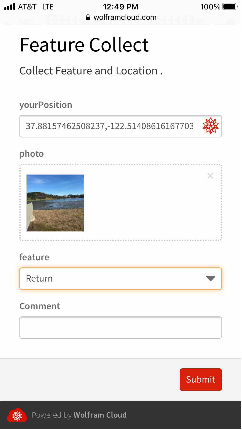
The 'yourPosition' value is derived from the phone. "Submit" pushes the data into Wolfram Cloud where the data is stored in a Databin[].
The 'yourPosition' value is derived from the phone. "Submit" pushes the data into Wolfram Cloud where the data is stored in a Databin[].
2
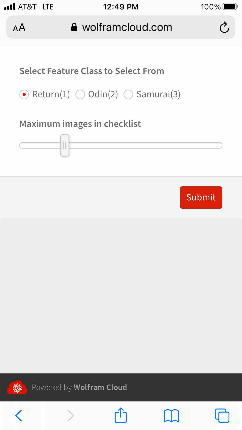
.The “Feature Return” application, generates directions from your current location back to the ‘feature’, using the phone’s GPS . It has a two page prompt . .
Select the feature type to return to. The number in parenthesis indicate the number of feature collected. The slider selects the maximum number of destinations.
2
.1
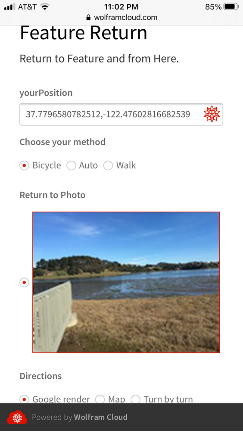
.Upon submitting the 1st page the second page collects the current GPS location. The page specifies …
2
.1
.1
.The image of the location to return.
2
.1
.2
.The method used to return.
2
.1
.3
. The form of the return directions.
3
.The resulting directions are dependent upon the 'Directions' selected.
3
.1
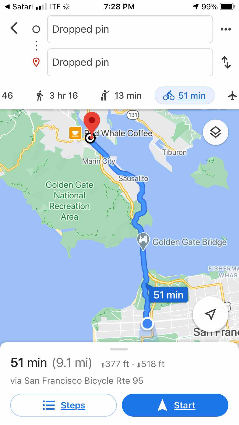
.Google : The application generates a redirect to Google maps
3
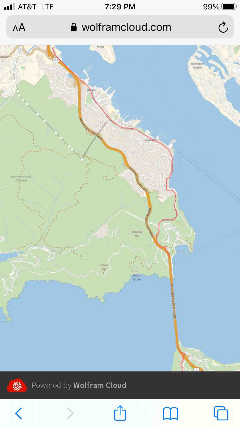
.2
.Map : Mathematica’s TravelDirections[] with graphics rendering.
3
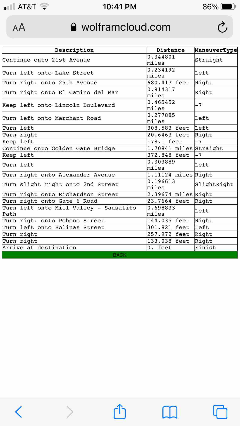
.3
.Turn by turn : Mathematica’s TravelDirections[] with Dataset rendering.
The Notebook application
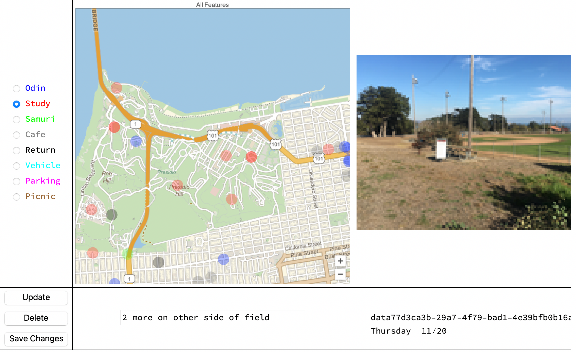
With the notebook application you can browse the features collected using the DynamicGeoGraphics[], change their feature designation, update the note field and delete a feature.
Data Flow
Data Flow
Configuration / Initialization
Configuration / Initialization
In[]:=
Enable Location Services:
Enable Location Services:
Collect and Return uses the phone’s geolocation. Using this feature requires enabling the platform's Location Services . The article How to Enable Location Services for Chrome, Safari, Edge, and Android/iOS Devices | GPS Setting goes through the process of enabling Location Services for various platforms (I develop on Apple hardware).
The phone applications works on desktop Chrome. Enabling the Location Services in Chrome will enable the application to fetch your desktop's GPS location.
In[]:=
Initialization
Initialization
The applications use two named data resources Databin[] and CloudExpression[] to store Features. Below the Databin[] and CloudExpression[] are named.
Name the Databin[], written to by the Collect:
In[]:=
ActBinName="features3";
Name the CloudExpresion[] the backing store of the Dataset[], used by Edit and Return:
In[]:=
ActCloundExpName="storeCldExp";
In[]:=
Create Databin when Necessary
Create Databin when Necessary
The Databin stores data collected by Collect. Data is never removed from the Databin. The data is mirrored in a Dataset where items are edited, and CloudExpression is a backing store.
If the Databin does not exist, create it, set the ActBinId:
In[]:=
nameIdAssoc=Table[row["Name"]->row["ShortID"],{row,Databins[]}]//Association;If[MissingQ[nameIdAssoc[ActBinName]],CreateDatabin[ActBinName],None];Table[row["Name"]->row["ShortID"],{row,Databins[]}]//Association;ActBinId=%[ActBinName];Style["Active Bin Name:"<>ActBinName<>" Active Bin Id:"<>ActBinId,Blue]
Out[]=
Active Bin Name:features3 Active Bin Id:Thn90rR6
In[]:=
Prompt for CloudExpression Initialization
Prompt for CloudExpression Initialization
CloudExpression holds the state of the collected Features. The Edit application reads/writes values while Return reads them. New entries in the Databin are migrated to this storage. You will want to initialize the first time through or to reset the edits.
Prompt to initialize/reset the backing store:
In[]:=
initializeSaveDs:={DeleteCloudExpression[ActCloundExpName],Pause[5],ActCloudExp=CreateCloudExpression[Missing["NO Data"],ActCloundExpName]}prompt:=ChoiceDialog[Style["Initialize the saved dataset:\n Edits will be lost!",Red]];If[prompt,initializeSaveDs,"Not Initalizing"];
In[]:=
Common variables
Common variables
ColorMarkMap defines the name of the the features and the color they are rendered on the Edit map:
In[]:=
FeatureColorMap="Odin","Study","Other","Cafe","Return","Vehicle","Parking","Picnic","Samurai";


In[]:=
Features=Keys[FeatureColorMap];FeatureColors=Values[FeatureColorMap];
In[]:=
Populate the Databin with test data
Populate the Databin with test data
Generate test data with Hospitals close by along with random images of Hospitals:
In[]:=
testIdentifier="TestSample";generateTestSample[count_Integer]:=Module{locs,imgs},locs=GeoNearest["Hospital",Here,count];imgs=WebImageSearch["Hospital",count];Table"photo"Thumbnail[imgs〚idx〛],"position"locsidx,"feature""Samurai","note"testIdentifier,{idx,count}
Only load the data once, check if the 'testIdentifier' value is in the note field to prevent reloads of the test data:
In[]:=
If[0==Length[Select[Databin[ActBinId]["Values"]["note"],StringMatchQ[testIdentifier]]],Table[DatabinAdd[Databin[ActBinId],ele],{ele,generateTestSample[3]}],"Sample data in place already"]
Out[]=
Databin,Databin,Databin


Feature Collect - Web Application
Feature Collect - Web Application
The Collect application retrieves the current GPS location, collects a photo using the camera, has a feature dropdown list and a note text field. On submission, the collected data is pushed to the Cloud and stored in the Databin.
Retrieving the GPS involves invoking a JavaScript function in the browser, navigator.geolocation.getCurrentPosition(). The community posting, 'Exact GeoPosition From Form Function' is where I learned about interfacing to the browser's geolocation functions and utilizing Google's map service.
In[]:=
Code - collect: photo, GPS, feature and store in Databin.
Code - collect: photo, GPS, feature and store in Databin.
Code Notes:
◼
The JavaScript (<script>..</script>) has the callback of getCurrentPosition() and writes the GPS location into yourPosition.
◼
An image is collected from the phone's photo roll or the camera written into photo.
◼
A drop down will be composed of Features list elements, the selected feature will be written to feature
◼
A text line input will be written to note.
◼
"Submit" pushes the data to Cloud server. At the server the photo is reduced via Thumbnail[] and saved to the Databin along with yourPosition, feature and note.
Build and deploy to the cloud the web application:
In[]:=
appGpsID=CloudDeploy[FormFunction[{EmbeddedHTML@StringJoin["<script>function initYourPosition( position ) { document.getElementsByName('yourPosition')[0].value = ''+position.coords.latitude+','+position.coords.longitude;}</script>","<script>navigator.geolocation.getCurrentPosition(initYourPosition)</script>"],"yourPosition""GeoCoordinates","photo""Image""https://upload.wikimedia.org/wikipedia/en/4/48/Blank.JPG","feature"Features,{"note","Comment"}"TextLine"""},Module[{},DatabinAdd[Databin[ActBinId],{"photo"Thumbnail[#photo],"feature"#feature,"note"#note,"position"#yourPosition}];HTTPRedirect[URLBuild["https://upload.wikimedia.org/wikipedia/commons/1/1d/Georg_von_Rosen_-_Oden_som_vandringsman%2C_1886_%28Odin%2C_the_Wanderer%29.jpg"]]]&,AppearanceRules<|"Title""Feature Collect","Description""Collect Feature and Location ."|>],"featureCollect",Permissions"Public"]
Out[]=
Generate a QR code for easy phone access:
In[]:=
BarcodeImage[Last[appGpsID],"QR"]
Out[]=

Migrate from Databin[] to Dataset[]
Migrate from Databin[] to Dataset[]
The Databin is used to collect data, It’s easy to add new entries (AddDatabin[]) and retrieve (Get[<databin>]) all entries. Databin functionality does not include editing entries. To get around this limitation, the features are migrated to a Dataset[] for manipulation. The Dataset is written to a CloudExpression where it is accessed by the Return and Edit applications.
Having a duplicate copy of the data requires keeping them synchronized. This is accomplished with the MigrateEntries[Dataset, Databin] function that is invoked before features are used. ( simple - but clumsy.)
The UUID is used to synchronize the storage. This does not remove entries from the Dataset, setting deleted field removes the entry from the view.
MigrateEntries[Dataset, Databin] : Migrate Data
MigrateEntries[Dataset, Databin] : Migrate Data
MigrateEntries[] migrates features from the Databin[] to the Dataset[] . "StartTime" specification on the Databin retrieves entries to be migrated . As new entries are added to the Dataset[] they are enhanced. The updated Databin[] is written to CloudExpression[] for storage.
Clean up:
In[]:=
ClearAll[appendDatabin,MigrateEntries];
Append Databin to Dataset - deriving columns:timestamp, uuid and deleted fields:
In[]:=
appendDatabin[ds_Dataset,dbSelect_Databin/;dbSelect["EntryCount"]0]:=ds;appendDatabin[ds_Dataset,dbSelect_Databin]:=Module[{freshEntriesDs,updatedDs=ds},freshEntriesDs=Dataset[Append[#["Data"],{"timestamp"->#["Timestamp"],"uuid"#["UUID"],"deleted"False}]&/@Get[dbSelect]];Table[AppendTo[updatedDs,newEntry],{newEntry,Normal[freshEntriesDs]}];updatedDs]
Get the most recent entry of the dataset to select the newest entries to the databin:
In[]:=
MigrateEntries[ds_Dataset,db_Databin]:=Module[{lastTimeStamp,dbSelect},lastTimeStamp=ds[TakeLargest[1],"timestamp"]//Last;dbSelect=Databin[db,<|"StartTime"lastTimeStamp|>];appendDatabin[ds,dbSelect]]
Initially nothing is in the Dataset, extract everything from Databin :
In[]:=
MigrateEntries[ds_Missing,db_Databin]:=Module[{},Dataset[Append[#["Data"],{"timestamp"->#["Timestamp"],"uuid"#["UUID"],"deleted"False}]&/@Get[db]]]
Handle various input combinations :
In[]:=
MigrateEntries[cloudExpressionId_String,db_Databin]:=Module[{},MigrateEntries[CloudExpression[cloudExpressionId][],db]]MigrateEntries[cloudExpressionId_String,dataBinId_String]:=Module[{},MigrateEntries[CloudExpression[cloudExpressionId][],Databin[dataBinId]]]
In[]:=
Migrate from Databin to Dataset and save to CloudExpression
Migrate from Databin to Dataset and save to CloudExpression
Initialize if necessary, make sure everything is in order
Pull data from CloudExpression (Dataset) and update it with new Databin values:
In[]:=
StoreDs=MigrateEntries[ActCloundExpName,ActBinId];
Commit the changes, store the updated Dataset to the CloudExpression, it is necessary to delete the CloudExpression before rewriting.
In[]:=
DeleteCloudExpression[ActCloundExpName]Pause[10];CreateCloudExpression[StoreDs,ActCloundExpName];
Load the CloudExpression contents, used for verification tests:
In[]:=
ActCloudExp=CloudExpression[ActCloundExpName];
Verify the migration:
In[]:=
actBin=Databin[ActBinId];If[Length[ActCloudExp[]]≠actBin["EntryCount"],Style["Commit Failure : Databin and CloudExpression not Equal... ",Red,Large],Style["Commit Ok",Blue]]
Out[]=
Commit Ok
Feature Edit - Notebook Application
Feature Edit - Notebook Application
The FeatureEdit notebook application is used to browse and edit features collected with FeatureCollect Application. It moves collected data into Dataset for editing. When done ‘Save Changes’ writes the data out to a CloudExpression.
◼
Note: Running this Notebook application in the wolframcloud, the Tooltip buttons do not appear in DynamicGeoGraphics, I developed this on the desktop.
Load the Dataset with the most current version of the data:
In[]:=
StoreDs=MigrateEntries[ActCloundExpName,ActBinId];
Clean the memory:
In[]:=
ClearAll[imageActive,elementAction,noteActive,featureActive,textActive,selectorFeatures,timeFmt,uuidTimeFmt,uiVarsUpdate,generateGeoGraphics,generateGeoPoints,updateCloudExpression]
In[]:=
Support routines for Edit functionality.
Support routines for Edit functionality.
Feature name to color mapping:
In[]:=
colorMark[feature_String]:=Graphics[{FeatureColorMap[feature],Opacity[.9],Disk[{.5,.5}]}]
Time formatting:
In[]:=
timeFmt[ts_DateObject]:=DateString[ts,{"DayName"," ","Month","/","YearShort"}];uuidTimeFmt=StoreDs[All,#uuid->timeFmt[#timestamp]&]//Normal//Association;
Association to organize the map’s features color and the corresponding radio button:
In[]:=
selectorFeatures=Table[Apply[Style,ele],{ele,Partition[Riffle[Features,FeatureColors],2]}];colorFeatures=Table[ToString[ele]ele,{ele,selectorFeatures}]//Association;
Update dynamic variables of Feature:
In[]:=
uiVarsUpdate[uuidParm_String]:={(*updatedynamicvariablesthattodisplayfeaturesspecific*)elementAction=Query[SelectFirst[#uuiduuidParm&],All]@StoreDs;imageActive=elementAction["photo"];featureActive=colorFeatures[elementAction["feature"]];noteActive=elementAction["note"];textActive=uuidParm"\n"<>uuidTimeFmt[uuidParm];}uiVarsUpdate[StoreDs[[1]]["uuid"]];(*initalizevariables*)Dynamic[elementAction];Dynamic[imageActive];
Locate the median of all the points, center the map:
In[]:=
geoMapCenter=StoreDs[All,"position"]//Normal//SpatialMedian;
Generate points with a tooltip:
In[]:=
generateGeoPoints[storeDs_]:=Tooltip[Button[GeoMarker[#[[1]],colorMark[#[[3]]]],uiVarsUpdate[#[[2]]]],uuidTimeFmt[#[[2]]]]&/@Normal[storeDs[Select[#deletedFalse&],{"position","uuid","feature"}]];
Generate map using the points:
In[]:=
generateGeoGraphics[storeDs_]:=DynamicGeoGraphics[generateGeoPoints[storeDs],GeoRangeQuantity[7,"Miles"],GeoZoomLevel11,GeoCentergeoMapCenter,PlotLabel"All Features"];
Save the updates back to CloudExpression:
In[]:=
updateCloudExpression[cldExpId_String,storeDs_Dataset]:=Module[{storeCldExp},DeleteCloudExpression[cldExpId];storeCldExp=CreateCloudExpression[storeDs,cldExpId];If[Length[storeCldExp[]]!=Length[storeDs],Style["Commit Failure : Dataset and CloudExpression not Equal... ",Red,Large],Style["Commit Ok",Blue]]]
Bring up the application
Bring up the application
Fold all the support functions into a Grid that is Dynamic:
In[]:=
DynamicModule[{geoGraphics=generateGeoGraphics[StoreDs]},Dynamic[Grid[{{RadioButtonBar[Dynamic[featureActive],selectorFeatures,Appearance"Vertical"],Dynamic[Show[imageActive,ImageSizeMedium]],geoGraphics,},{Column[{Button["Update",{uuidIdx=PositionIndex[Normal[StoreDs[All,"uuid"]]][elementAction["uuid"]]//First,StoreDs=ReplacePart[StoreDs,{uuidIdx,"note"}noteActive],StoreDs=ReplacePart[StoreDs,{uuidIdx,"feature"}ToString[featureActive]],uiVarsUpdate[uuidIdx]}],Button["Delete",{uuidIdx=PositionIndex[Normal[StoreDs[All,"uuid"]]][elementAction["uuid"]]//First,StoreDs=ReplacePart[StoreDs,{uuidIdx,"deleted"}True],geoGraphics=generateGeoGraphics[StoreDs]}],Button["Save Changes",{textActive=updateCloudExpression[ActCloundExpName,StoreDs]}]}],InputField[Dynamic[noteActive],String],Dynamic[textActive]}},FrameAll]],SaveDefinitionsTrue]
| | |||||||||||||||||||||||||||||
datab6946aef-7f20-48ee-a5c1-d26a0771f178 Friday 02/21 | |
Return to Feature - Web Application
Return to Feature - Web Application
The ReturnFeature web application prompts for the Feature type to return to, followed by the RadioButton list of photo Features. Returning to a Feature involves using the current location and the Feature’s capture location to build a set of directions. Directions come in three forms : Google Map, Wolfram Map or Wolfram turn-by-turn.
This is a two stage selection. The first selects the type of feature to render followed, by the a list of all the features of the specified type. Selecting the features brings up a map to the feature.
Load the Dataset with the most current version of the data:
In[]:=
StoreDs=MigrateEntries[ActCloundExpName,ActBinId];
In[]:=
Generate a map - test
Generate a map - test
Bring the data up to date, migrating new Features from the Databin to the Dataset, and work with the Dataset exclusively after migration.
In[]:=
generateMapPathHtml : build map.
generateMapPathHtml : build map.
Get an entry from the test set:
In[]:=
hospitalEntry=StoreDs[Select["TestSample"#note&]]//First;end=hospitalEntry["position"]
Out[]=
GeoPosition[{38.3971,-122.819}]
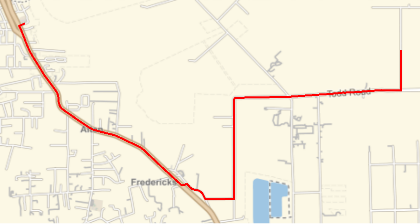
Get a feel for the various TravelMethods:
In[]:=
start=Here;end=hospitalEntry["position"];Last[StoreDs]["position"];TabView[#->GeoGraphics[Style[Line[TravelDirections[{start,end},TravelMethod#]],Thick,Red]]&/@{"Driving","Biking","Walking"}]
Out[]=
Driving
Biking
Walking
In[]:=
Build Return to Feature page (prompt and render)
Build Return to Feature page (prompt and render)
◼
build rule list image -> gps location
◼
display list on frame
◼
get current location from browser
◼
selector for output: map, turn-by-turn direction list
◼
generate TravelDirections
◼
render directions based on selector
◼
compose WebForm
◼
deploy
photoSelectorBuild[] : Map from Image to GPS for Form’s selector
photoSelectorBuild[] : Map from Image to GPS for Form’s selector
Build a list of images sorted by time, constrained by feature and deleted set to False with a maximum of recent elements. Present at the browser in a checkbox list to select the Feature destination.
Build image->position selector list:
In[]:=
ClearAll[photoSelectorBuild]photoSelectorBuild[storeDs_Dataset,feature_String:"Return",recent_Integer:4]:=Module[{recentOrdered,actFeatures,photoGpsList},actFeatures=storeDs[Select[#featurefeature&&Not[#deleted]&]];recentOrdered=actFeatures[TakeLargestBy["timestamp",UpTo[recent]]];photoGpsList=ImageResize[#["photo"],Medium]#["position"]&/@Normal[recentOrdered];photoGpsList]
Verify photSelectorBuild[], using the test data:
In[]:=
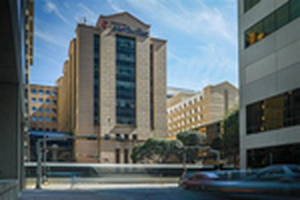
photoSelectorBuild[StoreDs,"Samurai",25]
Out[]=
GeoPosition[{38.4715,-122.726}],
GeoPosition[{38.4437,-122.701}],

GeoPosition[{38.3971,-122.819}]

In[]:=
travelScale[] :
travelScale[] :
Determine scale based upon TravelDistance and Method:
In[]:=
travelScale[travel_TravelDirectionsData,method_String]:=Module[{},Return[If[method"Walking",1,If[method=="Biking",2,5]]]]
generateMapPathHtml[] : build the bike, car, walking routes - (polymorphic)
generateMapPathHtml[] : build the bike, car, walking routes - (polymorphic)
Generate the map depending on the GPS start and end locations, method of travel (car, bicycle, walk) type of directions (Google map, TravelDirections map, turn-by-turn).
◼
Note the '/;display == value' to select which type of map to display: Wolfram , Turn-by-Turn or Google.
◼
Example of URL to build the redirect to goggle maps, template for building redirect
https://www.google.com/maps/dir/?api=1&origin=37.7796936019619,-122.47587202694933&destination=47.5951518,-122.3316393&travelmode=bicycling
https://www.google.com/maps/dir/?api=1&origin=37.7796936019619,-122.47587202694933&destination=47.5951518,-122.3316393&travelmode=bicycling
Generate map using TravelDirections[]:
In[]:=
generateMapPathHtml[start_GeoPosition,end_GeoPosition,method_String:"Biking",display_String:"map"]:=Module[{scale,travelDirect},travelDirect=TravelDirections[{start,end},TravelMethodmethod];scale=travelScale[travelDirect,method];GeoGraphics[Style[Line[travelDirect],Thick,Lighter[Red]],GeoRangeQuantity[scale,"Miles"],ImageSize{750,1334}]]/;display"map"
Static HTML to render the turn-by-turn directions:
In[]:=
backButtonHtml="<button onclick=\"goBack()\">BACK</button>";scriptHtml="<script>function goBack(){window.history.back();}</script>";styleHtml=;
Generate an HTML page with turn-by-turn directions using TravelDirections[]:
In[]:=
generateMapPathHtml[start_GeoPosition,end_GeoPosition,method_String:"Biking",display_String:None]:=Module[{headHtml,tableHtml,rowsHtml,td,ds,rows},td=TravelDirections[{start,end},TravelMethodmethod];ds=td["Dataset"][All,{"Description","Distance","ManeuverType"}];headHtml="<th>"~~#~~"</th>"&/@Keys[Normal[ds[[1]]]]//StringJoin;rows=Table[StringJoin["<td>"~~ToString[#]~~"</td>"&/@Values[Normal[ele]]],{ele,Normal[ds]}];rowsHtml="<tr>"~~#~~"</tr>"&/@rows;tableHtml=StringJoin["<table>","<tr>",headHtml,"</tr>",rowsHtml,"</table>"];StringJoin[styleHtml,scriptHtml,tableHtml,backButtonHtml]]/;display"list"
Generate map by passing off to Google map :
In[]:=
generateMapPathHtml[start_GeoPosition,end_GeoPosition,method_String:"Biking",display_String:"map"]:=Module[{scale,td,mapMethod,html},td=TravelDirections[{start,end},TravelMethodmethod];scale=travelScale[td,method];mapMethod=<|"Biking""bicycling","Walking""walking","Driving""driving","Transit""transit"|>[method];html="<html><head><meta http-equiv=\"refresh\" content=\"0; url=https://www.google.com/maps/dir/?api=1&origin=`origin`&destination=`destination`&travelmode=`mode`\"/></head></html>";StringTemplate[html][<|"origin"Row[start["LatitudeLongitude"],","],"destination"Row[end["LatitudeLongitude"],","],"mode"mapMethod|>]]/;display"google"
buildDateFeatureOrdered[]: ordered by most recent added feature element
buildDateFeatureOrdered[]: ordered by most recent added feature element
Generate a list of rules ordered by the most recently type added, used to populate the RadioButtonBar[].
The feature most recently added will be the default selection:
In[]:=
ClearAll[featurePrompt]featurePrompt[storeDs_Dataset]:=Module[{groupDs,orderedFeatureDs,featureLength},timeLengthItem[lst_List]:={Max[#["timestamp"]&/@lst],Length[#["timestamp"]&/@lst]};groupDs=storeDs[GroupBy[Key["feature"]],Select[Not[#deleted]&]];orderedFeatureDs=Reverse[Sort[groupDs[All,timeLengthItem[#]&]]];featureLength=Normal[orderedFeatureDs[All,2]];Table[key<>"("<>ToString[featureLength[key]]<>")"key,{key,Keys[featureLength]}]]featurePrompt[StoreDs]
Out[]=
{Samurai(3)Samurai}
In[]:=
Build multipart form and Deploy.
Build multipart form and Deploy.
The two part prompt gets the variables : yourPosition, photoGps, method and display which are pushed to the Cloud application.
The Cloud application calls generateMapPathHtml[] which returns the HTML page with the return to Feature directions.
The Cloud application calls generateMapPathHtml[] which returns the HTML page with the return to Feature directions.
In[]:=
part 1 : prompt for feature and maxImages
part 1 : prompt for feature and maxImages
◼
RadioButtonBar of Feature type ordered by the most recently added.
◼
Slider of maximum features (images) to return - ask for too many and the session times out building up the return page.
Page 1 of 2 page prompt:
In[]:=
featureMaxAsk[storeDs_]:=Ask[{"feature"<|"Interpreter"->featurePrompt[storeDs],"Label""Select Feature Class to Select From","Control"RadioButtonBar,"Input"Last[First[featurePrompt[storeDs]]]|>,"maxImages"<|"Interpreter"Restricted["Number",{1,20,1}],"Label""Maximum images in checklist","Control"Slider,"Input"5|>}];
In[]:=
part 2 : get current GPS and selected image to generate directions
part 2 : get current GPS and selected image to generate directions
◼
The inner Ask[] is done when the EmbededdedHTML is composed.
◼
'feature' and 'maxImages' are retrieved from part1 using Ask[]
◼
Using Delayed[] so that the evaluation of the generateMapPathHtml[] happens on submission, not at deployment.
◼
JavaScript fetches the phones GPS location into 'yourPosition' as above.
Build and deploy application:
In[]:=
featureReturn=CloudDeploy[Delayed[AskFunction[storeDs=MigrateEntries[ActCloundExpName,ActBinId];featureMaxAsk[storeDs];(*debugginghint-rendercloudvaluesAskDisplay["cloud:"<>ActCloundExpName<>" gps:"<>ActBinId];AskDisplay["Number of elements:"<>ToString[Length[storeDs]]];*)FormFunction[{EmbeddedHTML@StringJoin["<script>function initYourPosition( position ) { document.getElementsByName('yourPosition')[0].value = ''+position.coords.latitude+','+position.coords.longitude;}</script>","<script>navigator.geolocation.getCurrentPosition(initYourPosition)</script>"],"yourPosition""GeoCoordinates","method"<|"Interpreter"{"Bicycle""Biking","Auto""Driving","Walk""Walking"},"Label""Choose your method","Control"RadioButtonBar,"Input""Biking"|>,{"photoGps","Return to Photo"}photoSelectorBuild[storeDs,Ask["feature"],Ask["maxImages"]],"display"<|"Interpreter"{"Google render""google","Map""map","Turn by turn""list"},"Label""Directions","Control"RadioButtonBar,"Input""Google render"|>},Module[{generatedMap},(*passingthoughModule[]makesiteasiertofollowtheprocessing*)generatedMap=generateMapPathHtml[#yourPosition,#photoGps,#method,\#display];Return[generatedMap]]&,Automatic,AppearanceRules<|"Title""Feature Return","Description""Return to Feature and from Here."|>]]],"featureReturn",Permissions"Public"]
Out[]=
In[]:=
BarcodeImage[Last[featureReturn],"QR"]
Out[]=