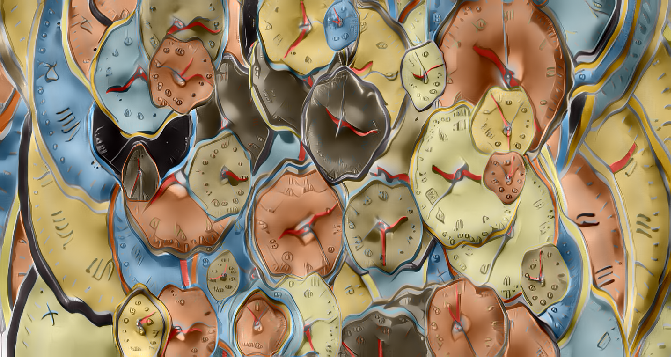
When I was thinking about how to contribute with an entry to the Wolfram Computational Art Contest 2022, I suddenly realized that time is a topic that never gets old. Indeed time, impermanence, death, and decay are recurrent themes in the visual arts, and their depiction, time and again, involves the representation of old-fashioned mechanical clocks.
As far as traditional surrealist paintings are concerned, Dalí’s “The Persistence of Memory” easily comes to mind in this context. Here is a link to the Wikipedia article that contains the following description about Dalí’s famous masterpiece:
In[]:=
TextSentences[WikipediaData["the persistence of memory","ArticlePlaintext"]][[;;9]]//Row
Out[]=
The Persistence of Memory (Catalan: La persistència de la memòria) is a 1931 painting by artist Salvador Dalí and one of the most recognizable works of Surrealism.First shown at the Julien Levy Gallery in 1932, since 1934 the painting has been in the collection of the Museum of Modern Art (MoMA) in New York City, which received it from an anonymous donor.It is widely recognized and frequently referred to in popular culture, and sometimes referred to by more descriptive titles, such as "Melting Clocks", "The Soft Watches" or "The Melting Watches".== Analysis ==The well-known surrealist piece introduced the image of the soft melting pocket watch.It epitomizes Dalí's theory of "softness" and "hardness", which was central to his thinking at the time.As Dawn Adès wrote, "The soft watches are an unconscious symbol of the relativity of space and time, a Surrealist meditation on the collapse of our notions of a fixed cosmic order".This interpretation suggests that Dalí was incorporating an understanding of the world introduced by Albert Einstein's theory of special relativity.Asked by Ilya Prigogine whether this was in fact the case, Dalí replied that the soft watches were not inspired by the theory of relativity, but by the surrealist perception of a Camembert melting in the sun.
I’m very fond of soft French cheese, so this whole story inspired me to give some thought to Dalí’s “melting clocks.”
So it all begins with clocks. As it happens, a straighforward way of generating images of clocks in the Wolfram Language is to use ClockGauge:
In[]:=
ClockGauge[]
Out[]=
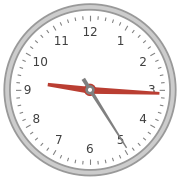
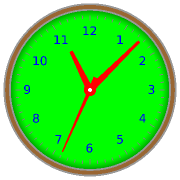
Of course there are several options available for customization. Below, I randomize the hours, minutes and seconds, and apply some arbitrary colors:
In[]:=
ClockGauge[Flatten[{RandomInteger[24],RandomInteger[60,2]}],GaugeFrameStyleBrown,GaugeFaceStyleGreen,GaugeFaceElementFunction"PlateauSector",GaugeStyleRed,LabelStyleBlue,PerformanceGoal"Speed"]
Out[]=
If we want to emulate old watches to a certain extent, first of all we need to use Roman numerals, as any picture of an old clock is going to show. And since I didn’t find a direct way of replacing Latin numerals with Roman numerals within ClockGauge, I used the following approach:
In[]:=
ReplaceAll[ClockGauge[{7,10,55}],Text[n_Integer,r__]:>Text[RomanNumeral[n],r]]
Out[]=
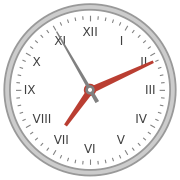
But there is clearly a problem here: in most, if not all, old clocks, the Roman numerals (as opposed to Latin numerals) are rotated according to their position around the clock. So I needed to make the following modification in the code:
In[]:=
ReplaceAll[ClockGauge[{7,15,30}],Text[n_Integer,r__]:>Text[Rotate[RomanNumeral[n],(-30°)n],r]]
Out[]=
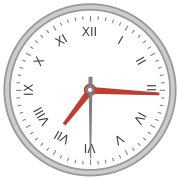
By extracting the dominant colors of “The Persistence of Memory,” we can use them to produce images whose color palette remind us a bit of the original. Of course the Wolfram Language has a function for that as well:
In[]:=
colors=DominantColors[WebImageSearch["the persistence of memory"]//First]
Out[]=
,,,,,,,
Let us now examine each portion of the code that generated my piece of computational art.
First, we are going to see how to create a single clock with random time, random colors (from the dominant colors extracted above) and the roman numerals:
In[]:=
singleClock=ReplaceAll[ClockGauge[Flatten[{RandomInteger[24],RandomInteger[60,2]}],GaugeFrameStyleRandomChoice[colors],GaugeFaceStyleRandomChoice[colors],GaugeFaceElementFunction"GlassSector",GaugeStyleRandomChoice[colors],LabelStyleRandomChoice[colors],PerformanceGoal"Quality"],Text[n_Integer,r__]Text[Rotate[RomanNumeral[n],(-30°)n],r]]
Out[]=
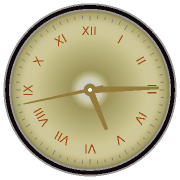
Now we want to generate a list of clocks, randomly dispersed over the “canvas,” so to speak.
In[]:=
allClocks=Table[Inset[singleClock=ReplaceAll[ClockGauge[Flatten[{RandomInteger[24],RandomInteger[60,2]}],GaugeFrameStyleRandomChoice[colors],GaugeFaceStyleRandomChoice[colors],GaugeFaceElementFunction"GlassSector",GaugeStyleRandomChoice[colors],LabelStyleRandomChoice[colors],PerformanceGoal"Quality"],Text[n_Integer,r__]Text[Rotate[RomanNumeral[n],(-30°)n],r]],RandomInteger[{-5,5},2],Automatic,i],{i,10,1,-.1}];
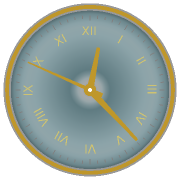
Let us take a look at a few ones:
In[]:=
allClocks//Short
Out[]//Short=
Inset
,{-1,0},Automatic,10.,89,Inset
,{0,-1},Automatic,1.
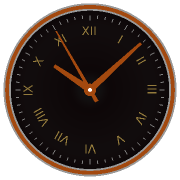
Note the use of Inset in order to provide random coordinates and “sizes” to all the clocks generated with ClockGauge, for us to use them within the function Graphics.
As far as size is regarded, I chose to start with the biggest clock and produce smaller and smaller ones, but of course other arrangements are possible.
Now it’s time to see what we got (for the background I chose to blend all the colors):
In[]:=
painting=Rasterize@Graphics[allClocks,ImageSizeFull,BackgroundBlend[colors]]
Out[]=
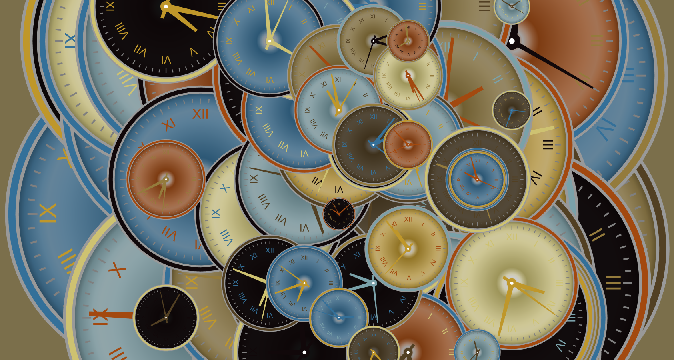
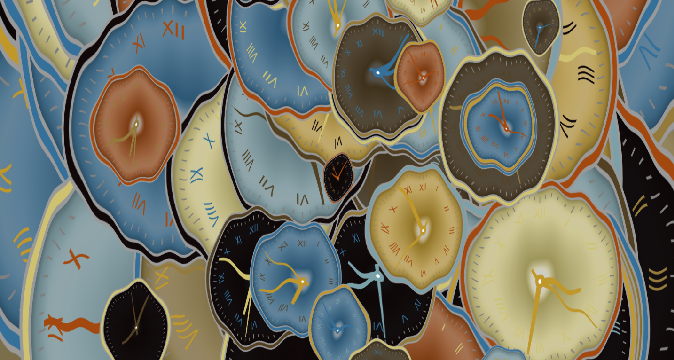
Now regarding form, it’s pretty clear that the “melting” clocks are at the foreground of Dalí’s famous painting. The code below, that uses the handy ImageTransformation function, provides a straightforward way of acquiring an effect that is remotely inspired by Dalí’s original idea. It also crops the image to remove unwanted borders:
In[]:=
transformedPainting=ImageCrop[ImageTransformation[painting,{10Sin[.03#[[1]]]+#[[1]],5Sin[.1#[[1]]]+.8#[[2]]}&,DataRangeFull],IntegerPart[#-.15#]&/@ImageDimensions[painting]]
Out[]=
We can provide a final touch to the image using the function ImageRestyle. An interesting way of using it is taking the image itself as the “style,” and applying a few iterations:
In[]:=
finalPainting=Nest[ImageRestyle[#,#,PreserveColorTrue,TargetDevice"GPU"]&,transformedPainting,3]
Out[]=
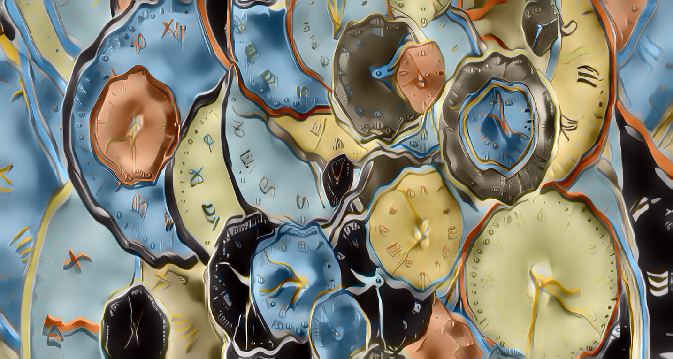
Note that I used my graphics card in order to accelerate the process, but if you don't have one at hand, you need to change the target device to "CPU".
In the description above I broke the code into parts, for the sake of explaining the steps involved. Here is the entire code, organized in a better way:
In[]:=
SeedRandom[rn=RandomInteger[10000]];rncolors=,,,,,,,;singleClock:=ReplaceAll[ClockGauge[Flatten[{RandomInteger[24],RandomInteger[60,2]}],GaugeFrameStyleRandomChoice[colors],GaugeFaceStyleRandomChoice[colors],GaugeFaceStyleBlend[{Black,RandomChoice[colors]}],GaugeFaceElementFunction"GlassSector",LabelStyleBlend[{Black,RandomChoice[colors]}],PerformanceGoal"Quality"],Text[n_Integer,r__]Text[Rotate[RomanNumeral[n],(-30°)n],r]]allClocks:=Table[Inset[singleClock,RandomInteger[{-5,5},2],Automatic,i],{i,10,1,-.05}]painting:=Rasterize[Graphics[allClocks,ImageSizeFull,BackgroundBlend[colors]]]transformedPainting:=ImageCrop[ImageTransformation[#,{10Sin[.03#[[1]]]+#[[1]],5Sin[.1#[[1]]]+.8#[[2]]}&,DataRangeFull],IntegerPart[#-.15#]&/@ImageDimensions[#]]&@paintingNest[ImageRestyle[#,#,PreserveColorTrue,TargetDevice"GPU"]&,transformedPainting,3]
Out[]=
2332
Out[]=
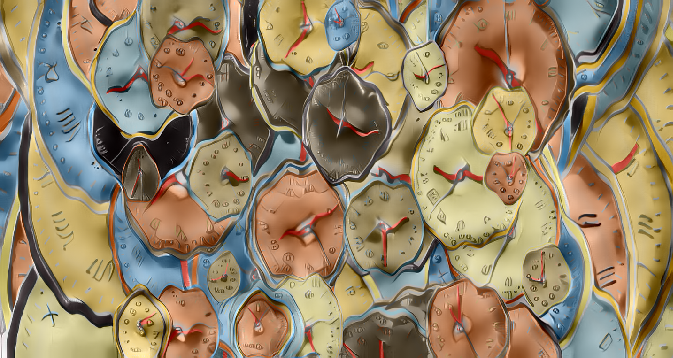
This is the image that I chose for this contest. I hope you enjoyed it!