Face Emoji Identification
Face Emoji Identification
Training a Classifier to Learn Various Types of Face Emojis and Identifying Them in an Image
Training a Classifier to Learn Various Types of Face Emojis and Identifying Them in an Image
Author/Mentor/Date
Author/Mentor/Date
Author: Jade Han
Mentor: Faizon Zaman
Date: July 12th, 2019
Mentor: Faizon Zaman
Date: July 12th, 2019
Introduction
Introduction
So, what does it mean to train a classifier to learn various types of face emojis and identify them in an image? For example, a person might add a face emoji on his or her image in order to decorate it. When the image is processed, the program should be able to find the face emojis he or she used in the image. After locating them, the program should return what the face emoji is, such as, ‘Crying face’ or ‘Sleepy face.’
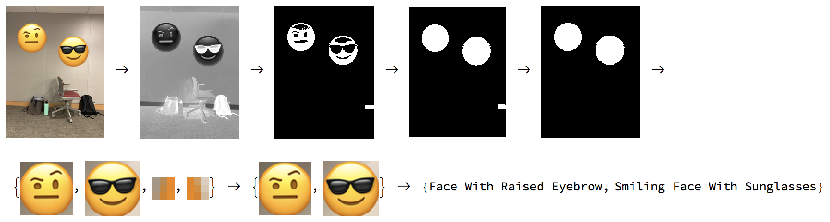
Finding Face Emojis in an Image
Finding Face Emojis in an Image
Locating the emojis is accomplished via SelectComponents and a masking workflow using ColorDistance and Filling Transform. I made a few example images to test my functions.
Example Image
Example Image

Step One: Color Distance
Step One: Color Distance
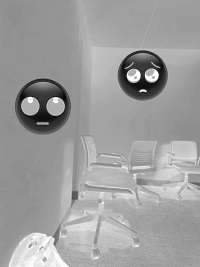
Given that most of the face emojis have a dominant color of yellow, I ran ColorDistance with yellow on the example image.
Gray-scale image where darker shades are closer to the target color, yellow
In[]:=
stepOne=ColorDistanceexampleImage,

Out[]=
Step Two: Binarize
Step Two: Binarize
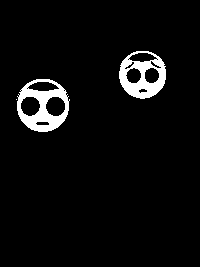
I then applied the Binarize function to the output of ColorDistance in order to get a black and white image.
Generate the Binarized image where pixel values between 0 and 0.3 become 1 and all others values become 0
In[]:=
stepTwo=Binarize[stepOne,{0,0.3}]
Out[]=
Step Three: FillingTransform
Step Three: FillingTransform
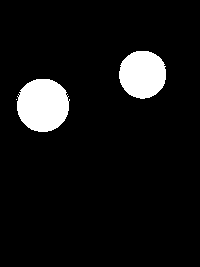
After taking the step of Binarize, I used FillingTransform in order to get perfect circles in the example image.
Simplified features of the image by filling the entire circle with white
In[]:=
stepThree=FillingTransform[stepTwo]
Out[]=
Step Four: SelectComponents
Step Four: SelectComponents
Next, I used SelectComponents to find features with circularity greater than .9 in the example image
Detects the circles in the image
In[]:=
stepFour=SelectComponents[stepThree,#Circularity>.9&]
Out[]=
Step Five: ComponentMeasurements
Step Five: ComponentMeasurements
I then applied ComponentMeasurements which returned the position of those circles.
Position of the circles in the image
In[]:=
stepFive=ComponentMeasurements[stepFour,{"Centroid","EquivalentDiskRadius"},All,"ComponentPropertyAssociation"]
Out[]=
1Centroid{142.672,192.477},EquivalentDiskRadius23.8566,2Centroid{43.022,161.744},EquivalentDiskRadius26.5169,3Centroid{16.5,167.5},EquivalentDiskRadius0.56419
Step Six: Disk
Step Six: Disk
Later, Disk function became useful. It created a disk out of centroid and equivalent disk radius properties, helping me to find the exact coordinates of the circles’ positions.
Disk created out of centroid and equivalent disk radius properties
In[]:=
stepSix=Disk[#Centroid,#EquivalentDiskRadius]&/@stepFive
Out[]=
1Disk[{142.672,192.477},23.8566],2Disk[{43.022,161.744},26.5169],3Disk[{16.5,167.5},0.56419]
Step Seven: Extract & emojiC (Custom)
Step Seven: Extract & emojiC (Custom)
In order to return the corners of the sub-images that contain circles from these coordinate values, I wrote a function called emojiC.
Corners of the sub-images that contains circles
In[]:=
emojiC[{{x_,y_},r_}]:={{x-r,y-r},{x-r,y+r},{x+r,y-r},{x+r,y+r}}
Corners of the sub-images that contains circles in the image
Step Eight: ImageTrim
Step Eight: ImageTrim
Using emojiC, I picked up the coordinate values of the corners of the sub-images and used ImageTrim to trim the input image using the coordinates.
Trimmed sub-images based on the coordinates that I got
Step Nine: Select
Step Nine: Select
The issue of this process was that there were some sub-images of a circle that don’t contain face emojis. Given that in most cases the sub-image containing the emoji will have the largest dimensions, I went through the area of each sub-images and drop those that are smaller than 1% of the largest sub-image using Select.
Areas of each sub-images
Sub-images bigger than 1% of the biggest sub-image
Running the Face Emoji Classifier
Running the Face Emoji Classifier
Step Ten: emojiClassification (Custom)
Step Ten: emojiClassification (Custom)
Lastly, I applied custom face emoji classifier trained on different face emoji images with a method of Image Feature Extractor & Logistic Regression, and ran on the subimages containing the face emojis. Those face emojis with different colors such as red, green, blue, and purple, will also be easily detected by using their dominant colors.
What the face emojis in the image are
How was the face emoji classifier built?
How was the face emoji classifier built?
Classifying the emojis is accomplished via the Classify function where the training data is an association of emoji-names and emoji-images from Apple, Google, and Twitter.
Small Part of the Dataset (Demonstration)
Small Part of the Dataset (Demonstration)
Emoji Classifier
Emoji Classifier
Using that dataset, I trained the classifier on different face emoji images with Logistic Regression and the “ImageFeatures” FeatureExtractor.
Extension
Extension
Face Emojis with Different Dominant Color (ex. Red, Blue, Green, etc.)
Face Emojis with Different Dominant Color (ex. Red, Blue, Green, etc.)
Detecting different color emojis can also be achieved by using color distance with different colors.
Face Emojis with Different Shape (ex. Face emojis with horns, glasses, etc.)
Face Emojis with Different Shape (ex. Face emojis with horns, glasses, etc.)
Since I detected the face emojis on the images via their circularity, I experienced difficulty in creating masks for those face emojis that are not circular. In order to expand on my work, I have to find out a way to detect those face emojis with external features, such as horns, glasses, and hearts. I believe this concept would be achieved by refining or finding the properties and values for the function SelectComponents instead of circularity.