LineTerra
This example uses LineTerra to carry out the preliminary design of a 160km long road in Canada. It makes use of its ability to obtain the terrain in the form of a corridor thereby keeping the terrain details, to a workable size.
First, evaluate LineTerra[“Route”] and you will get the main menu. Choose New Project then Terrain.
Out[]=


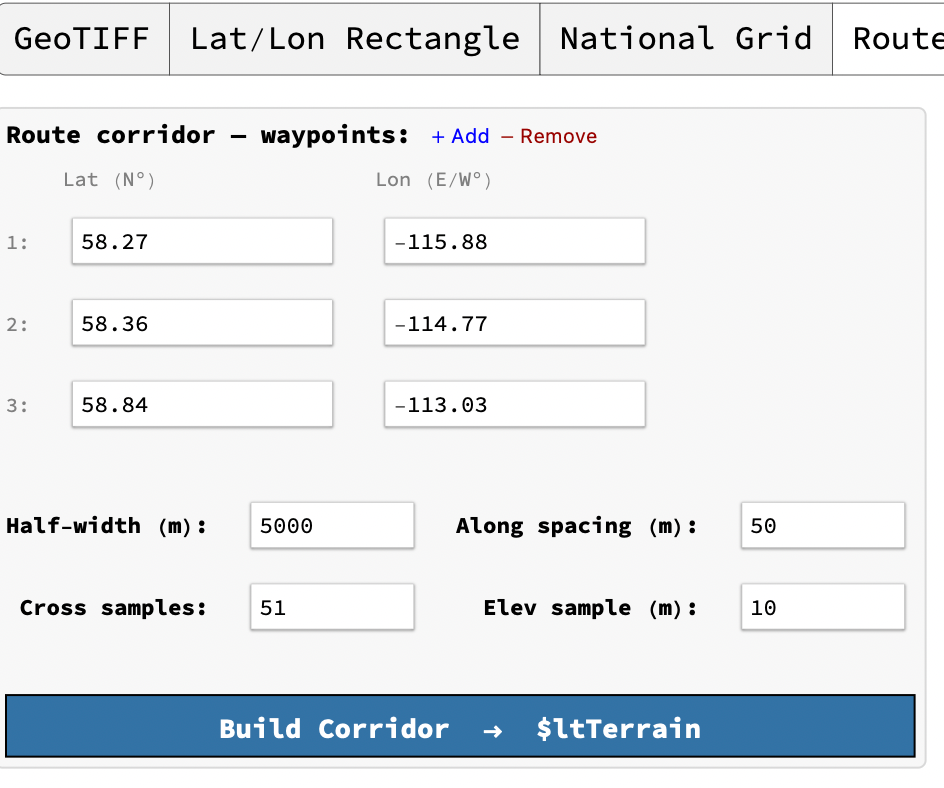
Click on Route Corridor and fill in the Lat/Long coordinates of the centre line of the assumed route. There should be at least three but just press the Add to get more.
The half width is the half width of the corridor and the spacing along gives the spacing of the interpolated elevation points along the corridor. The number of cross samples gives the number within the half width. This should be an odd number to ensure there is one on the centreline. The Elev. sample (m) is currently unused and may be ignored.
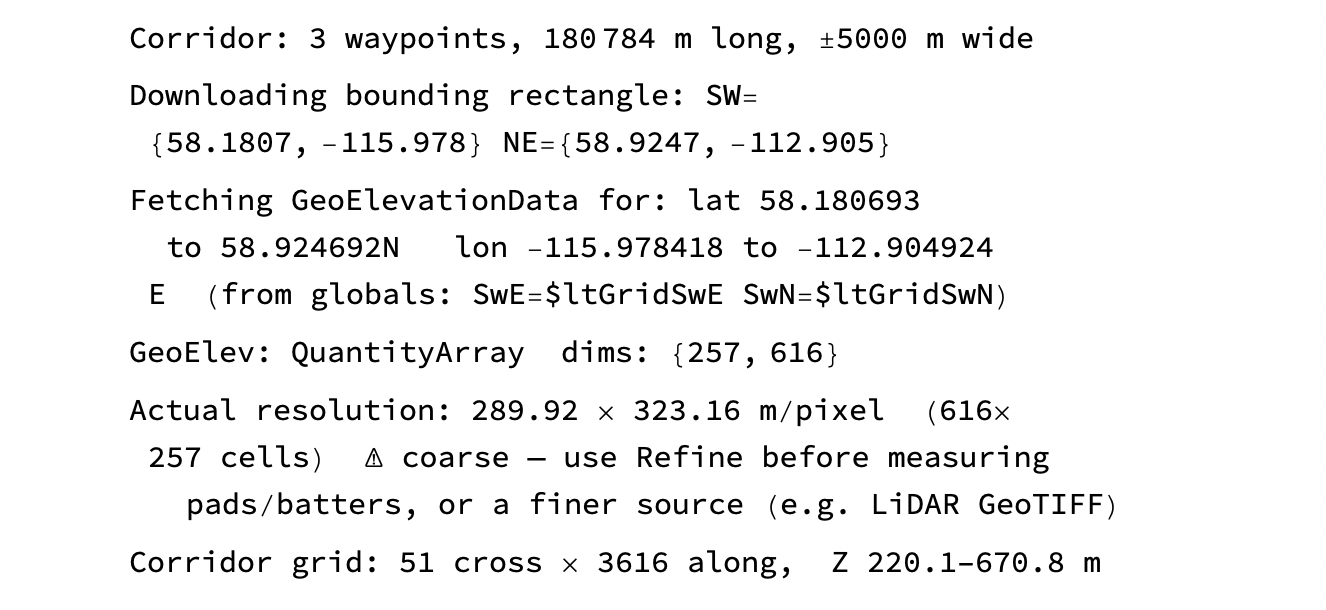
The function will always download the elevation data at the maximum resolution available and then interpolate it to the spacing and samples specified. Whilst coarse in this instance, it is sufficient for preliminary design.
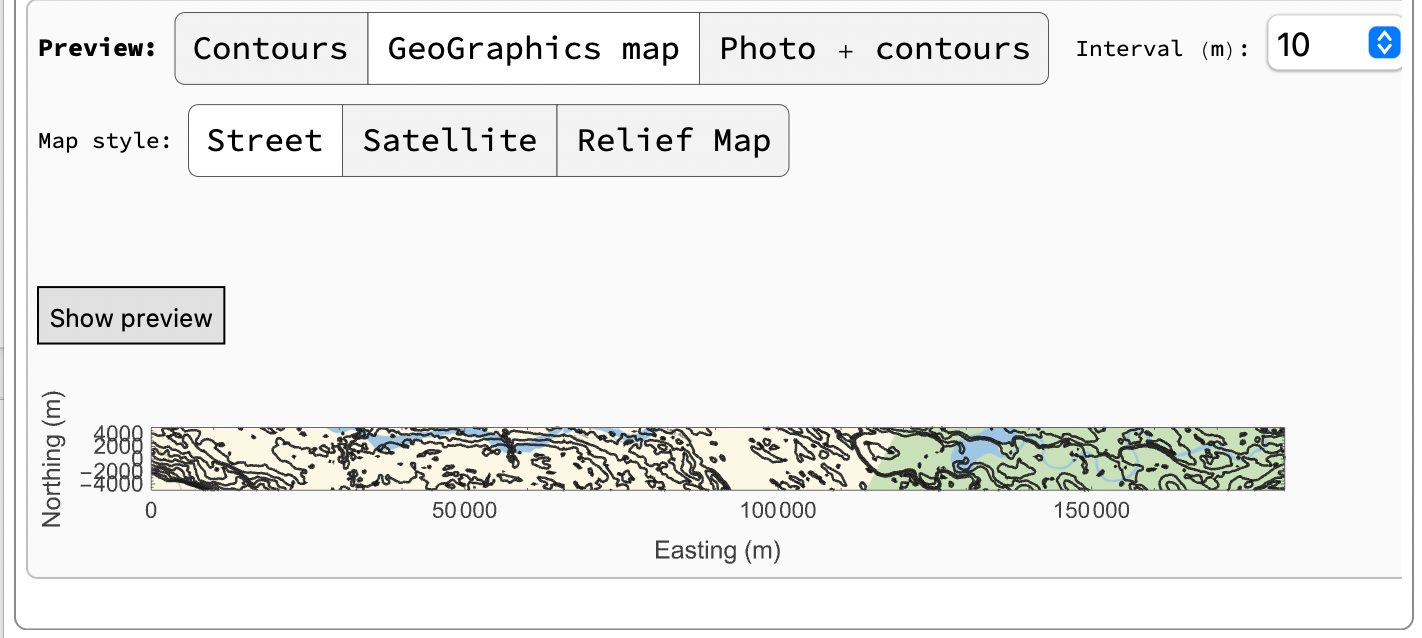
Pressing Show Preview will give a plan with the specified corridor unrolled along the alignment in a horizontal, or x direction. This will be labelled Eastings and Northings the width.
Pressing Plan and inserting IPs will give
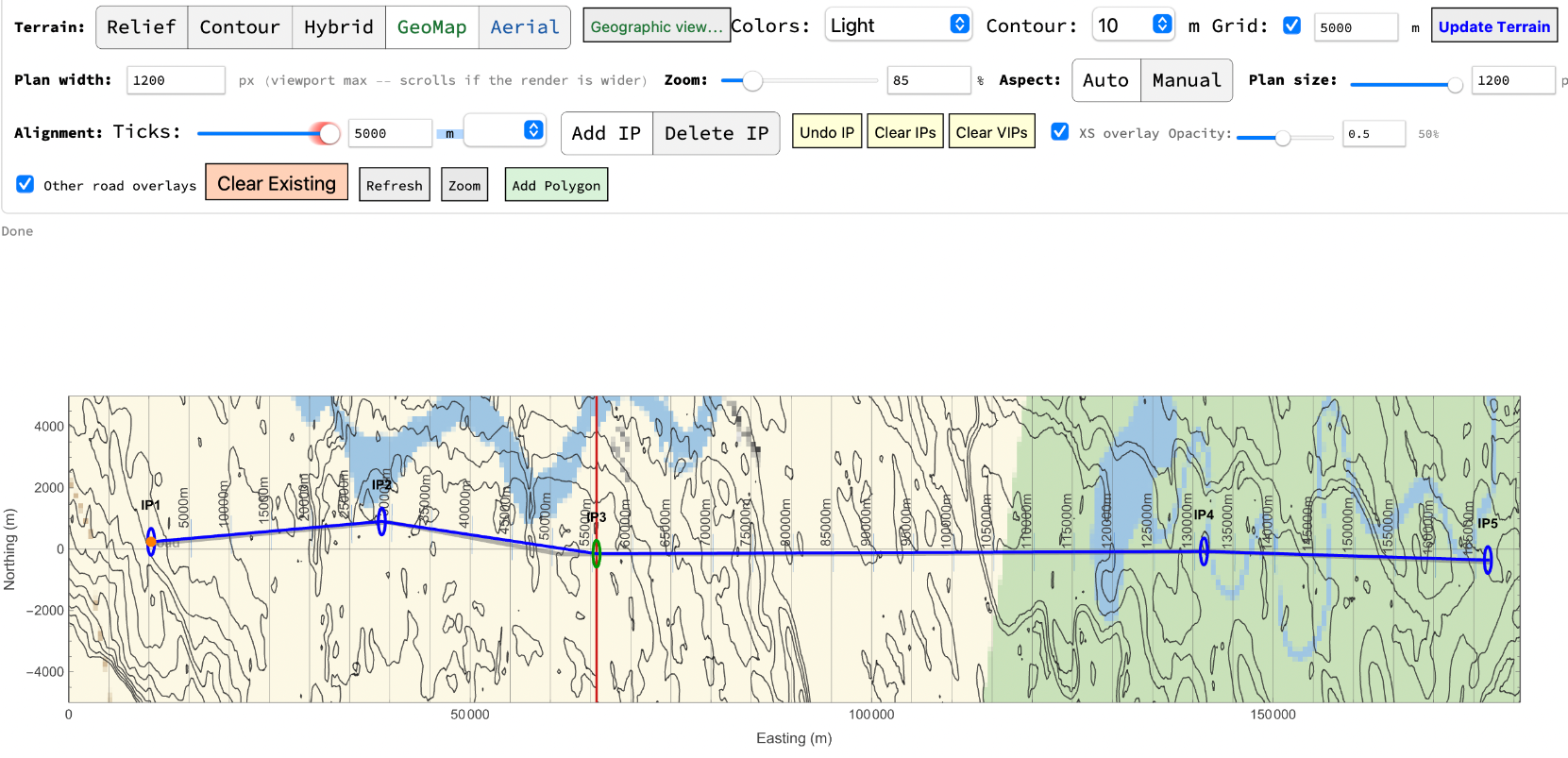
Note the red line near 60000E. This denotes the change in tile angle at this point . To see it click on Geographic View. This will show each tile at its correct angle. A straight road will show an angle in plan at this point so normally dealt with by inserting a curve.
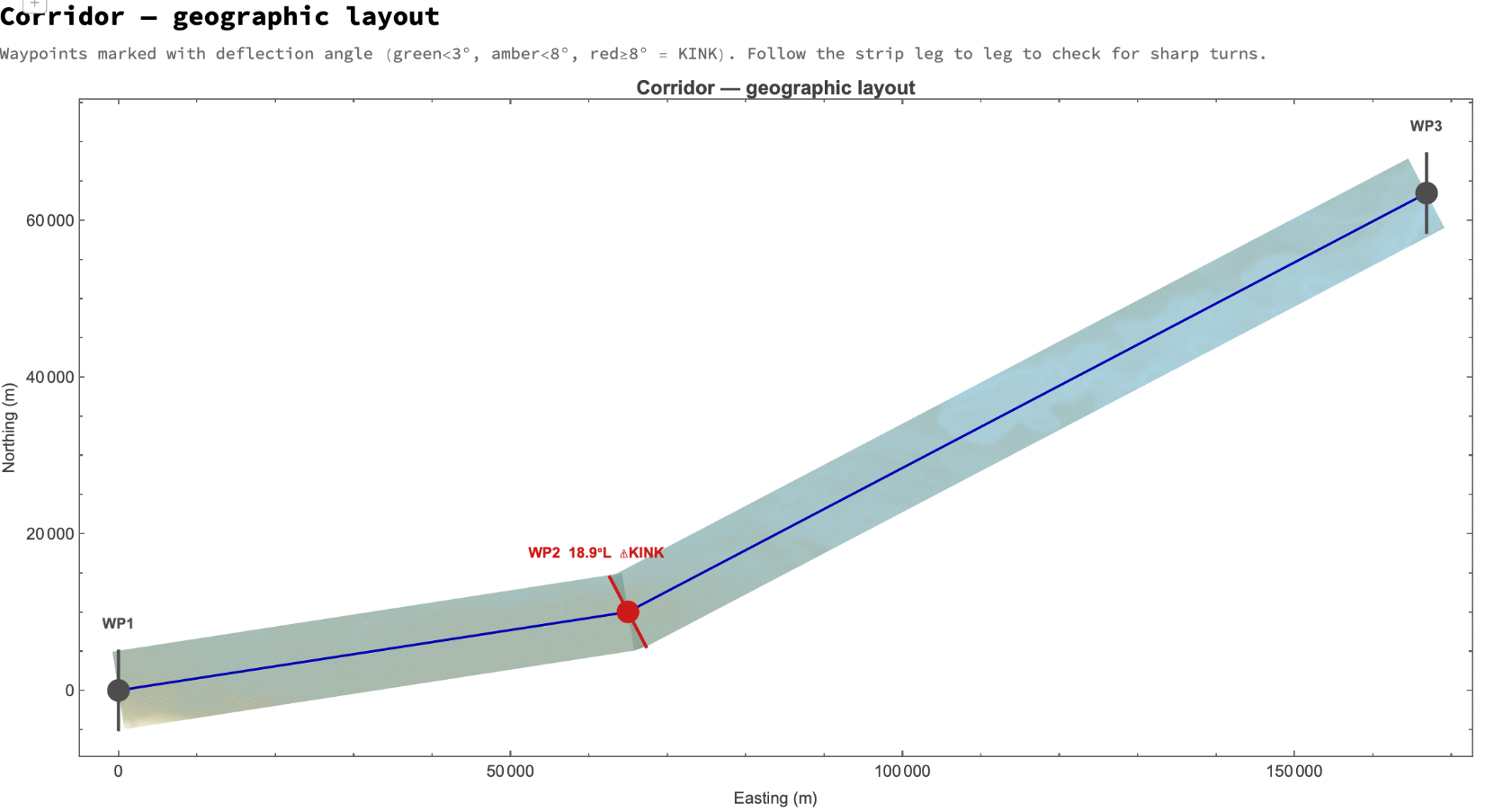
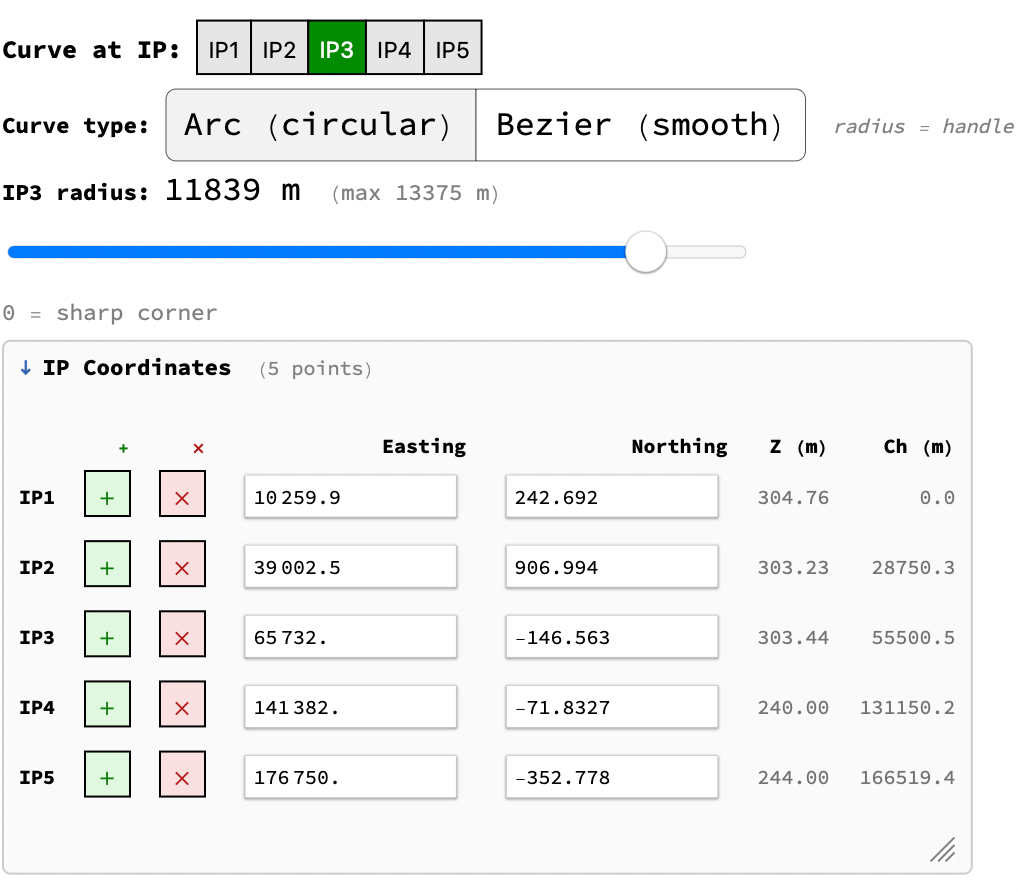
Parts of the road can be zoomed in by increasing the Plan width. If it exceeds the Plan size scroll bars will be introduced. The zoom button can also be used and the aspect ratio used to control the width, if necessary.
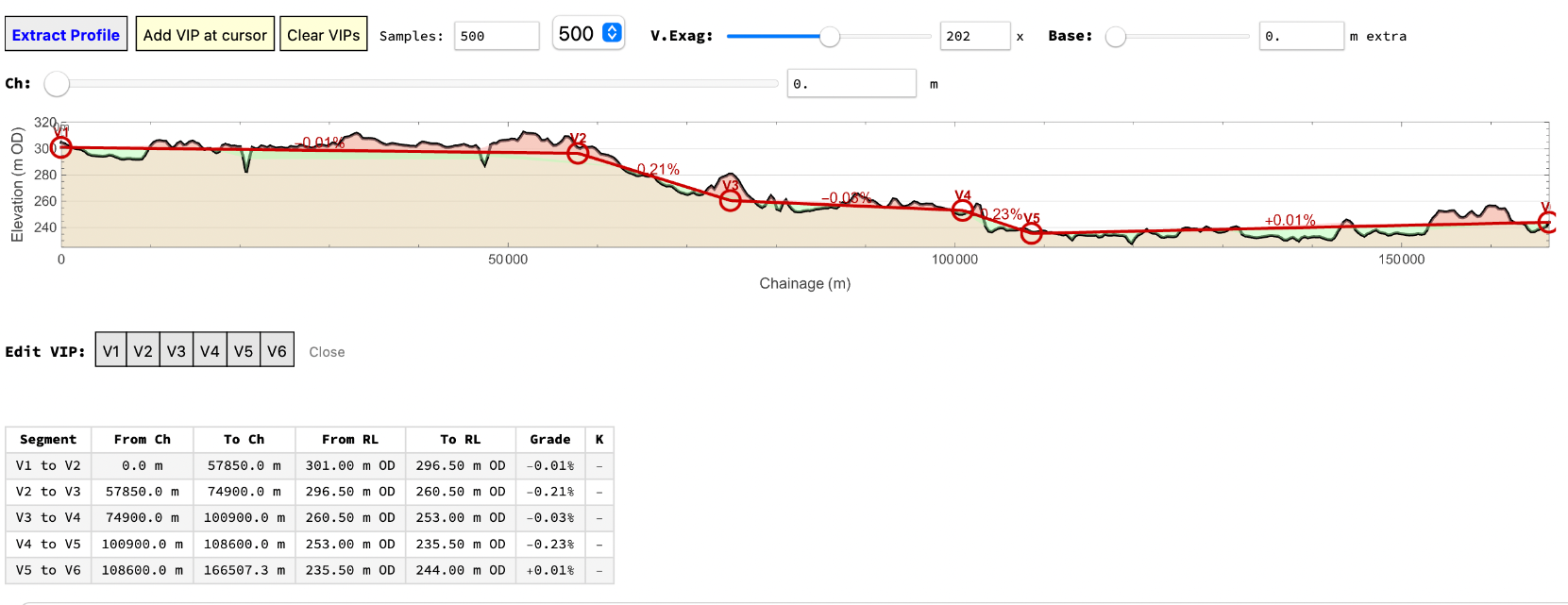
Calculate the profile in the normal way.
Assign section templates and calculate sections
and earthwork quantities