Example 1 Dam
Example 1 Dam
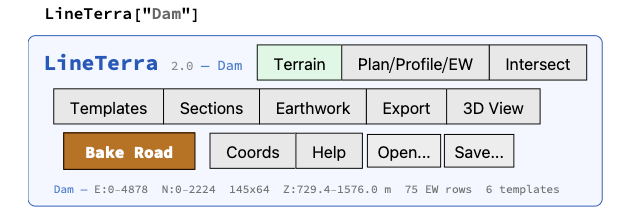
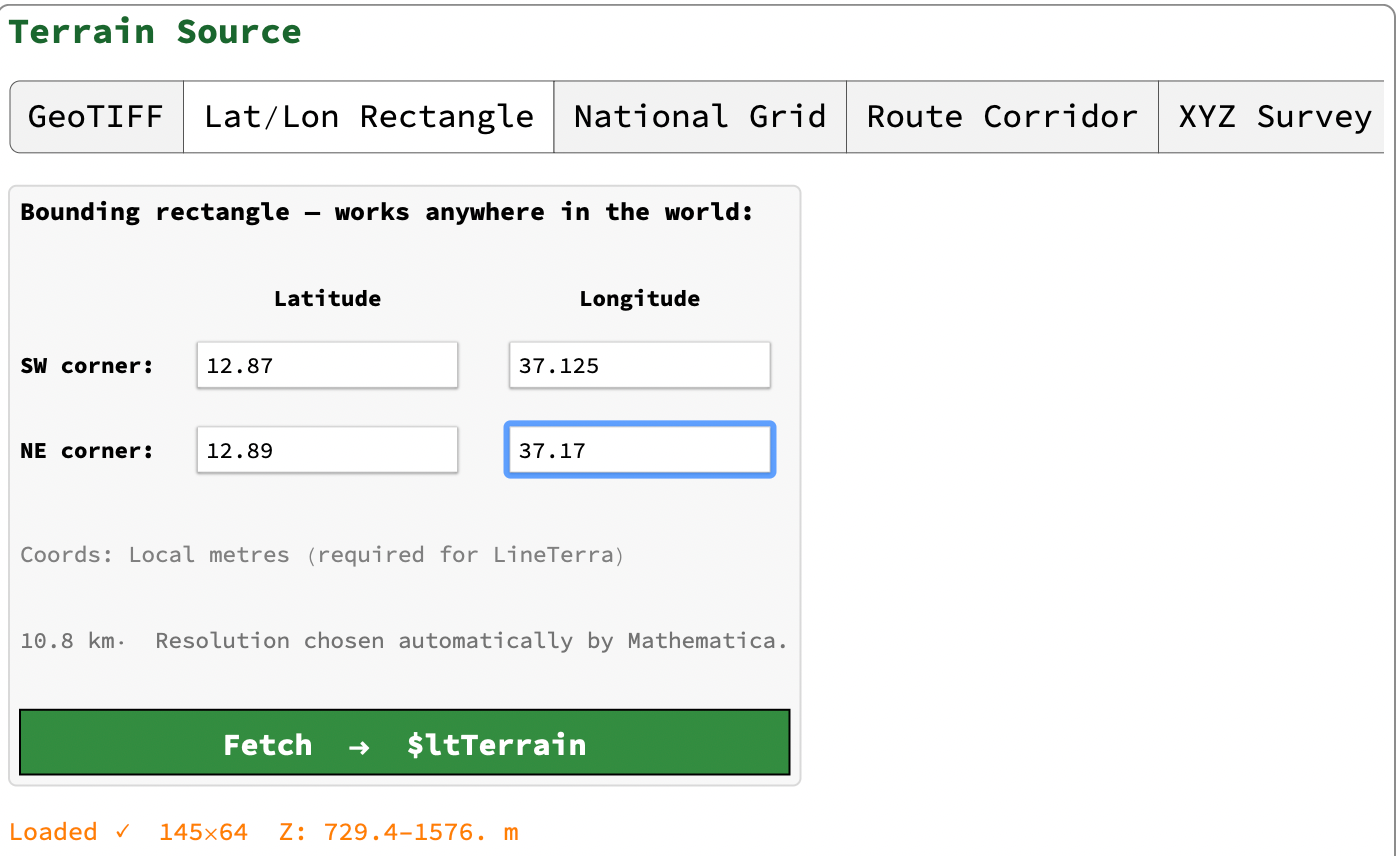
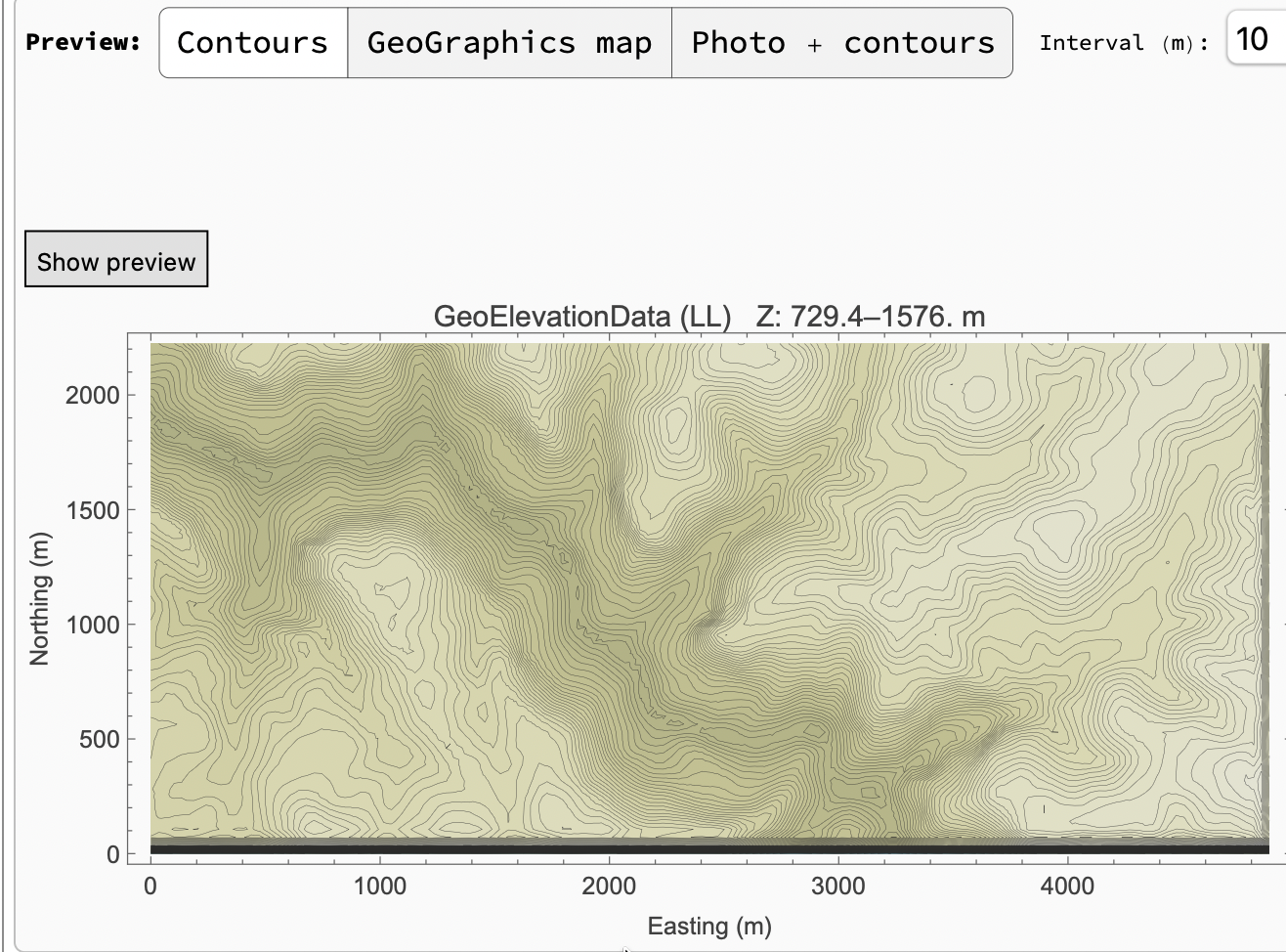
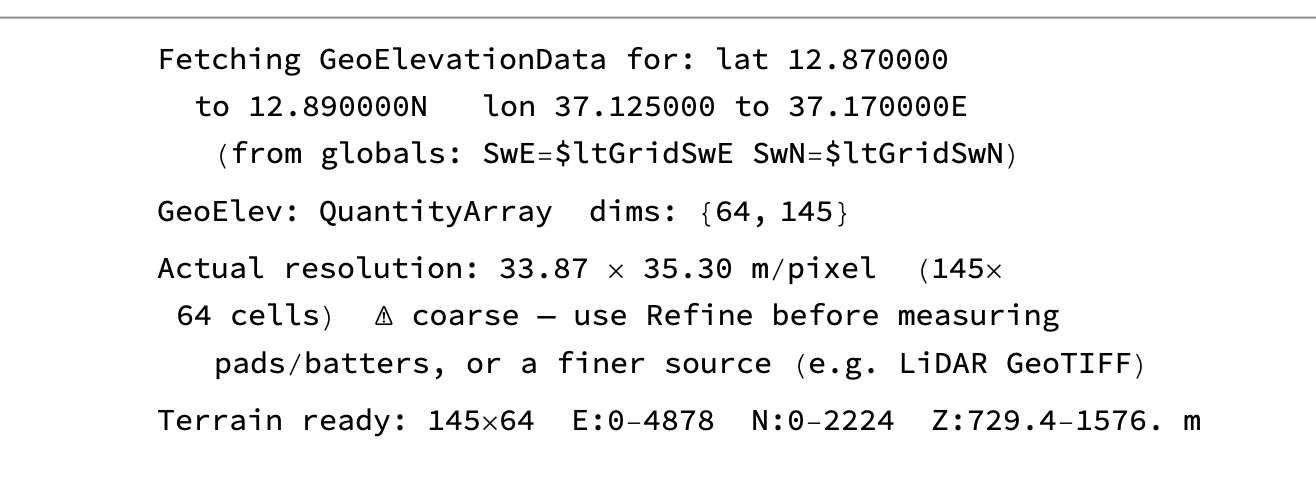
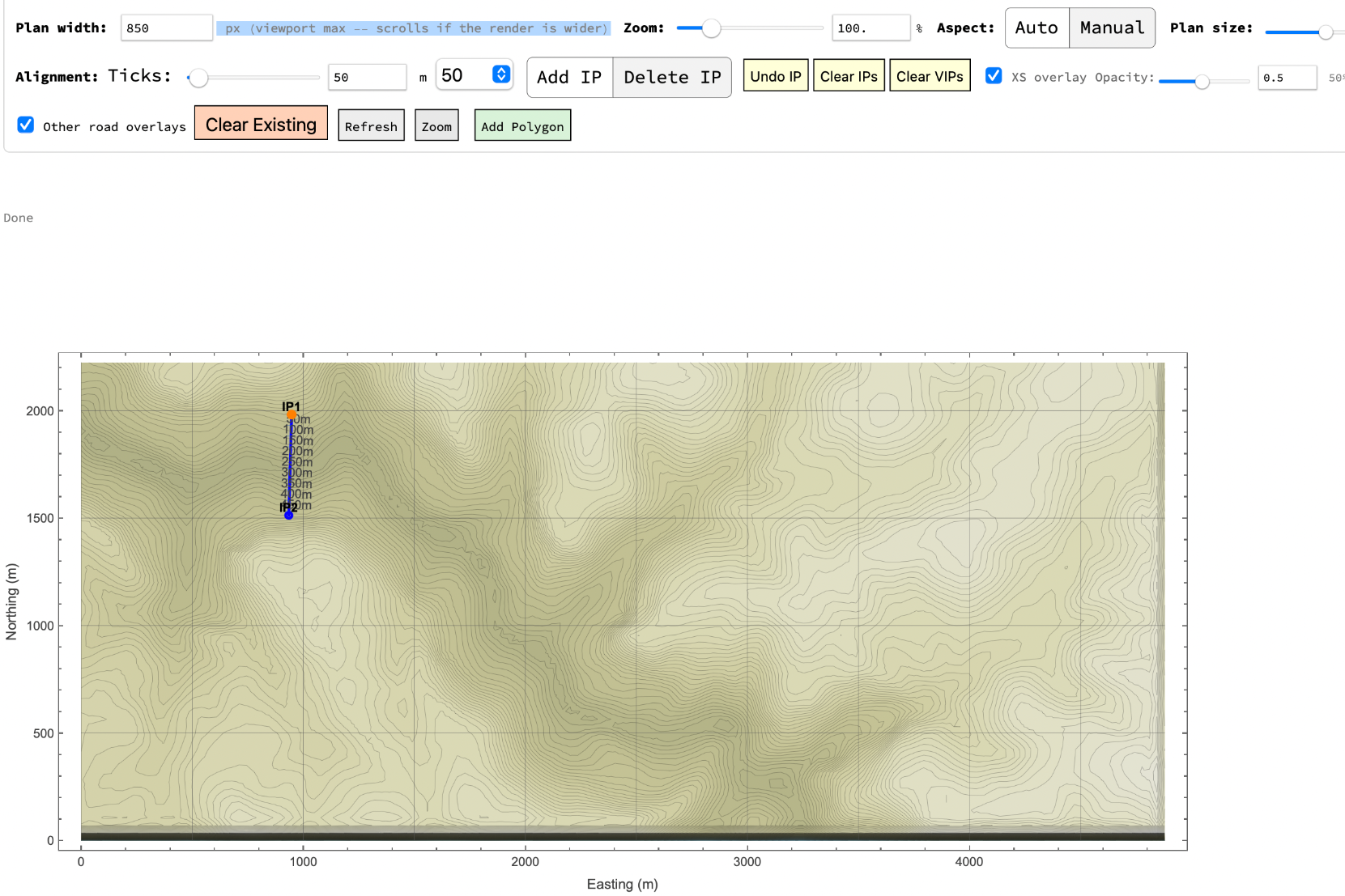
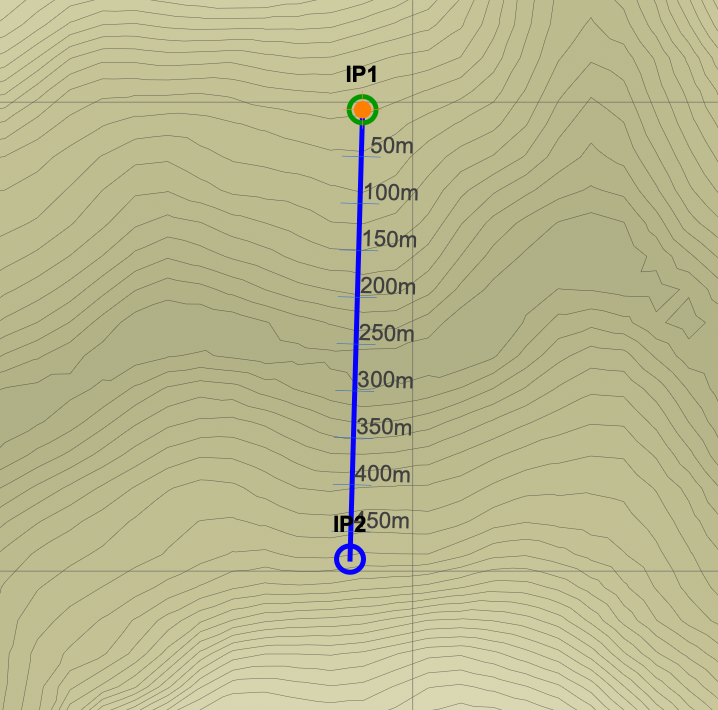
Click on Plan Profile/EW It may take some moments but you will get the tool bar with a blank canvas. Click on Geomap and then update Terrain. You will get the same map as in the Preview but tooltips indicate the contour level. Click to insert an intersection point IP1 and then IP2 roughly where shown below. You can put in precise points by opening up the IP Coordinates table and typing the coordinates in.
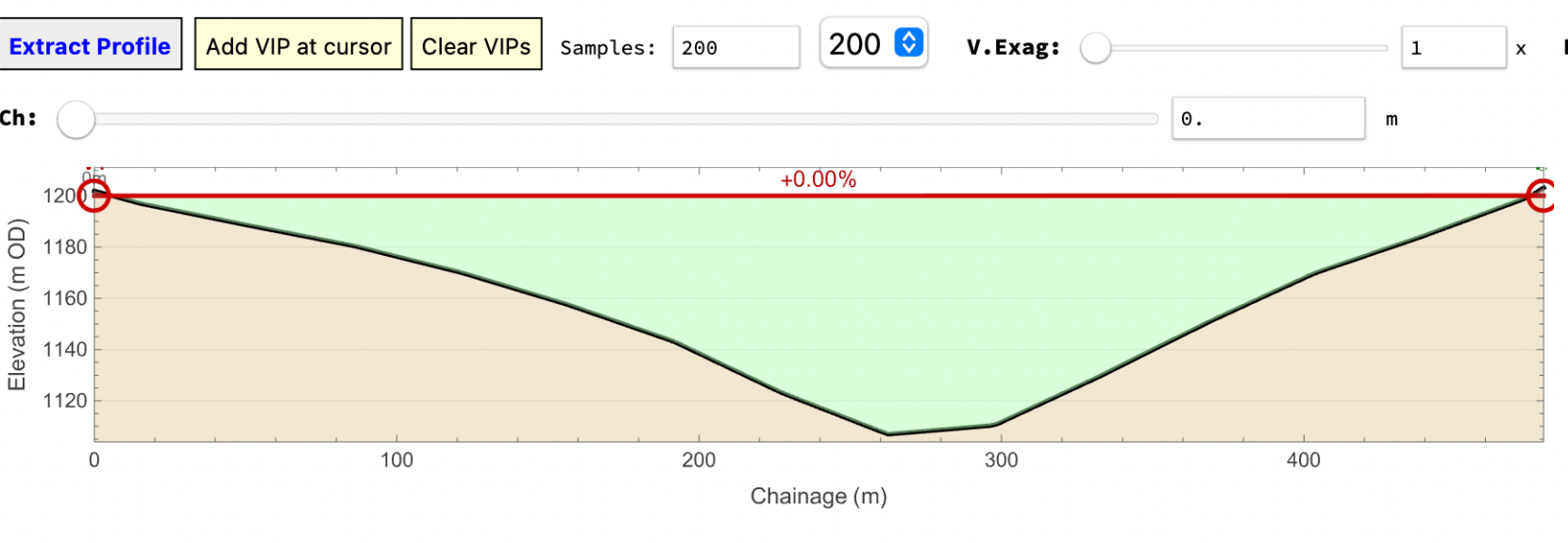
Scroll down below the plan and click extract profile.
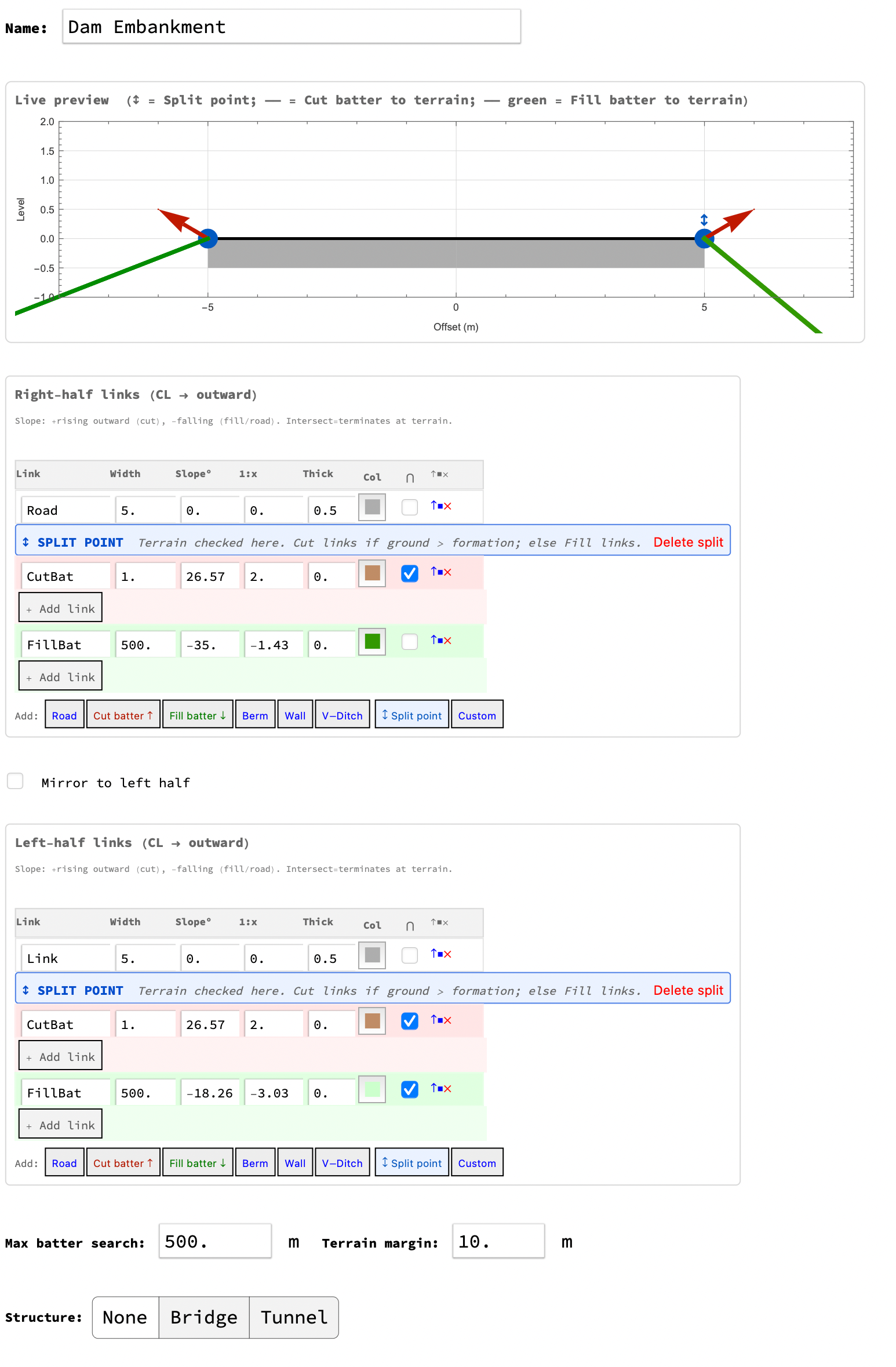
Then open up the Templates by clicking on Templates in the main toolbar. Load the Templates libary and either draw a section or choose embankment. Adjust the batters and surface width as desired.
Click on sections in the main toolbar and assign the Embankment template . Choose a chainage and press compute to see the cross section at that chainage .
then open Earthworks. Choose a section interval and press compute. It will show the total fill required plus a tiny amount of cut where the profile cuts into the bank.
Go to the plan and you will see the outline of the embankment shown. If you press aerial and then update terrain you will see the embankment as a transparent layer on top of a satellite image of the terrain.
Moving the iPs or VIPs will automatically change the plan, cross sections and quantities.
When happy with the dam Bake the dam into the terrain
Further work
Further work
To get the fill required for the dam you will need to open a quarry. You can do this by adding a polygon and adjust it to you get enough material. Alternatively, you could use your initial alignment to cover both the quarry and the dam, having multiple templates along the length adjusting the templates to suit whether you are quarrying or filling the dam.