LineTerra
How to design a road in 6 minutes
How to design a road in 6 minutes
Here we walk through the example of designing a section of road, completely from loading the terrain to 3D out put, drawing plans and sections and computing quantities, and a mass haul diagram.
Install LineTerra from the function repository. Then, if this is the first time you are using it in the session, evaluate Needs[”LineTerra`] , You will then be able to evaluate LineTerra[“Road C”] giving the main menu.
In[]:=
LineTerra["Road C"]
Out[]=


Click on New Project then Terrain to get the source of the terrain to be used. In this case click on Geotiff, browse to the Geotiff file in the “Data for Examples folder” and click Load. Only one file is required in this instance.
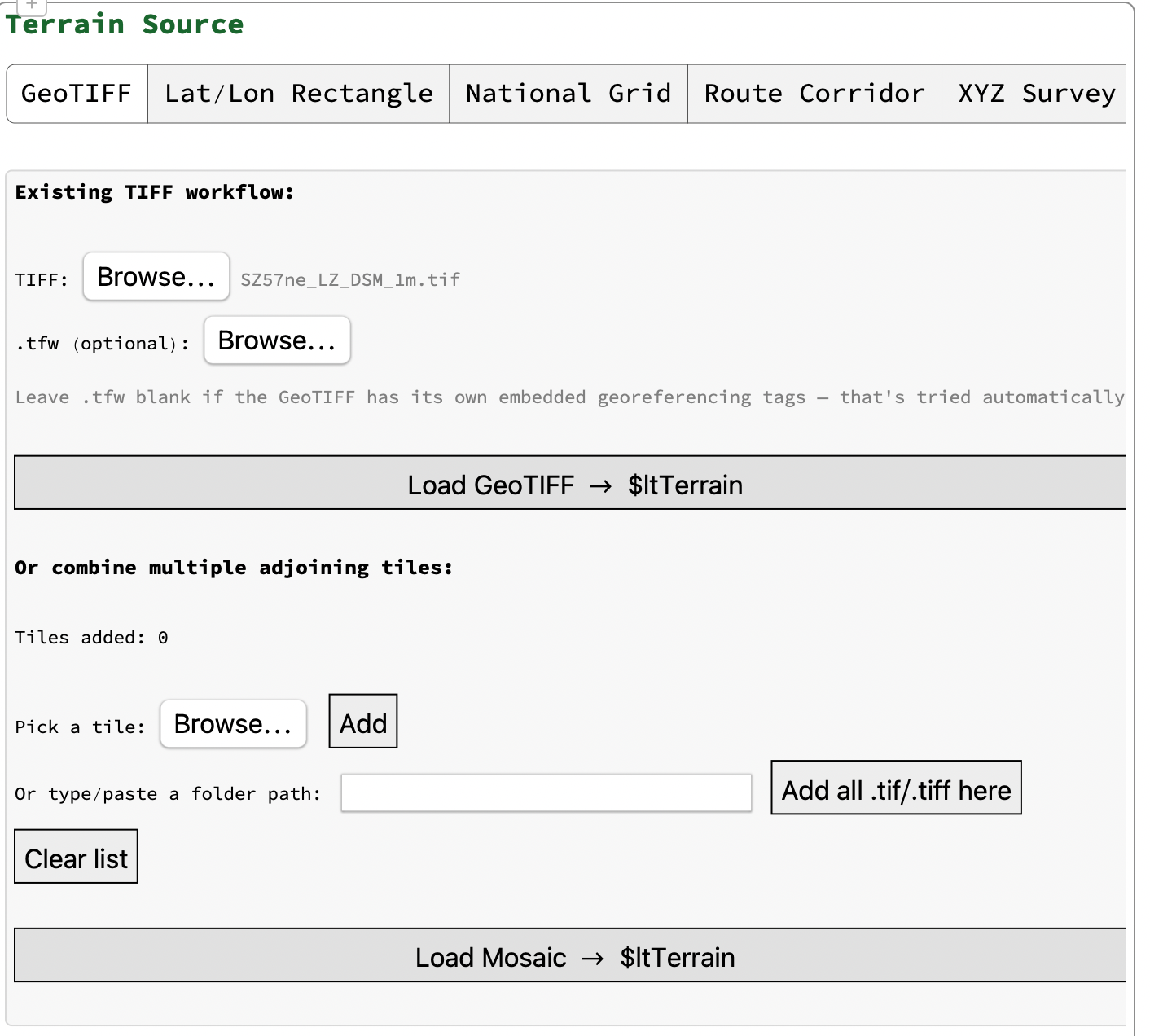
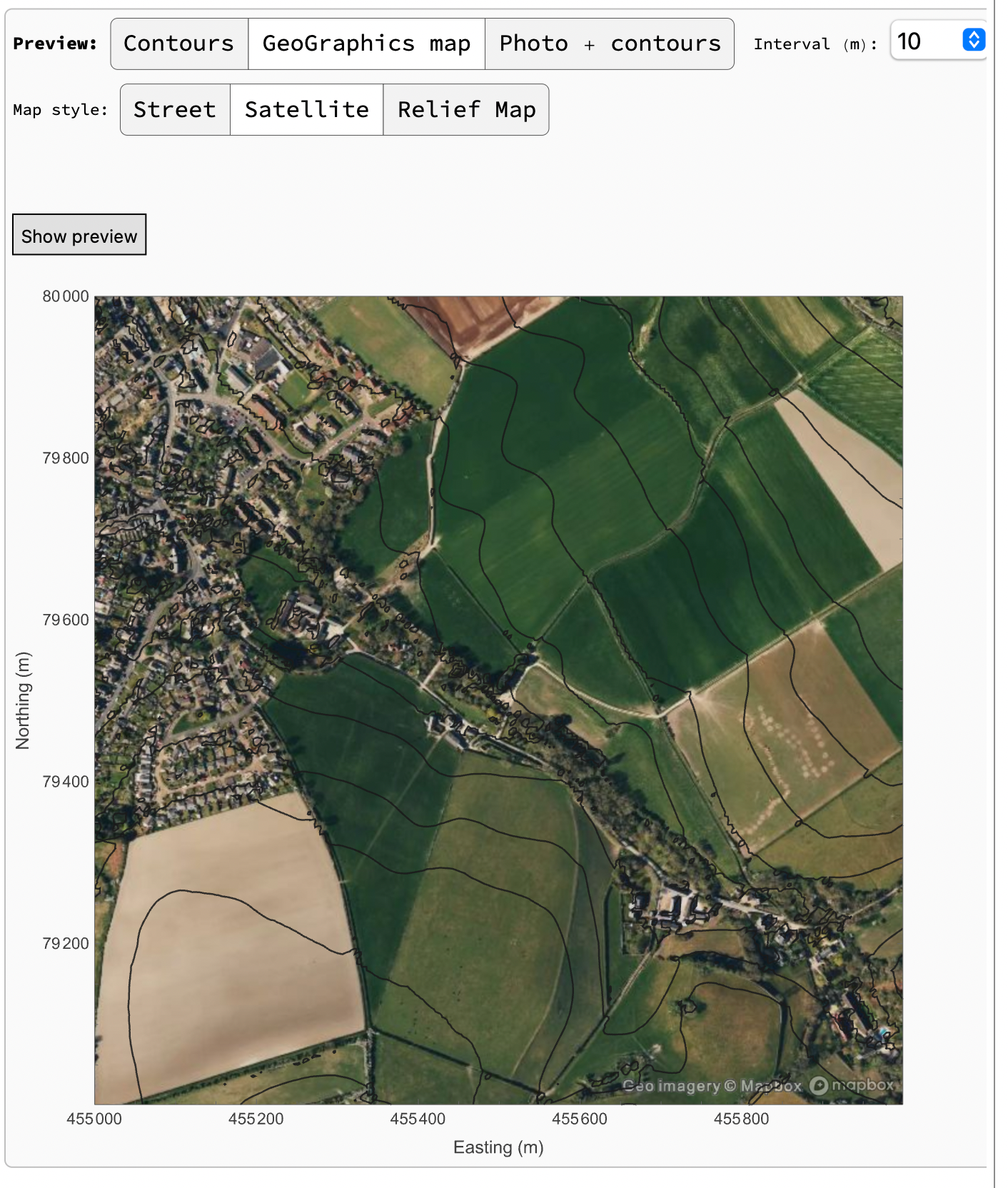
After the file is load, click on the type of file required a and click on Show Preview. Here we have used Wolf rams satellite photo data. If you wanted to use another type of photo them use the Photo + Contours button and it will ask for the photo. It should be the same size as the terrain.
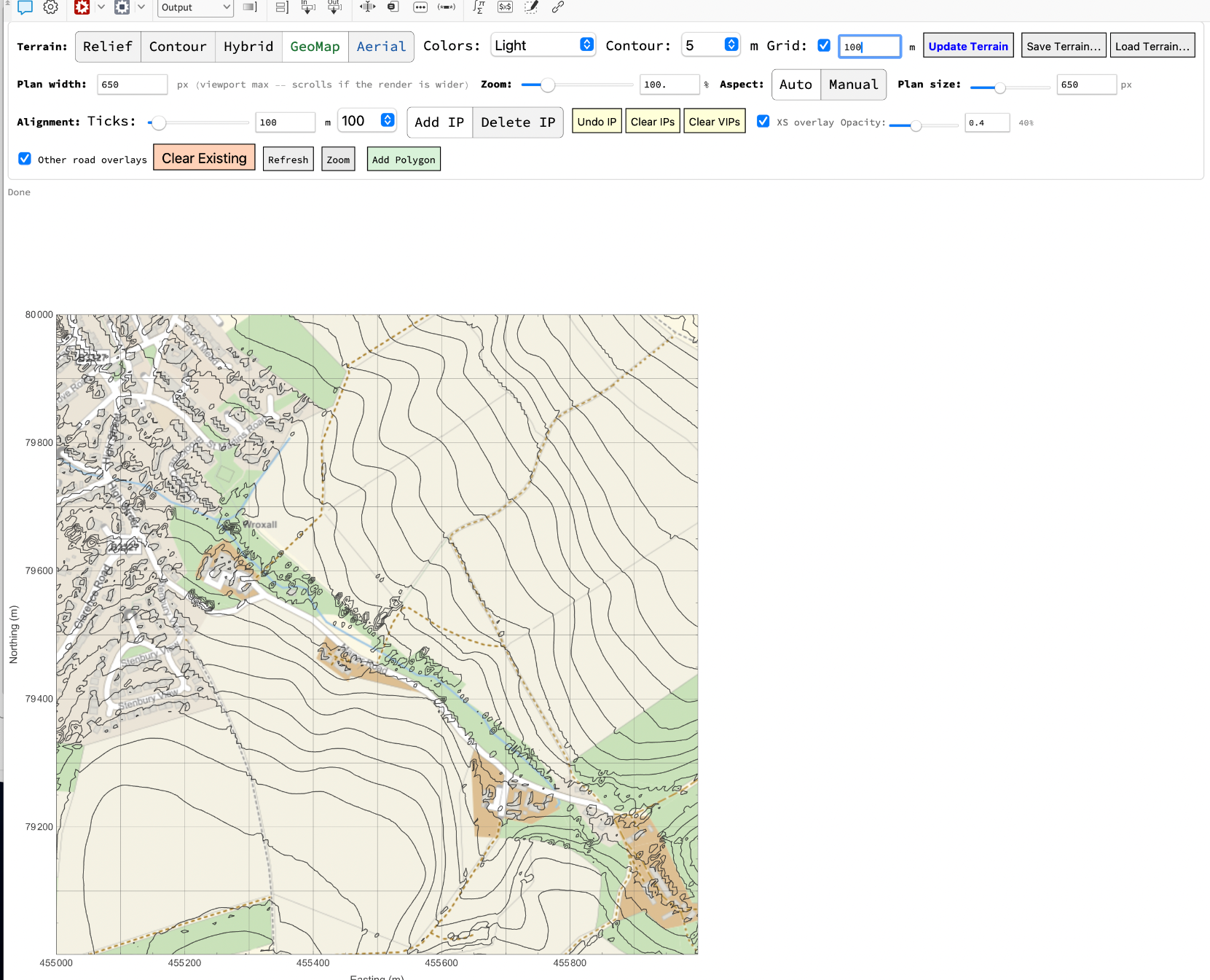
Next we click on Plan/Profile in the main menu and pick any options.Here we have used the Streetmap option, contours at 5m with a grid at 100m.
Click on the plan a series of intersection points to define the road layout
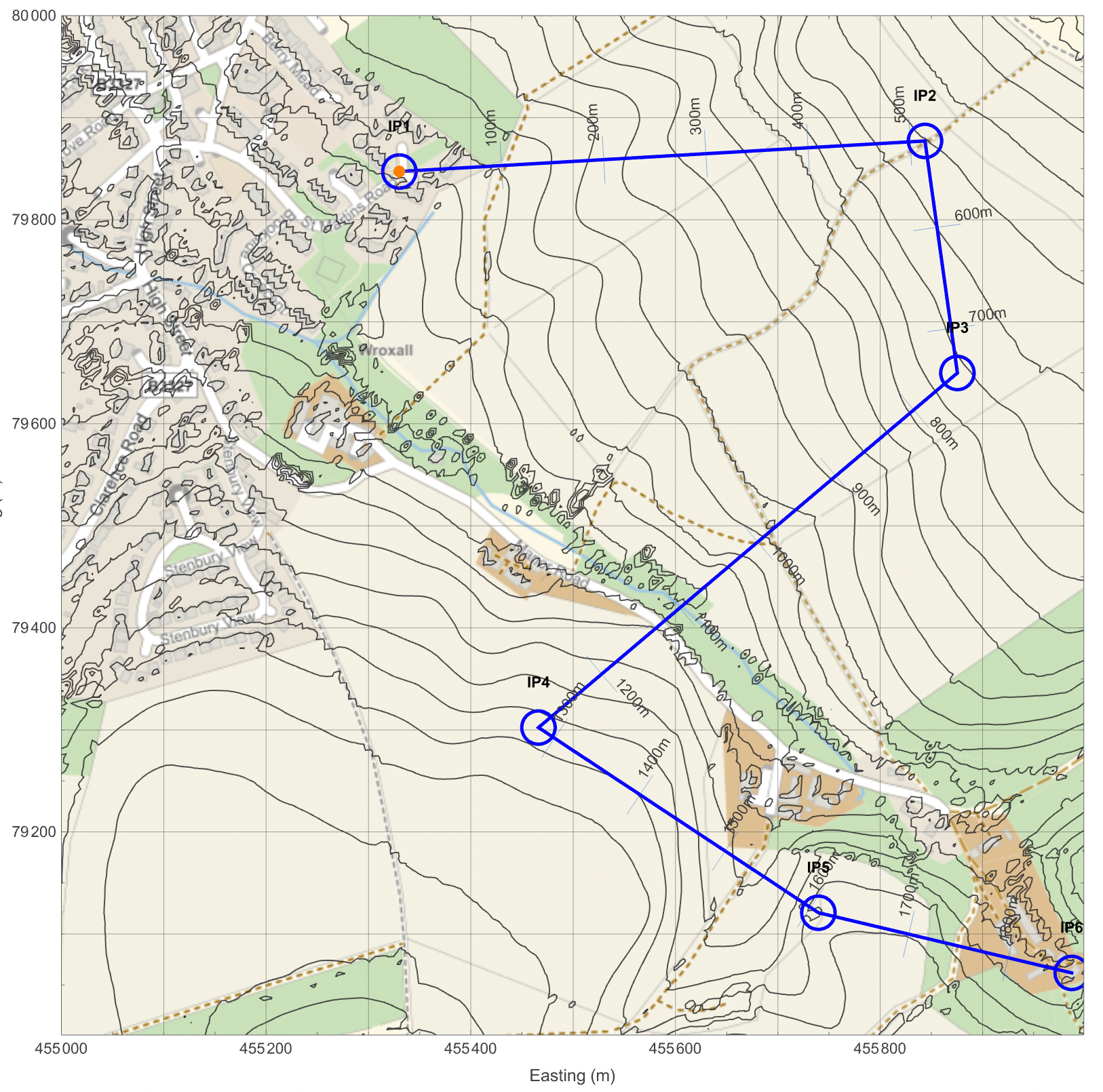
By click in on an IP it is possible to define a curve to the alignment. Either a circular arc or a Bezier curve. Note: Any IP can be moved by dragging.
When happy with the alignment click on Extract Profile. You will get a vertical section along the alignment. Increase the vertical exaggeration (VE) to make it more readable.
Add vertical intersection points by moving the cursor and clicking. The VIP can then be moved as required and vertical curves can be added by clicking on the VIP and changing the K value.
Templates
Templates
The next stage is to add a template for the cross section. Here we will use one from the Library. Click on Templates, then load library and select LineTerra_templates.ltl. We will use the simple 2 land motorway template. The links up to the Split Point will always be present. Their thickness represents the construction thickness which will not be counted in the earthworks. After the Split Point the section will differ whether it is in cut or fill and can be designed with berms, walls etc. In this case, if in cut there will be a drainage ditch followed by an upward slope at 1:1.5. If in fill, the slope is downward at 1:3. The left hand side can be different from the RHS but in this case is mirrored. The maximum batter search controls the maximum width of the slope in case the existing ground is not found and terrain margin controls the width shown outside of the ground intersection point in cross sections.
Sections
Sections
Once the templates have been loaded, click on Sections in the main menu and assign templates to the appropriate chainages. Here we will have a bridge over the low section and the motorway elsewhere.
Note: You can leave gaps between templates and, if they have the same number of links the program will interpolate between them. This allows the road to be widened for bus stops or slow lanes or similar.
Note: You can leave gaps between templates and, if they have the same number of links the program will interpolate between them. This allows the road to be widened for bus stops or slow lanes or similar.
Optionally you can select a chainage and compute the cross section.
Earthworks
Earthworks
After assigning the templates, click on Earthworks. Choose the chainage range and the interval between cross sections. It will give you the total cut and fill and you can view a table of quantities of view charts.
At the same time the plan will be updated to show the road and the batters etc.
Fine Tuning
Fine Tuning
Moving the alignment or profile will immediately be reflected in the plan and earthwork charts allowing the design to be fine tuned to minimise costs.
3D View
3D View
At this stage a 3D view can be drawn. As the road has not been baked into the terrain that which is below ground i.e. in cut is not shown unless the x ray button is clicked, in which case the terrain will be shown as semi transparent so that the full road is visible. Note: Occasional spikes may be seen. These are normally due to noise in the terrain caused by the Lidar data being reflected off vegetation and may be reduced using the Despike button, or ignored. They do not affect the quantities. If you have trouble drawing the 3D view try reducing the mesh size.
Baking
Baking
When happy with the design, the road can be baked into the terrain. This will update the terrain to include the modifications.
Updating the terrain plan using the aerial background gives the road in the satellite view.
and the final 3D view is thus.