Did you ever sit in math class and type upside-down words on your calculator screen?
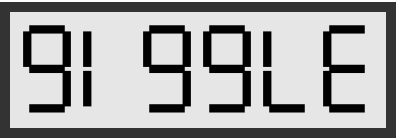
Recently, while using the Wolfram Language to create a segmented font, I found myself pulled back to that seat in math class, giggling while I pushed my calculator toward my friend across the desk. Oh, the things you can say with an upside-down calculator!
In[]:=
calculatorPoem["giggle"]
Out[]=
Creating a segmented font
Creating a segmented font
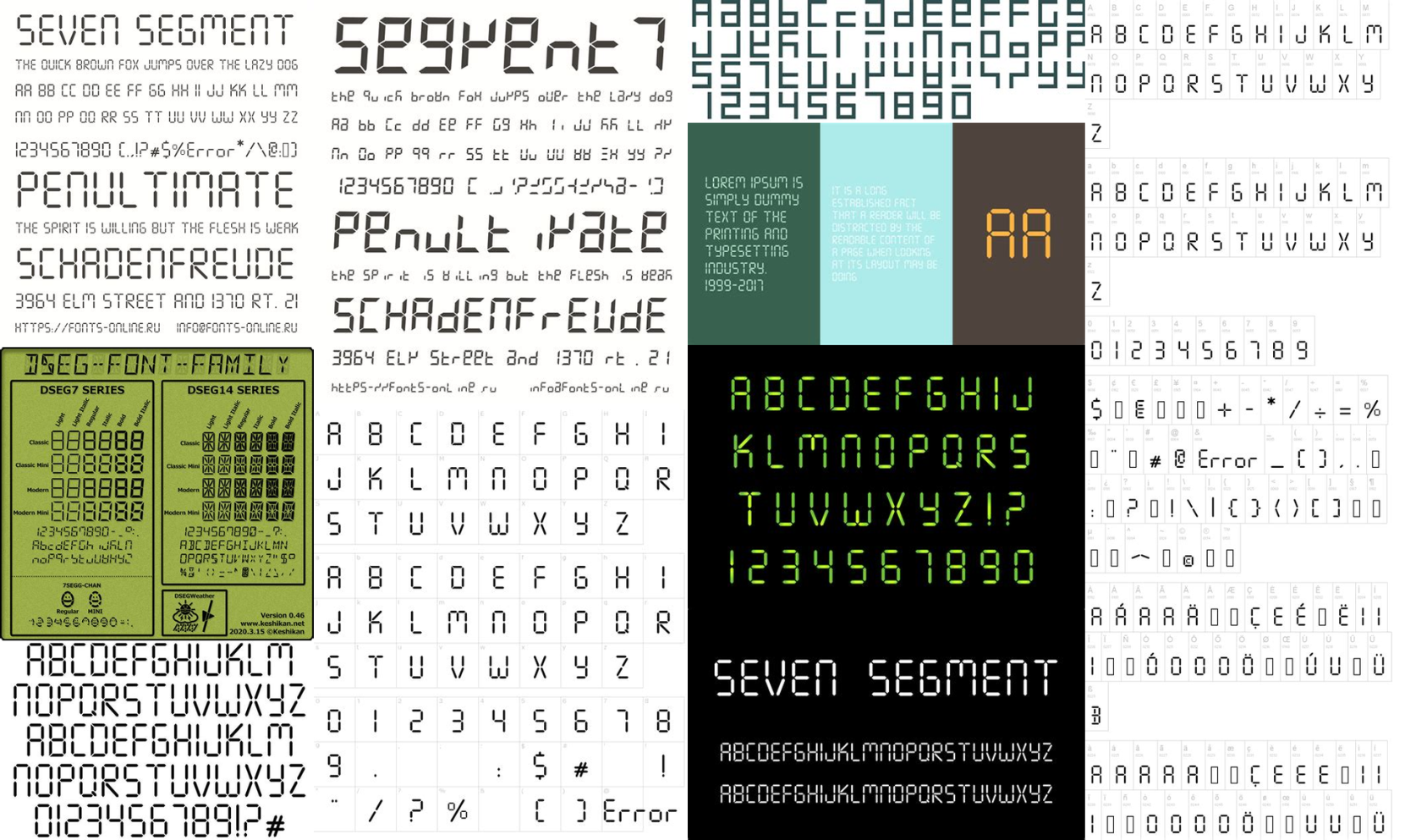
A “segmented font” is “composed of several segments that switch on and off to give the appearance of a desired glyph.” (Wikipedia) We see segmented fonts all around us — on ovens and microwaves, alarm clocks and dashboards, train stations and traffic signs.
Out[]=
Defining segments
Defining segments
To create a segmented font in Mathematica, I defined Graphics primitives corresponding to each segment position. I started with Top (“T”), Middle (“M”), and Bottom (“B”) horizontal segments, then added vertical segments for the Top-Left (“TL”), Top-Right (“TR”), Bottom-Left (“BL”), and Bottom-Right (“BR”):
In[]:=
ClearAll[segment]segment["T"] := Line[{{0,2}, {1,2}}];segment["M"] := Line[{{0,1}, {1,1}}];segment["B"] := Line[{{0,0}, {1,0}}];segment["TL"] := Line[{{0,1}, {0,2}}];segment["TR"] := Line[{{1,1}, {1,2}}];segment["BL"] := Line[{{0,0}, {0,1}}];segment["BR"] := Line[{{1,0}, {1,1}}];
While these 7 segments were sufficient to create characters for the digits 0-9, I also wanted to create decimals and arithmetic symbols, so I defined a shorter segment (“MC” for Middle-Center) and a decimal point:
In[]:=
segment["MC"] := Line[{{0.5,0.5}, {0.5,1.5}}];segment["."] := Rectangle[{0,0}, {0.25,0.25}];
Creating characters
Creating characters
I combined segments into Graphics objects to create characters of the digits from 0-9, as well as a decimal and addition and subtraction symbols. I placed spaces between the segments to achieve the classic segmented font look and set a plot range to standardize the character sizes:
In[]:=
ClearAll[character]character[c_] := Block {segments, space = 0.05}, segments = segment /@ SwitchToString[c], "0", {"TL", "BL", "T", "B", "TR", "BR"}, "1", {"TR", "BR"}, "2", {"T", "TR", "M", "BL", "B"}, "3", {"T", "M", "B", "TR", "BR"}, "4", {"M", "TR", "BR", "TL"}, "5", {"T", "M", "B", "TL", "BR"}, "6", {"T", "M", "B", "TL", "BL", "BR"}, "7", {"T", "TR", "BR"}, "8", {"T", "M", "B", "TL", "BL", "TR", "BR"}, "9", {"T", "M", "B", "TL", "BR", "TR"}, "-", {"M"}, "+", {"M", "MC"}, ".", {"."}, _, {} ; Graphics Thickness[0.15], CapForm["Butt"], segments /. {{x1_, y_}, {x2_, y_}} :> {{x1 + space, y}, {x2 - space, y}}, {{x_, y1_}, {x_, y2_}} :> {{x,y1 + space}, {x, y2 - space}} , PlotRange -> {{0,1}, {0,2}}, PlotRangePadding -> 0.2, ImageSize -> 30
In[]:=
character/@Join[Range[0,9],{"+","-","."}]
Out[]=
,
,
,
,
,
,
,
,
,
,
,
,
Calculator display
Calculator display
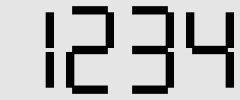
To display multiple characters at once, I defined a function, string[], that returns a single image of the characters in a string. To make the output look like a calculator display, I added a background and border:
In[]:=
ClearAll[string]string[s_String] := With {characters = character /@ StringSplit[s, ""], backgroundColor = GrayLevel[0.9]}, Framed GraphicsRowcharacters, Background -> backgroundColor, PlotRangePadding -> None , FrameStyle -> Directive[{Thickness[5], GrayLevel[0.2]}], Background -> backgroundColor
In[]:=
string["1234"]
Out[]=
Writing poems on a calculator
Writing poems on a calculator
Now that we can visualize the segmented characters on a calculator screen, let’s see what we can say with them.
Available letters
Available letters
In[]:=
ImageRotate[Rasterize@string["0123456789+-."],Pi]
Out[]=

Inspecting the rotated characters reveals that there are 9 letters that can be convincingly represented by upside-down numbers:
In[]:=
$availableLetters = {"b", "l", "g", "s", "h", "e", "z", "i", "o"};
I defined a list of replacement rules to replace each of these lucky letters with the digit that corresponds to their upside-down image:
In[]:=
$letterRules = "b" -> "8", "l" -> "7", "g" -> "6", "s" -> "5", "h" -> "4", "e" -> "3", "z" -> "2", "i" -> "1", "o" -> "0";
Available words
Available words
I then picked out all of the words in WordList[] that are formed only from the 9 letters available on the calculator:
Now we get to work...
Writing poems
Writing poems
To write poems from this constrained list of words requires patience and creativity.
To help me along, I filtered the available words for adjectives and verbs using the PartOfSpeech function:
There are no shortcuts. I find joy in staring at these lists of words for hours, waiting for something like a poem to arise from the constraint.
he slogs
else he loses
else he loses
Printing poems
Printing poems
As the poems slowly come together, I use the following code to display each line right-side-up and upside-down:
Sharing on the web
Sharing on the web
I’ve been adding images of calculator poems to a webpage — https://atorresen.github.io/calculatorpoems — as I write them, using the code below to quickly Export all of the images for a poem into a Git repository:
Have you written a calculator poem? If so, I’d love to read it.
CITE THIS NOTEBOOK
CITE THIS NOTEBOOK
Calculator Poems: flipping segmented fonts
by AnneMarie Torresen
Wolfram Community, STAFF PICKS, July 7, 2026
https://community.wolfram.com/groups/-/m/t/3747804
by AnneMarie Torresen
Wolfram Community, STAFF PICKS, July 7, 2026
https://community.wolfram.com/groups/-/m/t/3747804