Working with satellite imagery is the core use case of Google Earth Engine. This chapter covers the major satellite data sources available through GEE, how to load and filter them using GEE expression builders, and how to transform raw sensor data into scientifically meaningful images using both server-side GEE operations and client-side Wolfram Language processing.
Prerequisite:
Use of this paclet is subject to the Google Earth Engine Terms of Service.
Authenticate per Section 1.3 and load the paclet with.
Use of this paclet is subject to the Google Earth Engine Terms of Service.
Authenticate per Section 1.3 and load the paclet with
Needs["DiegoZviovich`GEE`"]
2.1 Understanding Satellite Data in GEE
IMAGE vs IMAGE_COLLECTION
IMAGE vs IMAGE_COLLECTION
Google Earth Engine organizes raster data into two fundamental types:
◼
IMAGE -- A single raster layer. Examples include the SRTM digital elevation model () or a single derived product like global forest cover (). These are static datasets that do not change over time.
"USGS/SRTMGL1_003"
"UMD/hansen/global_forest_change_2023_v1_11"
◼
IMAGE_COLLECTION -- A time series of images. Examples include Landsat scenes, Sentinel-2 tiles, and MODIS daily composites. Each image in the collection has a timestamp, spatial footprint, and metadata properties like cloud cover percentage.
The distinction determines which loading function you use:
(*Singleimage--useGEELoadImage*)srtm=GEELoadImage["USGS/SRTMGL1_003"](*Imagecollection--useGEECollection*)sentinel=GEECollection["COPERNICUS/S2_SR_HARMONIZED"]
When you pass a plain asset ID string to or , the package auto-detects the type and handles it appropriately. But when you build explicit pipelines with expression builders, you must choose the correct loader. Using on an IMAGE asset or on an IMAGE_COLLECTION asset will produce an error from the GEE server.
GEEComputePixels
GEEImage
GEECollection
GEELoadImage
Inspecting Assets with GEEGetAssetInfo
Inspecting Assets with GEEGetAssetInfo
Before writing a pipeline, inspect the asset to understand its structure:
info=GEEGetAssetInfo["COPERNICUS/S2_SR_HARMONIZED"]
This returns an Association with keys including , , , , and . Key things to check:
"Type"
"Bands"
"StartTime"
"EndTime"
"Properties"
◼
Type -- Confirms whether this is or .
"IMAGE"
"IMAGE_COLLECTION"
◼
Bands -- Lists every band name, data type, and resolution. This tells you which band names to use in and what scale factors apply.
GEESelectBands
◼
StartTime / EndTime -- The temporal range of the collection. Use these to set sensible date filters.
(*CheckthebandsavailableinLandsat9*)landsatInfo=GEEGetAssetInfo["LANDSAT/LC09/C02/T1_L2"]landsatInfo["Bands"]//Dataset
Band Naming Conventions
Band Naming Conventions
Different sensors use different naming schemes. The table below summarizes the most common ones you will encounter in this chapter:
Knowing these mappings is essential for constructing correct band composites. A "true-color" composite always maps Red, Green, Blue sensor bands to the display's R, G, B channels -- but the band names differ across sensors.
2.2 Landsat Imagery
The Landsat program, jointly managed by NASA and the USGS, provides the longest continuous record of satellite Earth observation, stretching back to 1972. Landsat 8 (launched 2013) carries the Operational Land Imager (OLI )and Thermal Infrared Sensors (TIRS) sensors; Landsat 9 (launched 2021) carries OLI-2 and TIRS-2. Both deliver 30-meter multispectral imagery with a 16-day revisit cycle. Together they provide 8-day effective coverage.
Collection 2 Level-2 Surface Reflectance
Collection 2 Level-2 Surface Reflectance
The recommended datasets for scientific analysis are the Collection 2, Tier 1, Level-2 products:
◼
"LANDSAT/LC08/C02/T1_L2"
◼
"LANDSAT/LC09/C02/T1_L2"
These contain atmospherically corrected surface reflectance (SR) and surface temperature (ST) bands. The "T1" designation means Tier 1, the highest geometric quality.
Scale Factors
Scale Factors
Raw pixel values in Landsat Collection 2 are stored as scaled integers, not physical reflectance values. You must apply scale factors for quantitative work:
◼
Surface reflectance bands (SR_B1 through SR_B7): multiply by , then add . Valid reflectance range after scaling is approximately 0 to 1.
0.0000275
-0.2
◼
Surface temperature (ST_B10): multiply by , then add . Result is in Kelvin.
0.00341802
149.0
For visualization-only workflows (using ), you can skip the scaling and work directly with the raw DN values. For quantitative analysis (computing indices, thresholds, statistics), always apply the scale factors.
"VisParams"
Example: True-Color Composite over San Francisco
Example: True-Color Composite over San Francisco
A true-color composite maps the red, green, and blue spectral bands to the corresponding display channels, producing an image that approximates what the human eye would see.
In[]:=
(*Definetheareaofinterest:SanFranciscoBayArea*)sfBbox=GeoCircle,Quantity[10,"Miles"];(*Buildacloud-filteredLandsat9true-colorcomposite*)sfTrueColor=GEECollection["LANDSAT/LC09/C02/T1_L2"]//GEEFilterDate["2024-04-01","2024-10-01"]//GEEFilterBounds[sfBbox]//GEEFilterProperty["CLOUD_COVER","LessThan",10]//GEESelectBands[{"SR_B4","SR_B3","SR_B2"}]//GEEMedian;(*RenderwithVisParamstunedforLandsatCollection2rawDNrange*)img=GEEComputePixels[sfBbox,sfTrueColor,"ImageSize"->{384,384},"VisParams"-><|"min"->7000,"max"->12000|>]
Out[]=
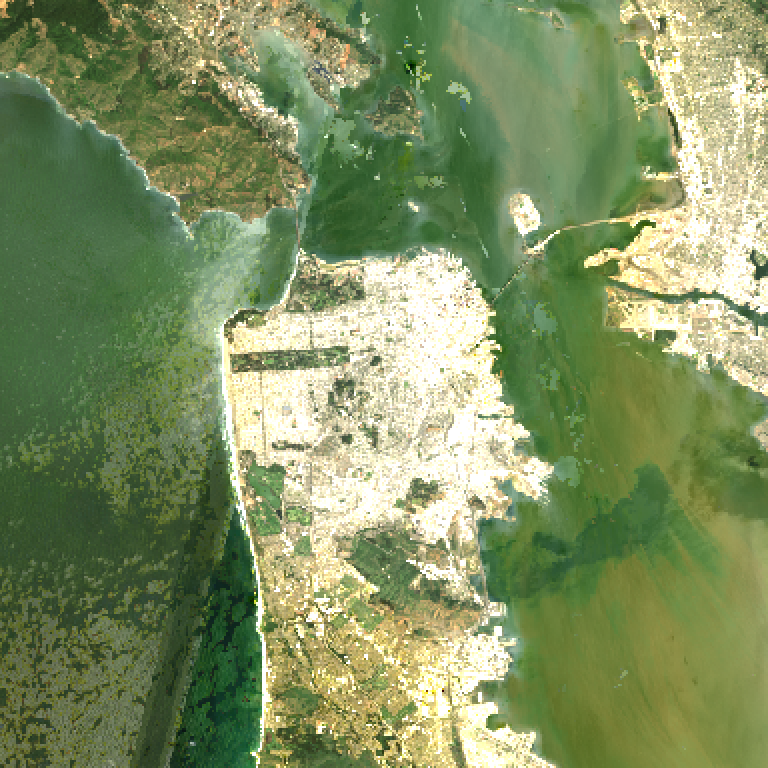
The and values in correspond to the raw DN range for Landsat Collection 2 surface reflectance. Values around 7000 to 12000 typically produce a well-balanced true-color image. Adjust these based on your scene -- bright desert scenes may need a higher max, while dark forested regions may need a lower min.
"min"
"max"
"VisParams"
Example: False-Color (NIR-Red-Green) for Vegetation
Example: False-Color (NIR-Red-Green) for Vegetation
False-color composites assign non-visible bands to display channels, revealing features invisible in natural color. The classic NIR-Red-Green composite makes vegetation appear bright red because healthy plants strongly reflect near-infrared radiation.
In[]:=
(*NIR-Red-GreenfalsecoloroveragriculturallandinIowa*)iowaBbox={-93.8,41.9,-93.4,42.2};iowaFalseColor=GEECollection["LANDSAT/LC09/C02/T1_L2"]//GEEFilterDate["2024-06-01","2024-09-01"]//GEEFilterBounds[iowaBbox]//GEEFilterProperty["CLOUD_COVER","LessThan",30]//GEESelectBands[{"SR_B5","SR_B4","SR_B3"}]//GEEMedian;img=GEEComputePixels[iowaBbox,iowaFalseColor,"ImageSize"->{384,384},"VisParams"-><|"min"->7000,"max"->20000|>]
Out[]=
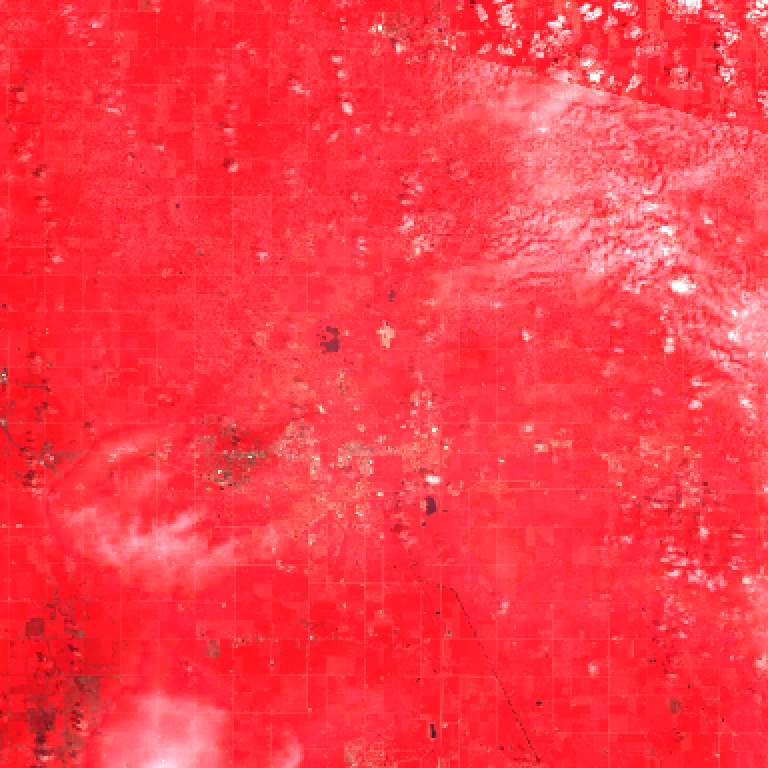
In the resulting image, bright red areas indicate dense, healthy vegetation. Urban areas appear gray-blue. Water appears dark. This composite is a standard tool for agricultural monitoring and land cover classification.
Example: Thermal Band for Urban Heat Islands
Example: Thermal Band for Urban Heat Islands
Landsat's thermal infrared band (ST_B10) measures land surface temperature, making it ideal for studying urban heat island effects -- the phenomenon where cities are significantly warmer than surrounding rural areas.
After scaling, pixel values are in Kelvin. The range 300-325 K corresponds to approximately 27-52 degrees Celsius, typical for a Phoenix summer. Urban core areas (asphalt, concrete, rooftops) will appear red, while parks and irrigated areas appear cooler.
Post-Processing Landsat with Wolfram Language
Post-Processing Landsat with Wolfram Language
Once you have retrieved an image, Wolfram Language's image processing functions let you enhance and analyze it further:
2.3 Sentinel-2 Imagery
The European Space Agency's Sentinel-2 mission provides the highest-resolution freely available multispectral imagery, with 10-meter spatial resolution in the visible and NIR bands and a 5-day revisit cycle (using both Sentinel-2A and Sentinel-2B). This makes it the go-to sensor for detailed land surface analysis.
Dataset and Band Structure
Dataset and Band Structure
Use the harmonized surface reflectance collection:
Sentinel-2 has 13 spectral bands at three spatial resolutions:
The collection also includes a Scene Classification Layer (SCL) at 20 m, which classifies each pixel into categories like cloud, cloud shadow, water, vegetation, and bare soil. This band is the key to building cloud masks.
Cloud Masking with SCL
Cloud Masking with SCL
Clouds and their shadows are the primary obstacle to optical satellite imagery. The SCL band provides per-pixel classification that you can use to mask unwanted pixels before compositing. A compact reusable version of this cloud-masking pattern appears in Appendix C, Pattern 4.
The SCL values to exclude are:
◼
3 -- Cloud shadow
◼
8 -- Medium-probability cloud
◼
9 -- High-probability cloud
◼
10 -- Thin cirrus (optional, depending on your tolerance)
Example: High-Resolution RGB of a Landmark
Example: High-Resolution RGB of a Landmark
Sentinel-2's 10-meter resolution is sufficient to resolve individual city blocks, bridges, and large buildings.
Example: Vegetation-Focused False Color (B8-B4-B3)
Example: Vegetation-Focused False Color (B8-B4-B3)
Mapping NIR (B8) to red, Red (B4) to green, and Green (B3) to blue produces the classic infrared false color composite used extensively in agriculture and forestry.
In this composite, dense tropical forest appears as deep red. Cleared or burned areas appear cyan or blue-green. River water appears dark. This is the standard way to visually distinguish between intact forest, degraded areas, and deforested land.
Example: SWIR Composite for Geology and Burn Scars
Example: SWIR Composite for Geology and Burn Scars
Short-wave infrared (SWIR) bands penetrate haze and are sensitive to soil moisture, mineral content, and burned vegetation. The B12-B8A-B4 composite is widely used in geological mapping and wildfire assessment.
In this composite, different rock types and mineral deposits appear as distinct colors. Vegetation appears green. Dry, exposed rock appears in shades of red and brown. This is particularly useful in arid regions where vegetation does not obscure the geology.
2.4 MODIS Imagery
The Moderate Resolution Imaging Spectroradiometer (MODIS) flies on NASA's Terra (operating since 1999) and Aqua (since 2002) satellites, providing daily global coverage at 250 m to 1 km resolution. While coarser than Landsat or Sentinel-2, MODIS is unmatched for large-scale, high-frequency monitoring.
Key Datasets
Key Datasets
Example: Global NDVI Map with MODIS
Example: Global NDVI Map with MODIS
The MOD13A2 product provides pre-computed NDVI (Normalized Difference Vegetation Index) values at 1 km resolution every 16 days. This is the standard dataset for monitoring global vegetation health.
The resulting map shows vegetation density across the continental US. The Great Plains agricultural belt and eastern forests appear dark green, while the western deserts appear brown. This type of continental-scale overview is where MODIS excels.
Example: Compare MODIS and Sentinel-2 for the Same Region
Example: Compare MODIS and Sentinel-2 for the Same Region
Understanding the trade-off between spatial resolution and temporal coverage is fundamental. This example retrieves the same area at both MODIS (500 m) and Sentinel-2 (10 m) resolution.
MODIS provides a smooth, generalized view ideal for regional trends. Sentinel-2 reveals individual field boundaries and irrigation patterns. Choose based on whether your analysis requires spatial detail or temporal frequency.
2.5 High-Resolution and Commercial Imagery
NAIP: 1-Meter Aerial Imagery of the US
NAIP: 1-Meter Aerial Imagery of the US
The National Agriculture Imagery Program (NAIP) provides 1-meter resolution aerial photography covering the contiguous United States. The imagery includes 4 bands: Red, Green, Blue, and Near-Infrared.
At 1-meter resolution, you can distinguish individual trees, building footprints, roads, and even parked vehicles. NAIP is updated on a roughly 2-3 year cycle, so check the available date range for your state.
Example: NAIP 4-Band False Color
Example: NAIP 4-Band False Color
Adding the NIR band to NAIP data turns aerial photography into a powerful vegetation analysis tool:
In this NIR-Red-Green false color, irrigated crop fields appear as vivid red, fallow fields appear gray-brown, and greenhouses or plastic-covered areas appear white or light blue.
Sentinel-1 SAR: Radar Imagery Through Clouds
Sentinel-1 SAR: Radar Imagery Through Clouds
Synthetic Aperture Radar (SAR) operates at microwave wavelengths that penetrate clouds, smoke, and darkness. Sentinel-1 provides C-band SAR data globally, making it invaluable for monitoring tropical regions where persistent cloud cover renders optical sensors useless for much of the year.
SAR backscatter values are in decibels (dB). Smooth water surfaces produce very low backscatter (appearing dark), while rough urban surfaces produce high backscatter (appearing bright). Flooded rice paddies alternate between low and high backscatter as they are flooded and then grow vegetation -- this temporal signature is the basis for SAR-based crop mapping.
Example: Dual-Polarization SAR Composite
Example: Dual-Polarization SAR Composite
Using both VV and VH polarizations reveals different surface properties. A common visualization maps VV to red, VH to green, and VV/VH to blue:
In this composite, urban areas appear white (high in both polarizations), water appears dark, and vegetated areas appear green (higher VH cross-polarization due to volume scattering from leaves and branches).
2.6 Visualization Techniques
GEE provides multiple ways to visualize satellite data, from server-side rendering with custom palettes to client-side enhancement using Wolfram Language's rich image processing toolkit.
Server-Side Visualization with GEEVisualize
Server-Side Visualization with GEEVisualize
Using VisParams in GEEComputePixels
Using VisParams in GEEComputePixels
Wolfram Post-Processing
Wolfram Post-Processing
Once an image is on the client side, the full power of Wolfram Language image processing is available:
Overlay Geo Primitives with GEEGeoGraphics
Overlay Geo Primitives with GEEGeoGraphics
Using Wolfram ColorData Palettes
Using Wolfram ColorData Palettes
Example: Side-by-Side True Color vs False Color
Example: Side-by-Side True Color vs False Color
A common analysis pattern is to compare the same scene in different band combinations to highlight features not visible in natural color:
This pattern of sharing a base pipeline and branching into different band selections is efficient -- GEE only evaluates the shared filters once on the server side.
2.7 Temporal Compositing
Temporal compositing combines multiple satellite images from a time window into a single cloud-free, gap-free image. This is one of the most important techniques in remote sensing, because no single satellite pass provides a perfect view of the ground.
Why Compositing Matters
Why Compositing Matters
◼
Clouds -- Any single optical image likely has partial cloud cover. By combining many images, cloudy pixels in one image are replaced by clear pixels from another date.
◼
Gaps -- Landsat has a 16-day revisit cycle, so any given location is only imaged every 16 days. Compositing fills spatial gaps from the swath pattern.
◼
Noise -- Atmospheric haze, sensor artifacts, and bidirectional reflectance effects introduce noise in single images. Aggregating reduces these effects.
◼
Seasonal variation -- A 3-month composite captures the average conditions during that season, which is more representative than a single snapshot.
Choosing an Aggregation Method
Choosing an Aggregation Method
GEE provides several aggregation functions, each suited to different analytical goals:
GEEMean produces smoother results but is sensitive to outliers. A single unmasked cloud pixel pulls the mean toward white. Use only when you have confidence in your cloud masking or when you actually want a smoothed average.
GEEMosaic simply stacks images and takes the last value. It does not reduce noise or remove clouds. Its primary use is for datasets that are already pre-composited (like NAIP tiles) or when you want the most recent image on top.
Example: Seasonal Composites
Example: Seasonal Composites
Creating composites for each season reveals how the landscape changes through the year. This is fundamental for agricultural monitoring, phenology studies, and land cover classification.
The seasonal progression is dramatic in temperate latitudes. Winter composites show bare brown fields and possibly snow. Spring shows early green-up. Summer shows peak vegetation. Autumn shows senescence and harvest.
Example: Annual Median for Change Detection Baseline
Example: Annual Median for Change Detection Baseline
Change detection requires a stable baseline. An annual median composite suppresses transient features (clouds, shadows, temporary construction) and represents the "typical" state of the landscape for that year.
Differences between the two baselines reveal construction, deforestation, agricultural changes, and other landscape transformations. Chapter 5 will cover quantitative change detection methods that build on these baselines.
GEEQualityMosaic: Best-Pixel Compositing
GEEQualityMosaic: Best-Pixel Compositing
Max, Min, and Sum Composites
Max, Min, and Sum Composites
These specialized aggregations serve specific analytical needs:
Summary
This chapter covered the core satellite imagery workflows you will use in nearly every Google Earth Engine analysis:
CITE THIS NOTEBOOK
CITE THIS NOTEBOOK
Google Earth Engine (GEE) paclet: satellite imagery fundamentals
by Diego Zviovich
Wolfram Community, STAFF PICKS, May 13, 2026
https://community.wolfram.com/groups/-/m/t/3715214
by Diego Zviovich
Wolfram Community, STAFF PICKS, May 13, 2026
https://community.wolfram.com/groups/-/m/t/3715214