Retrieving the original pixel size for digital arts and NFTs
by
Andrew Strasser (Freelance Digital Media Producer)
Antonio Alvaro Ranha Neves (Universidade Federal do ABC)
Matheus Azevedo Silva Pessôa (McGill University)
by
Andrew Strasser (Freelance Digital Media Producer)
Antonio Alvaro Ranha Neves (Universidade Federal do ABC)
Matheus Azevedo Silva Pessôa (McGill University)
Code
Below we present three different strategies along with their unique benefits and drawbacks. We conclude with a CloudDeploy object that uses the strategy we believe is the best.
Some sample image inputs
Some sample image inputs
In[]:=
Imgs=
,

,

,

,

;

The above Pixel Art, are not at their original size. This is due to third-party sharing software that increases the image size so that the user can best see it on their device.
In[]:=
InitialImageSize=ImageDimensions[#]&/@Imgs
Out[]=
{{225,225},{1280,1280},{512,512},{820,551},{225,225}}
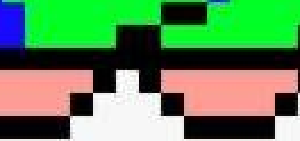
As a consequence of the image resizing, the single-pixel elements are bigger, and interpolations are visible at higher magnifications. As the examples below,
In[]:=
Show[ImageTrim[Imgs[[1]],{{110,120},{125,123}}],ImageSize150]Show[ImageTrim[Imgs[[4]],{{360,40},{490,100}}],ImageSize150]
Out[]=

Out[]=
Strategy #1: Detecting corners
Strategy #1: Detecting corners
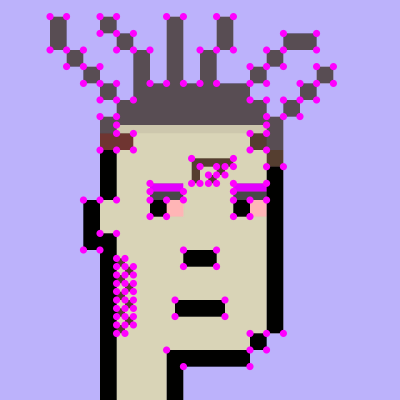
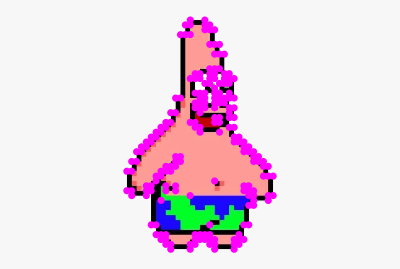
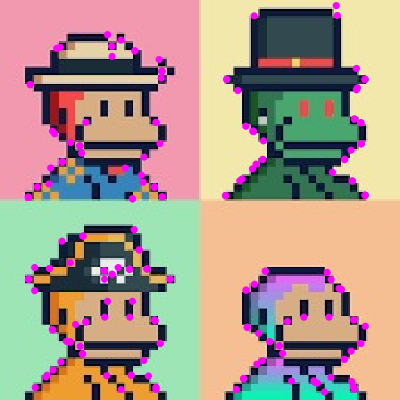
This strategy tries to detect some corners, from which the nearest corners are found. Since pixels are squares, we aim to determine the smallest squares from the corners which would give us, the size factor needed to reduce the image. As a first step, we detect most the corners,
In[]:=
Corners=ImageCorners[#,1,.004,2,MaxFeatures200,MaxFeatureDisplacement5]&/@Imgs;
In[]:=
ImageWithCorners=Table[HighlightImage[Imgs[[i]],Corners[[i]],ImageSize200],{i,Length[Imgs]}]
Out[]=
,

,
,

,
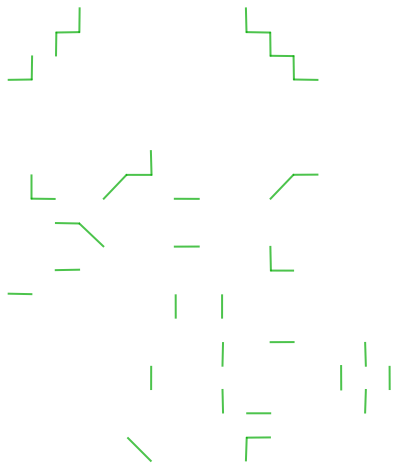
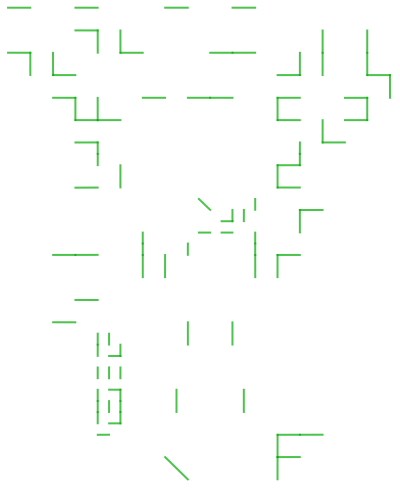
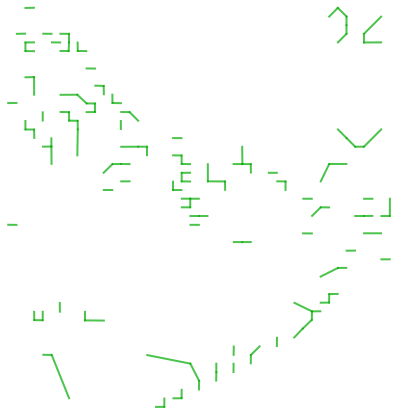
Find the nearest neighbour in each image
In[]:=
Neighbors=NearestNeighborGraph[#,1,GraphStyle"BasicBlack",EdgeStyleDarker[Green],ImageSize200]&/@Corners
Out[]=
,
,
,
,
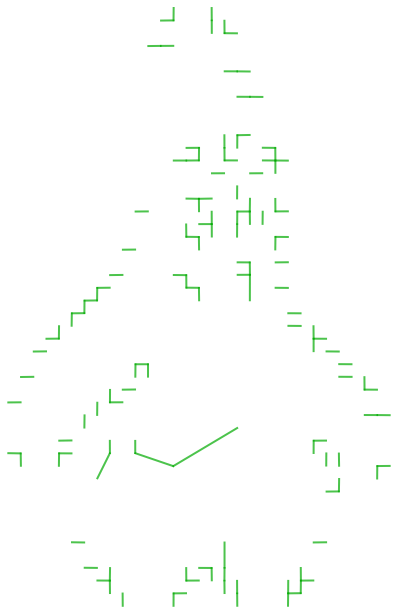
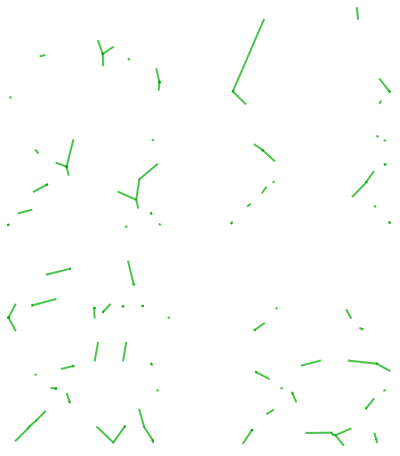
We need a list of edges, from which we can determine the lengths. We select only the lengths that are not diagonals, therefore shorter by a factor Sqrt[2],
In[]:=
Edgedata=EdgeList[#]&/@Neighbors;NeighboursLength=Table[Sort[Norm[#[[1]]-#[[2]]]&/@Edgedata[[i]]],{i,Length[Imgs]}];SelectedNeighboursLength=Table[Select[NeighboursLength[[i]],#<NeighboursLength[[i,1]]Sqrt[2]&],{i,Length[Imgs]}];
In[]:=
MeanPixelSize=Mean[#]&/@SelectedNeighboursLength;
In[]:=
OriginalSize=Floor[InitialImageSize/MeanPixelSize]
Out[]=
{{24,24},{48,48},{51,51},{82,55},{2435225,2435225}}
In[]:=
ImgPixelArt=Table[ImageResize[Imgs[[i]],OriginalSize[[i]],Resampling"Nearest"],{i,Length[Drop[Imgs,-1]]}];
In[]:=
GraphicsGrid[{ImgPixelArt,Table[Graphics[Text[Style[ToString[Round[OriginalSize[[i,1]]]]<>""<>ToString[Round[OriginalSize[[i,2]]]],Large,Bold,Blue]]],{i,Length[Imgs]}]},ImageSize800]
Out[]=
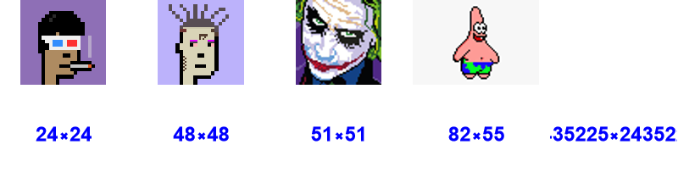
Note that the last image above hasn't been shown due to the wrong size since it hasn't successfully captured a significant amount of corners.
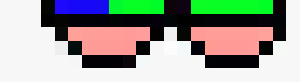
Details can be seen to determine if the original pixel has been achieved.
Show[ImageTrim[ImgPixelArt[[1]],{{12,12},{13,13}}],ImageSize150]
Out[]=

Show[ImageTrim[ImgPixelArt[[4]],{{30,4},{50,8}}],ImageSize150]
Out[]=
Strategy #2: Fourier Transform
Strategy #2: Fourier Transform
This strategy uses the ImagePeriodogram, to determine dark bands in its spectra, which represents the size of the original image. Look at the scaling example below of the first image and its corresponding centered ImagePeriodogram,
In[]:=
Manipulate[NewSize=ImageResize[Imgs[[1]],a];GraphicsRow[{NewSize,ImagePeriodogram[ColorConvert[NewSize,"Grayscale"]]},ImageSize400],{a,100,300,20},SaveDefinitionsTrue]
Out[]=


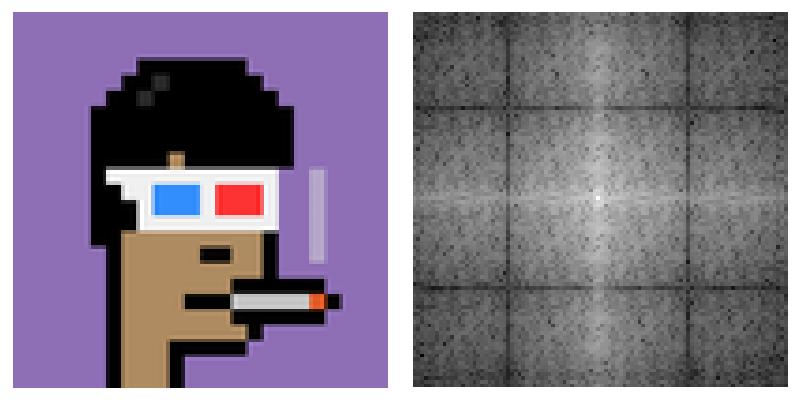
The distance of the nearest corner of these dark bands from the bright center dot, represents the original Pixel Art dimension. So we generate a non centered ImagePeriodgram and take only a quarter of the size,
We can accumulate rows and columns (both dimensions) to better visualize the positions of these dark bands. We also include a "minus" sign so that the minimum value becomes the maximum, and "Drop" the first element to exclude the zero spatial frequency (bright white dot).
To better determine the peak values, in the above plots, we subtract it from a background value modeled as a second-degree polynomial,
All we need to know is the position of the maximum pixel, for each dimension.
We can now determine the new sizes for all the input images
Once the original size is recovered (above) all we need is to Resize our input images to their OriginalSize without interpolating.
Details can be seen to determine if the original pixel has been achieved.
Strategy #3: Analyzing color palette
Strategy #3: Analyzing color palette
This strategy aims, to recover the original pixel Art size, by reducing the input images of size {X,Y} to all smaller sizes preserving the aspect ratio. The hypothesis is that when the correct original size is achieved we will have a significant decrease in the color palette size. We, therefore, run through all possible sizes smaller than the original one, by scaling down it from one-quarter of the original size down to a minimum of 20 pixels.
The density of the color palette is determined, by counting the unique number of colors in an image and dividing it by the image area. Since we are interested, in determining the peak value, we invert the value by including a "minus" sign,
The density of the color palette is determined, by counting the unique number of colors in an image and dividing it by the image area. Since we are interested, in determining the peak value, we invert the value by including a "minus" sign,
A sample of the ColorPaletteDensity is plotted below,
To better determine the peak values, in the above plots, we subtract it from a background value modeled as a second-degree polynomial,
Sample normalized color palette density are shown below,
To determine the peak position, we haven't succeeded in using FindPeak[], to accomplish the task for all the sample input images, with the same parameters. We, therefore, built a custom FindFirstPeak[] function, since we are interested in the position of the first significant peak,
Once the original size is recovered (above) all we need is to Resize our input images to their OriginalSize without interpolating.
Once the original size is recovered (above) all we need is to Resize our input images to their OriginalSize without interpolating.
Conclusion
Conclusion
Strategy #2 seems to be the best. Compared to #3, it can distinguish between non-squared images, like Imgs[[4]].
Strategy #2 compared to #1, seems to be the same at first, but #1 assumes all pixels are squares. And in the case of an image resizing with does not maintain the aspect ratio, it will fail. Below, we implement the best solution as a Cloud Object, such that you can try it. You just need to click on the URL link, at the last line of this notebook.
Strategy #2 compared to #1, seems to be the same at first, but #1 assumes all pixels are squares. And in the case of an image resizing with does not maintain the aspect ratio, it will fail. Below, we implement the best solution as a Cloud Object, such that you can try it. You just need to click on the URL link, at the last line of this notebook.
Cloud Deploy
Cloud Deploy