This post shows a way to add stylized annotations to your system model diagrams:
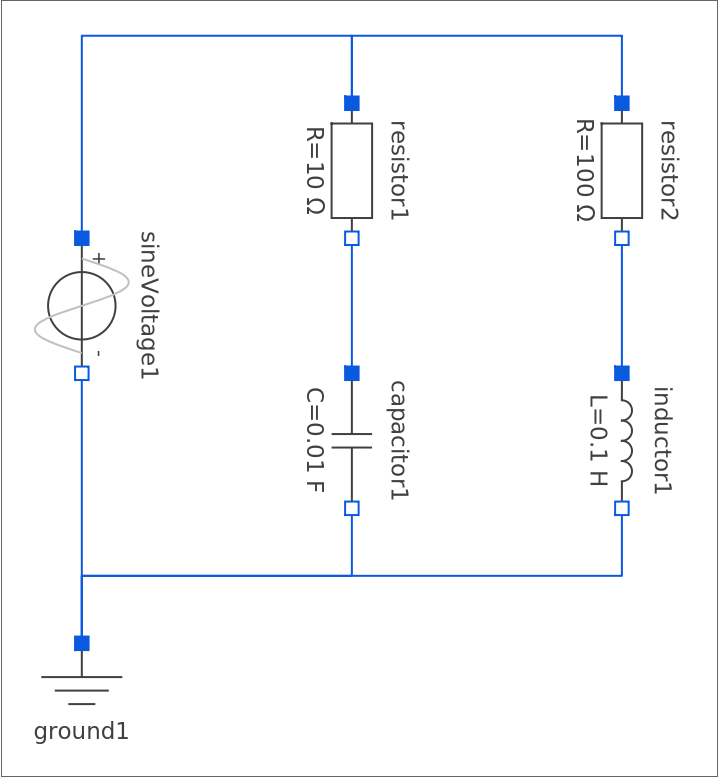
Step 1: Check the model diagram
Step 1: Check the model diagram
Create the diagram of the circuit in System Modeler and open it in Wolfram Language:
In[]:=
modelName="ComponentBased.ElectricCircuit";model=SystemModel[modelName];model["Diagram"]
Out[]=
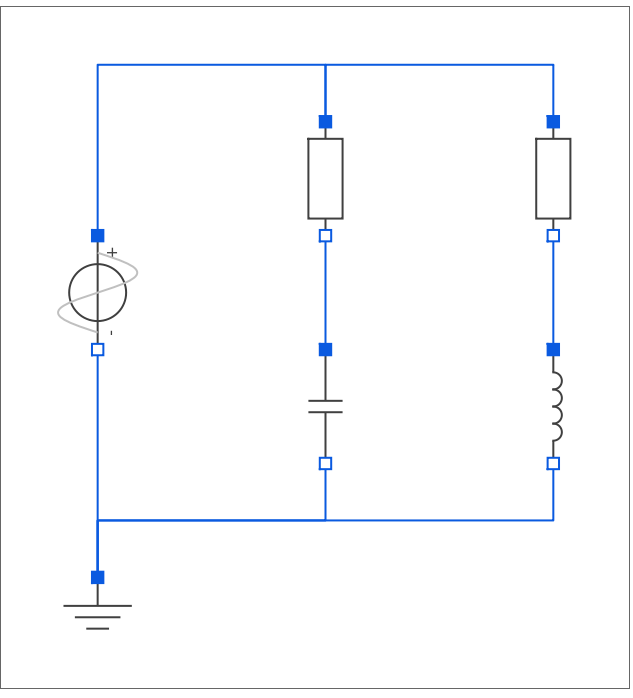
Step 2: Scale the image to be consistent and remove all the component labels
Step 2: Scale the image to be consistent and remove all the component labels
In[]:=
diagram=diagramImage[modelName,3.5]
Out[]=
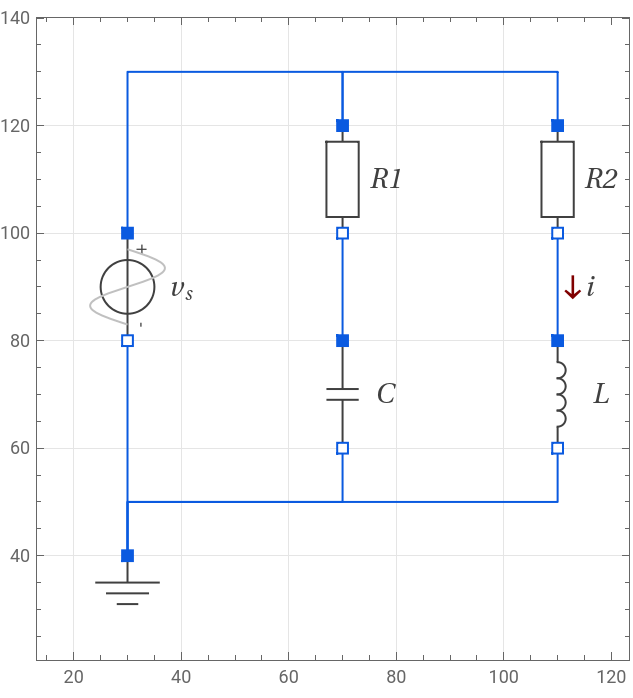
Step 3: Place text and arrows on the diagram
Step 3: Place text and arrows on the diagram
Use the coordinate values to place the text and arrow at the desired location:
In[]:=
diagWithText=Show[diagram,diagramText["R1",{78,110}],diagramText["R2",{118,110}],diagramText["C",{78,70}],diagramText["L",{118,70}],diagramText[Subscript["v","s"],{40,90}],diagramArrow[{113,90},Pi*1.5],diagramText["i",{116,90}],FrameTicks->True,GridLines->Automatic]
Out[]=
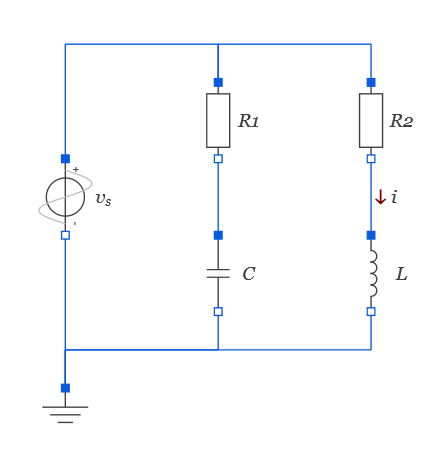
Step 4: Create the image
Step 4: Create the image
Create a polished image:
In[]:=
Rasterize[Show[diagWithText,Frame->False,FrameTicks->False,GridLines->False]]
Out[]=
Functions Definitions
Functions Definitions
A function to remove component labels and scale the image:
In[]:=
diagramImage[modelName_String,scale_]:=Function[d,Show[d,ImageSize->scaleAbs[Subtract@@@AbsoluteOptions[d,PlotRange][[1,2]]]]][SystemModel[modelName,{"Diagram","Text"->False,PlotRangePadding->10}]]
A function to style the overlay text:
In[]:=
diagramText[x_,pos_]:=Graphics[Text[Style[x,FontFamily->"Georgia",FontSlant->Italic,FontSize->14,FontColor->RGBColor[{0.25098039215686274,0.25098039215686274,0.25098039215686274}]],pos]]
A function to style the arrow:
In[]:=
diagramArrow[pos_,rot_]:=Graphics[Rotate[Text[Style["→",FontColor->RGBColor[{128/255,0,0}],FontSize->Scaled[0.05]],pos],rot]]
CITE THIS NOTEBOOK
CITE THIS NOTEBOOK
Create custom stylized circuit diagrams
by Ankit Naik
Wolfram Community, STAFF PICKS, July 11, 2023
https://community.wolfram.com/groups/-/m/t/2956235
by Ankit Naik
Wolfram Community, STAFF PICKS, July 11, 2023
https://community.wolfram.com/groups/-/m/t/2956235