Abstract
Abstract
The objective of this project was to visualize an email thread using the built-in graphing functionality of the Wolfram Language. Email data was collected from the public mailing list archives of the KDE Project. A UI for interacting with the created graphs was created.
Introduction
Introduction
Since their initial introduction in 1982 (RFC 822) email threads haven't changed much. We still interact with emails threads as essentially lists of replies to messages. However, email threads can be extremely complicated and difficult to interact with. Graphing emails, however, helps to visualize email threads more effectively.
Initial Thread Processing
Initial Thread Processing
The first step in graphing an email is importing and processing a email thread. Originally I planned on using the Enron email dataset because of its extensive archive of real-life email interactions. However the Enron dataset could not be used due to the lack of the References or In-Reply-To header. Instead I used email threads from the KDE Project's email archive.
In[]:=
Email import
Email import
Here the emails are imported into WL and parsed into MBOX format
Import the emails in MBOX format
filename="https://www.wolframcloud.com/obj/jgerlach/2020-October-KDE-Email-Archive";
emails=ImportString[CloudImport[filename],{"MBOX","FullMessageElements"}];
In[]:=
Edge and Initial Graph Generation
Edge and Initial Graph Generation
Now that we have the emails imported, the next thing we'll do is create a list of edges for graphing the thread. First, we'll get a list of all Reference headers from our imported email archive (Reference headers store a list of emails before the current email). Then the last Email-ID in each references header is extracted (if no Email-IDs are listed then None is returned). Then the position of each element in emails is threaded to the replies to that emails. The following variable edges executes this process.
Generate the edges of the notebook
edges=Flatten[Thread[Position[emails,#][[1,1]]Position[If[#=={},None,Last[#]]&/@Lookup[emails,"ReferenceMessageIDList"],Lookup[#,"MessageID"]][[;;,1]]]&/@emails]
{12,117,119,140,23,212,34,45,48,56,67,79,810,818,1011,1114,1115,1129,1420,1516,2021,2022,2126,2223,2324,2325,2627,2728,2747,2930,2932,2955,3031,3033,3334,3435,3436,3537,3638,3839,4041,4042,4143,4344,4445,4546,4648,4749,4950,5051,5053,5152,5254,5556,5758,5760,5859,6061,6163,6173,6264,6267,6365,6566,6572,6670,6768,6869,7374,7475,7576}
At this point it's important to note that our email archive contains multiple email threads, so it's important that they're split before before we do further processing. Thankfully the Wolfram Language has the following function which makes splitting the list of edges into individual graphs easy.
Split the graphs
graphs=WeaklyConnectedGraphComponents[edges]
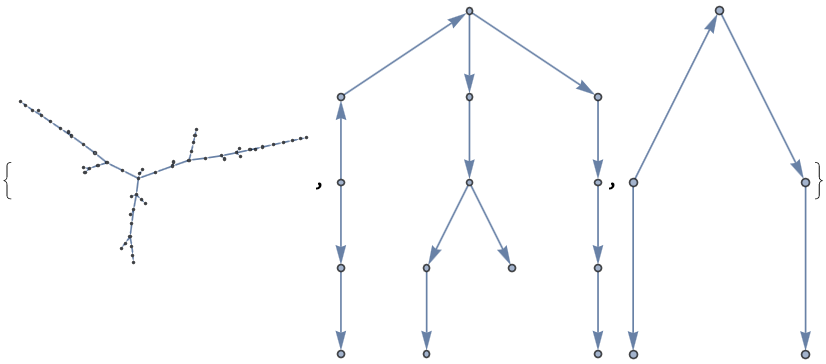
The graphs above may look nice and pretty, but they aren't! Try and find the first email in these threads.
In[]:=
importGraph
importGraph
All of the code discussed previously can easily be consolidated into this function called importGraph.
In[]:=
importGraph[filename_]:=Module[{emails=ImportString[CloudImport[filename],{"MBOX","FullMessageElements"}],edges,graphs},edges=Flatten[Thread[Position[emails,#][[1,1]]Position[If[#=={},None,Last[#]]&/@Lookup[emails,"ReferenceMessageIDList"],Lookup[#,"MessageID"]][[;;,1]]]&/@emails];graphs=WeaklyConnectedGraphComponents[edges];{emails,graphs}]
In[]:=
findGraphVariables
findGraphVariables
The next step in our journey towards the perfect email graph is to find out some more about our graph. The following function findGraphVariables does this:
◼
findGraphVariables takes the following variables
◼
pos which specifies the position of the graph in graphs you want
◼
graphs which takes a list of graphs from importGraph
◼
graphEdges finds the edges of the graph.
◼
graphVertices finds the vertices/nodes of a graph.
◼
rootVertex finds the initial message in thread by finding the one vertex with no connections leading to it.
◼
graphEdges, graphVertices, and rootVertex are then returned.
Find the edges, vertices, and root vertex of a graph (used for formatting)
In[]:=
findGraphVariables[pos_,graphs_]:=Module[{graphEdges,graphVertices,rootVertex},graphEdges=EdgeList[graphs[[pos]]];graphVertices=VertexList[graphEdges];rootVertex=First[Complement@@Transpose[List@@@graphEdges]];{graphEdges,graphVertices,rootVertex}]
Initial Email Thread Graph
Initial Email Thread Graph
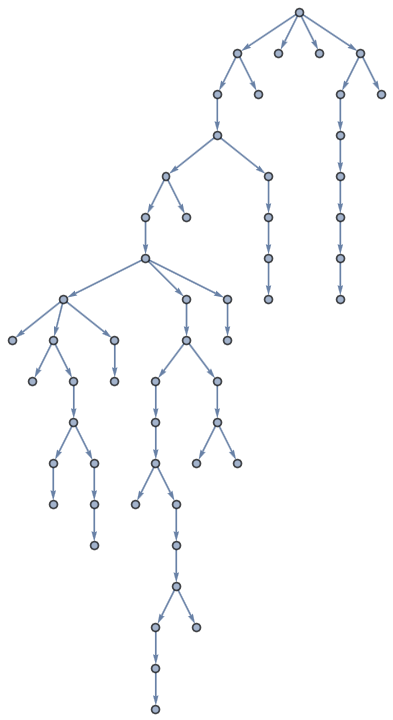
Now that we've written some functions to help us make a graph of an email thread, let's make a graph!
Import the emails
In[]:=
{emails,graphs}=importGraph["https://www.wolframcloud.com/obj/jgerlach/2020-October-KDE-Email-Archive"];
Find graph variables for the first graph from graphs
In[]:=
{graphEdges,graphVertices,rootVertex}=findGraphVariables[1,graphs];
Graph the thread with a specified root vertex
In[]:=
Graph[graphEdges,GraphLayout{"LayeredEmbedding","RootVertex"->rootVertex}]
Out[]=
In[]:=
What next?
What next?
Next, I played around with formatting my graphs. Here are few of the cool graphs I made. (The code for theses graphs is collapsed)
NOTE: These email threads and the people in them are REAL. Do not misuse these email threads or the people's email addresses
In[]:=
Graph with Custom Vertices
Graph with Custom Vertices
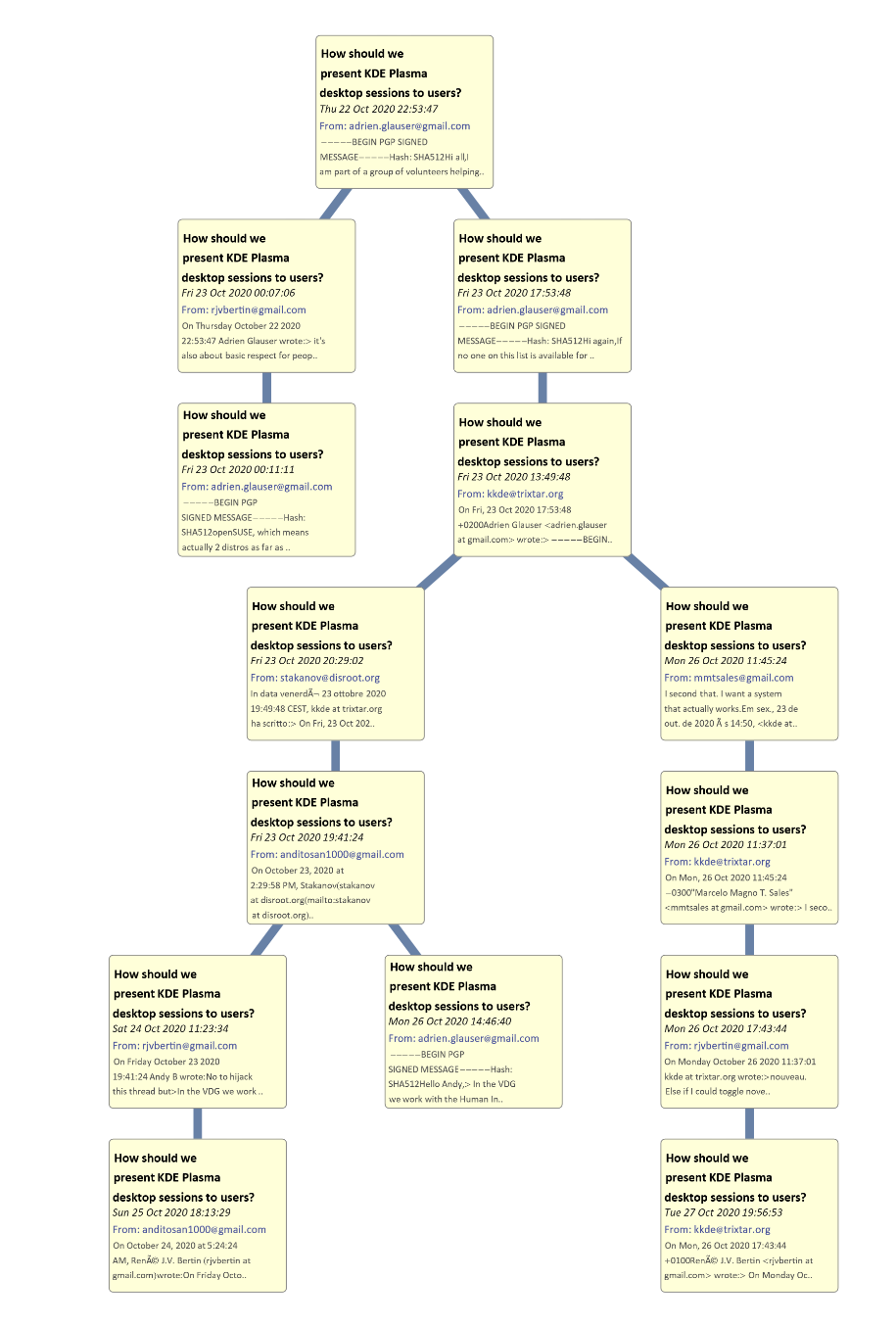
This graph was made with custom vertices showing a short summary of the email. I eventually gave up on this graph because it doesn't scale well with large threads and because of some other formatting issues relating to edges. A future project could be generating custom vertex coordinates for this type of graph.
In[]:=
In[]:=
Graph Representing Time
Graph Representing Time
Of all the graphs I made this one is the most complicated. I spent a couple days trying to figure out how to represent time in my graph. I eventually settled on representing time by changing the distance between vertices based on the amount of time between them. In this graph the first message is on the far left and time progresses going to the right. After I made this behemoth I figured that this was terrible way of representing time so I moved on to other, better ways, of showing time.
In[]:=
Interactive Graph Representing Time
Interactive Graph Representing Time
This is my favorite graph because it animates the evolution of the graph over time. You can drag the slider to see how the graph evolves or just let it play. either way its really cool. (I also incorporated it into the UI).
In[]:=
Other Graphs I Made
Other Graphs I Made
In addition to these three graphs I played around with making graphs with tooltip and some other formatting things. Eventually I decided to make a UI to allow for greater interactivity.
Interactive User Interface
Interactive User Interface
The following functions (in the collapsed input cell) create the interactive UI. The UI is composed of three main areas:
◼
A vertical list oriented on the left hand side of the UI for picking the email thread to graph.
◼
In the upper right hand side of the UI is the graph of the email thread. In this graph the current message/vertex being viewed is highlighted in red. Vertices can be clicked on and their information will be viewed in the message display pane.
◼
The lower right hand side contains the following:
◼
A pane displaying the current message that is selected in the graph.
◼
A column titled "General" which displays statistics about the graph and a list of users in the thread. Users can be selected from this list and their message will be highlighted in yellow in the graph.
◼
A animator slider, which allows for animation of the evolution of the graph over time
◼
A zoom in/out slider, which allows for manipulation of the graph
Conclusion
Conclusion
In conclusion, I constructed a basic graph of email from the KDE Archives. I constructed an interactive UI that allows a user to see information about an email thread. Some future extensions of this project may include:
◼
Extending the functionality of the UI to show more statistics about the graph
◼
Making the graph based of an actual inbox (i.e. my own)
◼
Fixing the issues with custom vertices
Keywords
Keywords
◼
Graphs
◼
Email Threads
◼
Email
◼
User Interface
Citations
Citations
◼
Cohen, William W. “Enron Email Dataset.” Enron Email Dataset, Carnegie Mellon School of Computer Science, 8 May 2015, www.cs.cmu.edu/%7Eenron.
◼
“The KDE Archives.” The KDE Archives, The KDE Project, mail.kde.org/pipermail/kde. Accessed 15 July 2021.
◼
Zawinski, Jamie. “Message Threading.” JWZ, Jamie Zawinski, www.jwz.org/doc/threading.html. Accessed 15 July 2021.