CITE THIS NOTEBOOK: Exploring Equations in System Modeler by Ankit Naik. Wolfram Community DEC 29 2022.
Ever wondered how your model equations are solved under the hood in Wolfram System Modeler? There are lot of things that happen like model translation, equation sorting, state selection and so on. In this post, I will not go into that level of detail but rather try to give a high-level view of what happens and how you as a modeler can track those changes. I will use a model of a spring damper system as an example.
Step 1: Create your model graphically
Step 1: Create your model graphically
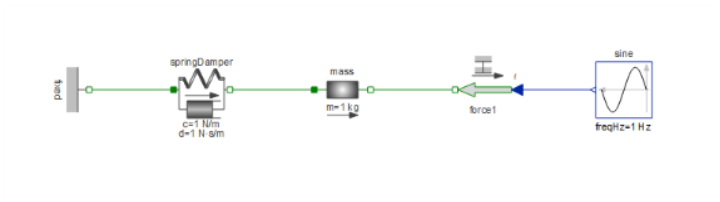
The most common method to create your models is by drag-and-drop of components from the Modelica standard library. We will use components from the Translation library to create this model.
Step 2: Check the Modelica code in the text view
Step 2: Check the Modelica code in the text view
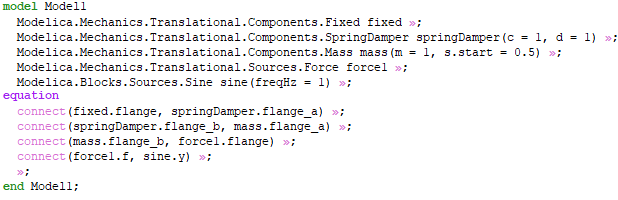
Make sure that you are in the Modeler user mode (your user mode is displayed at the bottom right of the Model Center window). This will give you access to the Modelica text view. All the models that you create graphically are translated into Modelica code. What you see in this code is basically component declarations and component equations. All the mass or energy conservation equations are taken care by these connect equations using Kirchhoff’s circuit and voltage laws.
Step 3: Check the flattened Modelica view
Step 3: Check the flattened Modelica view
Your model uses components such as a spring-damper, mass etc that have declarations and equations of their own. What you would want to see next is how all the declarations and the equations come together. That might enable you to troubleshoot issues such as a wrong initialization.
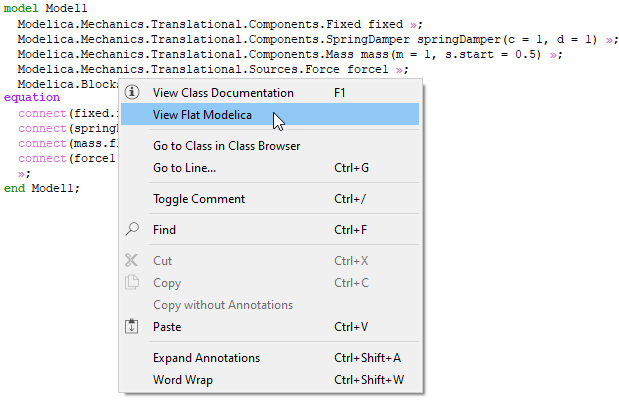
To see the flattened view, simply right-click in the Modelica text view and click View Flat Modelica. That should open the following view (Please note that you need to have System Modeler version 13.2 to see this view. Download a 30-day trial to test it, if you don’t have it already) :
What you see in this view is the complete set of declarations, equations and functions that are involved to solve the modeling problem. You can see the declarations as built-in types such as Real, Boolean etc.
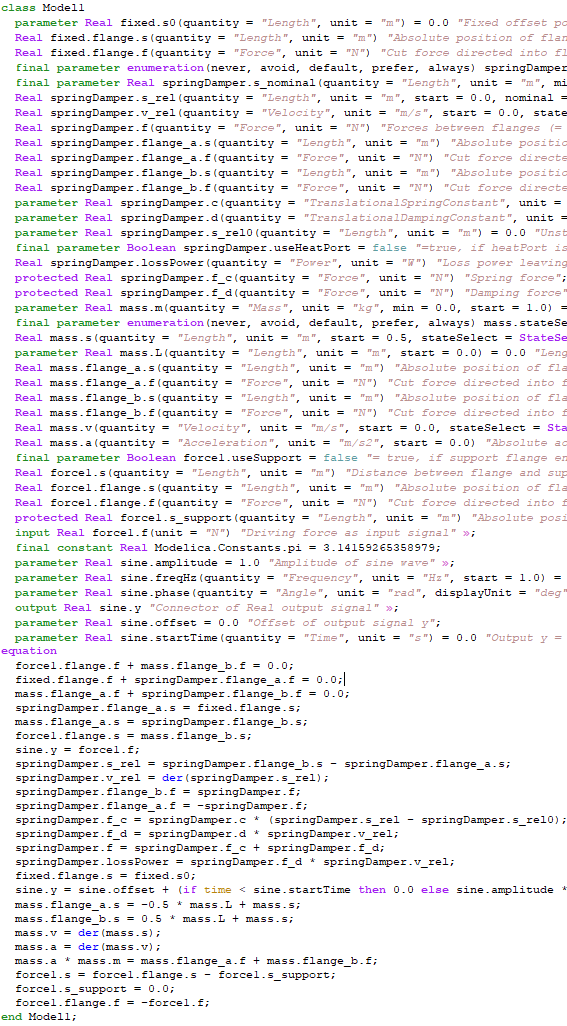
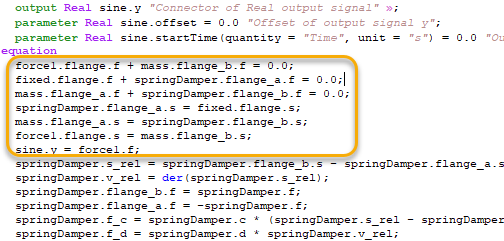
The following section is interesting as it shows how the connect equation were expanded. You could see the positions at the flanges are balanced (they are equal) and the net forces at the flanges are zero (forces are balanced). These are equations that are automatically added for you.
Step 4: Check the initialization
Step 4: Check the initialization
However, flattening is only the first step in the process to get the simulation code, you would probably want to see how the equations are initialized and integrated. System Modeler does a lot of things such as state selection, index reduction, creating dependency graphs and so on to reach the next step, but that is a separate post in itself.
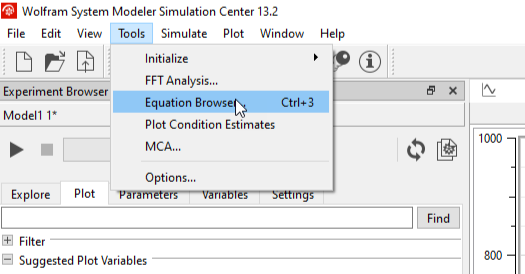
Simulate your model and then open the initialization equations in the equation browser in Simulation Center. Go to Tools and select Equation Browser. Select the Initialization tab.
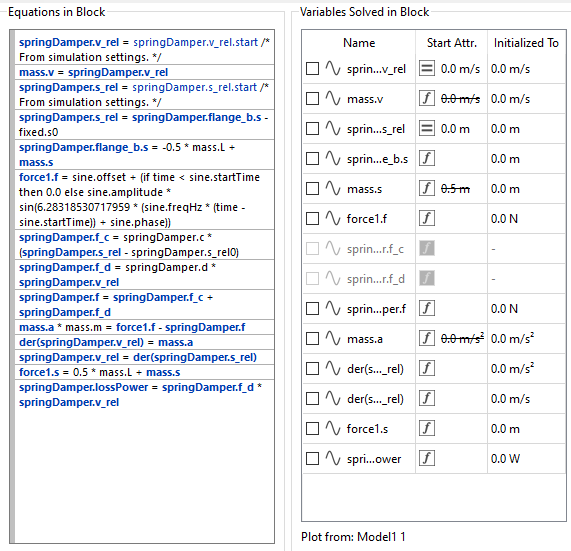
Here you can see how the equations are solved step-by-step. Our model is initialized from the initial velocities and initial positions and all other variables are solved subsequently. To test a new initialization, simply change the variable in Equation Browser and re-simulate the experiment.
Step 5: Check the integration
Step 5: Check the integration
Check the Integration tab to see the reduced set of equations that is solved at every time step. You can observe that 25 equations in the flattened code (refer step 3) have been reduced to 7 equations. Some equations like that of springDamper.v_rel are almost identical, while others, like mass.a, have been deduced from other equations.
The two variables present inside the derivative operator “der” are the state variables. At every time step the equations are solved to reach a new value for the state variable.
You can compare the reduced set of equations with the equations that you are used to seeing in a standard textbook.
Hopefully, this blog gives you an introduction on how equation solving process works in System Modeler. You can read about the equation browser in more detail in the following reference pages: