Word clouds are an amazing (and intuitive) way to visualize and compare lists. The next step to make the story they convey more compelling is animating them. I created various animations for WordCloud, including “bubbling in” and transforming the shape of the WordCloud.
Out[]=
WordCloud and popular transitions
WordCloud and popular transitions
WordCloud takes in a list or association and displays the elements that are sized according to their weights. You may recognize a few transitions that are frequently seen with word clouds:
◼
Zoom in: The words increase in size over time
◼
Zoom out: The words decrease in size over time
◼
Bubble in: The words pop into view over time
◼
Bubble out: The words pop out of view over time
◼
Transform shape: The words transition into a different word cloud shape
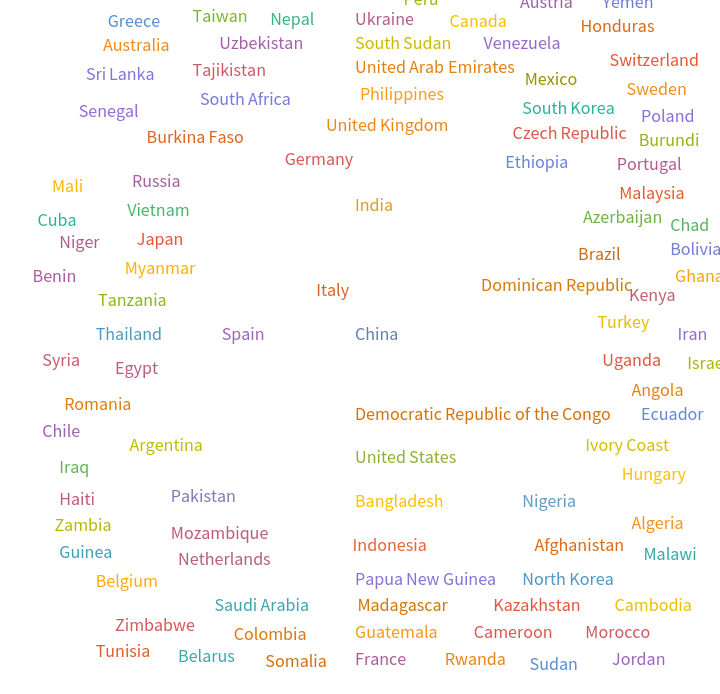
Zooming and bubbling will only need replacements with a scaling function, and transforming the shape will use both replacements and interpolations. Below is a sample word cloud that will be used throughout this post:
In[]:=
cloud=WordCloud[EntityValue[CountryData[],{"Name","Population"}]]
Out[]=

💡 Information on replacements:
💡 Information on replacements:
💡 Information on interpolations:
💡 Information on interpolations:
Padding the video
Padding the video
For stylistic reasons, I created a function to pad the videos. I included various inputs for this function but they all achieve the same goal of “freezing” the video at a certain frame. This function boils down to using VideoExtractFrames to get a frame at a certain time, VideoGenerator to create a video snippet for the extended frame, and VideoInsert to place it back into the video.
This turns a graphics or image object into a video with a specified duration:
In[]:=
HoldVideoFrame[gr_Graphics|gr_Graphics3D|gr_Image,dur_]:=VideoGenerator[gr&,dur]
If a function is used to create the frames, it can be used as an input to hold the frame at a certain time:
In[]:=
HoldVideoFrame[func_,t_,dur_]:=HoldVideoFrame[func[t],dur]
This freezes a frame at a specific time(s) in the video to the specified duration(s):
In[]:=
HoldVideoFrame[vid_Video,t_->dur_]:=HoldVideoFrame[vid,{t->dur}]HoldVideoFrame[vid_Video,t_List->dur_]:=HoldVideoFrame[vid,Thread[t->dur]]HoldVideoFrame[vid_Video,assoc_List]:=Module[{vAssoc},vAssoc=holdVideoFrameValid[vid,assoc];VideoInsert[vid,Table[a[[1]]->HoldVideoFrame[VideoExtractFrames[vid,a[[1]]],a[[2]]],{a,vAssoc}]]]
This allows for the strings “Beginning,” “Middle,” and “End” to be used as time specifications:
In[]:=
holdVideoFrameValid[vid_,assoc_List]:=Module[{beg=0,mid=QuantityMagnitude@Duration[vid]/2,end=QuantityMagnitude@Duration[vid]-0.01},Table[Which[a[[1]]=="Beginning",beg->a[[2]],a[[1]]=="Middle",mid->a[[2]],a[[1]]=="End",end->a[[2]],True,a],{a,assoc}]]
Zooming
Zooming
Zooming in and out of a word cloud requires the size of the font to be changed. In order to create this, only one value needs to be manipulated: the scaling of the text. In WordCloud, the size of the text is defined by Scaled[value] as seen in the pattern above. So, by changing value one can change the size of the text. Here is a static example of this, where I make all the font sizes Scaled[0.025]:
In[]:=
cloud/.{Scaled[x_Real]:>Scaled[0.025],Center->Scaled[{0,0}]}
Out[]=
Here is the function to animate this:
In[]:=
zoomIn[cloud_]:=HoldVideoFrame[Parallelize@AnimationVideo[cloud/.Scaled[x_Real]:>Scaled[t*x],{t,0,1,0.01}],{"Beginning"->1,"End"->2}]
In[]:=
zoomIn[cloud]
Out[]=
Simply reverse the scale for a zoom out:
You may notice the words jitter, and this is an effect of the centering of the word not being a constant value. This could be changed by giving the centers a specific value.
Bubbling
Bubbling
To bubble in/out, the text has to appear based on its size. It made the most sense to me to continue using the value inside Scaling[value]. If value is below a certain threshold (that increases with time), then the text is shown. I defined this threshold by Sin[t*Pi/2] purely for stylistic reasons:
Again, the opposite is done for bubbling out:
Transform shape
Transform shape
Transforming between two shapes requires a slightly different replacement. I interpolated the coordinates of the text in the WordCloud in both shapes, and based on that function the position of the text at a specific point in time can be found:
Final function
Final function
To make this easy to use, I put everything into one function:
Conclusion:
Conclusion:
Replacing elements of graphics can lead to many great transitions that don’t require you to reinvent the wheel and create the graphic from scratch. For position changes, and interpolation will work amazingly most of the time. Another cool transition that may be nice to try out on your own would be to adjust the color over time.
CITE THIS NOTEBOOK
CITE THIS NOTEBOOK
WordCloudVideo: using replacements and interpolations for simple transitions
by Anika Patel
Wolfram Community, STAFF PICKS, June 15, 2023
https://community.wolfram.com/groups/-/m/t/2938188
by Anika Patel
Wolfram Community, STAFF PICKS, June 15, 2023
https://community.wolfram.com/groups/-/m/t/2938188