Check an introductory post about Wolfram & Raspberry Pi 5 here: https://community.wolfram.com/groups/-/m/t/3558592
Part 2 of this series: https://community.wolfram.com/groups/-/m/t/3578212
Part 3 of this series: https://community.wolfram.com/groups/-/m/t/3578728
Part 2 of this series: https://community.wolfram.com/groups/-/m/t/3578212
Part 3 of this series: https://community.wolfram.com/groups/-/m/t/3578728
Discover how the Raspberry Pi 5 turns into a full STEM lab with free Mathematica. From real-time sensor dashboards to image processing, neural networks and stunning math art, this guide empowers students, teachers, and parents to explore, invent, and visualize science and engineering like never before. CITATION: Bart ter Haar Romeny, Raspberry Pi 5 + Mathematica: A STEM Creativity Powerhouse, Wolfram Technology Conference 2025. https://www.wolfram.com/events/technology-conference/2025/
All applications of this presentation are executed on a Raspberry Pi 5 with 16 GB and 256 GB NVMe.
Detailed instructions how to prepare your Raspberry Pi 5
Detailed instructions how to prepare your Raspberry Pi 5
Installation RPI5 Operating System, installation Mathematica, installation remote viewing software, installation MVMe disk, running benchmarks:
Visit www.21stcenturycoding.net/prepare.
For a 1 hour ‘Gentle Introduction to Mathematica’ and more applications see: www.youtube.com/@21stcenturycoding and www.21stcenturycoding.net .
Visit www.21stcenturycoding.net/prepare.
For a 1 hour ‘Gentle Introduction to Mathematica’ and more applications see: www.youtube.com/@21stcenturycoding and www.21stcenturycoding.net .
About me
About me
Introduction
Introduction
I selected here a few applications that show the versatility of the Wolfram Language specifically for the RPI5, with explanation, in computational essay style, for STEM students.
No ‘wow, I can write this with an LLM’, but focused on understanding and learning in depth. Wolfram’s material stack is huge: https://www.wolfram.com/language/?source=nav#learning-resources
Sensors
Sensors
Temperature, pressure and humidity with gauges, LCD display and a 1$ sensor
Temperature, pressure and humidity with gauges, LCD display and a 1$ sensor
The sensor BME280 measure temperature, pressure and humidity.
The LCD1602 display has 4 rows of 20 characters.
We read the values from the sensor and write the characters to the display with the same standard I2C connection of the RPI5.
The LCD1602 display has 4 rows of 20 characters.
We read the values from the sensor and write the characters to the display with the same standard I2C connection of the RPI5.
The I2C interface
The I2C interface
The I2C communication protocol is widely used for simple communication between processors and chips. It only requires two lines (SDA for data and SCL for the clock), next to 2 lines for power. Learn more about I2C on Wikipedia: "https://en.wikipedia.org/wiki/I%C2%B2C"
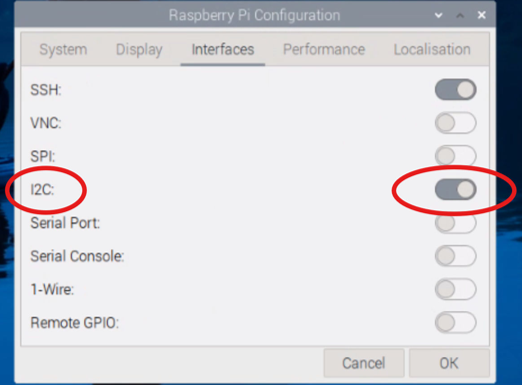
To use the I2C, it needs to be enabled. Select on the top bar menu:
RPI logo Preferences Raspberry Pi Configuration Interfaces turn I2C on.
RPI logo Preferences Raspberry Pi Configuration Interfaces turn I2C on.
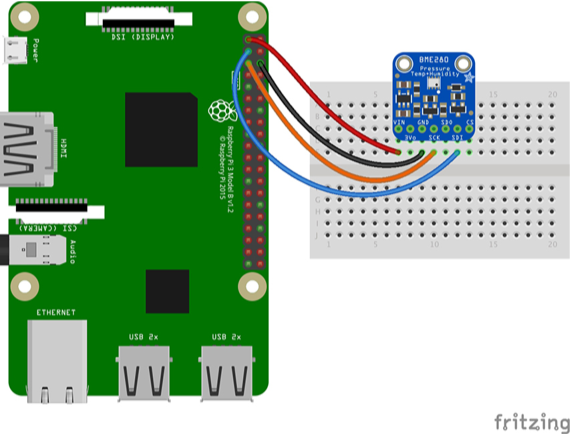
Connect the BME280 sensor, by 4 wires, to the following physical pin numbers:
Vcc PIN 1 (NB: the BME280 sensor is a 3.3 Volt device!)
Gnd PIN 9
SDA PIN 3
SCL PIN 5
Vcc PIN 1 (NB: the BME280 sensor is a 3.3 Volt device!)
Gnd PIN 9
SDA PIN 3
SCL PIN 5
The next cell is an ExternalLanguage cell. Enter is by typing > as the first character, and select with your mouse in the cell bullet on the left side of the cell which type of language you want. Here we select the (Linux) Shell.
In[]:=
This shows the pinout of your Raspberry Pi 5:
In[]:=
pinout
Then, connect the LCD display, by 4 wires:
Vcc PIN 2 (The LCD1602 is a 5V device.)
Gnd PIN 9
SDA PIN 3
SCL PIN 5
Vcc PIN 2 (The LCD1602 is a 5V device.)
Gnd PIN 9
SDA PIN 3
SCL PIN 5
After adding the LCD1602 display to the same I2C (yes, you can add multiple sensors to a single I2C channel), we see that it has address 27 (this was specified in the manual ...) and the I2C address of the BME280 sensor is 76:
We can check :
In[]:=
i2cdetect -y 1
0 1 2 3 4 5 6 7 8 9 a b c d e f
00: -- -- -- -- -- -- -- --
10: -- -- -- -- -- -- -- -- -- -- -- -- -- -- -- --
20: -- -- -- -- -- -- -- 27 -- -- -- -- -- -- -- --
30: -- -- -- -- -- -- -- -- -- -- -- -- -- -- -- --
40: -- -- -- -- -- -- -- -- -- -- -- -- -- -- -- --
50: -- -- -- -- -- -- -- -- -- -- -- -- -- -- -- --
60: -- -- -- -- -- -- -- -- -- -- -- -- -- -- -- --
70: -- -- -- -- -- -- 76 --
Out[]=
Success

There are numerous webpages describing how to use sensors and the Raspberry Pi (e.g. https://learn.adafruit.com/).
Here I show how particularly easy things are in Mathematica, exploiting pieces of Python code to interact with the external devices.
The Python session for the hardware
The Python session for the hardware
We use Python to read the sensor and write the display, and use Mathematica for the main program, and possible fancy interfaces and data analysis.
In[]:=
session=StartExternalSession["Python"]
Out[]=
ExternalSessionObject
Note that a ‘virtual environment’ Venv is created automatically by Mathematica. You don’t have to worry about directories or paths, it is all taken care of by Mathematica.
Install required Python packages
Install required Python packages
Installation of the required Python packages is a one-liner in Mathematica. Don’t forget to bundle multiple packages in a List with curly brackets, as is the standard list format in Mathematica.
This loads the required drivers for the BME280 sensor and the LCD display:
In[]:=
ResourceFunction["PythonPackageInstall"][{"RPI.BME280","RPLCD"}]
Out[]=
Success,Success
Read the sensor
Read the sensor
This Python code, run in the ExternalEvaluate[ ] command in the just defined session initializes the BME280 sensor (packages are imported, the address is set, the bus is initialized):
In[]:=
ExternalEvaluate[session,"import timeimport smbus2import bme280# BME280 sensor address (default address)address = 0x76# Initialize I2C busbus = smbus2.SMBus(1)# Load calibration parameterscalibration_params = bme280.load_calibration_params(bus, address)"]
We then define a Mathematica function in Python, which we can call in Mathematica.
The Python code ‘def read()’ defines a function read() in Python. The function has no input argument(s), and returns a triplet of measurement values :
The Python code ‘def read()’ defines a function read() in Python. The function has no input argument(s), and returns a triplet of measurement values :
In[]:=
readSensor:=ExternalEvaluate[session,"# Read sensor datadata = bme280.sample(bus, address, calibration_params)def read(): temperature_celsius = data.temperature pressure = data.pressure humidity = data.humidity return (temperature_celsius, pressure, humidity)"]
We defined the function readSensor in Mathematica with := (‘delayed assignment).
It is an ExternalFunction. You can check by asking information about readSensor.
In[]:=
Information[readSensor]
Out[]=
InformationExternalFunction
Now call the function readSensor[ ] in Mathematica (the square brackets are obligatory, as it is a function call):
In[]:=
{temp,press,hum}=readSensor[]
Out[]=
{15.92,1006.12,70.2137}
Quite nice, we get the 3 readings with a Mathematica call.
This method can now be applied to any I2C sensor.
This method can now be applied to any I2C sensor.
Write the display
Write the display
This initializes the LCD display:
And here is the function to write the date, temperature, pressure and humidity on each line.
This function takes 4 arguments:
This function takes 4 arguments:
Create the date string:
and test the function:
Dynamically update every second
Dynamically update every second
Finally, we dynamically read the sensor and update the LCD display and a GUI with gauges every second:
Take the BME280 sensor between your fingers, and see the temperature change interactively.
In Mathematica (Wolfram Language) it is really easy to make fancy user interfaces in a few lines.
In Mathematica (Wolfram Language) it is really easy to make fancy user interfaces in a few lines.
Note that the DynamicModule (as does any Manipulate function) pauses when the output window is scrolled out of sight. This then also stops the updating of the LCD1602 display.
Stop the system by deleting the above cell with the gauges.
Stop the system by deleting the above cell with the gauges.
Blush, baby, blush
Blush, baby, blush
We can now interactively let a girl blush.
The sensor readings are used to make the colour of -only those pixels in the face that represent skin- more reddish. This more complex image analysis is easy in Mathematica, and real-time.
Face selection and skin redness
Face selection and skin redness
For the demo notebook, we use the face below, but you can of course take any face.
Check the image dimensions:
A neural network in Mathematica can recognize some facial features:
We now go find the RGB color of the skin. First we put the image on screen:
Put your mouse pointer on the location where you want to measure the skin color, e.g. on the center of the cheek. Press the right mouse button, and select ‘Get Coordinates’. Click the left mouse key, and -c to copy these coordinates.
Paste these coordinates into the highlighted section of the next statement:
It gives you the color, as a colored pixel. If you really need the RGB values, use:
You can now copy-paste the coloured pixel into the next statement, which finds all pixels with a color near the specified color, with a ‘color-distance’ in the 3D RGB space of 0.01, and recolours them to Red.
Nice. Only the skin pixels are modified, quite a sophisticated result.
Blush
Blush
The girl blushes by adding more reddish when the temperature of the sensor rises.
Therefore we first need to calibrate the system, as it is dependent on your local room temperature (the starting temperature), and the final temperature (e.g. by putting your fingers on both side of the sensor, or to blow warm air over it.
Therefore we first need to calibrate the system, as it is dependent on your local room temperature (the starting temperature), and the final temperature (e.g. by putting your fingers on both side of the sensor, or to blow warm air over it.
With Dynamic we get a continuous reading of the temperature. Write down the start and end temperature, e.g. 19.1 and 19.8 degrees.
The overlay opacity should change from 0.1 to 0.5, corresponding with the begin and end temperature.
Enter this in the following statement:
She will blush when you slightly heat the BME280 sensor with your fingers.
YouTube: https://youtu.be/jXFhIfibOHY
CITE THIS NOTEBOOK
CITE THIS NOTEBOOK
Wolfram & Raspberry Pi 5 — Part 1: STEM lab setup and real-time data
by Bart ter Haar Romeny
Wolfram Community, STAFF PICKS, November 19, 2025
https://community.wolfram.com/groups/-/m/t/3577991
by Bart ter Haar Romeny
Wolfram Community, STAFF PICKS, November 19, 2025
https://community.wolfram.com/groups/-/m/t/3577991