Over the past couple of years, Wolfram Language has introduced several LLM related functions that can talk with Large Language Models that are hosted on the cloud. The support started with OpenAI and Anthropic and soon expanded to other providers like GoogleGemini, Groq, DeepSeek, MistralAI and many more.
It was possible to use locally hosted models through workarounds like running an instance of Ollama (https://community.wolfram.com/t/24156) or llama.cpp (https://community.wolfram.com/t/24360) or the even simple llamafiles (https://community.wolfram.com/t/23445), and using their APIs via raw HTTP requests and response. Though this works in principle, this lacks many of the amazing features that the LLM functions provide.
In version 14.3, support for Ollama was added which unlocked the possibility to use locally hosted models with the LLM functions. This was a great leap and it was finally much more easier to carry out computational exploration and experiments with a locally hosted LLM without having to worry about token usage limits.
Ollama is great, but out of the box it has some preset defaults, which are difficult to change. For example, it does not give fine grain control over how a large language model should get divided and placed across the system RAM and GPU VRAM. We have a workstation that has 8 GB VRAM and 32 GB system RAM. When running a model larger than 8 GB, Ollama puts the entire model on the RAM and CPU is used for the computation, which severely degrades the performance, and the GPU is not utilized. There are some flags that tell Ollama to do a split, but they are quite arbitrary and the performance remains suboptimal. Also the catalog of models by Ollama is pretty limited.
llama.cpp, the inference engine used internally by Ollama, gives complete control of how the model should be placed, in addition to giving control over many other aspects such as the KV cache quantization, memory mapping of weights, distributed inference over multiple servers via RPC and many more. All in all, its a power house for LLM inference. Unfortunately, llama.cpp cannot be used inside Wolfram Mathematica. In this post, I go over the steps to add support for llama.cpp in Wolfram Language so that it can be used with the LLM functionalities.
Disclaimer: The steps described here involve making some changes to system files. I have tried to keep the changes as minimal as possible. Nevertheless, please backup any important files just in case something does not work out.
Initial Exploration
Initial Exploration
I found this post on Mathematica StackExchange a while back: https://mathematica.stackexchange.com/questions/290882/using-local-llm-service-that-duplicates-open-ai-api. The answer illustrates how the code responsible for communicating to OpenAI API endpoints can be altered to instead communicate with locally hosted LLM server, LM Studio in this particular case. This is possible because LM Studio provides Open AI compatible API endpoints, which is also the case for llama.cpp. The post is, however, 2 years old and when I inspected the file in that directory, a lot of things had changed. Simply changing the base URL to point to the address of locally hosted llama.cpp server did nothing, and in fact it broke several things, and I had to revert back.
However, the idea is still valid. I just needed to do a bit of more hard work to figure out how everything has been wired together. Since I just got the first hand experience from above step, that any modification in the files inside the SystemFiles can potentially break things, I decided to make as minimum changes inside it as possible. Lucky for me, I noticed that there are 2 different versions of the LLMConnections paclet, which is responsible for connecting to different LLM services.
In[]:=
PacletFind["LLMConnections"]
Out[]=
PacletObject,PacletObject

In[]:=
PacletObject["LLMConnections"]
Out[]=
PacletObject
The one that was in use was version 1.0.1, which is located at $UserBaseDirectory instead of the SystemFiles. My understanding is that when Wolfram downloads updates for any existing system component, the new version files get placed inside the $UserBaseDirectory. For subsequent updates, the version increments and the one with higher value gets loaded.
I created a duplicate of the LLMConnections-1.0.1 and increased the version to 2.0.0. I also increased the version to 2.0.0 inside the PacletInfo.wl file.

After running a PacletDataRebuild[], the newer version got loaded:
In[]:=
PacletFind["LLMConnections"]
Out[]=
PacletObject
From this point on, I could technically modify the code inside LLMConnections, but this is still somewhat fragile. A newer paclet update from Wolfram, if it has a version higher than 2.0.0, will no longer load my code. I could simply come back and rename the directory and update the version, or to begin with, I could give it a very high version number like 999.0.0. But it would still not be robust. One possible way is to remove the line that says Update -> Automatic from the PaclietInfo.wl file, but I am not certain if this works, as there could be other parts of the system that might force trigger an update. Furthermore, in my Application Development work, I need to do clean start (https://support.wolfram.com/12464) several times in a week and this requires deleting the entire contents of $UserBaseDirectory so that it rebuilds.
An alternative way is to put my version of the paclet in a completely different directory, for example in my case I used ~/WolfPack/LLMConnections, and tell Wolfram to prepend this path to the list of paclet directories at the time of initialization, so that the paclets in this new directory are always loaded. For this, the following line is added to the system-wide initialization file at $BaseDirectory/Kernel/init.m
PacletDirectoryLoad[FileNameJoin[{$HomeDirectory,"WolfPack"}]];
Restarting the kernel, it now automatically loads the paclets from the ~/WolfPack directory instead of the ones in the default paths:
In[]:=
PacletFind["LLMConnections"]
Out[]=
PacletObject
If however, there is a newer version in the system paths, then that version gets loaded. To ensure that only my version is always loaded, the function PacletDisable can be used to disable all the paclets of the given name and upon restarting the kernel, only the ones explicitly loaded via PacletDirectoryLoad is loaded.
In[]:=
PacletDisable["LLMConnections"]
Out[]=
PacletObject
One more thing : As I was exploring through the paclet, trying to figure out the plumbing of all the pieces, I found that the LLMConnection package only creates the necessary services for using the “Services” framework which includes functions like ServiceConnect and ServiceExecute. This does not yet make it compatible with the LLM functionalities. This requires tinkering with another paclet called the Wolfram/LLMFunctions:
In[]:=
PacletFind["Wolfram/LLMFunctions"]
PacletObject,PacletObject

Therefore, I disabled the internal versions and moved a copy to WolfPack directory. I increased the version for both the packages to 9.9.9 just to keep them distinct.
In[]:=
PacletDisable["Wolfram/LLMFunctions"]
PacletObject,PacletObject
After another kernel restart, one should see the paclet from WolfPack directories loaded
In[]:=
PacletObject/@{"LLMConnections","Wolfram/LLMFunctions"}
Out[]=
PacletObject,PacletObject
Now that the packages are isolated, they can be modified. If something breaks the original is always there in the system directory to fall back to.
Now that the packages are isolated, they can be modified. If something breaks the original is always there in the system directory to fall back to.
Modifications
Modifications
Here is an overview of the LLMConnections paclet directory structure
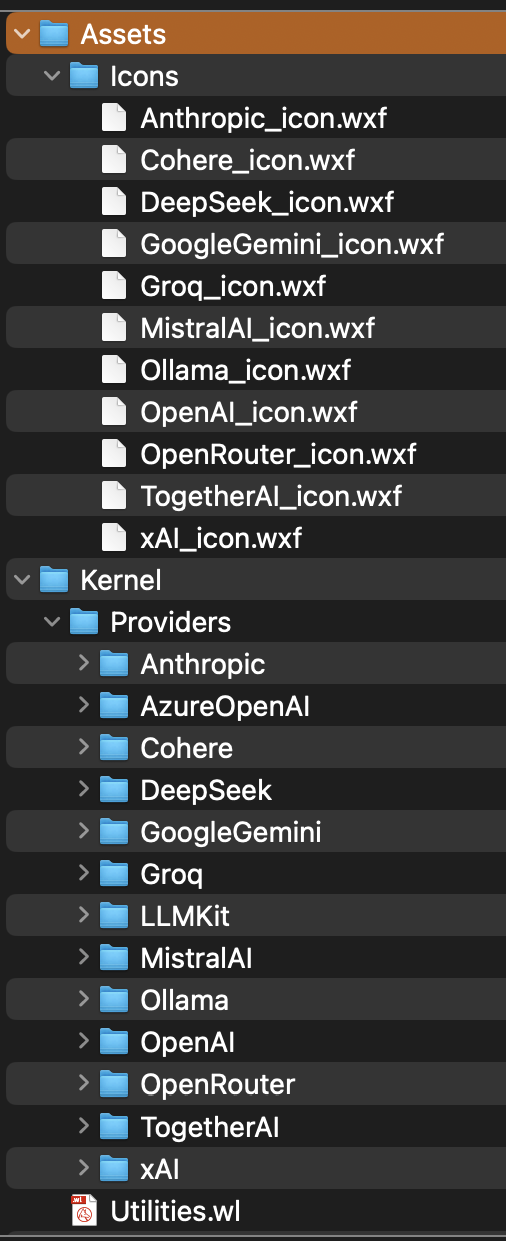
There is an Assets directory which contains Icons for the supported services in .wxf format. Adding an icon for Llama.cpp would be a good starting point. Interestingly, while going through the code in LLMFunctions paclet, I found a reference to llama.cpp icon under the name LLaMALink. This suggests that there is a possible internal development to add support for LlamaCPP in a future release.
In[]:=
Import[FileNameJoin[{$HomeDirectory,"WolfPack","Wolfram__LLMFunctions-9.9.9","Assets","APIFunctions","llamalinkLogo.wxf"}]]
Out[]=
I copied this icon to the Icons directory inside the LLMConections paclet directory and renamed it to LlamaCPP_icon.wxf.
For the next step, I created a copy of the OpenAI directory inside the providers and named it to LlamaCPP and modified the code. There was a fair amount of refactoring done to the code, and the details are beyond the scope of this post. But to summarize, follow changes were made:
◼
Authentication was removed, since a local llama.cpp server does not require any authentication
◼
Removed functions related to image and audio since only text processing is going to be required here
◼
Replaced all occurrences of OpenAI with LlamaCPP
◼
in the LLMFunctions paclet, the following code was added to the file Kernel/LLMServices/Defaults.wl:
In[]:=
(*LlamaCPP*)$LlamaCPPLogo:=$LlamaCPPLogo=ServiceFramework`ServiceConnection["LlamaCPP"]["Icon"];paramsLlamaCPPChat=<| $BaseChat, "ModelList":>Enclose@ServiceExecute[Confirm@ConnectToService["LlamaCPP"],"ChatModelList"], "Icon":>$LlamaCPPLogo|>paramsLlamaCPPCompletion=<| $BaseCompletion, "ModelList":>Enclose@ServiceExecute[Confirm@ConnectToService["LlamaCPP"],"CompletionModelList"]|>paramsLlamaCPPTextEmbedding=<| $BaseEmbedding, "ModelList":>Enclose@ServiceExecute[Confirm@ConnectToService["LlamaCPP"],"EmbeddingModelList"]|>$ServiceList=Join $ServiceList, {Chat,"LlamaCPP",paramsLlamaCPPChat}, {ChatSubmit,"LlamaCPP",<|paramsLlamaCPPChat,"PostprocessingFunction"->Identity|>}, {CompleteText,"LlamaCPP",paramsLlamaCPPCompletion}, {CompleteTextSubmit,"LlamaCPP",paramsLlamaCPPCompletion}, {EmbedText,"LlamaCPP",paramsLlamaCPPTextEmbedding} ;(*ENDLlamaCPP*)
And that is all that was required. After running a PacletDataRebuild and restarting Wolfram, LlamaCPP finally appeared in the AI settings inside the Preferences dialog box:
Connecting to LlamaCPP server
Connecting to LlamaCPP server
Running and setting a llama-cpp server requires compiling it for your specific hardware configuration. The detailed information about compilation and running the server can be found here:
By default the server runs on port 8080. So the default connection string used is http://127.0.0.1:8080. If the server is running on a different machine in the same network, the setting must be configured in the LlamaCPP.wl file
After restarting the Wolfram, it automatically connects to the server if the configuration is correct. And we can quickly test it:
So there it is! LlamaCPP inside Wolfram!
CITE THIS NOTEBOOK
CITE THIS NOTEBOOK
LlamaCPP support for Wolfram Mathematica
by Soumya Sambeet Mohapatra
Wolfram Community, STAFF PICKS, September 14, 2026
https://community.wolfram.com/t/28001
by Soumya Sambeet Mohapatra
Wolfram Community, STAFF PICKS, September 14, 2026
https://community.wolfram.com/t/28001