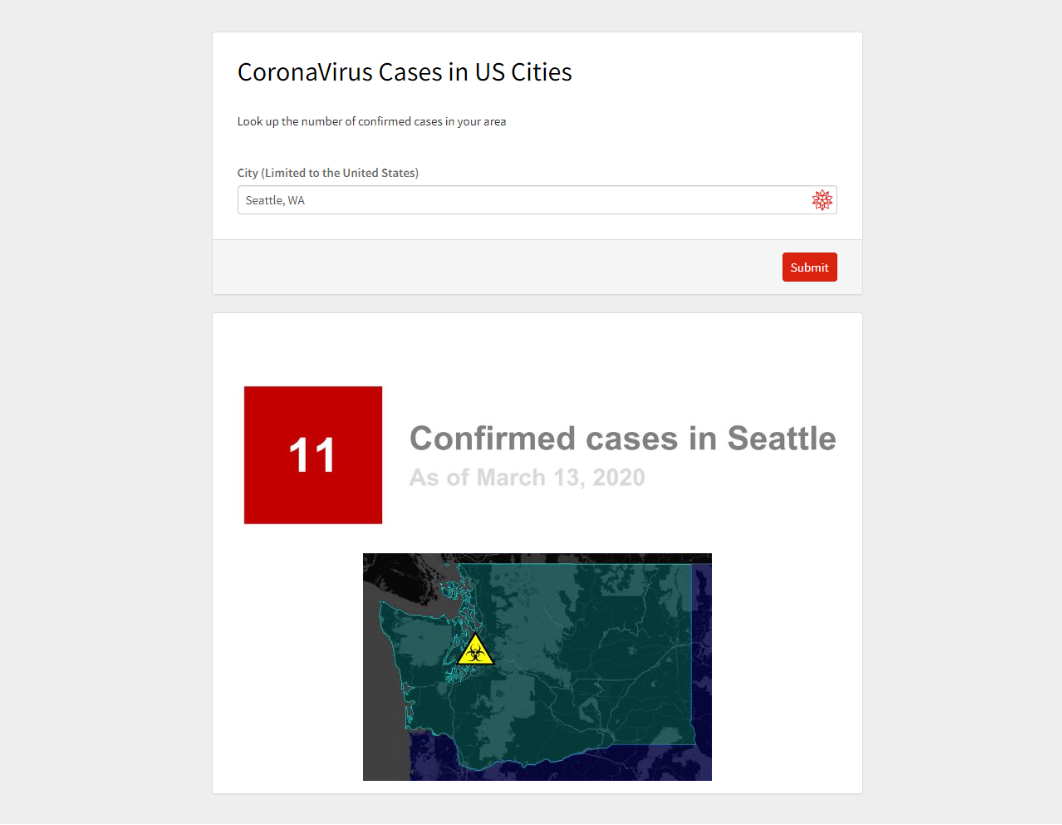
I wanted to make a cloud applet that would allow users to enter the name of a city and receive a number of confirmed cases in it. Data quality, key outputs and their visualisations were going to be important for usefulness of the tool. I used CloudDeploy and FormPage to make an interactive search tool that queries “Patient Medical Data for Novel Coronavirus COVID-19” from Wolfram Data Repository.
Row[{Hyperlink["OPEN CLOUD APP",URL["https://www.wolframcloud.com/obj/davidl0/CoronavirusTool"],FrameMargins10,BaseStyleWhite,ActiveStyleBlack,BackgroundRed,Appearance"Palette"],Text[" [NOTE: Long load times]"]}]
Out[]=
[NOTE: Long load times]
Objectives & Motivation
Objectives & Motivation
There are a few things that (almost) equally contributed to my motivation for doing this project:
1
.I found it weird that basically no news source or a search engine provided a number of confirmed cases on a city level - which is arguably a more important measure to people than a State-level number. It’d be foolish to disregard the importance of commute and other types of daily movement of people between cities but I’d argue that what impacts people’s behavior and state of mind most is the severity of spread in their locality - city, town, etc. [UPDATE: Since I wrote this post, NYT released a dataset for county-level data]
2
.There are so many great resources and content that we (Wolfram Research) is producing around this topic, making interesting computational explorations, essays and deployed applets becomes super straightforward and easy (COVID-19 data is right there in the Wolfram Data Repository (WDR), ready to be ingested with just one line of code);
3
.After reading so many insightful posts by our community members, I got bitten by the contribution bug (sorry for a bad pun);
4
.I’ve always wanted to post on our Community and given my family’s current state - Sheltered-in-place, I finally had free time to take on a pet-project using WL;
Project Breakdown
Project Breakdown
A great thing about this project is that the data is basically provided on a platter (by WDR), no need to clean and wrangle it for hours; All we need to do is to do some data exploration and then count relevant cases, albeit the counting will require using some sophisticated functionality of WL. Overall project involves importing, exploring and computing on data and eventually deploying a data “product”.
I will be describing the following stages of the project in this post:
I will be describing the following stages of the project in this post:
◼
Import the data
◼
Explore the data and assess what is achievable
◼
Map out the computations and output visualisations
◼
Deploy and automate
Data Import
Data Import
Having aggregated patient data available in a computable form in the WDR was one of the main reasons I was able to finish this tool in a weekend (I’m not the fastest when it comes to coding).
So, let’s import the dataset object from WDR:
So, let’s import the dataset object from WDR:
coviddataobject=ResourceObject["Patient Medical Data for Novel Coronavirus COVID-19"]
Out[]=
ResourceObject


WDR supports auto-updating of resource objects but if it fails we may need to manually delete the object and re-initialize it.
DeleteObject[coviddataobject]
Just to make sure the data was successfully imported, let’s do a quick examination of the dataset using a RandomSample of 10:
In[]:=
coviddata=ResourceData[coviddataobject];
RandomSample[coviddata,10]
Out[]=
Looks like we got the data.
Next, let’s see what type of information is actually in it.
Next, let’s see what type of information is actually in it.
Data Exploration
Data Exploration
Data Fields
Data Fields
As we can see from the column headers of the dataset in the previous section (and by extracting Keys of the dataset), there are 23 data fields.
coviddata[1]//Keys
Out[]=
This is great though we won’t be using most of them for this projects purposes. We will primarily be utilizing location and temporal data from the dataset.
How up-to-date is our data
How up-to-date is our data
A very important factor for usefulness of our tool will be how current the underline data is. We can find this out by checking the maximum for “DateOfConfirmation” values.
coviddata[Max,#DateOfConfirmation&]
Out[]=
Not quite real-time but within a 1 day window.
Location Data
Location Data
Let’s examine just the location fields:
coviddata[All,{"City","AdministrativeDivision","Country","GeoPosition"}]
Out[]=


So, it seems that some of the entries are missing the City field, this may be due to the fact that they are associated with rural areas (or even non-land areas, e.g. cruise ships) or because the data is incomplete. The good thing is that we can get the precise GeoPosition data which we will use to identify the city/municipality associated with the case.
Next, let’s derive expressions we need to extract the insights we are interested in.
Outputs & Visualisation
Outputs & Visualisation
Date
Date
As discussed earlier, it’s important we indicate the date when the dataset was last updated:
coviddata[Max,#DateOfConfirmation&]
Out[]=
Case count
Case count
Given that our goal is to make a cloud applet that would allow a user to enter the name of a city and receive a number of confirmed cases in it, and that “City” column is missing a lot of values, we’ll need to find another way of finding a corresponding “City” value that’ll work for each case.
We can do this using GeoWithinQ function that returns True or False depending on whether the point (given by GeoPosition) is within a polygon of a given entity (in this case a City). So, we’ll check if the confirmed case occurred in the city based on its GeoPosition and do it for each row. We can reduce the amount of Geo-computation needed by first filtering all of the cases for the Country that contains the City and do the row-by-row check with GeoWithinQ.
We can do this using GeoWithinQ function that returns True or False depending on whether the point (given by GeoPosition) is within a polygon of a given entity (in this case a City). So, we’ll check if the confirmed case occurred in the city based on its GeoPosition and do it for each row. We can reduce the amount of Geo-computation needed by first filtering all of the cases for the Country that contains the City and do the row-by-row check with GeoWithinQ.
Let’s assume we are querying the data for Chicago, IL:
EntityValue,"Country"
Out[]=
Normal@QuerySelect#CountryEntityValue,"Country"&,"GeoPosition"@coviddata
Out[]=
This gives us GeoPositions for every US case. Now, we need to check which ones belong to Chicago area.
Perfect! So, we are able to find City values based on GeoPositions.
In terms of visualisation of results, we can construct a simple but effective display using rows and columns:
Severity indicator
Severity indicator
And we will display this measure through color coding on a black-to-red gradient scale. e.g.:
Combining with the previous visualization:
Map & Marker
Map & Marker
Additionally, it would be nice to display the map of the area with a unique marker at the position of the city.
Let’s start with a marker. We can use the built-in symbol for hazardous materials and construct a pop-culture version of the sign:
We can just copy/paste this graphic into the GeoGraphics function as a custom marker:
Looks like we have all required components for constructing our FormPage results.
But we will need to do all this for an arbitrary City that users will input in the form!
But we will need to do all this for an arbitrary City that users will input in the form!
Deployment
Deployment
We can use CloudDeploy and FormPage to seriously cut down the effort on UI construction, Input/Output handling, and cloud deployment.
NOTE: It takes very long to load the cloud page but once it’s loaded, getting results for new queries is relatively faster.
Final Thoughts
Final Thoughts
For this tool to be useful, it needs to be updated/re-deployed every day (similar update frequency as the dataset itself). Let’s be honest, doing this manually will be unsustainable for me. So, I need to add Wolfram Language’s built-in automation and task scheduling functionality.
I’m sure the code and even the approach can be improved and optimized for speed and robustness, so any feedback will be highly appreciated, especially regarding possible improvements in speed.
It still baffles me how succinctly can one create and present things in Wolfram Language.
I’m sure the code and even the approach can be improved and optimized for speed and robustness, so any feedback will be highly appreciated, especially regarding possible improvements in speed.
It still baffles me how succinctly can one create and present things in Wolfram Language.