Every movie has a designated cinematographer in charge of the composition of a scene. Cinematographers are responsible for every camera angle and movement and ties it all together. My goal is to create an animation in which the user inputs a series of commonly used camera shots or "moves" which will be performed on an object of their choice.
Introduction
Introduction
The Most Common Camera Shots
The Most Common Camera Shots
◼
Panning: the camera is fixed in place but pivots left and right
◼
Tilting: the camera is fixed in place but pivots up and down
◼
Trucking: the camera moves left and right along a track but the camera angle is fixed
◼
Boom: the camera moves vertically up and down along a crane and the camera angle is fixed
◼
Push In: the camera moves forward toward the object
◼
Pull Out: the camera moves backward away from the object
◼
Zoom: the camera is fixed in place but the focal length of the camera lens changes
◼
basically, the field of view that the camera can see is modified
◼
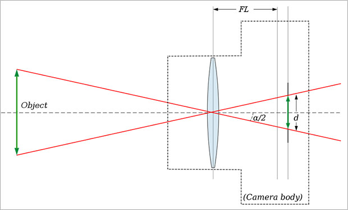
◼
Arc Shot: the camera is rotated 360º so it looks like the object is spinning
◼
Dolly Zoom:
◼
push in and zoom out or push out and zoom in are used simultaneously
◼
it appears that the object is fixed in place but the backward is shrinking
◼
Handheld: the camera is held in hand, so there appears to be a natural shaking
Animating the Camera Shots
Animating the Camera Shots
For now, let's animate a cube!
In[]:=
Graphics3D[Cube[],ImageSize->Tiny]
Out[]=
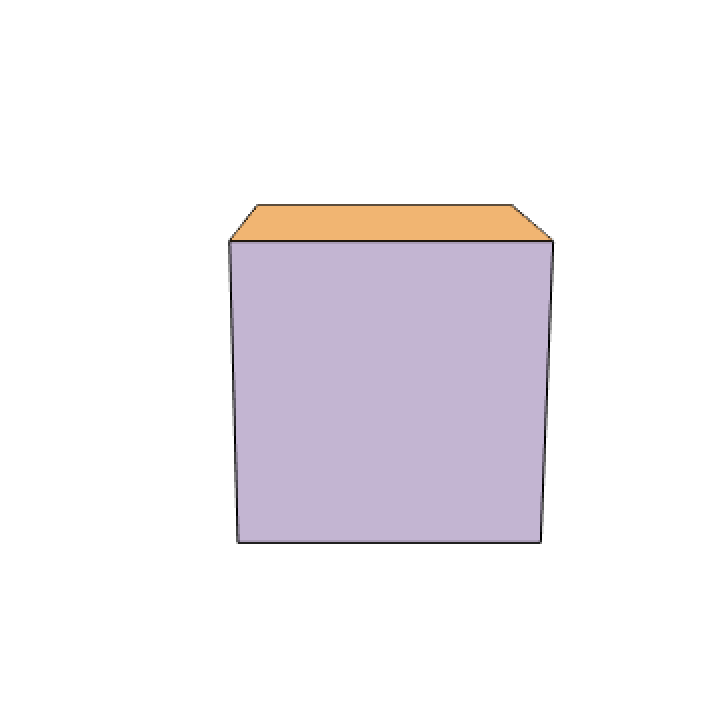
Let's begin with the trucking shot.
Trucking Shot:
Trucking Shot:
In ViewVector, the first pair of coordinates determines the camera placement and the second pair of coordinates indicate the position the camera points at.
In[]:=
truckingCube=With[{frames=Table[Graphics3D[Cube[{0,0,0},50],ViewVector->{{a,-200,50},{a,0,0}},ViewAngle->35°,Boxed->False],{a,-100,100,5}]},AnimatedImage[Rasterize/@Flatten[{frames,Reverse[frames]}],ImageSize->Small]];
Out[]=
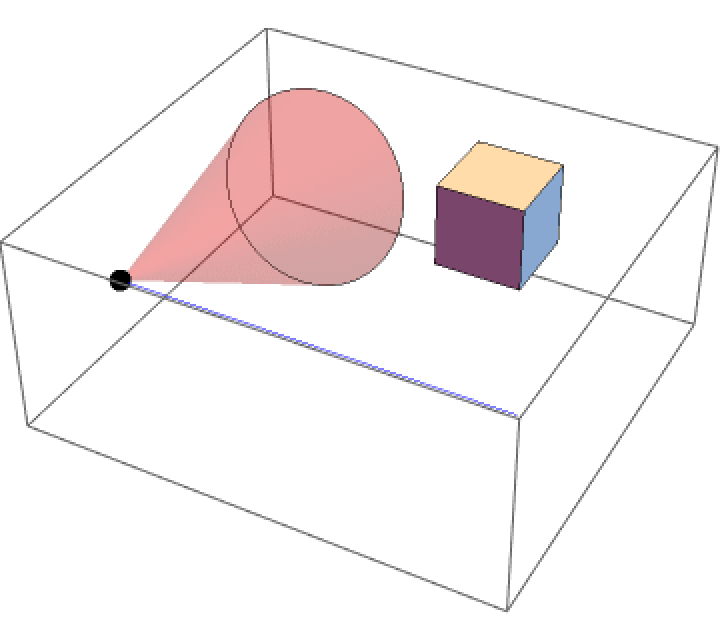
Now, let's create a perspective in which we see the camera as well. Using a partially transparent cone to indicate the camera's field of view and a line to trace the camera's path, we can animate it.
truckingCubeCamera=With[{frames=Table[Graphics3D[{Black,Sphere[{a,-200,50},5],White,Cube[{0,0,0},50],Blue,Line[{{-100,-200,50},{100,-200,50}}],Red,Opacity[0.2],Cone[{{a,-25,0},{a,-200,50}},175Tan[35/2°]]}],{a,-100,100,5}]},AnimatedImage[Rasterize/@Flatten[{frames,Reverse[frames]}],ImageSize->Small]];
Out[]=
Here we put it together into a function:
Trucks:=Row[Animate[Graphics3D[Cube[{0,0,0},50],ViewVector->{{a,-200,50},{a,0,0}},ViewAngle->35°,Boxed->False], {a,-100,100,5},AnimationDirection->ForwardBackward,SaveDefinitions->True],Animate[Graphics3D[ Black,Sphere[{a,-200,50},5],White,Cube[{0,0,0},50],Blue,Line[{{-100,-200,50},{100,-200,50}}],Red,Opacity[0.2],Cone[{{a,-25,0},{a,-200,50}},175Tan[35/2°]]], {a,-100,100,5},AnimationDirection->ForwardBackward,SaveDefinitions->True]];
The same is done for both the Boom and Push in/Pull out shot; instead of changing the x coordinate, we animate along the z and y coordinates, respectively.
Boom Shot
Boom Shot
Booms:=Row[Animate[Graphics3D[Cube[{0,0,0},50],ViewVector->{{0,-200,a},{0,0,a}},ViewAngle->35°,Boxed->False], {a,-100,100,5},AnimationDirection->ForwardBackward,SaveDefinitions->True],Animate[Graphics3D[Black,Sphere[{0,-200,a},5],White,Cube[{0,0,0},50],Blue,Line[{{0,-200,-100},{0,-200,100}}], Red,Opacity[0.2],Cone[{{0,-25,a},{0,-200,a}},175Tan[35/2°]]], {a,-100,100,5},AnimationDirection->ForwardBackward,SaveDefinitions->True]];
Push in/Pull out
Push in/Pull out
PushAndPulling:=Row[Animate[Graphics3D[Cube[{0,0,0},50],ViewVector->{{0,a,50},{0,0,0}},ViewAngle->35°,Boxed->False], {a,-500,-100,10},AnimationDirection->ForwardBackward,SaveDefinitions->True],Animate[Graphics3D[Black,Sphere[{0,a,50},5],White,Cube[{0,0,0},50],Blue,Line[{{0,-500,50},{0,-80,50}}], Red,Opacity[0.2],Cone[{{0,-25,0},{0,a,50}},(a*-1-25)*Tan[35/2°]],Boxed->False], {a,-500,-100,10},AnimationDirection->ForwardBackward,SaveDefinitions->True]];
Panning Shot
Panning Shot
The panning shot differs in that the camera position is fixed but the direction it points at differs.
Panning:=Row[Animate[Graphics3D[Cube[{0,0,0},50],ViewVector->{{0,-200,50},{a,0,0}},ViewAngle->35°,Boxed->False], {a,-100,100,5},AnimationDirection->ForwardBackward,SaveDefinitions->True],Animate[Graphics3D[{Black,Sphere[{0,-200,50},5],White,Cube[{0,0,0},50],Red,Opacity[0.2],Cone[{{a,-25,0},{0,-200,50}},175Tan[35/2°]]},Boxed->False], {a,-100,100,5},AnimationDirection->ForwardBackward,SaveDefinitions->True]];
The tilt shot is similar, and we'll modify the z coordinates instead of x.
Tilt Shot
Tilt Shot
Zoom in/out
Zoom in/out
Rather than changing the direction the camera points to, zoom changes the field of view, or angle that the camera is able to see. We modify how "open" the lens are while the camera is stationary.
Dolly Zoom
Dolly Zoom
Creating the hallway:
Arc Shot
Arc Shot
The arc shot rotates the camera. We simulate this by drawing a line on the cone from its tip to the base that rotates as well.
Random/Handheld
Random/Handheld
In order to simulate a handheld effect, we generate a list of random numbers, each within a few units of the previous, for both the distance between the camera and object and how much the camera rotates. Using the same hallway created for the dolly zoom, we can see the camera's movement by judging how the cube looks, relative to the background.
Creating the random number lists:
String it together with Manipulate!
String it together with Manipulate!
We put all the shots together so we can choose whichever function that we want to see.
Choosing Cooler Objects
Choosing Cooler Objects
Now let's experiment with more detailed objects, such as those from the 27 graphics in ExampleData[{"Geometry3D"}].
Here is a cow:
Animating the Cooler Objects
Animating the Cooler Objects
I created a separate function for each shot. Each function took the input of the object of choice, its Graphics Complex, and the direction of the animation.
Let's take a closer look at the Trucking function.
First, we need to find the bounding region of the object to know where the camera should be positioned and pointed toward. We can do this by taking the BoundingRegion of the object's Graphics Complex. Because we will have to access the coordinates separately many times, we can assign a variable for each of (x,y,z).
First, we need to find the bounding region of the object to know where the camera should be positioned and pointed toward. We can do this by taking the BoundingRegion of the object's Graphics Complex. Because we will have to access the coordinates separately many times, we can assign a variable for each of (x,y,z).
For an animation to run backwards, there needs to be at least 2 repetitions for it to run once because the animation's starting position is at the end of the first rep. We create a module holding the direction.
Now, we start animating. We want the camera position and direction to be dependent on the bounding region of the object so that the object is framed properly.
Here it is put all together:
Let's take a look! You can experiment with the different objects from theObjects (try CastleWall or Galleon!)
For this essay, I only demonstrated the trucking shot, but we can simply repeat these steps for the other shots as well.
Stringing Camera Shots Together
Stringing Camera Shots Together
Now, we want to write a function that can create a video of multiple camera moves performed on the object. In order for the animation to be a single video of all the moves, we will create a new function to call each of the "move" functions and put together a series of frames. The "move" functions will only inform of camera positions, directions, and angles, and will no longer be performing the actual animation.
First, we will need to determine the starting and ending position before and after each "move" is executed. Creating a separate function given a list of the shots to be performed, the initial starting position, and the boundaries of the box, we can utilize a table to increment the corresponding coordinate based on the shot "move." It outputs a list of coordinates before each move.
Now, let's form the "move" functions. We will only need to store it as a list of coordinates: camera position, direction, sphere position, line endpoints, and cone positioning. We put a is the coordinate that will change for the animation.
The same is applied to the boom and push in shot:
Later on, we will need to know which coordinate to be modified, so we create a function that lets us know that Trucking modifies x, Boom modifies z, and Push in modifies y.
Now, we can generate our images, given a string of the “moves” and the object. We start with similar steps to animating a singular move: find the bounding region of the selected object.
Next, we split the inputted string of shots or "moves" and run the createStartPos function.
Let's say we want to perform Push in, Boom, then Trucking on the cow:
We can create a Table that runs through the list of shots and generates images for each, keeping track of the positioning by calling the "shot" function and using the coordinates inside it.
Do the same thing to create a list of images for the perspective with camera.
Now we put it all together:
Use Export to create a GIF of the cow animation:
Here's mine:
Given the whimsical, detailed graphics provided by Geometry3D, there is huge potential for amazing animations to be created. Simulating standardized camera moves used by every cinematographer, we can create visually pleasing films through Wolfram's Graphics 3D!
Future Directions
Future Directions
In the future, I would like to have multiple objects and create more flexibility in the input so that capitalization and spacing won't matter. I also hope to be able to chain together more moves, such as panning, zooming, and dolly zoom. To do so, I would need to store the camera field of view as well as camera direction. Furthermore, I would like to be able to control the magnitude of the camera movement.
Credits
Credits
Thank you to my mentor, Isabel Skidmore, for aiding me through the process. I would also like to thank everyone who has supported me during the Summer Camp!
CITE THIS NOTEBOOK
CITE THIS NOTEBOOK
Creating standardized camera moves for looking at 3D graphics
by Arianna Cao
Wolfram Community, STAFF PICKS, July 21, 2022
https://community.wolfram.com/groups/-/m/t/2580683
by Arianna Cao
Wolfram Community, STAFF PICKS, July 21, 2022
https://community.wolfram.com/groups/-/m/t/2580683