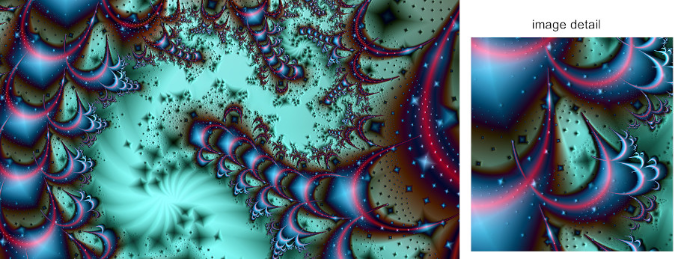
Above is a scaled down version of the much larger piece of art. Dream Within, as with most fractal images, has noteworthy features at multiple scales. So that smaller details show while still allowing the viewer to appreciate the larger composition, the size of the image is 5120 × 2880 (default resolution of a Mac 27-inch Retina monitor). It is not possible to include the image at its original size in this Community post. You may see the full image by following this link: Dream Within (full image).
The Code
The Code
The code is short, but the render time is not. On my machine this takes 367 seconds to evaluate.
msr=ResourceFunction["MandelbrotSetRemap"];layer1=msr[-.836+.229I,130,MaxIterations->32,ImageSize->{5120,2880},ColorFunction->ColorData["ValentineTones"],MappingFunction->"ModTrailings"];layer2=msr[-.836+.229I,130,MaxIterations->28,ImageSize->{5120,2880},ColorFunction->ColorData[{"CherryTones","Reverse"}],MappingFunction->"LineOrbitTrap"];combo=ImageAdjust[ImageDifference[layer1,layer2]];Lighter[ImageMultiply[combo,ImageAdjust[ImageAdjust[DerivativeFilter[ColorConvert[combo,"Grayscale"],{0,1},4]],{.5,.3}]]]
The Code Explanation
The Code Explanation
The first line of code calls up the resource function MandelbrotSetRemap which I wrote in collaboration with Rohit Namjoshi. An alternative to the built-in function MandelbrotSetPlot, MandelbrotSetRemap allows for exploration of the artistic side of fractals. The Mandelbrot Set is usually mapped according to how many iterations each point takes to either collapse towards zero or fly off towards infinity. MandelbrotSetRemap makes a list of the values from each iteration of the Mandelbrot equation (z = + c) and maps each pixel according to properties of its list. For instance, the pixels might get their values from their lists’ minimum distance to a predetermined point. There are several preset mappings that produce various shapes around the edges of the Mandelbrot Set. You can find more details and full code for MandelbrotSetRemap here.
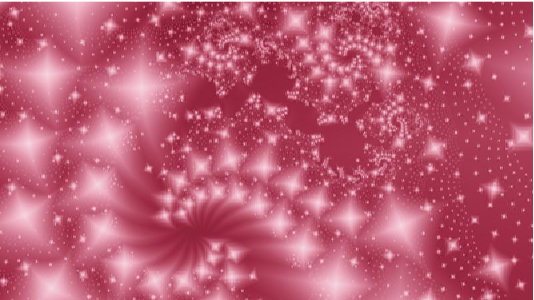
The second line of code makes the Layer 1 image by calling MandelbrotSetRemap. The first argument, -.836+.229I, gives the center of the image within the complex plane. The second argument, 130, is the magnification or zoom level. The MaxIterations property tells how long each pixel’s list can be. The ImageSize and ColorFunction options work as they do in other Wolfram functions. “MappingFunction” allows the user to choose from the preset functions, as I have done for Dream Within, or to provide a custom function for the mapping. The “ModTrailings” mapping function sets each pixel’s value by the maximum modulo to the nearest Gaussian integer, producing a warped array of circle-like and diamond-like shapes at several scales. The first layer looks like this:
2
z
The second line of code makes the Layer 1 image by calling MandelbrotSetRemap. The first argument, -.836+.229I, gives the center of the image within the complex plane. The second argument, 130, is the magnification or zoom level. The MaxIterations property tells how long each pixel’s list can be. The ImageSize and ColorFunction options work as they do in other Wolfram functions. “MappingFunction” allows the user to choose from the preset functions, as I have done for Dream Within, or to provide a custom function for the mapping. The “ModTrailings” mapping function sets each pixel’s value by the maximum modulo to the nearest Gaussian integer, producing a warped array of circle-like and diamond-like shapes at several scales. The first layer looks like this:
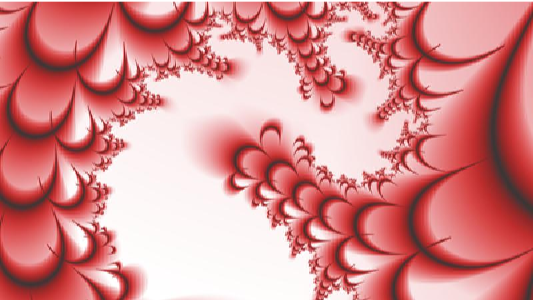
The third line of code is nearly identical to the second. It makes Layer 2 with a different color function, a different mapping function, and a slightly different maximum iterations setting. The “LineOrbitTrap” mapping measures the minimum distance of each pixel’s list to a line. It produces crescent shapes that grow as they flow from the Mandelbrot Set’s edge. Here is Layer 2:
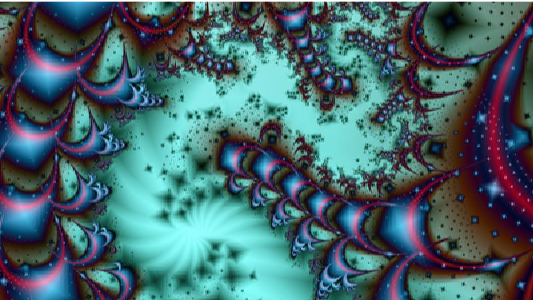
The fourth line of code combines the two images and demonstrates the power of the Wolfram image processing functions. ImageDifference calculates how different Layer 1’s red, green, and blue values are from Layer 2’s. Those differences become a new image’s RGB values. For example, orange has RGB values {1, .5, 0} , and pink has {1, .5, .5}. Only the blue value is different, so here’s what happens when you combine orange and pink with the ImageDifference function:
In[]:=
{color1=Image[Table[Orange,10,10]],color2=Image[Table[Pink,10,10]],ImageDifference[color1,color2]}
Out[]=
,

,


I don’t think they had art in mind when they wrote ImageDifference, but it sure produces a cool effect in this instance. ImageAdjust makes sure that the combined image has a good amount of contrast. With this short line of code, the images have changed from mildly interesting to Wow!
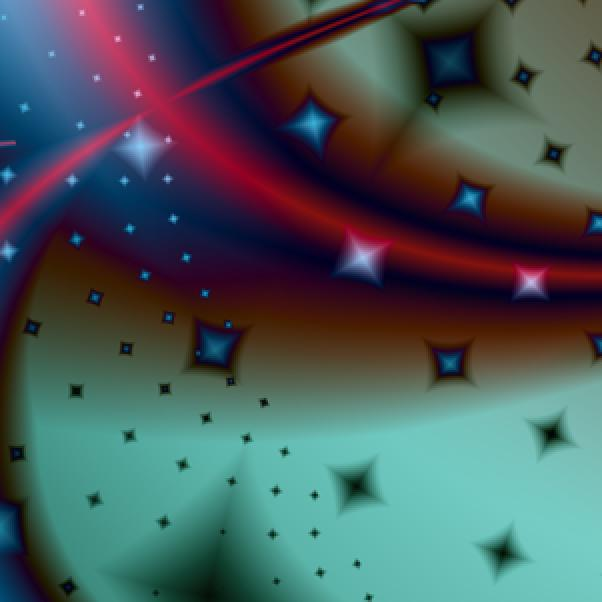
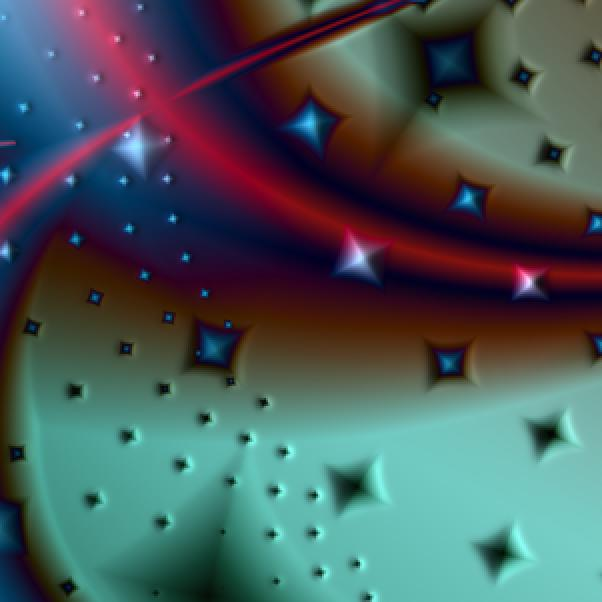
I add a subtle finishing touch in the final line of code. ColorConvert turns it into a grayscale image, and DerivativeFilter calculates the slope of the pixel gradients giving it a 3D bump effect. This is adjusted once for contrast and then again to brighten the bump image before ImageMultiply recombines it with its color version. The result can only be seen when the image is full scale, so here are two small cutouts from the image at actual size, the first without the last line of code and the second with:
Creative Process
Creative Process
My explanation so far might make this all seem easy. There are so many choices during the creative process though that coding skill, persistence, and an artistic eye are needed to end up with something satisfying. I have a workflow for these kinds of images. I break the task into five steps: locating, mapping, coloring, combining, and styling. I even built an interface to help me navigate my way to a finished fractal image.
Locating
Locating
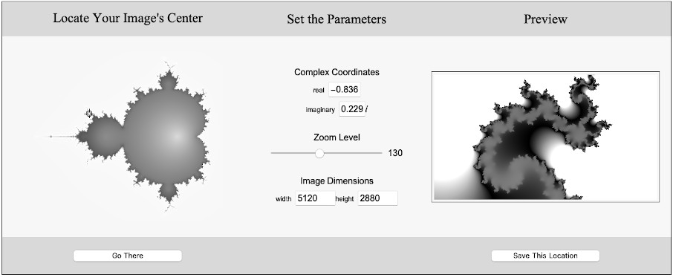
The edge of the Mandelbrot Set is packed with interesting spikes and swirls. Picking the right spot and zooming in so that the image is framed just so takes practice. The interface I made for this task is shown here. I’m working on a version to publish so others can use it too. If you’re interested, watch for it in either the Wolfram Community or the Wolfram Function Repository.
Mapping
Mapping
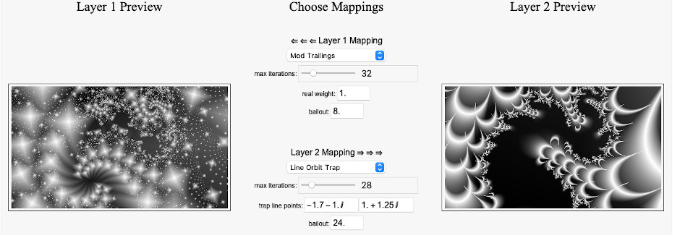
The resource function MandelbrotSetRemap currently has five preset mapping functions. Rohit Namjoshi and I are working to expand that to nine. In this type of image, both layers need a mapping function, and these functions produce different results depending on what part of the Mandelbrot Set you’re in and how far you have zoomed. If you pick the wrong mapping functions for the situation, you will end up with a boring image or one that is too busy. The interface shown below lets me see how the two mappings appear when applied to the chosen part of the Mandelbrot Set:
Coloring
Coloring
For Dream Within I chose two color gradients that are similar and monotone varieties of red. The “ModTrailings” mapping function is already quite busy, so I wanted the layer colors to change gradually and keep to one part of the color wheel. I know from previous experiments that I can combine fractals with similar (but not identical) gradients to achieve some amazing results. In addition to the “Named Gradient” choice that I used for Dream Within, my coloring interface for this step includes the following gradient categories, shown here with an example of each:
◼
“Red-Green-Blue Gradients” — RGBColor[r, g, b]& where some of the r, g, b numbers are determined by the pixel values in the mapping. There are 54 gradients in this category, for instance, {0, 1-#, 1}.

◼
“Hue-Saturation-Brightness Gradients” — Similar to the first category but in the HSL color space. This category has 18 different gradients.

◼
“Random from Indexed Pallet” — Mathematica has 113 indexed color schemes. This category lets you pick one and then randomly sprinkles colors from that scheme into a gradient.

◼
“Random Crayon Color” — Chooses random crayon colors with ColorData[“Crayola”], separating them in the gradient by thin black lines as in a coloring book.

◼
“Random HTML Colors” — Chooses random HTML colors with ColorData[“HTML”], blending them across a gradient with occassional abrupt transitions as in a web page.
◼
“Random Complementary Colors” — Chooses one random hue and its opposite {h, h + .5} as the base colors for a gradient.
◼
“Random Triadic Colors” — Chooses one random hue and its triadic counterparts {h, h + 1/3, h + 2/3} as the base colors for a gradient.
◼
“Custom Blend” — I can enter a color function directly if I want a gradient not offered in the interface like this one using the flag colors of Ukraine.
◼
“Like, Totally Random” — Random colors at random locations across a gradient. Usually this does not produce desirable results... but every once in a while.
Gradients from any of these categories can be reversed (Composition[cf, Function[#, 1 - #]]&), negated (ColorNegate[img]), adjusted (ImageAdjust[img]) and/or equalized (HistogramTransform[img]). This gives me plenty of options to achieve a desired effect.
Combining
Combining
Here’s where the magic happens. I have six different functions to choose from for combining the two images.
◼
◼
◼
◼
◼
“Subtract Layer 1 from Layer 2” — ImageSubtract[img2, img1]
◼
Above I show the “Subtract Layer 2 from Layer 1” combination choice, but for Dream Within I ended up using the “Pixel Distance” method. It is difficult to imagine the results of any given method. The interface gives me a way to easily preview them all. If I’m not happy with the results, I go back to previous steps and make adjustments.
Styling
Styling
Some images could use a little post production work to put them over the top. I tend to use this step sparingly for subtle enhancements. Below is a example of applying too much style and diminishing the aesthetics of the fractal.
The post-production styles that I have built into the interface are these:
◼
“batik” — Simulates the batik wax-resist fabric dyeing technique: ImageAdd[img, Blur[MorphologicalPerimeter[img, .5], 2]]
◼
“bump 3D” — Gives a slight raised feeling to the lighter pixels. This is the style applied to Dream Within. Lighter[ImageMultiply[img, ImageAdjust[ImageAdjust[DerivativeFilter[ColorConvert[img, “Grayscale”],{0, 1}, 1]],{.5, .3}]]]
◼
“craquelure” — Simulates how old paintings and ceramic glazes crack. ImageMultiply[img, ColorNegate[ImageAdjust[SkeletonTransform[img, .4]]]]
◼
“embossing 3D” — Like “bump 3D”, this uses derivative calculations to give a bumpy appearance. It uses the built-in “Embossing” option to ImageEffect. The bump information is not brightened before rejoining the color channel, giving it a more metalic look. Also, the light direction is such that most people will see it as indentations instead of raised bumps. ColorCombine[Append[ColorSeparate[ColorConvert[img, ”HSB”]][[1;;2]], ImageEffect[img, {“Embossing”, 10, 4}]], ”HSB”]
◼
“encaustic” — This simulates the technique of applying a hot iron to a piece of art. Yes, it’s a thing. I use GeodesicOpening[img, r] for this effect.
◼
“felt pen edges” — Traces around high-contrast edges with a line that looks like it’s from a set of colored felt pens. ImageDifference[img, ImageAdjust[StandardDeviationFilter[img, 1]]]
◼
“hyperopia” — Blurs what it thinks is foreground and leaves background details sharp. It is unpredictable, but can produce worthwhile results. MeanShiftFilter[img, 6, .25]
◼
“neon edges” — Puts bright, colorful edges on high-contrast transitions. ImageAdjust[ImageAdd[img, ImageAdjust[RangeFilter[img, 1],{.5, .4}]], {0, .1}]
◼
“silver lining” — Edges high-contrast transitions with smoother, whiter lines than “neon edges”. ImageAdjust[ImageAdd[img, ImageAdjust[GradientFilter[img, 1]]], {0, .1}]
◼
“watercolor” — This simulates the technique of inking edges before the watercolor is completely dry. ImageEffect[img, “EdgeStylization”]]
Note that the preview in the interface only gives a sense of what the style will look like. All of the styles are scale-dependent, they will look different at different scales. It may take some experimentation to get the scaling right in the final render. For Dream Within I manually wrote the code for the final render to get this part right rather than relying on the interface.
The interface also allows me to add symmetric reflections to the image. You can see this effect in some of the examples above. Sometimes the fractal’s symmetries work well with a reflectional symmetry to produce an eye-catching effect. The interface offers 24 different reflection symmetries. Dream Within, of course, does not use this feature.
The interface also allows me to add symmetric reflections to the image. You can see this effect in some of the examples above. Sometimes the fractal’s symmetries work well with a reflectional symmetry to produce an eye-catching effect. The interface offers 24 different reflection symmetries. Dream Within, of course, does not use this feature.
Conclusion
Conclusion
In a sense, it only took me about two hours to make Dream Within. But I could not have made it without MandelbrotSetRemap and the interface, which I’ve been writing for five or six months now. From that perspective, I’ve been working on this fractal image for quite a long time. Once the interface is in a more finished form I’ll share it.
If you have ever used a fractal generator to make artistic images, what I have done here is similar. However, the images I make have their own look because I can execute my ideas more closely through the Wolfram Language’s myriad of functions. All of the code used to make Dream Within and the interface has been written by me in the Wolfram Language.
If you have ever used a fractal generator to make artistic images, what I have done here is similar. However, the images I make have their own look because I can execute my ideas more closely through the Wolfram Language’s myriad of functions. All of the code used to make Dream Within and the interface has been written by me in the Wolfram Language.