My project was about optimizing elements in a grid. First, I built an interface with buttons and sliders to add elements and optimize their spacing. These elements could had different colors, sizes, content, and font. Then, I made a function that optimized the elements spacing. The optimizer wouldn’t change the order of the elements, but it would move them closer together as much as possible.
Making Text Boxes
Making Text Boxes
In this section, I make a template for an outlined, wrapped text box with different inputs using the functions Style, Pane, and Framed. These inputs include content, font size, width, and height. These text boxes can be used in a Graphics element so they can be composed with other text boxes.
The code below sets up our variables for our text box and uses Style to change the size of our text.
In[]:=
text="The quick brown fox did a thingy and another thing happened. The quick brown fox did a thingy and another thing happened. The quick brown fox did a thingy and another thing happened. ";font=24;width=100;height=100;styledtext=Style[text,LineIndent->0,TextAlignment->Left,font,LineSpacing->{0.7,0}]
Out[]=
The quick brown fox did a thingy and another thing happened. The quick brown fox did a thingy and another thing happened. The quick brown fox did a thingy and another thing happened.
Wraps and frames our styled text.
In[]:=
Framed@Pane[styledtext,{500,200}]
Out[]=
Putting Text Boxes in a Space
Putting Text Boxes in a Space
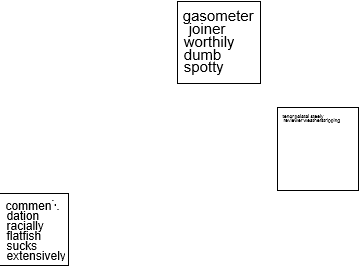
Now that we have framed text boxes, I investigated how to display multiple of them. In this section, I figured out how to display multiple framed text boxes in a Graphics element. I also define a helper function, parsething2, to help generate the framed text boxes for future use.
In[]:=
textboxlist={{"commendation racially flatfish sucks extensively boffo",12,-124,-130,120,126},{"gasometer joiner worthily dumb spotty",15,42,39,148,146},{"tenor palatal steely reviewer weatherstripping",5,131,-57,143,147}};
Here is our previous framing code:
In[]:=
Framed[Pane[Style[text,LineIndent->0,TextAlignment->Left,font,LineSpacing->{0.7,0}],{500,200}]]
Out[]=
We can inset it inside a Graphics object.
In[]:=
Graphics[ Inset[ Framed[Pane[ Style[text,LineIndent->0,TextAlignment->Left,font,LineSpacing->{0.7,0}], {500,200} ], Alignment -> {Center, Center} ] ]]
Out[]=

To ease the process of doing this for many different elements, I wrote a helper function to generate a framed pane of text.
In[]:=
parsething2[textBoxListElement_]:=Inset[ Framed[Pane[ Style[textBoxListElement[[1]],LineIndent->0,TextAlignment->Left,textBoxListElement[[2]],LineSpacing->{0.7,0}], {textBoxListElement[[5]]/2,textBoxListElement[[6]]/2}] ], {textBoxListElement[[3]],textBoxListElement[[4]]}]parsething2[textboxlist[[2]]]
Out[]=
Inset,{42,39}
Now, we can map our function to textboxlist and put it inside a Graphics to display multiple elements at the same time.
In[]:=
Graphics[parsething2/@textboxlist]
Out[]=
Generating Random Text Boxes
Generating Random Text Boxes
A cool thing I made was a way to generate a random text box. This was helpful for testing. I utilized RandomWord[] and RandomInteger[] to generate a random element for textboxlist. Recall that an element is in the form {text, xpos, ypos, width, height}
Makes a random textboxlist element in the correct format.
In[]:=
{StringRiffle[Table[RandomWord[],RandomInteger[{5,9}]]," "],RandomInteger[{3,24}],RandomInteger[{-200,200}],RandomInteger[{-200,200}],RandomInteger[{100,150}],RandomInteger[{100,150}]}
Out[]=
{rut righteously selenium deadbolt soulfulness,24,62,56,110,105}
Helper function for creating a single random text box
Making a Dynamic to move text boxes around in space
Making a Dynamic to move text boxes around in space
We can assemble what we have done so far into an interface similar to an "editor" that can make text boxes in a Graphics element. I added sliders to dynamically change the values of the x - and y - position, width, height, and text. Then I combined PopUpMenu and Sliders together using Dynamic to bring the interface to life. We can then use the x- and y- position, width, height, and text from the sliders and PopUpMenu to make a dynamically editable text box.
Algorithm for optimizing placement of text boxes in a space
Algorithm for optimizing placement of text boxes in a space
Now I need to make an algorithm to optimize the spacing of our textboxlist. The way I chose to optimize the spacing of the elements is by putting all elements in columns. For example, the first element would be at the top-left of the page, the second element would be below it, and so on until one element wouldn't fit. Then, I would start a new column and do the same thing.
Here is a sample text box list:
First, let’s represent this somewhere.
Next, let’s put the first element towards the top-left.
Now, let’s define some variables, xvarcounter and yvarcounter, to define where you can put the next box such that it is to the bottom of right of the previous element.
Then, we can make the logic to put every element below or to the right of the previous element.
We can see that everything is in a nice order now.
Finish up: the manipulate that organizes text boxes into an optimized grid
Finish up: the manipulate that organizes text boxes into an optimized grid
Combining everything I have done, I created an interface with many features. The interface has sliders, a text field that adds text boxes, and an optimize button that optimizes the spacing of the elements.
Things I could do to extend or improve the project
Things I could do to extend or improve the project
◼
Adding an option to change the margins of the Dynamic
◼
Adding an option to change the aspect ratio or size of the background
◼
Adding a way to add images