The Amazon Alexa family of voice assistants already has Wolfram|Alpha knowledge included, but Amazon also provides a fairly easy way to add custom skills that can be developed in the Wolfram Language.
If the skill you want to develop is computational in nature or knowledge based, then the Wolfram Language is a natural choice for implementation and this is a step-by-step tutorial will show you how to create basic custom Alexa skills running in the Wolfram Cloud.
If the skill you want to develop is computational in nature or knowledge based, then the Wolfram Language is a natural choice for implementation and this is a step-by-step tutorial will show you how to create basic custom Alexa skills running in the Wolfram Cloud.
Basic ideas
Basic ideas
Data flow
Data flow
The basic model for Alexa, is that the device sends your spoken words to Amazon where a set of rules decides whether to send the request to your custom skill via a web based API. Your skill returns instructions for what speech and display are delivered to the Alexa device.
Out[]=

So we must configure Amazon with the rules to decide that we are trying to talk to our service and write deploy Wolfram Language code to an API to handle the logic of the service.
Interaction model
Interaction model
Before we set up the Amazon side you need to understand the basic interaction model. We want Alexa to respond to a phrase like “Alexa, ask test application for the population of London”. There are three components to this phrase.
Invocation phrase: The words that trigger your service.
Intent: What aspect of your service you want
Slots: Parameters that your service will use.
In this case
Invocation phrase: The words that trigger your service.
Intent: What aspect of your service you want
Slots: Parameters that your service will use.
In this case
Out[]=
Alexa, ask |
|
|
|
Each of these parts must be configured on Amazon for them to be passed to our service
Steps to Configuring The Wolfram Cloud
Steps to Configuring The Wolfram Cloud
Lets start by creating a simple service, with no slots, that responds to the phrase “Alexa, ask test application to say hello”
Out[]=
Alexa, ask |
|
|
|
Step 1 Get a Wolfram Cloud Account.
If you have a paid license of Wolfram Technology, you should already have this. If not create a free account at
https://wolframcloud.com
Click “Sign up for free”, and fill in the form.
Free deployments have a lifespan of 30 days and a limit of 1000 requests per month, so once you have got this working, you should consider one of the commercial plans.
Step 2 Deploy the service
Evaluate the following code in your Wolfram Language environment:
If you have a paid license of Wolfram Technology, you should already have this. If not create a free account at
https://wolframcloud.com
Click “Sign up for free”, and fill in the form.
Free deployments have a lifespan of 30 days and a limit of 1000 requests per month, so once you have got this working, you should consider one of the commercial plans.
Step 2 Deploy the service
Evaluate the following code in your Wolfram Language environment:
In[]:=
CloudDeploy[APIFunction[{},Block[{message,intent,slots,arguments,cardTitle},(*Argumentprocessing*)arguments=Dataset[ImportString[HTTPRequestData["Body"],"RawJSON"]];CloudSymbol["alexaDebug"]=arguments;(*Fordebuggingpurposesonly*)intent=arguments["request","intent","name"];slots=Association[Normal[arguments["request","intent","slots",Values,#name#value&]]];(*Applicationlogic*)cardTitle="My Application";message=Switch[intent,"helloIntent","Hello from the Wolfram Language",_,"I'm sorry, I don't know what to say about that."];(*Responsedelivery*){"version""1.0","sessionAttributes"{},"response"{"shouldEndSession"True,"outputSpeech"{"type""PlainText","text"message},"card"{"type""Simple","content"message,"title"cardTitle}}}]&,"JSON"],"myAlexaApplication",Permissions"Public"]
Out[]=
There are three parts to this code.
At the start we grab the JSON object that Amazon will send us from the HTTP request body, and pick out the intent and slots information. If you want to do more sophisticated things, there is more information in the JSON, but that is beyond the scope of this tutorial.
The application logic then sets up the responses dependent on the value of the Intent and slots. I have chosen an Intent ID “helloIntent”, we will need that later. The message will be a string that will be spoken by the Alexa device. cardTitle is for display on Alexa devices with screens.
The third part constructs the response JSON to send back to Amazon. This is a minimal example that just returns speech. There are lots of additional keys for more sophisticated actions, but you can read the Alexa specs for those.
Finally we are deploying to a Wolfram CloudObject of our choosing, “myAlexaApplication” . We will need the URL of the resulting CloudObject later.
At the start we grab the JSON object that Amazon will send us from the HTTP request body, and pick out the intent and slots information. If you want to do more sophisticated things, there is more information in the JSON, but that is beyond the scope of this tutorial.
The application logic then sets up the responses dependent on the value of the Intent and slots. I have chosen an Intent ID “helloIntent”, we will need that later. The message will be a string that will be spoken by the Alexa device. cardTitle is for display on Alexa devices with screens.
The third part constructs the response JSON to send back to Amazon. This is a minimal example that just returns speech. There are lots of additional keys for more sophisticated actions, but you can read the Alexa specs for those.
Finally we are deploying to a Wolfram CloudObject of our choosing, “myAlexaApplication” . We will need the URL of the resulting CloudObject later.
Steps to Configure Amazon
Steps to Configure Amazon
The Amazon side of the equation is a bit more work, but fairly straightforward.
Step 1 Login
Sign into the Alexa developer console ( https://developer.amazon.com/alexa/console/ask ) using the account that your Alexa device is associated with. Click on the “Create skill” button.
Step 2 Skill Information
Give the skill a unique name, I suggest using the “Invocation name” that we plan for the user, and choose a language.
Sign into the Alexa developer console ( https://developer.amazon.com/alexa/console/ask ) using the account that your Alexa device is associated with. Click on the “Create skill” button.
Step 2 Skill Information
Give the skill a unique name, I suggest using the “Invocation name” that we plan for the user, and choose a language.
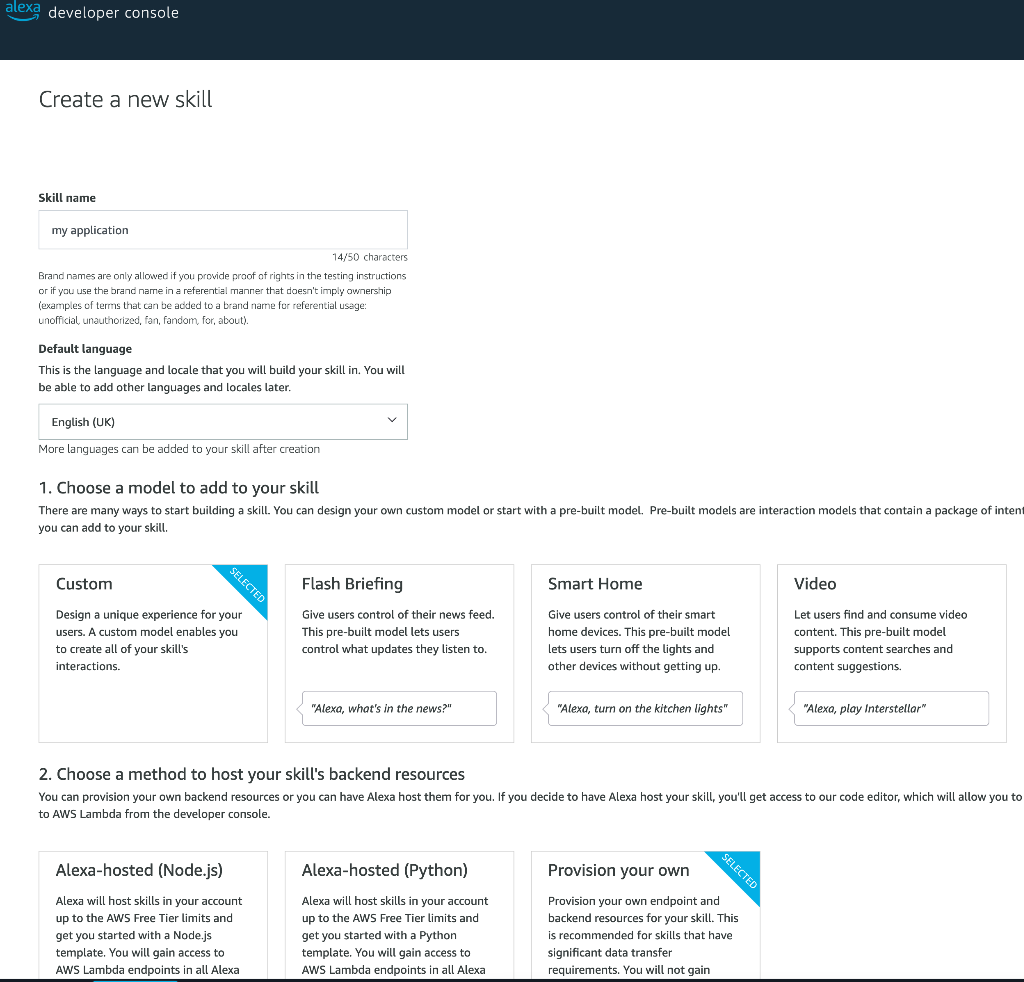
There is something important that you need to know about language. English (US) is a completely different language than English (UK) or any other English. Likewise for Spanish (ES) and Spanish (MX). As a UK Alexa user, if I create the skill for English (US) as shown in the screenshot above, it will not listen to me (even if I try and put on an America accent). So choose the exact language of your device. You can add phrases for additional languages later.
Choose “Custom” for the model and “Provision your own” for the backend method.
Click “Create skill” (top right corner) and on the next page choose “Start from scratch”
Step 3 Interaction Model
Choose “Custom” for the model and “Provision your own” for the backend method.
Click “Create skill” (top right corner) and on the next page choose “Start from scratch”
Step 3 Interaction Model
This is where the main Amazon side is configured.
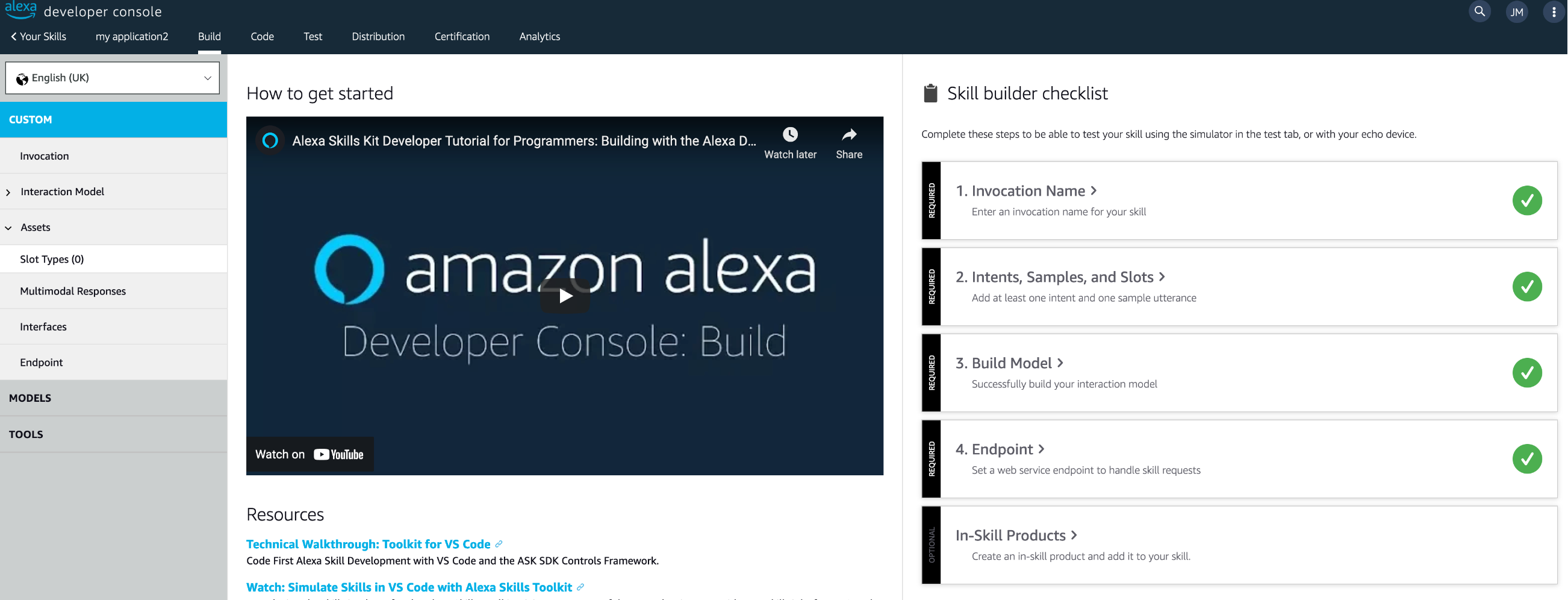
You need to configure the data in each of the tabs on the left hand side.
In Invocation you just enter the phrase that you want the user to have to say after “Alexa ask ...” to start your app. There are reserved words rules about what is allowed here. You can read those on the page. Basically two or three words that don’t include Alexa launch phrases are required. We can use “test application” for now.
In Invocation you just enter the phrase that you want the user to have to say after “Alexa ask ...” to start your app. There are reserved words rules about what is allowed here. You can read those on the page. Basically two or three words that don’t include Alexa launch phrases are required. We can use “test application” for now.
In Interaction model you will configure the “intents”
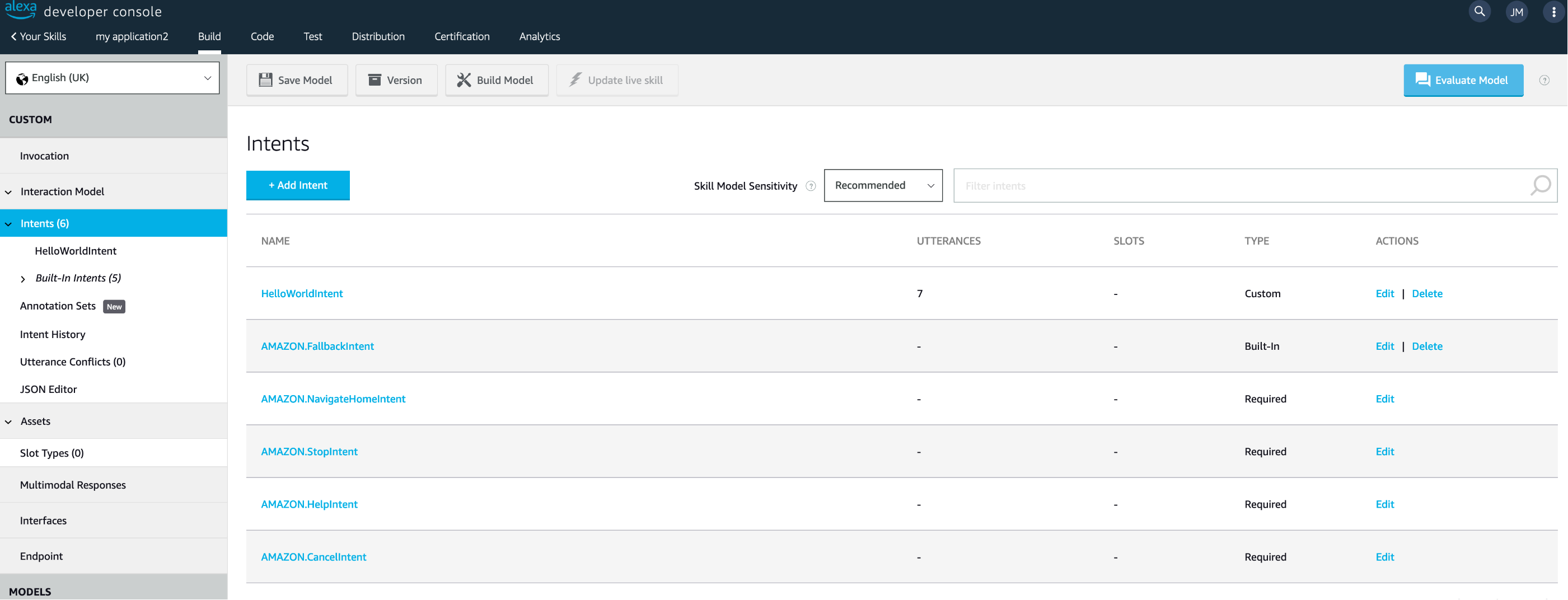
Amazon has created some built-in intents that you can ignore and a sample “HelloWorldIntent” that you might look at for ideas but then you should delete it (especially as we are going to create our own hello intent).
Click "Add Intent"
Under "Create a new custom Intent" enter an the Intent ID that matches our Wolfram Language code. In our example above we chose "helloIntent". Enter that (without the quotes) and click "Create custom intent". We are now prompted to provide one or more phrases that our user could say to trigger this intent. So enter "to say hello" and click the "+" to add it.
Click "Add Intent"
Under "Create a new custom Intent" enter an the Intent ID that matches our Wolfram Language code. In our example above we chose "helloIntent". Enter that (without the quotes) and click "Create custom intent". We are now prompted to provide one or more phrases that our user could say to trigger this intent. So enter "to say hello" and click the "+" to add it.
There is no sophisticated linguistic model equivalent to the Wolfram Language GrammarRules, so you have to think of every equivalent phrase that you might accept. For example "to say hello", "to say hi", "to greet me" etc. Click the "+" in the input field after typing each one
Now click “Save model” and then “build model” at the top to compile the rules. (This takes a few seconds but runs in the background).
Step 4 Endpoint
Choose Endpoint on the left-hand navigation bare and then choose “HTTPS” for the Service Endpoint Type.
We need to enter the URL was returned by the CloudDeploy of our Wolfram Language code. For me that is https://www.wolframcloud.com/objects/jonm/myAlexaApplication but will be different for you. There are options in CloudObject to obscure the URL with UUIDs rather than the default username/deploymentname format.
Choose Endpoint on the left-hand navigation bare and then choose “HTTPS” for the Service Endpoint Type.
We need to enter the URL was returned by the CloudDeploy of our Wolfram Language code. For me that is https://www.wolframcloud.com/objects/jonm/myAlexaApplication but will be different for you. There are options in CloudObject to obscure the URL with UUIDs rather than the default username/deploymentname format.
Enter the URL in the Default Region box and choose “My development endpoint is a sub-domain of a domain that has a wildcard certificate from a certificate authority” in the SSL certificate type. Click “Save Endpoints”
Testing
Testing
Assuming that the Amazon compile step completed by now, we can test our app. Go to the Test tab at the top of the Amazon window and enable testing. Enter the test phrase and you should see and hear the response in the browser. You will also see the upstream and downstream JSON objects and the card as it will be rendered on various Alexa devices with screens.
I also included the most elementary logging in my application that allows you to see whether the JSON was received and interpreted correctly by the Wolfram Cloud side. Evaluate the following to see the information sent in the last request which should correspond to the Input JSON in the test.
Remove the line CloudSymbol[“alexaDebug”]=arguments;(*For debugging purposes only*) from the code and re-deploy, once you are happy.
Deployment
Deployment
If you now go to the Alexa mobile app and look in Skills/ Your skills, you should see “My Application” in your list. Enable it and try saying “Alexa, ask my application to say hello” to your Alexa device and it should answer you. If it doesn’t work, look in the Alexa mobile app, in Settings/History to make sure that Alexa heard the words correctly. Some invocation phrases have better recognition rates than others.
If you want other people to use it, you have to fill in the information under the “Distribution” tab and wait for Amazon approval.
If you want other people to use it, you have to fill in the information under the “Distribution” tab and wait for Amazon approval.
Handling slots
Handling slots
OK, lets do something slightly more advanced. Lets handle the phrase “Alexa, ask my application for the population of London”
We have to set up the phrase including a slot in the Amazon intent, and add the logic to our Wolfram code to handle the slot’s value.
In Amazon, go to the Interaction Model tab again and click Add+ in Intents. In Create a new custom intent type in a name such as “aboutCities” and then in Sample Utterances enter “for the population of {“. The braces are Amazon syntax for the slot and can appear anywhere within the phrase. As soon as you have typed the brace, a dialog will ask you for which slot.
We have to set up the phrase including a slot in the Amazon intent, and add the logic to our Wolfram code to handle the slot’s value.
In Amazon, go to the Interaction Model tab again and click Add+ in Intents. In Create a new custom intent type in a name such as “aboutCities” and then in Sample Utterances enter “for the population of {“. The braces are Amazon syntax for the slot and can appear anywhere within the phrase. As soon as you have typed the brace, a dialog will ask you for which slot.
Type "cityName" in the “Create a new slot” field and click “Add”. Your sample utterance should now read "for the population of {cityName}". Ckick the "+" to add it. You will now see a box containing Intent Slots on the right. Click choose a slot type And Pick "AMAZON.US_CITY". You can read about these in the Amazon documentation, but they are a little like Wolfram Language's Interpreter. While you could use a very open slot type of “AMAZON.SearchQuery” and then resolve interpretation in the Wolfram Cloud, it is better to use the Amazon slot type if one exists as that guides the voice recognition. The page should look like this
Again, consider all the different ways your user might ask for this information and create a sample utterance for each, using the same slot name each time.
Save and rebuild the model. While it is rebuilding go back to your Wolfram Language code and change the logic to
Save and rebuild the model. While it is rebuilding go back to your Wolfram Language code and change the logic to
Re-deploy the Wolfram Cloud Object and test it.