The Wolfram Emerging Leaders Program: High School (WELP:HS) is a remote, semester-long program designed for exceptional graduates from the Wolfram High School Summer Research Program to continue to develop their skills. Students work in a small group over the course of a semester to do either a research-based project or a product development–based project under the guidance of expert mentors. Projects are centered around a topic at the intersection of the group’s interests.
This essay was written by:
This essay was written by:
We created a web-based tool to help students improve their literary understanding of French and Spanish. Our tool highlights the differences between the students’ English translation and the
Wolfram translation of the text and then provides a hint, which is a multiple choice question that covers the first mistake made by the students. Using these questions, students can fix their errors in order and resubmit to improve their translations. In addition to the highlighted differences and hint, the students will also see how semantically and lexically similar their translations are to the Wolfram translation through percentages.
Wolfram translation of the text and then provides a hint, which is a multiple choice question that covers the first mistake made by the students. Using these questions, students can fix their errors in order and resubmit to improve their translations. In addition to the highlighted differences and hint, the students will also see how semantically and lexically similar their translations are to the Wolfram translation through percentages.
Introduction
Introduction
Large Language Models (LLMs) have recently emerged as a significant tool for innovation. With significant amounts of resources being invested and research being done in this field it is sure to grow exponentially and impact various industries. We embarked on creating a unique web-based language learning platform by utilizing this technology specifically designed for foreign language learners.
After learning foreign languages in school and trying different language learning tools for many years we wanted to create a new kind of system that was different from current approaches. We set out to develop a tool that uses text-based interactions to provide a custom language learning experience. This project was inspired by the goal of utilizing the tremendous potential of text-based learning approaches to present a customizable and measurable language learning approach.
This tool first identifies differences between a user's translation and the intended translation. By analyzing these differences, we are able to generate a custom set of questions, to help users focus on their individual mistakes. This is supported with semantic and lexical benchmarks, providing users with clear and structured means to track and measure their progress in language comprehension and usage.
After learning foreign languages in school and trying different language learning tools for many years we wanted to create a new kind of system that was different from current approaches. We set out to develop a tool that uses text-based interactions to provide a custom language learning experience. This project was inspired by the goal of utilizing the tremendous potential of text-based learning approaches to present a customizable and measurable language learning approach.
This tool first identifies differences between a user's translation and the intended translation. By analyzing these differences, we are able to generate a custom set of questions, to help users focus on their individual mistakes. This is supported with semantic and lexical benchmarks, providing users with clear and structured means to track and measure their progress in language comprehension and usage.
Highlighting differences
Highlighting differences
We wanted to highlight the differences between the user’s translation and the correct translation. This visually shows students where their translations differed without giving the correct English translation. Initially we used SequenceAlignment, which gives a list containing lists of differences and similarities in the order in which they appear, to highlight the differences in one English text with another.
Input is the correct English followed by the user’s translation:
basicHighlights[wolfram_String,user_String]:=StringJoin[Riffle[Flatten[Table[If[SameQ[Head[wordList[[1]]],List],If[Length[wordList[[2]]]>0,Table[ToString[Highlighted[word],StandardForm],{word,wordList[[2]]}],ToString[Highlighted[wordList[[2]]],StandardForm]],Flatten[wordList]],{wordList,ReplaceAll[SequenceAlignment[TextWords[wolfram],TextWords[user]],{}->""]}]]," "]]
Highlighting the user’s errors for the prompt shown in the image:
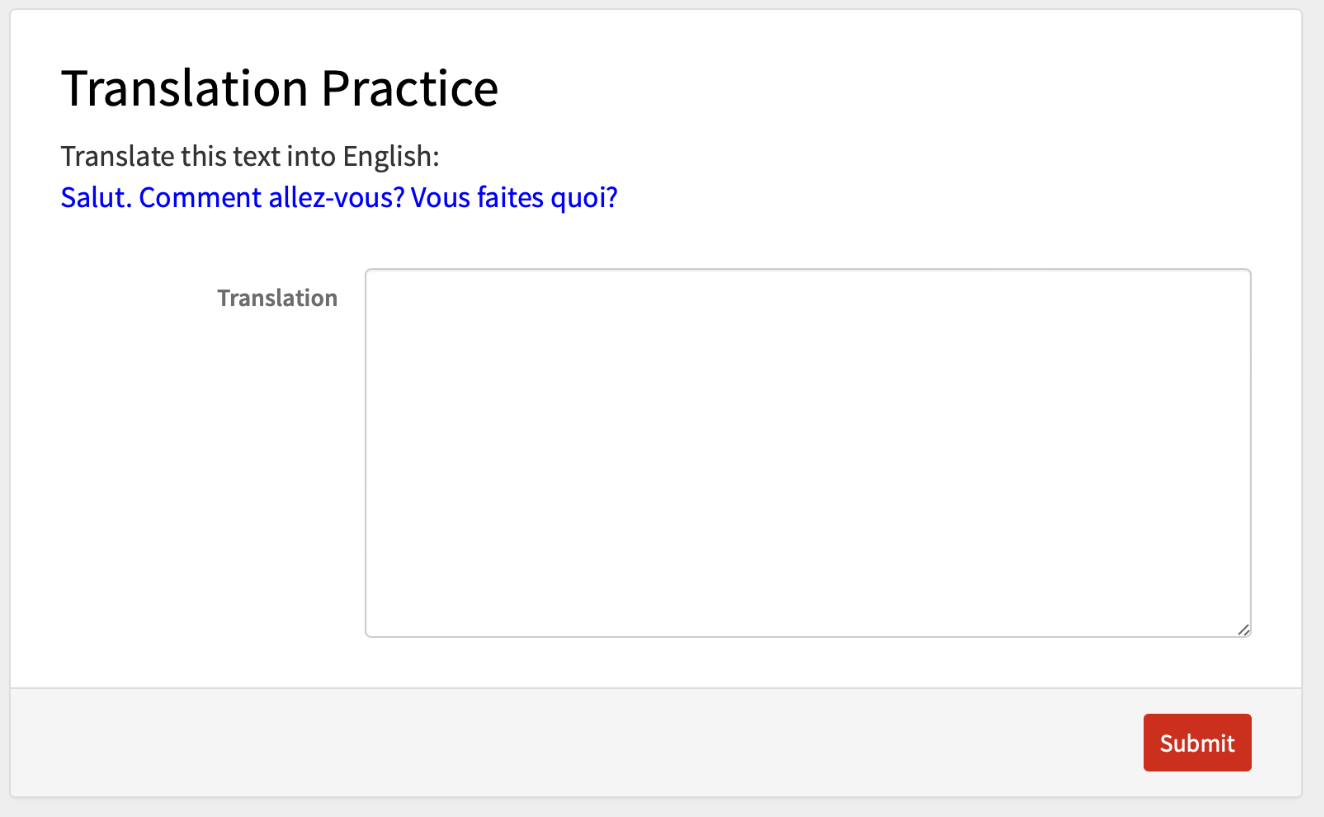
basicHighlights["Hi. How are you doing? What are you doing?","Hello. How are you? What time is it?"]
Out[]=
Then we stored the differences between the user’s translation and the correct translation in a list called mistakes, so that we could return quiz questions to help the user improve the translation.
basicHighlights[wolfram_String,user_String]:=Module[{counter=0,aligned=ReplaceAll[SequenceAlignment[TextWords[wolfram],TextWords[user]],{}->{" "}],difs={}},{StringRiffle[Flatten[Table[If[SameQ[Head[wordList[[1]]],List],counter++;Table[AppendTo[difs,word];ToString[Highlighted[word],StandardForm],{word,wordList[[2]]}],Flatten[wordList]],{wordList,aligned}]]," "],StringJoin["Differences: ",ToString[counter]],difs}]
We used a highlighted space to signify an error of omission. Differences spanning adjacent words were counted as a single difference, such as how “time is it” is counted as one difference.
basicHighlights["Hi. How are you doing? What are you doing?","Hello. How are you? What time is it?"]
Out[]=
How are you What ,Differences: 3,{Hello, ,time,is,it}
We had the hint contain a quiz question about the user’s first mistake since it makes sense to update in order.
Putting basicHighlights on the cloud
Putting basicHighlights on the cloud
We created a form page for the user to submit an English translation of the given text. In order to have the highlights display on the cloud we had to make the outer function surrounding the string “Highlighted” instead of “String.” For this change we used a Row of the riffled strings and highlighted strings. We had Riffle with Spacer[3], so that the spaces between words would display on the cloud.
CloudbasicHighlights returns a column of the user’s translation with the differences highlighted, the number of differences, and a list of the differences:
CloudbasicHighlights[wolfram_String,user_String]:=Module[{counter=0,aligned=ReplaceAll[SequenceAlignment[TextWords[wolfram],TextWords[user]],{}->{" "}],difs={}},Column[{Row[Riffle[Flatten[Table[If[SameQ[Head[wordList[[1]]],List],counter++;Table[AppendTo[difs,word];Highlighted[word],{word,wordList[[2]]}],Flatten[wordList]],{wordList,aligned}]],Spacer[3]]],StringJoin["Differences: ",ToString[counter]],difs}]]
Example text with Cloudbasichighlights:
CloudbasicHighlights["Hi. How are you doing? What are you doing?","Hello. How are you? What time is it?"]
Out[]=
How are you What |
Differences: 3 |
{Hello, ,time,is,it} |

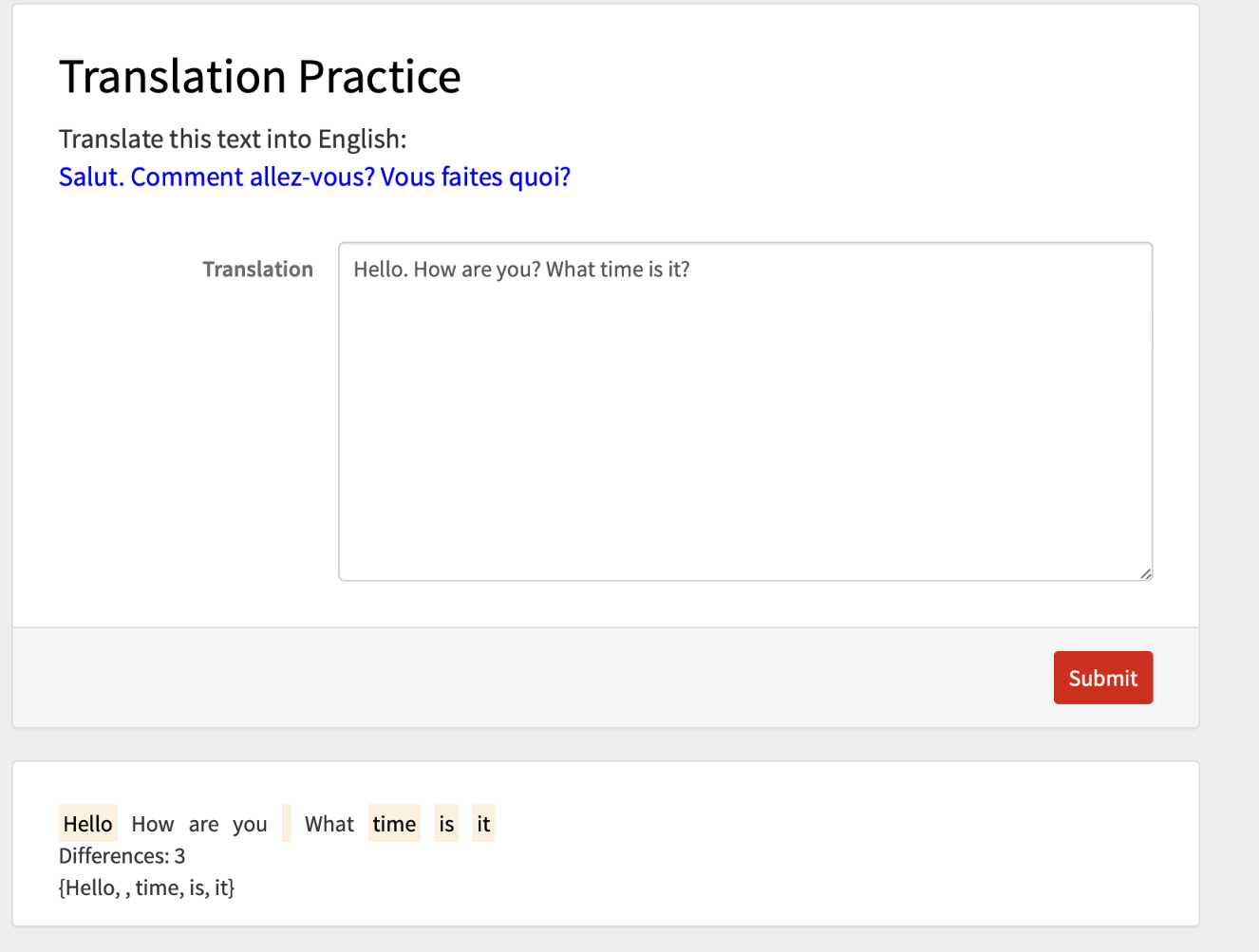
Working CloudDeploy of previous text for CloudbasicHighlights:
CloudDeploy[Module[{sentence="Salut. Comment allez-vous? Vous faites quoi?"},FormPage[{"Translation"-><|"Interpreter"->"String","Control"(InputField[#,FieldSize->{40,10}]&)|>},CloudObject[CloudbasicHighlights["Hi. How are you doing? What are you doing?",#[[1]]]]&,AppearanceRules-><|"Title"->"Translation Practice","Description"->Column[{"Translate this text into English:",Style[sentence,Blue]}]|>]],Permissions->"Public"]
Out[]=
Continuous highlights
Continuous highlights
We had phrases added by the user count as individual differences and displayed this with continuous highlights, made by using StringRiffle with a space within the Highlighted function.
Now with continuous highlights:
CloudbasicHighlights[wolfram_String,user_String]:=Module[{aligned=ReplaceAll[SequenceAlignment[TextWords[wolfram],TextWords[user]],{}->{" "}],difs},difs=Cases[aligned,{{___},{___}}];Column[{Row[Table[If[MemberQ[difs,wordList],Highlighted[StringRiffle[wordList[[2]]," "]],StringRiffle[wordList," "]],{wordList,aligned}],Spacer[3]],StringJoin["Differences: ",ToString[Length[difs]]],Table[If[Length[dif]>1,{StringRiffle[dif]},dif],{dif,ReplaceAll[#[[2]]&/@difs,{" "}->"<missing word>"]}]}]]
CloudbasicHighlights["Hi. How are you doing? What are you doing?","Hello. How are you? What time is it?"]
Out[]=
How are you What |
Differences: 3 |
{{Hello},<missing word>,{time is it}} |
Align with LLMs
Align with LLMs
The use of LLMs allowed us to get two sentences, one in English and the other in French, and align each word of each phrase to their respective translation. We provide an example to the LLM to let it understand the task at hand and allow it to accurately output what we are looking for.
This is an LLM with a larger sample and the same prompt as above.
Working paras
Working paras
The following paragraphs below are in French and Spanish that we have created as example texts for language learning in the tool by using prior functions.
qVocabLLMEng code
qVocabLLMEng code
Creating the Question Prompt
Creating the Question Prompt
qPrompt inputs the vocab word in question and outputs a sentence that would be used as the prompt.
An example of qPrompt
An example of qPrompt
Creating the Answer Choices
Creating the Answer Choices
answerChoices was used to create the potential incorrect answer choices of the question. It tells the LLM to find two words that are similar to the correct answer and one word that looks similar to the correct answer.
An example of it at use.
Creating the Questions
Creating the Questions
testingFnAutoChoices makes use of the automated question prompt and answer choices above to create a question.
Final Question Making Function
Final Question Making Function
Finally, we slim down the function and connect it to the code that extracts errors to produce qVocabLLMEng. We specified the choice of question types to just multiple choice and made the llmPrompt simpler for the questions to be more accurate. The first input is the incorrect word the user translates. The second input is the correct translation of the incorrect word. From there, the incorrect answer choices are created from the LLM which creates a list of three English words that have no related meaning to the word at hand. Finally, the question is created.
The original function would not work in the cloud, the website, so we had to write new code to allow it to function on the website. The CloudDeploy outputs a link to a website that includes the qVocabLLMEng question on the cloud. Below is a prototype of the website, which includes the user translation and the qVocabLLMEng that creates the questions.
Similarity Approaches
Similarity Approaches
In this section we explored different approaches for finding semantic similarity between two pieces of text. This gives the user a metric that they can visually improve on as they use the tool and improve.
Bert Approach
Bert Approach
The overall logic of the BERT approach is to take sentences, convert it into a represented vector and then compare those vectors.
The BERT model is an LLM that has the ability to embed the meaning of words with context into a dense vector.
The BERT model is an LLM that has the ability to embed the meaning of words with context into a dense vector.
This diagram above shows the overall BERT structure. In Wolfram, the amount of tokens inputted into the model is a variable depending on the number of words. This led to a final output of dimension NumberOfTokens x 768. Therefore, we needed to convert this final output into a vector of 768 dimensions, 1x768, so we could compare different vectors. We did that by using the common mean pooling operation that takes the mean of all token embeddings, creating a single 768 dimension sentence vector.
Importing BERT from Wolfram’s Neural Net Repository
Finding the embeddings of two example sentences.
Exploring the Dimensions of the Embeddings
As we can see the dimensions of the embeddings vary depending on the number of tokens. Thus we can employ the mean pooling operation.
The dimensions are now the same a 1x768 vector that can be compared.
We use the Cosine Distance approach, that is (1- cosine of the angle between the vectors ), to compare the two sentence vectors.
We use the Cosine Distance approach, that is (1- cosine of the angle between the vectors ), to compare the two sentence vectors.
Next we test it over multiple sentences to show that the similarity approach is effective.
The results agree with what we wanted. Thus showing BERT as a useful method for a benchmark for comparing semantic similarity.
GPT approach
GPT approach
The GPT approach works in the same way to the BERT approach. However instead of utilizing the BERT model we use the GPT model.
Creating an example sentence to be inputted
Creating an example sentence to be inputted
Inputting the string into the GPT model and accessing the embedding.
Open AI does their own pooling leading to a sentence vector of 1x1536 dimension.
Repeating this process with a different sentence
Finding the cosine distance
Percentage
Percentage
When comparing two vectors, it is not completely accurate to think of the cosine distance as a percentage as the two points in space are in a different position in relation to each other and can vary by different metrics.
However, the percentage approach below aims to provide a metric in which a user can aim to continuously improve upon.
However, the percentage approach below aims to provide a metric in which a user can aim to continuously improve upon.
cloudHighlights
cloudHighlights
Using the aligned text from the LLMs, we added a Tooltip to the highlights that shows the French or Spanish word or phrase when the user’s cursor hovers over a highlighted part of their translation. To have the tooltip display on the cloud, we added the Tooltip function around the Highlighted function. We also added the semantic and lexical percentages to the output.
cloudHighlights goes over different conditions to choose the French or
Spanish text for the tooltip:
Spanish text for the tooltip:
cloudHighlights displays the highlighted text with tooltip, the semantic and lexical percentages, and a quiz question:
Code to Generate a Named Cloud Object for Every Word/Phrase in a Passage
Code to Generate a Named Cloud Object for Every Word/Phrase in a Passage
qsFr1 creates cloud objects for each quiz question to allow it to be used on the web.
Final web app
Final web app
We then deployed our entire system onto the Wolfram Cloud with each example text to create a web-based tool that can be used for language learning.
Note: when you go to the page, if you see the blue text in English, please turn off automatic translation in your browser!
Note: when you go to the page, if you see the blue text in English, please turn off automatic translation in your browser!
The final application can be found here: https://www.wolframcloud.com/obj/3bcb3d08-fdc9-4464-8a1a-fafc92430a7e
Conclusion and Future Works
Conclusion and Future Works
Working as a team, we have been able to create a tool for foreign language students that would assist in learning both Spanish and French. We separated our project into individual aspects and split them between our group to work on and to eventually combine into one product, our website. We have worked hard together as a team and individually as coders to create something we are truly proud of and would like to show the community.
However, we also have a desire to take this project further. There are still some aspects that we want to improve on and some features we wish to create. If we were to come back to this project, one of our initial wishes would be to include grammar related errors alongside vocab mistakes. Our code would be able to detect verb tense and subject-verb agreement errors and create questions according to each grammar issue.
However, we also have a desire to take this project further. There are still some aspects that we want to improve on and some features we wish to create. If we were to come back to this project, one of our initial wishes would be to include grammar related errors alongside vocab mistakes. Our code would be able to detect verb tense and subject-verb agreement errors and create questions according to each grammar issue.
Acknowledgements
Acknowledgements
Thank you to Mark Greenberg for always being there to answer our questions and to help us in our times of need. You have been the biggest help to us during our project and we wouldn’t have been able to make it without you.
References
References
Briggs, J. (2021, September 2). Bert for measuring text similarity. Medium. https://towardsdatascience.com/bert-for-measuring-text-similarity-eec91c6bf9e1
CITE THIS NOTEBOOK
CITE THIS NOTEBOOK
Web-Based Foreign Language Learning Translation tool using LLMS
by Wolfram Emerging Leaders Program
Wolfram Community, STAFF PICKS, January 2, 2024
https://community.wolfram.com/groups/-/m/t/3094693
by Wolfram Emerging Leaders Program
Wolfram Community, STAFF PICKS, January 2, 2024
https://community.wolfram.com/groups/-/m/t/3094693