Introduction and goals:
Introduction and goals:
Throughout history and the evolution of human kind, the effect of a communities cultures and beliefs have been reflected in the structures built by them, and even today, many cities and regions have unique architecture signatures which are only found in their structures. But in the current generation of ever growing technology, there is no algorithm to get the architecture qualities of buildings, such as their shape, in a specific region which might be useful in understanding not only the cultural aspects of the region, but also some geographical, economical or social aspects of that region. The aim of this algorithm is to create a visualization to show the “average” shape of buildings in a certain region, specified by its coordinates.
Methods
Methods
The final goal was to get the average shape of the buildings in a specific region, and for that each building must be identified and isolated from each other and other structures in that region. A combination of street maps and satellite imaging was used to isolate buildings and extract their shape.
Getting the satellite image of the area
Getting the satellite image of the area
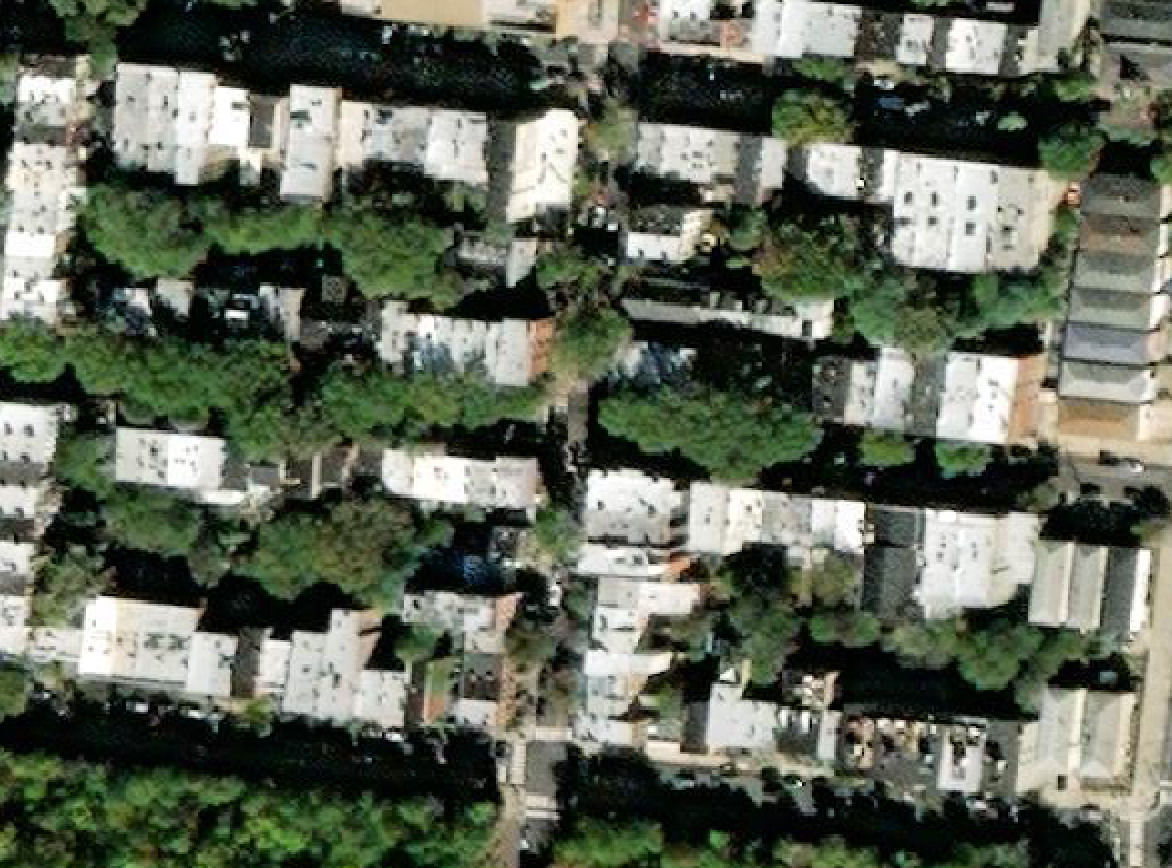
The satellite area of the map shows the buildings we need to isolate. However, it is only used in this algorithm for representation and debugging purposes, since we are using the street map building markings to identify the location of the buildings and not the satellite map.
We are using an area in New York as an example
We are using an area in New York as an example
The below code takes in 2 coordinates and returns a satellite map of that region:
In[]:=
topcoordleft = {{40.726926,-74.045234}};bottomcoordright = {{40.725166,-74.042096}};layeredmap[coords1_, coords2_]:= GeoImage[GeoPosition[{coords1}], GeoPosition[{coords2}], GeoRangePadding None, GeoProjection"Mercator"]layered = layeredmap[topcoordleft, bottomcoordright]
Out[]=
Getting a representation for each building in the area
Getting a representation for each building in the area
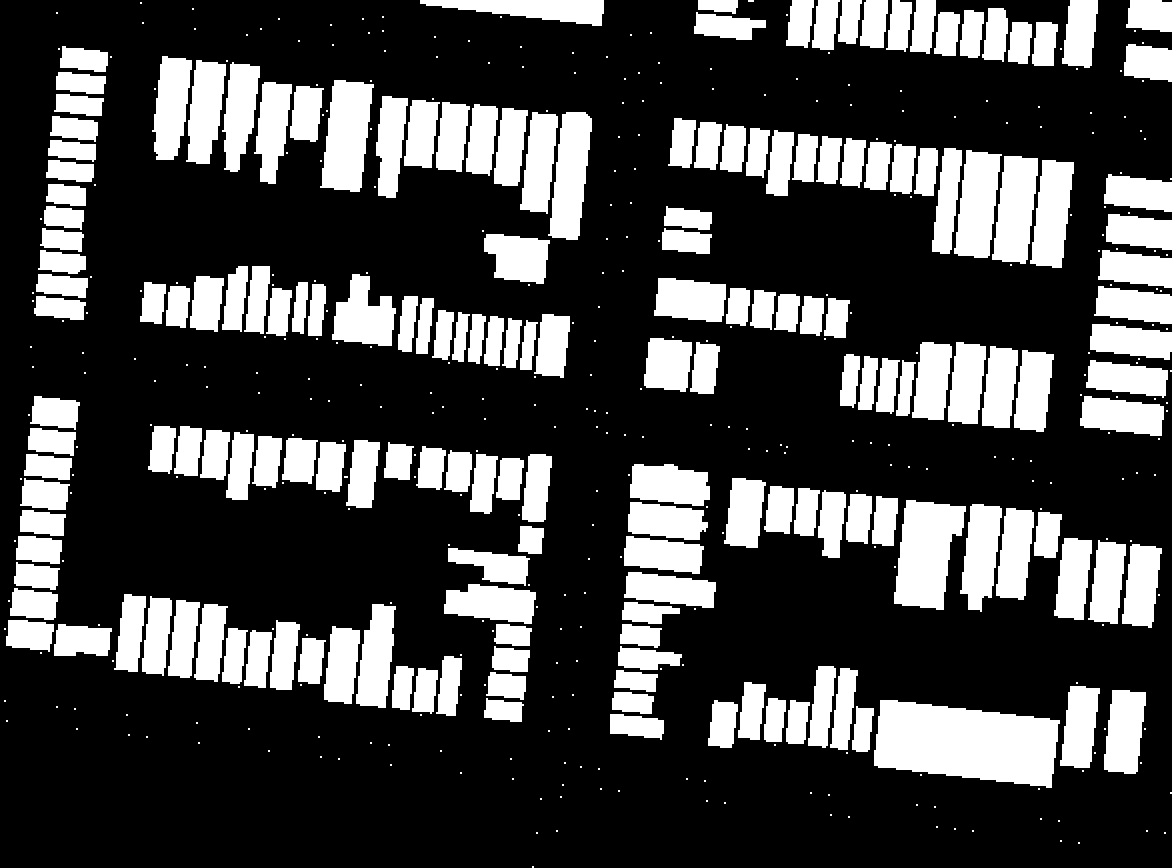
Using the Street map option, a street map image of the same area is obtained. In the Street View image, buildings are marked by a grey region, and so in order to get every building in the region, only the location of the grey regions in the street view image is used. This approach eliminates the use of machine learning and gets the precise location and shape of every building as registered in the map.
The algorithm isolates all building markings from the satellite map and binarized them:
generatemask[coordtl_, coordbr_] := ColorNegate[ Binarize[ ColorDistance[ GeoImage[{GeoPosition[{coordtl}], GeoPosition[{coordbr}]}, "StreetMapNoLabels", GeoRangePadding -> None, GeoProjection -> "Mercator"], RGBColor[222/256, 220/256, 212/256]], 0.005]] mask = generatemask[topcoordleft, bottomcoordright]
Out[]=
Cleaning the image and removing noise
Cleaning the image and removing noise
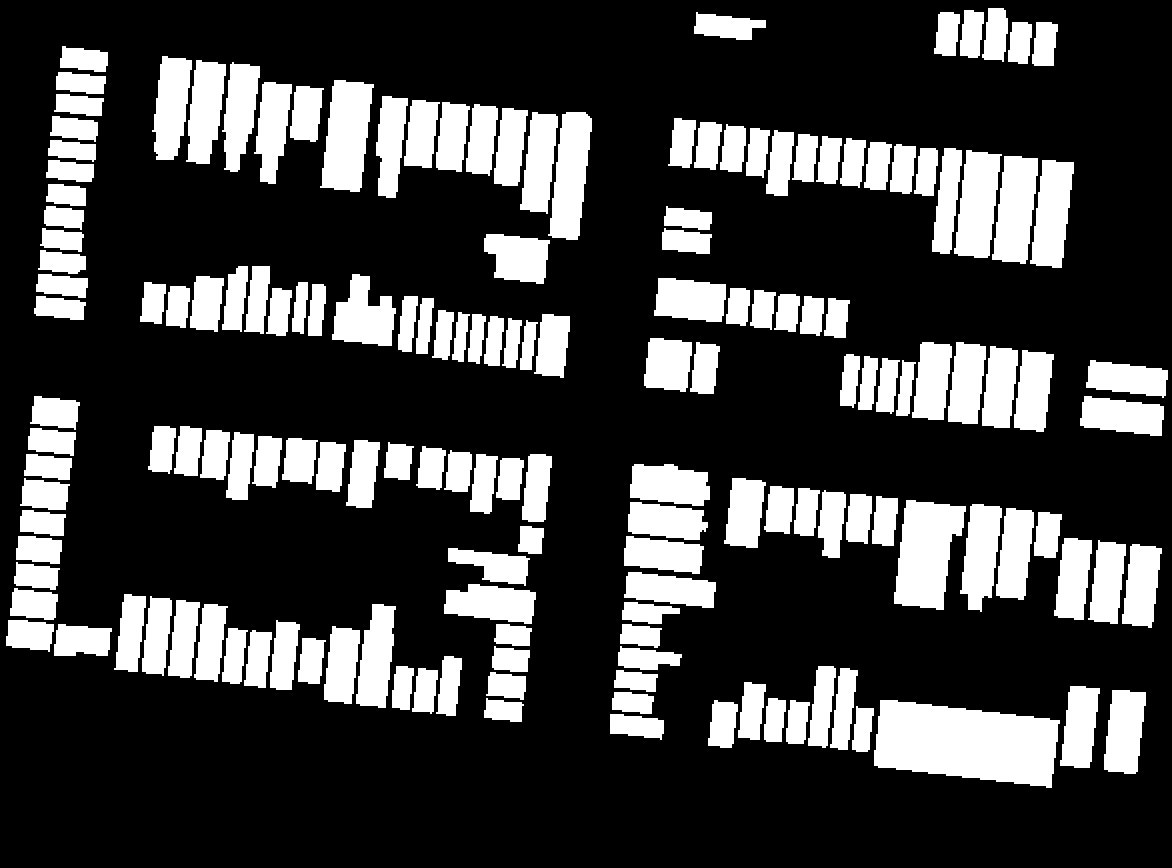
In the yielded image, the white portion is the buildings. However, in the street map some bits of the road are also gray, so singular scattered pixels - noise - is also collected in the data. Furthermore, in the image map, some buildings on the border are not complete, and thus are not needed since their shape will skew the results. Hence, the noise and bordering incomplete buildings need to be cleaned out of the image.
The binarized image is cleaned by deleting small components and border components:
In[]:=
clean[mask_]:= DeleteBorderComponents[ DeleteSmallComponents[mask,4]]cleanmask = clean[mask]
Out[]=
Highlight and Isolate different buildings in the region
Highlight and Isolate different buildings in the region
To separate each building from the list of buildings, we identify the clusters of the same pixel value - buildings - using a function MorphologicalComponents[]. This function gives the pixels for each component in an image, which is the mask of the building in the image of the mask. For visual debugging and identification of some buildings, it is useful to visually represent the isolation of the building by highlighting it
A function to highlight the nth building/cluster:
changemorphcomponenttored[n_,mask_]:= ReplacePixelValue[mask, PixelValuePositions[ Image[ MorphologicalComponents[ mask]],n]Red]highlighted = changemorphcomponenttored[10, cleanmask];
A function to show the nth building/cluster isolated from other buildings/clusters:
showonlymorphcomponent[n_,mask_]:=ReplacePixelValue[ Graphics[Black, Rectangle[], ImageSizeImageDimensions[mask], AspectRatioDivide@@Reverse[ ImageDimensions[mask]]],PixelValuePositions[Image[MorphologicalComponents[mask]],n]White]singlebuilding = showonlymorphcomponent[10, cleanmask];Row[{highlighted, singlebuilding}]
Isolate and append the image of each building
Isolate and append the image of each building
By using the above method on every component of the image, we can isolate the buildings from each other. For every building, after isolating the mask, the positions of the maximum and minimum white pixels in the X and Y axis is measured and used to trim the white pixel area of the image to give a much clearer and focused isolation of the building. Once a list of those are created, for visualization, the color channels of each building mask are filled using the color channel values of the pixels at the corresponding location on the satellite map image.
A function to give the dimensions of certain pixel positions :
A function using the dimensions from the mask pixel positions, trims the same portion out of the map :
Variable to store the returned list of isolated colored buildings from the function:
Getting the mask of every individual building
Getting the mask of every individual building
The above function trimmed out the pixel values from the satellite image, capturing other entities and close by buildings as well. Since the mask of the building separately is needed, a new function is created which isolates the building mask without other buildings or entities.
To do this, we use the MorphologicalComponents[] function to again derive the pixel positions for each mask component in the image. Then, rather than finding those pixel positions in the main satellite image or mask, the corresponding pixel locations are plotted and trimmed on a new Graphic Black screen. Therefore, when trimming, other buildings and entities cannot be captured in the mask, yielding a truly isolated building mask. This process is repeated for each mask component in the mask image.
To do this, we use the MorphologicalComponents[] function to again derive the pixel positions for each mask component in the image. Then, rather than finding those pixel positions in the main satellite image or mask, the corresponding pixel locations are plotted and trimmed on a new Graphic Black screen. Therefore, when trimming, other buildings and entities cannot be captured in the mask, yielding a truly isolated building mask. This process is repeated for each mask component in the mask image.
gives the number of buildings by calculating the number of components:
Stores only the masks of each building in a new list:
Shows the first 10 elements of the mask:
Delete and clean border buildings
Delete and clean border buildings
Since the new black Graphic screen replaces some border pixels, the border buildings in the mask get affected and merge with the white border, hampering the shape of the building. Hence it is important to clean the images by removing the border/incomplete buildings
Deletes the buildings which are connected to the borders:
Resize each image for normalization
Resize each image for normalization
Since each image has different dimensions, the cropping has different dimensions as well. In order to get the average shape, each building image needs to be reshaped to the same width and height while maintaining aspect ratio. After reshaping, some grey pixels develop in the building, and because we require only binarized images, we binarize all reshaped images again.
This function resizes every image to 100 by 100 while maintaining aspect ratio:
Getting the average shape of the buildings
Getting the average shape of the buildings
Finally, the central axis point of each image is found and the images are stacked on top of each other. The pixel densities for each pixel position in the defined area is measured and plotted on a 3D smooth histogram. Since it is 3D, its vertical axis represents the number of pixels at that pixel position, which shows the density of the pixels. The area with the highest pixel density is the average shape of the building for the specified coordinates of a region.
plots a smooth histogram of white pixel positions:
Single Function and Examples
Single Function and Examples
In order to test this code on new regions and compare results, it is efficient to create a single function that would take some input and give the needed output. For this code, the single function should take any 2 coordinates, and return the satellite image, street map image, building masks, and the smooth histogram which shows the average building shape.
Single Function
Single Function
The single function would allow us to test multiple region building shapes very quickly rather than entering and changing values cell by cell.
The function takes 2 coordinate inputs and returns the sat map, street map, masks and histogram:
Examples
Examples
Below are some examples of other regions in India, Paris and Japan.
Small Community in Western Mumbai
Small Community in Western Mumbai
A City Block in Central Paris
A City Block in Central Paris
A Residential Block in Kyoto, Japan
A Residential Block in Kyoto, Japan
Interpretation of Results and Conclusion
Interpretation of Results and Conclusion
Interpretation of Results
Interpretation of Results
The above results show the average shape of the building based on pixel position densities visualized on a histogram. From the histogram of New York, we can derive that the buildings tend to be more rectangular and large compared to other buildings. Apart from that, the slope of the surrounding pixel position densities also reflect that even though the dimensions of the building increase, they are still largely maintaining a constant aspect ratio in the form of a rectangle. This interpretation of the histogram can be confirmed by looking at the mask data of the buildings in a region in New York. The buildings seem uniformly rectangular, which matches our interpretation.
Other than New York, the histograms for India, Paris and Japan also match their respected building masks. The Indian and Japanese buildings are rectangular and smaller in comparison to the buildings in New York, as shown by the building masks. This pattern is also seen in the histogram as the pixel positions with the highest densities also have a rectangular concentration in the centre, but their aspect ration is much smaller and inconsistent compared to the values of the histogram representing New York data.
The data for the Paris buildings looks different from the data obtained from New York, India and Japan. This is because the buildings have irregular shapes and sizes, and when plotted on the same resized grids, have very few pixel position densities being concentrated in the same area. Hence, only the central region has the highest densities and the surrounding regions appear to be inconsistent.
Other than New York, the histograms for India, Paris and Japan also match their respected building masks. The Indian and Japanese buildings are rectangular and smaller in comparison to the buildings in New York, as shown by the building masks. This pattern is also seen in the histogram as the pixel positions with the highest densities also have a rectangular concentration in the centre, but their aspect ration is much smaller and inconsistent compared to the values of the histogram representing New York data.
The data for the Paris buildings looks different from the data obtained from New York, India and Japan. This is because the buildings have irregular shapes and sizes, and when plotted on the same resized grids, have very few pixel position densities being concentrated in the same area. Hence, only the central region has the highest densities and the surrounding regions appear to be inconsistent.
Conclusions
Conclusions
The Histogram data is accurate in representing larger amounts of concentrated pixel position density, but still lacks some consistency when regarding irregular building shapes and patterns, which should be easier to visualise using another technique. However, this does show us that extracting the average shape of a building is possible. From the data we have collected, we can assume that buildings in India and Japan share more common architecture features than they do with buildings in New York. This simple relation might suggest some more information correlation such as culture, population and habits of living. With some more precision and better visualisation, this information correlation can also be justified.