Steady-state visually evoked potentials are electroencephalographic (brain wave) responses to visual stimuli flashing at different frequencies. These potentials allow us to “mind read” and determine which stimuli the participant is looking at by analyzing these responses. This project involves creating a storytelling interface with a digital 4-key keyboard that types as a user “selects” a word with their mind. It leverages a large language model (LLM) to display the four next most probable words live on the page for the user to select.
​
Type with your mind, and choose your own adventure.
Brain-Computer Interfaces for Assistive Communication

The Problem with Current Assistive Communication Options

Individuals who have been impacted by motor degenerative diseases or are recovering from a stroke are in need of ways to communicate to their family and caretakers. But while there are plenty of assistive communication options for people who are able to move, such as word cards to hold up or point to or iPhone and tablet apps with speech buttons, they are far from inclusive and do not accommodate individuals with limited motor capabilities.
​
Patients who cannot move must often resort to eye-tracking systems, which are not only expensive and inaccurate, but also difficult to learn and must be frequently re-calibrated. The biggest issue with using eye tracking as a communication alternative is the so-called “Midas touch problem”. Essentially, the direction of gaze in many cases does not coincide with the focus of attention and consequently the final selections are different from the users’ intention (Majaranta and Räihä, 2002).
​
We can create a more inclusive assistive communication option and solve this Midas touch problem with a brain-computer interface, a system that allows someone to control external devices and software using the electrical activity from their brain. The hard part is choosing the types of activity we’d want to leverage, and how.
​
This project takes on the challenge of leveraging signals called steady state visually evoked potentials.

Steady-State Visually Evoked Potentials (SSVEPs)

So how can we use SSVEPs to create a brain-computer interface for communication?
​
Picture a group of stimuli (more specifically, let’s say three circle) that are flashing at different frequencies. When a person focuses on one of these circles, their neurons synchronize and become entrained to the specific frequency of that circle they are viewing. This allows us to determine which stimuli a participant is looking at by measuring the frequency their neurons are synched to, a phenomenon that can be used to select options with their mind. In our case, these options are words chosen by a large language model that will be used to communicate, and more specifically tell a unique story.

Making it Happen

Part 1: The Hardware

We use an OpenBCI headset and Ganglion board to record signals from the brain. The headset has four electrodes, which are placed on the back of the head. To raise the quality of the signal, we made a conductive solution consisting of water and a top-secret amount of salt from the campus dining hall.
​
To access the stream of data, we run an external session with the code OpenBCI provides.
Create an evaluate the session to run the script:
session=StartExternalSession[<|"System""Python","Evaluator""/usr/local/bin/python3"|>]
ExternalEvaluate[session,"from brainflow.board_shim import BoardShim, BrainFlowInputParams, BoardIds, BrainFlowPresets​params = BrainFlowInputParams()params.serial_port = '/dev/cu.usbmodem11'​board = BoardShim(1, params)board.prepare_session()board.start_stream()"];
To display the data stream coming into Mathematica, we can plot it with a dynamic ArrayPlot.
fullData=None;​​bufferLength=30*200;​​​​While[True,​​pythonOutput=ExternalEvaluate[session,"board.get_board_data()"];​​Column[{​​If[Head[pythonOutput]===NumericArray,​​newData=Transpose[pythonOutput[[2;;5,All]]];​​fullData=If[fullData===None,newData,Join[fullData,newData]];​​fullData=fullData[[-Min[bufferLength,Length[fullData]];;]];​​​​detectionLogic[Normal@fullData,webSession1];​​​​Length[fullData],​​"Python reading error!"​​],​​ArrayPlot[{ccaSmooth},ColorFunctionScaling->False,ColorFunction->(GrayLevel[1-(#*40)]&)]​​}];​​]
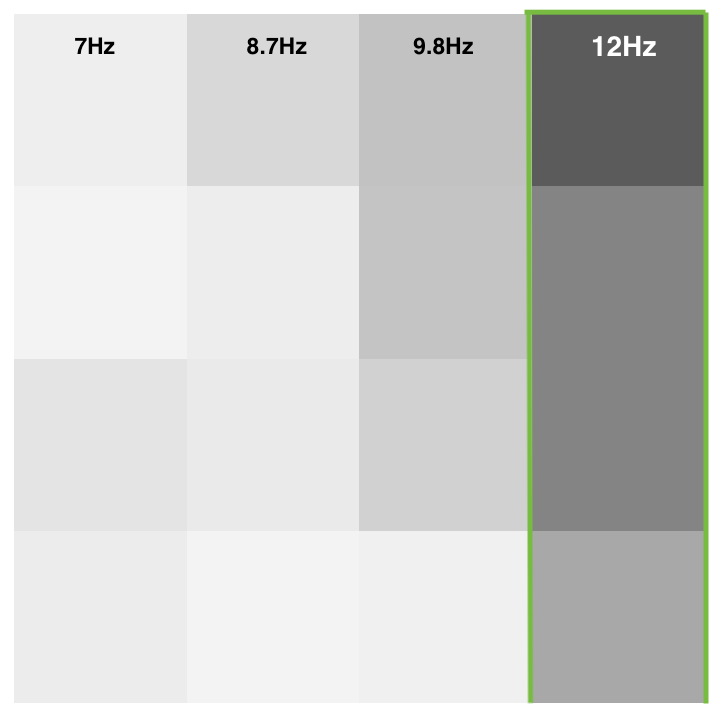
The output should look something like the plot below, where the dimensions of the plot would reflect the number of channels of data we are receiving as well as the number of frequencies we are identifying. Each row represents the data that the channels are receiving post-data processing (explained in the following sections), while each column represents the frequencies we’re looking for. The darker the square, the higher the correlation value is for that frequency. If we look at the darkest squares, we can see that each channel agrees that we are likely looking at a frequency of 12 Hz.
We can also display the EEG waveform using ListLinePlot[], which displays the voltage over time as the data is being received.
Dynamic[ListLinePlot[Transpose[sequenxe[[-200;;,1]]],AspectRatio->0.2,ImageSize->1000]]

Part 2: Signal Processing and Filtering

The story-telling interface should be able to take the data it’s receiving and identify which frequency the user is looking at. To do this, we first need to pre-process the signals coming through. A Chebyshev bandpass filter is the best option for filtering for specific frequencies thanks to its sharp roll-off between the pass and stop bands, its controlled passband ripple, as well as its computational efficiency. In the data processing function, we use a Type I Chebyshev bandpass filter with a second-order configuration and a 0.3 dB passband ripple to preprocess the BCI data. The filter targets frequencies between 7.75 Hz and 16.25 Hz.
​
We then need to perform a canonical correlation analysis (CCA).
​
The correlation coefficient calculated by CCA indicates how well the brain signals match the reference signals at specific frequencies. By calculating the correlation coefficients for different frequencies, then we can identify which frequency is most strongly represented in the brain signals.
Data Processor: CCA and Chebyshev Filter Function


Part 3: The User Interface

We can now create a user interface to display the text and interact with the user through visual stimuli. This interface is based in HTML, since we can easily communicate to the page from Mathematica using JavaScript functions we can execute within our code.
​
The website features four keys, with each key displaying the next most probable token based on a prompt we can set in the middle of the screen. Because this project is a storytelling interface, we begin with the prompt “Once upon a time”. Each key flashes at a different frequency, and to continue the story, the user just has to focus on the key with the word they’d like to type next.

Incredibly Long HTML Script (Open at your own risk):


​
Give Mathematica the HTML page we created the user interface with:
WebExecute[webSession1,"OpenPage"->"file:////Users/HTMLFILENAME.html"];​​​​initialText="Once upon a time";​​initialTokens=getTop[initialText,{10,4}];
Set the initial text, and converts the list currentTokens into a comma-separated string of tokens to feed to the HTML page:
​
currentText="Once upon a time,";​​currentTokens=getTop[currentText,{25,4}];​​​​WebExecute[webSession1,"JavascriptExecute"->"updateInterface("<>"["<>StringRiffle["\""<>#<>"\""&/@currentTokens,","]<>"]"<>", '"<>currentText<>"','');startFlashing();"];

Part 4: Detection Algorithm

We need a detection algorithm to take the values we’ve obtained from performing the canonical correlation analysis and determine which key should be triggered at any given moment in time. It uses a threshold to preTrigger and trigger the keys, based on when the CCA value of a particular frequency rises above this threshold while the values of the other frequencies remain low.
​
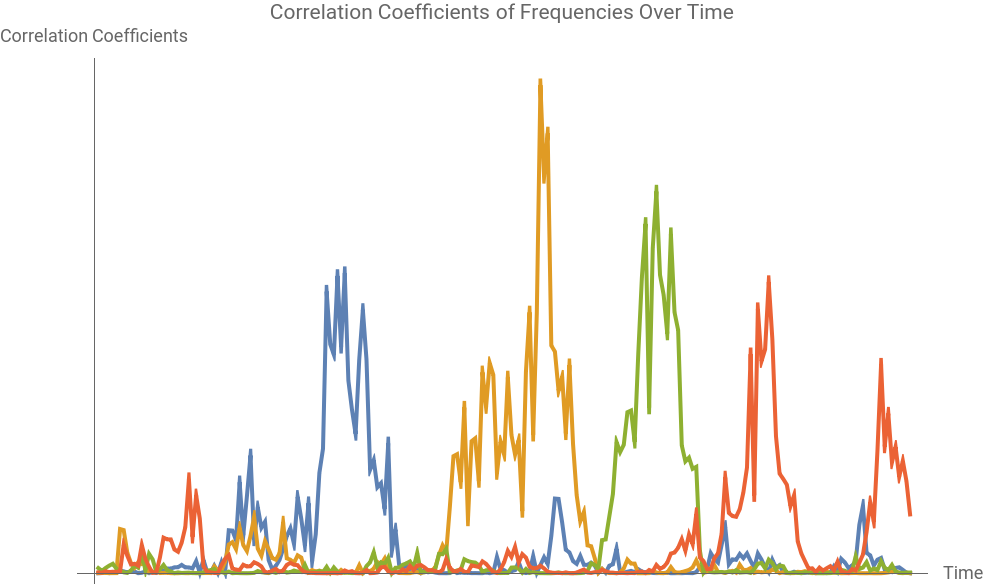
This can be more easily visualized if we take a look at these CCA values graphed over time. Each color represents the different frequencies (7hz, 8.7hz, 9.8hz, and 12hz), and we can clearly identify the distinct peaks formed when a person looks at a stimulus that is flashing at its corresponding frequency.
"7 Hz"
"8.7 Hz"
"9.8 Hz"
"12 Hz"
The detectionLogic function processes recent data using the canonical correlation analysis to determine the most dominant frequencies, smooths the results, and updates the web session with the processed data:
detectionLogic[recentData_,webSession_]:=​​Block[​​{},​​cca0=dataProcessor[#,frequencies,frameRate,bandpassLow,bandpassHigh]&/@Transpose[recentData[[-400;;]]];​​cca=Times@@@Transpose[cca0];​​​​ccaSmooth=smoothFactor*cca+(1-smoothFactor)*ccaSmooth;​​​​WebExecute[webSession,"JavascriptExecute"->"changeSizes("<>ExportString[cca,"JSON","Compact"->True]<>");"];
We then check if the system is pre-triggered, and if the focusing time has been met, it either triggers the token or resets the pre-triggered state and updates the web session accordingly:
If[preTriggered,​​​​If[AbsoluteTime[]-preTriggeredTime>=focusingTime,​​WebExecute[webSession,"JavascriptExecute"->"trigger("<>ToString[potentialFreq-1]<>");"];​​trigger[potentialFreq,webSession];​​preTriggered=False;​​triggeredTime=AbsoluteTime[];​​,​​If[ccaSmooth[[preTriggeredFreq]]<=T2||AnyTrue[Delete[ccaSmooth,preTriggeredFreq],#>=U2&],​​preTriggered=False;​​WebExecute[webSession,"JavascriptExecute"->"resetAll();"];​​];​​];

Part 5: The Local LLM

We need to set up the the local large language model (LLM) to be able to predict the next words or phrases based on the user’s input and the current text, and send these tokens to the website to be updated as the user types and continues the story.
We create a getResponse function to send a POST request containing the current text and prediction parameters, and returns the response from the language model:

A Demonstration:

Connecting all of the pieces together, we get a brain-computer interface that is powered by Mathematica. An OpenBCI headset records the data, which is received in Mathematica to be pre-processed, filtered, and cleaned. A detection algorithm identifies which frequency button the user wants to select, and creates triggers to send to an HTML user-interface. The interface displays words that the user can select to type a story based on a prompt in the center of the screen, and an LLM updates those words each time the user updates the story.
​
Tinnix He uses the interface in the video below (thank you Tinnix!):
​
​https://www.emmasusi.com/bci-demonstration

Concluding Remarks

The final interface was tested with seven volunteers from the Wolfram Summer School. The participants were able to successfully type their intended keys a majority of the time, creating a story with their mind.
​
However, there were cases where the framerate of the monitor dropped, which interfered with accurate selection. For future directions, I’d like to run the program on a more powerful computer that could handle both the local LLM and the BCI program simultaneously. Additionally, although lower frequency flashing tends to be more accurate in SSVEP-BCI applications, the flashing can be harsh on the eyes. I’d like to test much higher, less detectable frequencies for future applications to avoid the likely eye fatigue that would ensue.

Acknowledgments

Forever indebted to Vlad, Maria, and Fez for letting me borrow their brains - both literally and metaphorically. And a special thanks to Stephen Wolfram for encouraging such an important project to me. While it’s been a challenging few weeks, those same weeks have felt incredibly rewarding, and I am profoundly grateful for the guidance, inspiration, and patience I have received, as well as the laughter and memorable experiences I have shared with everyone.

References

1
.
Paivi. Majaranta et al. 2002, “Twenty years of eye typing: Systems and design issues” JProceedings of the Symposium in Eye Tracking Research and Applications. https://www.researchgate.net/publication/220811102_Twenty_years_of_eye_typing_Systems_and_design_issues
2
.
Bingchuan. Liu et al. 2020, “BETA: A Large Benchmark Database Toward SSVEP-BCI Application” Frontiers in Neuroscience. https://www.frontiersin.org/journals/neuroscience/articles/10.3389/fnins.2020.00627/full

Cite This Notebook

“A mind-controlled keyboard: utilizing SSVEPs to create a storytelling BCI”
by Emma Susi​
​https://community.wolfram.com/groups/-/m/t/3211131