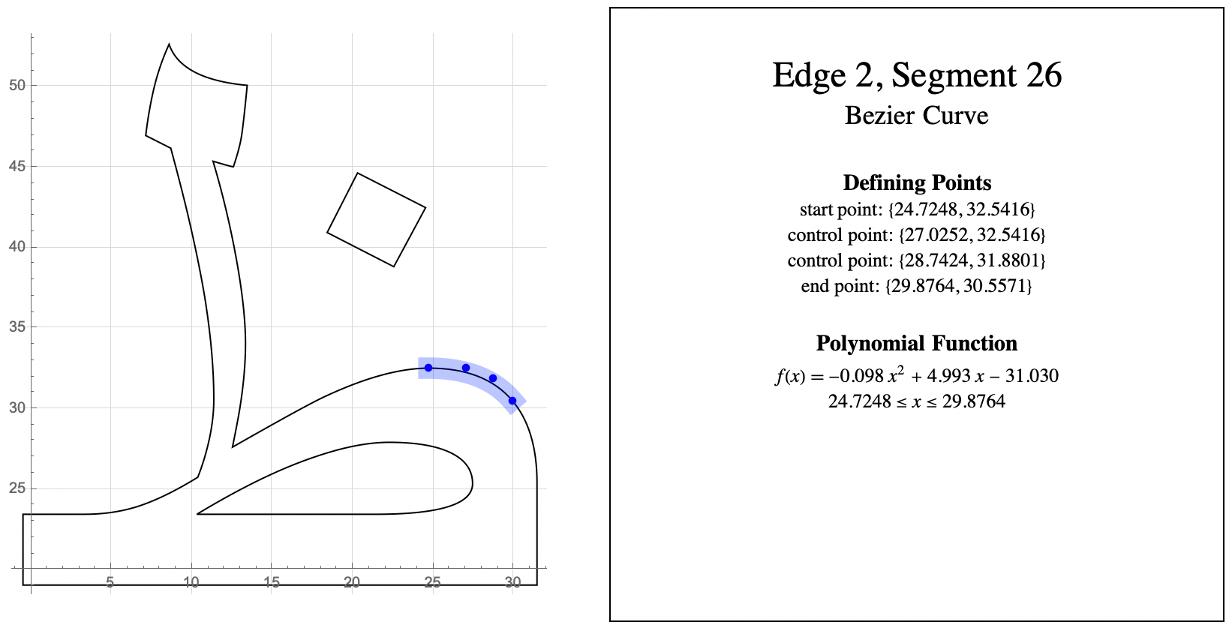
The ExportString and ImportString functions have a fascinating side effect: they reveal the geometric details of text. Here I exploit this side effect to analyze glyphs’ curves.
Old Hack
Old Hack
I call it a hack because surely whoever developed the ImportString and ExportString functions never intended them to turn text into Graphics objects. But if you choose the “PDF” format for exporting, that’s what happens. Here I export the letter “L” and then import it back again. Magically, what comes back is a Graphics object, a description of the shape of the letter L that we can use just like a hexagon or a circle in graphics:
Get the geometry of one glyph:
In[]:=
InputForm[ImportString[ExportString["L","PDF"]]]
Out[]//InputForm=
{Graphics[{Thickness[0.16666666666666666], Style[{FilledCurve[{{{0, 2, 0}, {0, 1, 0}, {0, 1, 0}, {0, 1, 0}, {0, 1, 0}, {0, 1, 0}}},
{{{1.21671875, 8.930181039062502}, {1.9830175781250001, 8.930181039062502}, {1.9830175781250001, 3.4549466640625006}, {5.024814453125,
3.4549466640625006}, {5.024814453125, 2.791016000000001}, {1.21671875, 2.791016000000001}, {1.21671875, 8.930181039062502}}}]},
Thickness[0.16666666666666666]]}, ImageSize -> {6., 12.}, PlotRange -> {{0., 6.}, {0., 12.}}, AspectRatio -> Automatic]}
{{{1.21671875, 8.930181039062502}, {1.9830175781250001, 8.930181039062502}, {1.9830175781250001, 3.4549466640625006}, {5.024814453125,
3.4549466640625006}, {5.024814453125, 2.791016000000001}, {1.21671875, 2.791016000000001}, {1.21671875, 8.930181039062502}}}]},
Thickness[0.16666666666666666]]}, ImageSize -> {6., 12.}, PlotRange -> {{0., 6.}, {0., 12.}}, AspectRatio -> Automatic]}
I call it old because this hack has been around for as long as I have been using the Wolfram Language, and probably since ImportString and ExportString were introduced in 1999. Though I have never seen an explanation of it in the Wolfram Language documentation, there are hints that it has been used by insiders for many years. For example in the documentation for the JoinedCurve function, the “Neat Examples” section has an example called “Racing Arrows” that uses the hack.
Old Trick
Old Trick
The graphics object that is returned by the hack includes an undocumented form of the FilledCurve primitive. With a little coaxing though, one can tease out a readable version of the curves and lines that make up a glyph. The details that define the shape of a letter, even after putting it into a standard form, can be a bit daunting. A glyph’s specification consists of dozens of segments, each a straight line or a curve. Each segment is defined by coordinates, pairs of numbers. The result is hundreds of numbers. For instance, the letter “a” in the Times New Roman font is defined by 292 numbers. This trick shows you how to harness all those numbers, making the geometry of a glyph something that a high school student can appreciate.
Export any glyph ("a" in this example) as a PDF and then import it back again:
In[]:=
raw=ImportString[ExportString[Style["a",FontFamily"Times New Roman",FontSize72],"PDF"]]〚1,1〛;
Turn the resulting FilledCurve into a format that is easier to read using the undocumented function DecodeFilledCurve:
In[]:=
curve=raw/.a:FilledCurve[__]GeometricFunctions`DecodeFilledCurve[a];
Assign to the variables segs and runs the list of lines and short curves that make up the edges of the glyph:
In[]:=
segs=runs=curve〚2,1,1,1〛;
In order to save space, the JoinedCurve function stores each segment of curve assuming that the first point of a segment is the last point of the previous segment. I use a double For-loop to restore the end points of all the segments. Segments are either lines or Bezier curves.
Loop through the segments to give them all proper end points:
In[]:=
For[i=1,i≤Length[runs],i++,For[j=1,j≤Length[runs〚i〛],j++,If[j>1,segs〚i,j,1〛=Prepend[runs〚i,j,1〛,runs〚i,j-1,1,-1〛]]]]
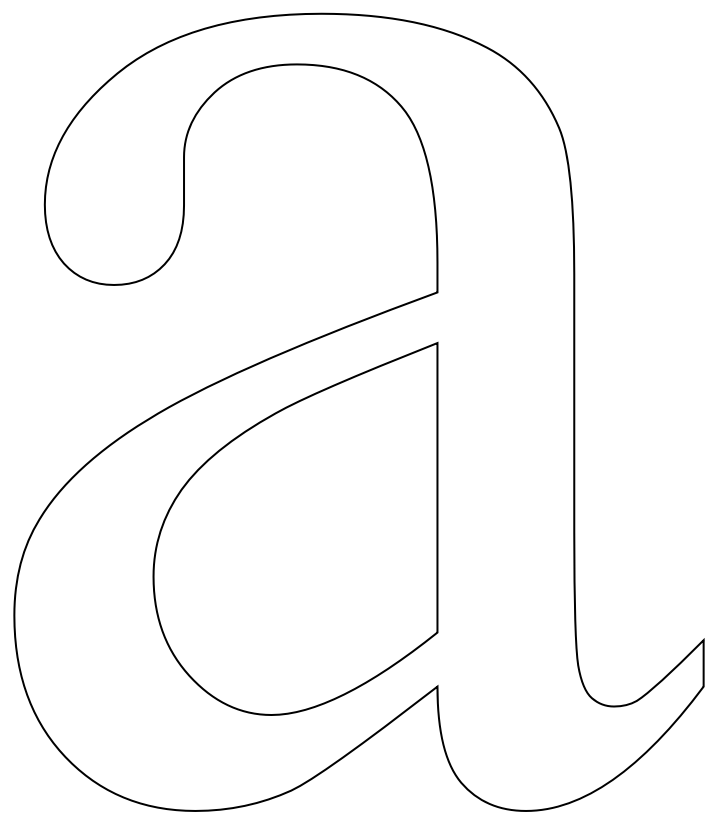
Display the segments as a JoinedCurve:
In[]:=
Graphics[{JoinedCurve[runs]}]
Out[]=
New Trick
New Trick
Next I design a visualization so the segments are highlighted one at a time. Hovering over a part of the edge causes a blue background to appear with red dots representing the points that define the segment. With enough small, simple curves and lines, any shape can be defined.
Highlight each separate segment of the glyph's outline:
In[]:=
segment[a_,b_]:=Mouseover[{Transparent,segs〚a,b〛},{Blue,Opacity[1],PointSize[.015],Point[segs〚a,b,1〛],Opacity[.25],segs〚a,b〛}];Graphics{JoinedCurve[runs],Thickness[.04],Table[segment[a,b],{a,1,Length[segs]},{b,1,Length[segs〚a〛]}]},
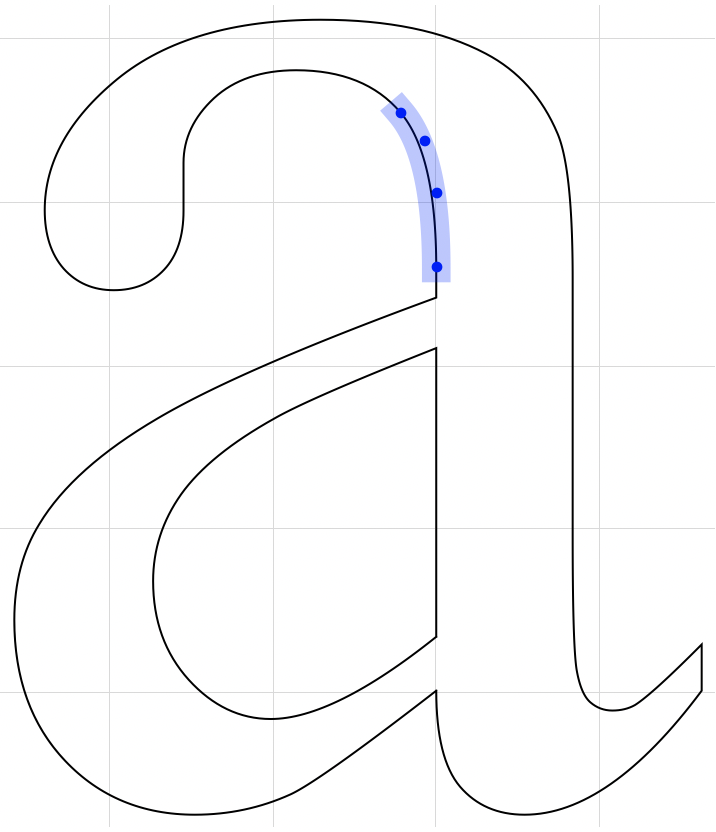
You may notice the points that define a section sometimes seem to be off a little, lying to the side of the outline instead of directly on it. That's not a mistake. It is how Bezier curves work; the control points pull the outline towards them like magnets.
Finally, define a report that gives information on each segment. A character may need two or more curves in its outline, as the letter "a" does for the inside and outside edges. If you're coding this yourself, the following replaces the previous two lines of code:
Finally, define a report that gives information on each segment. A character may need two or more curves in its outline, as the letter "a" does for the inside and outside edges. If you're coding this yourself, the following replaces the previous two lines of code:
Add an event handler that runs the custom function click when the user clicks on a segment. Argument a is which curve and b is which segment in that curve:
In[]:=
segment[a_,b_]:=Mouseover[{Transparent,segs〚a,b〛},{Blue,Opacity[1],PointSize[.015],Point[segs〚a,b,1〛],Opacity[.25],EventHandler[segs〚a,b〛,{"MouseClicked"click[a,b]}]}];
The custom function click prints the information for each segment, which is either a line segment or a short polynomial curve The arguments a and b mean the same as in the previous line of code:
In[]:=
click[a_,b_]:={(*Displaythesegmentslikewedidbefore.*)s=segs〚a,b,1〛;segPlot=Graphics[segs〚a,b〛,AxesTrue,GridLinesNone,ImageSize{{400},{400}}];(*EmployaBézierfunctiontoanalyzewhatpolynomialcurvematchesthesegmentthathasbeenclickedon.*)bzFun=BezierFunction[s];(*Taketensamplesofpointsonthesegment.*)samps=bzFun[#]&/@Range[0,1,.1];(*Thisfunctionreturnsthedomainofthesegment.*)domain=If[s〚1,1〛s〚2,1〛,Min[#〚2〛&/@s]≤y≤Max[#〚2〛&/@s],Min[#〚1〛&/@s]≤x≤Max[#〚1〛&/@s]];(*Thisfunctiondefinesthereportforthissegment*)report=Column[Flatten[{Style["\nEdge "<>ToString[a]<>", Segment "<>ToString[b],24],Style[StringReplace[ToString[segs〚a,b,0〛],"C"" C"]<>"\n",18],Style["Defining Points",{15,Bold}],"start point: "<>ToString[s〚1〛],"control point: "<>ToString[#]&/@s〚2;;-2〛,"end point: "<>ToString[s〚-1〛],Style["\nPolynomial Function",{15,Bold}],If[Length[s]>2,f[x]NumberForm[Fit[samps,{1,x,},x],{20,3}],If[s〚1,1〛s〚2,1〛,xs〚1,1〛,If[s〚1,2〛s〚2,2〛,f[x]s〚1,2〛,f[x]NumberForm[Fit[s,{1,x},x],{20,3}]]]],domain}],AlignmentCenter];}
2
x
Display the plot of the glyph's outline next to the report of the clicked segment.
In[]:=
report="Click on a segment.";segPlot="";RowPaneGraphics{JoinedCurve[runs],Thickness[.04],Table[segment[a,b],{a,1,Length[segs]},{b,1,Length[segs〚a〛]}]},,400,Framed[Pane[Dynamic[report],{400,400},Alignment{Center,Top}]]//TraditionalForm
Conclusion
Conclusion
The practical applications of this trick are many. A font designer, for instance, could examine and manipulate glyph shapes. Alter a few points and a serif character becomes sans-serif or the counter of an "a" becomes round instead of tear-shaped. Apply a matrix transformation on all control points to give a letter a Star Wars style perspective or a fish-eye distortion. The glyphs become more plastic and open many design possibilities.
I’m an educator. I imagine students connecting polynomials to something tangible and familiar. Rather than memorizing that the algebraic representation of transformations in the coordinate plane, students could apply the transformations directly to parts of a glyph to see what happens. One student would explore how the Bézier curves of a glyph's edge relate to its polynomial curves, while another student is trying to find a mathematical way to measure a glyph's maximum stroke width.
I imagine a budding digital artist exploring how glyph shapes can become part of his work. Now that he has tools to manipulate a glyph's vector graphics, the options are limitless. He can use the shape as a motif in a digital abstract, define a region that acts like a brush for digital painting. In 3D art, the glyph can become the seed for a height field or a lens to distort light rays. In animation, a student might melt glyphs by manipulating the control points, or grow spider webs from them.
I imagine students studying history comparing the development of different font families over the years as technologies and art movements change. A student demonstrates with a Manipulate how Venetian type designs of the 15th Century evolved into Garalde and then into Neoclassical. Her classmates reform the modern alphabet in the historical context of cuneiform, kanji, and traditional Roman writing practices.
The Wolfram Language allows us to apply computation in unusual ways, to things like glyphs that are not obvious candidates for analysis . I plan to follow this with additional posts exploring some of the endless possibilities that this trick opens up. (This is 2020 though, so I hesitate to promise anything.)
I’m an educator. I imagine students connecting polynomials to something tangible and familiar. Rather than memorizing that the algebraic representation of transformations in the coordinate plane, students could apply the transformations directly to parts of a glyph to see what happens. One student would explore how the Bézier curves of a glyph's edge relate to its polynomial curves, while another student is trying to find a mathematical way to measure a glyph's maximum stroke width.
I imagine a budding digital artist exploring how glyph shapes can become part of his work. Now that he has tools to manipulate a glyph's vector graphics, the options are limitless. He can use the shape as a motif in a digital abstract, define a region that acts like a brush for digital painting. In 3D art, the glyph can become the seed for a height field or a lens to distort light rays. In animation, a student might melt glyphs by manipulating the control points, or grow spider webs from them.
I imagine students studying history comparing the development of different font families over the years as technologies and art movements change. A student demonstrates with a Manipulate how Venetian type designs of the 15th Century evolved into Garalde and then into Neoclassical. Her classmates reform the modern alphabet in the historical context of cuneiform, kanji, and traditional Roman writing practices.
The Wolfram Language allows us to apply computation in unusual ways, to things like glyphs that are not obvious candidates for analysis . I plan to follow this with additional posts exploring some of the endless possibilities that this trick opens up. (This is 2020 though, so I hesitate to promise anything.)