Introduction
Introduction
Viewing proteins and complex 3D structures can’t always be done by looking at a single view of the object. If you were holding it in your hand, you would probably pick it up and closely inspect it by rotating the object in your hand. Doing that virtually can entail “flying” around - and through - the structure in question. This brings up a few major questions: what is a good balance between an interesting tour and being able to orient where you are in the object? How do aesthetic changes such as lighting make this tour more realistic? To answer these questions, we can use proteins from the Protein Visualization paclet as our sample structures.
Using the paclet
Using the paclet
The first step to using the paclet is installing it. After that, we can use the function ProteinBackboneAtomPlot to get our structures!
Installation:
In[]:=
PacletInstall["WolframChemistry/ProteinVisualization"]Needs["WolframChemistry`ProteinVisualization`"]
Out[]=
PacletObject

Basic protein plot:
There is really only one option that absolutely needs to be specified for the video generation functions, and that is SphericalRegion -> True. Without this, your videos will have jitter due to the fitting of the PlotRange in the frame.
In[]:=
ProteinBackboneAtomPlot["6RB9",SphericalRegion->True]
Out[]=
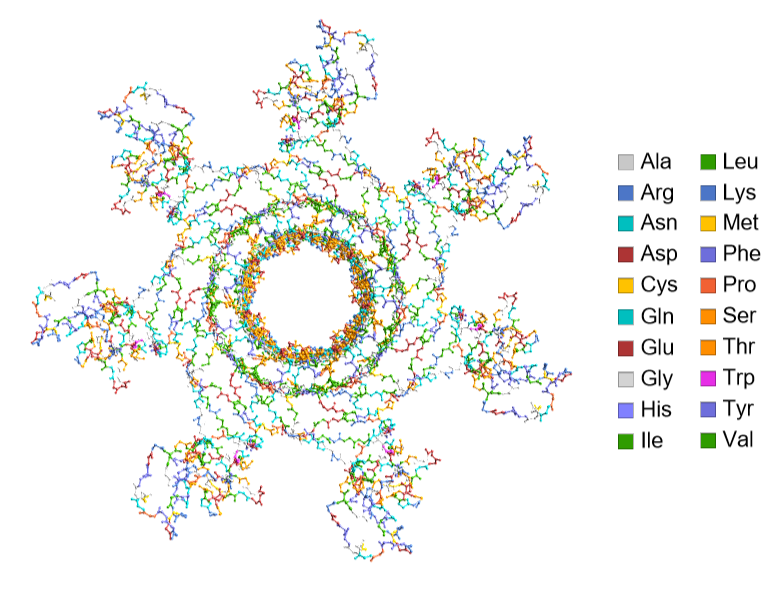
With some additional fiddling around, I ended up using the following plot as my test molecule:
In[]:=
testMol=ProteinBackboneAtomPlot["6RB9",SphericalRegion->True,PlotTheme->"SpaceFilling","BackboneColorRules"->{"Chains",Automatic},"ChainColoringScheme"->"BlueGreenYellow",SphericalRegion->True,PlotRangePadding->10]
Out[]=
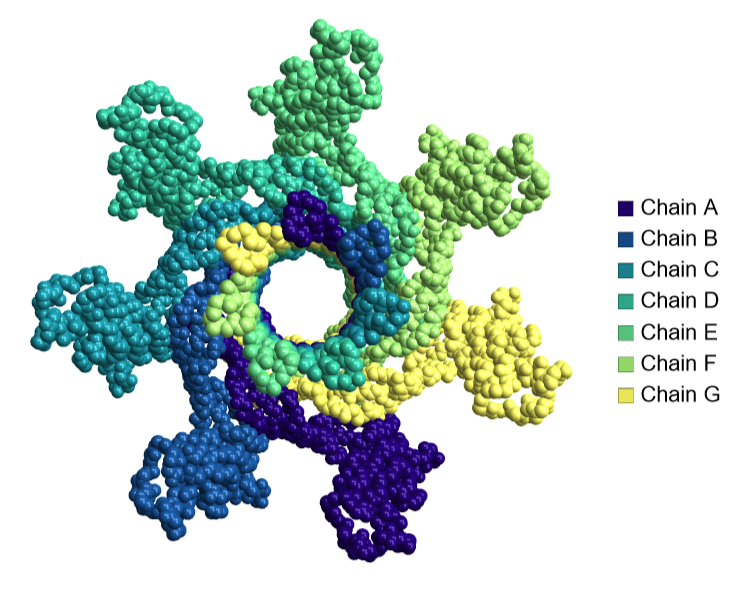
Great! Now we have our protein. For more information about the paclet and other functions in it, see the following links:
◼
About Lighting
About Lighting
Lighting is an option for 3D graphics that lets you specify, well, the lighting. This option (and family) typically comes as an afterthought despite its importance.
◼
Lighting: an option for 3D graphics
◼
AmbientLight: what the minimum lighting of the room is, dimmer = decreased opacity
◼
DirectionalLight: light in the direction of the vector
◼
PointLight: light source at a specified point
◼
SpotLight: a directional light cone
◼
Glow: makes the surface glow a color (but does not change adjacent object)
I’m going to show some neat and easy lighting examples.
In[]:=
beethoven=ExampleData[{"Geometry3D","Beethoven"}];
Scary Beethoven:
In[]:=
Show[beethoven,Lighting->{AmbientLight[GrayLevel[0]],SpotLight[Red,{0,-2,-3},Pi/3]},Background->Black,ViewPoint->Front]
Out[]=

Swirly light Beethoven:
In[]:=
AnimationVideo[Show[beethoven,Lighting->PointLight[White,3{Cos[t],Sin[t],3}]],{t,0,4Pi}]
Out[]=
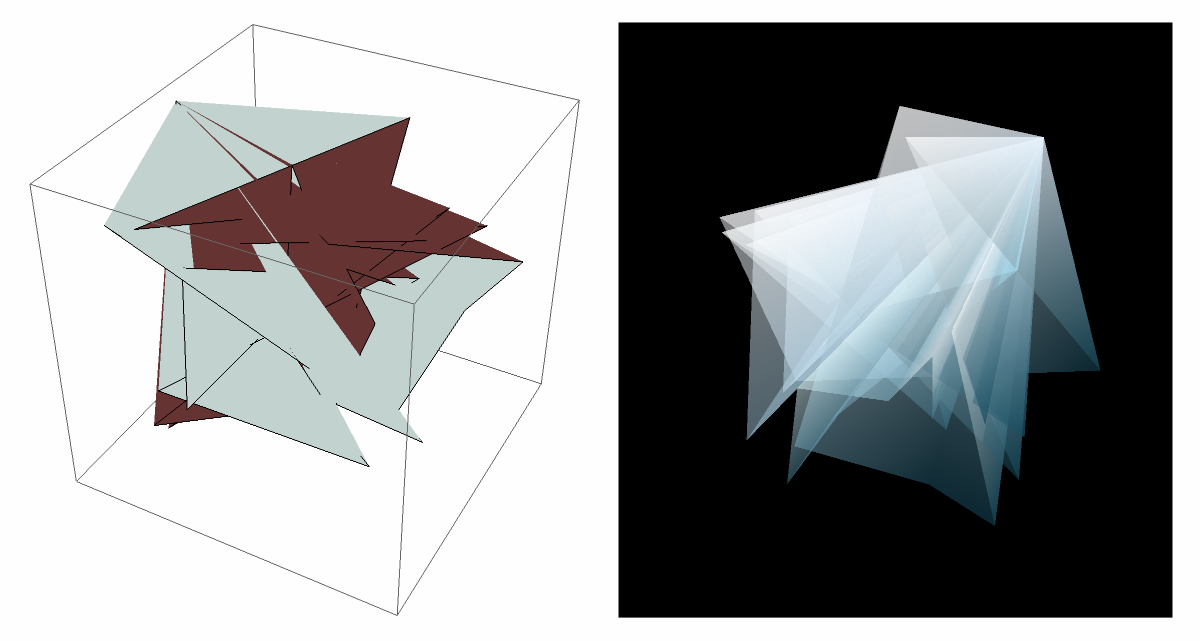
Lighting can also be used to highlight internal structures of an object:
poly=Polygon[Table[RandomInteger[{-20,20}],40,3]];
In[]:=
basegr=Graphics3D[poly];light=Graphics3D[{Opacity[0.5],EdgeForm[],Black,Specularity[10],AmbientLight[GrayLevel[0.5]],PointLight[White,{7.5,7.5,7.5}],PointLight[Pink,{0,0,7.5}],poly},ViewVertical->{-1,0,0},Boxed->False,Background->Black];GraphicsRow@{basegr,light}
Out[]=
Combining the two for a base graphic
Combining the two for a base graphic
The base graphic exists so that we actually have an object to tour around. It is a step above simply having the object itself by having more styling, but isn’t in the animation yet. I’ll go through each option and how it helped style the protein.
Gets rid of the legend:
Protein visualizations often have the protein against a black background, which can easily be done by setting Background -> Black. Another easy setting will be to pad the plot range with the option PlotRangePadding.
The protein above looks a little funky (at least to me) because it almost feels like it is glowing - the contrast between the protein and the background is too high. This means that I need to lower the ambient light to match the darkness of the background a bit more. It is important to remember that the ambient light will be the minimum light value for the entire graphic. When you are adding more lights, you should keep the ambient light low. You may also notice below that the graphic looks very flat. This is because the only light is the ambient light, so all the shading is exactly the same.
A quick animation of manipulating the ambient light, I settled on a value of 0.2.
Now that I made the ambient light fit a bit better, it is time to bring back the 3D-effect of the protein. I’m going to now add a directional light from the top:
This is looking a lot better. However, it can be made to look a bit more interesting. Since the structure has a hole in the center, I thought it would be neat to add a light at the center of the protein with PointLight:
Here is a final list of the steps that I just went through:
Creating the video
Creating the video
The primary goal with this video is to create an interesting tour that tours the protein. This means that we need to create a path function. There are many ways to do this, such as interpolating between key points or mathematically creating your own function. I have found that interpolations work great with less than 10 key points (approximately), but after that creating your own function is typically better.
Flying through the protein
Flying through the protein
Because the protein is rather complex and there is no ground or baseline for orientation, the start of the video should be simple. As such, we can start off with a rotation around the protein. After a few rotations, the camera will fly through the center.
A typical rotation around an object can be defined by the parametric equation r {Cos[t], Sin[t], 0} + center:
The only problem with using the above rotation is that I will have to create a rather complex piecewise function to make the transition from the rotation to the fly-through smooth. Because the fly-through needs to be a vertical line, this will require me to create two extra lines so that the camera doesn’t just teleport. Furthermore, each time you add a different function there is a high likelihood of there being a cut or some evidence that the path has changed.
To avoid this, we can instead use a path along a sphere. This means that I only need to use two functions in total: the sphere rotation and the fly-through.
This is the final sphere function:
The next step is to connect the ends so that the camera can fly through - this can be done with a vertical line. After that, both can be connected with one function. I prefer to use Which over Piecewise, but you can use either.
Line function:
Position function:
There are only two things we need to consider at this point with the camera. First, when the camera is going straight down the ViewVector will be parallel to the ViewVertical which will cause an error. To fix this, we can do a quick interpolation to change the ViewVertical during that time frame. Second, the subject cannot be equal to the position, so a small offset will be added from the center to have the subject.
ViewVertical function:
Let’s take a quick look at the video of this after combining all the camera specifications into one function.
Orienting ourselves
Orienting ourselves
The fly-through looks great, but it can feel a bit confusing and dizzying at times. A great solution to this is to have two views side-by-side: one that shows the position of the camera and one that shows the fly-through. We can model a camera by placing a sphere at the camera’s position. We can also add extra lights and axes to help boost the visualization. Although the default axes look nice, I opted to use my own.
These are the default axes:
Here are my custom axes/planes:
This is the final function:
Putting it all together
Putting it all together
Last but not least, we can combine the two graphics together.
I put everything into one function for ease of use:
The final step is to try it out!
Final thoughts
Final thoughts
In the introduction, I asked two questions: how do you create an interesting yet useful tour? How do aesthetic changes such as lighting make this tour more realistic? The answers to these questions are subjective at best, but this allows for lots of room for freedom. Having more than one view can provide a crucial tool for orienting yourself in the object. Additionally, minimizing the number of piecewise functions in a tour can help keep everything smooth. The last major tool is lighting, which can make everything seem more seamless and realistic. Using these three things together gives a solid starting point for 3D animations.
CITE THIS NOTEBOOK
CITE THIS NOTEBOOK
Illuminating proteins: proteins, lighting, and videos
by Anika Patel
Wolfram Community, STAFF PICKS, August 4, 2023
https://community.wolfram.com/groups/-/m/t/2983463
by Anika Patel
Wolfram Community, STAFF PICKS, August 4, 2023
https://community.wolfram.com/groups/-/m/t/2983463