CITE THIS NOTEBOOK: Animating Wolfram surfaces with Blender: Hyperbolic & Mountain by Guenther Gsaller. Wolfram Community NOV 8 2022.
This is a continuation to the posts listed at: https://community.wolfram.com/web/ggoff/home
Supplementary files for this post are available here: https://www.dropbox.com/s/jl4khd7abpm2vo3/data4.zip?dl=0
Included are graphics, objects in 3D as stl-files, videos necessary to experiment with code and instructions in this post.
Supplementary files for this post are available here: https://www.dropbox.com/s/jl4khd7abpm2vo3/data4.zip?dl=0
Included are graphics, objects in 3D as stl-files, videos necessary to experiment with code and instructions in this post.
Abstract
Abstract
In Example 1 a plane was modified to form hyperbolic objects. An animation done in Blender was partially recreated in Wolfram Language. Example 2 was based on using geographic entities within Wolfram Language. A modified mountain, a hidden/revealed building was animated in Blender.
Experiment
Experiment
Example 1: Hyperbolic
Example 1: Hyperbolic
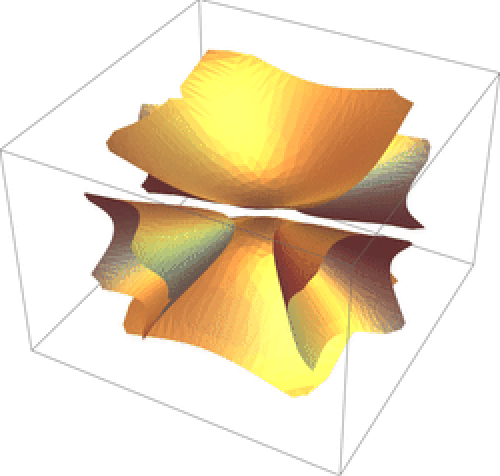
From Plane To Hyperbolic
From Plane To Hyperbolic
For many years I enjoyed pictures from hyperbolic polyhedra and their modifications. This time I wanted to give something back.
In the Guidebooks by M. Trott one can find implementations for hyperbolic polyhedra in Mathematica.
Imagine a cube, remove four faces with top and bottom remaining. Begin to draw at the two face centers to the centroid of the cube.
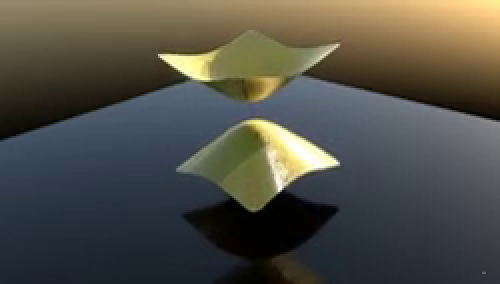
A variation of the above experiment was implemented in Blender. The resulting snippet of the animation was read in from a video. Then a series from 12 frames was taken and animated:
A variation of the above experiment was implemented in Blender. The resulting snippet of the animation was read in from a video. Then a series from 12 frames was taken and animated:
In[]:=
path0=SetDirectory[NotebookDirectory[]]
Out[]=
D:\DDocs\0-published\woco\ams16pub
In[]:=
path1=SetDirectory[path0<>"\\data"]
Out[]=
D:\DDocs\0-published\woco\ams16pub\data
In[]:=
v=Video["0001-0090a.mp4",AudioTrackSelectionNone];Information[v];FileSize["0001-0090a.mp4"]ListAnimate[v2=VideoFrameList[v,12]];Last[v2]
Out[]=
Out[]=
From Object To GIF
From Object To GIF
Three stages of the animation were recreated.
Stage 1:
An object exported from Blender was imported as GraphicsComplex and visualized with PBR-shading:
Stage 1:
An object exported from Blender was imported as GraphicsComplex and visualized with PBR-shading:
In[]:=
hyp0=Import["hypCube10.stl","GraphicsComplex"];Graphics3D[{MaterialShading["Brass"],hyp0,Lighting"ThreePoint"},ImageSize->Small];Off[LibraryFunction::fpexc]
The imported object was combined with two of its rotations:
In[]:=
Show[hypList1=Graphics3D[{MaterialShading["Brass"],GeometricTransformation[hyp0,RotationTransform[Pi/2,#]],Lighting"ThreePoint"},PlotRange->2.1{{-1,1},{-1,1},{-1,1}},ImageSize->Small]&/@{{1,0,0},{0,1,0},{0,0,1}}];
Stage 2:
To four of the six parts of the resulting object a series of scaling transformations was applied:
To four of the six parts of the resulting object a series of scaling transformations was applied:
In[]:=
hypList2=Table[Graphics3D[{MaterialShading["Brass"],GeometricTransformation[hypList1[[i,1]],ScalingTransform[If[i==2,{1-ds,1+ds,1-ds},{1+ds,1-ds,1-ds}]]],Lighting"ThreePoint"}],{ds,0,0.5,0.5/11},{i,2,3}];hypList2a=Show[hypList1[[1]],#,ImageSize->Small]&/@hypList2;hlen2=Length[hypList2a]
Out[]=
12
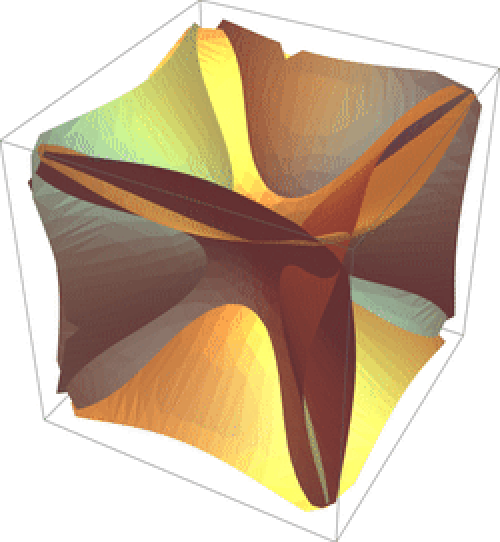
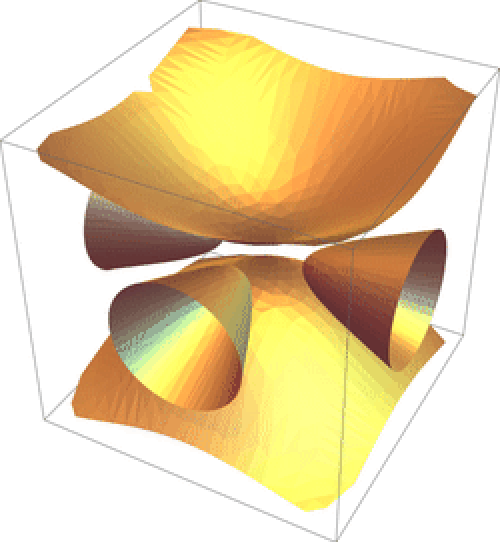
The image sequence was exported as GIF:
In[]:=
Export["hyp2.gif",hypList2a,"ControlAppearance"None,ImageSize->250]
Out[]=
hyp2.gif
A re-import of the animation followed:
In[]:=
(*Import["hyp2.gif","Animation",ImageSize->Small]*)
The re-import was commented out to reduce file size online.
In[]:=
Import["hyp2.gif"][[{1,hlen2}]]
Out[]=
,
Stage 3:
To four of the six parts of the resulting object from Stage 1 a series of rotational transformations was applied:
To four of the six parts of the resulting object from Stage 1 a series of rotational transformations was applied:
In[]:=
hypList3=Table[Graphics3D[{MaterialShading["Brass"],GeometricTransformation[Show[Last[hypList2]][[1]],RotationTransform[jPi/6,{0,0,1}]],Lighting"ThreePoint"}],{j,0,12}];hypList3a=Show[hypList1[[1]],#,PlotRange->{3{-1,1},3{-1,1},2.1{-1,1}},ImageSize->Small]&/@hypList3;hlen3=Length[hypList3a]
Out[]=
13
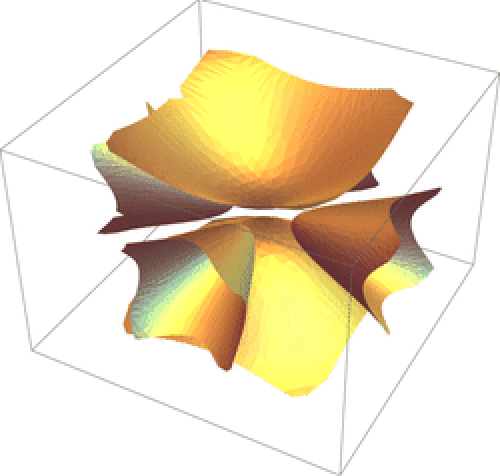
Again the sequence of pictures was exported as GIF:
In[]:=
Export["hyp3.gif",hypList3a,"ControlAppearance"None,ImageSize->250]
Out[]=
hyp3.gif
Re-importing the animation resulted in:
In[]:=
(*Import["hyp3.gif","Animation",ImageSize->Small]*)
Again the re-import was commented out to reduce file size online.
In[]:=
Import["hyp3.gif"][[{1,3}]]
Out[]=
,
Animation - Blender
Animation - Blender
There are two approaches used in this guide:
A) A set of instructions & screenshots for one part of the animation Hyperbolic is presented with a TabView.
B) Brief verbal descriptions of the remaining steps accompanied by thumbnails, timestamps of frames from the animation were collected in a second TabView.
A) A set of instructions & screenshots for one part of the animation Hyperbolic is presented with a TabView.
B) Brief verbal descriptions of the remaining steps accompanied by thumbnails, timestamps of frames from the animation were collected in a second TabView.
Approach A:
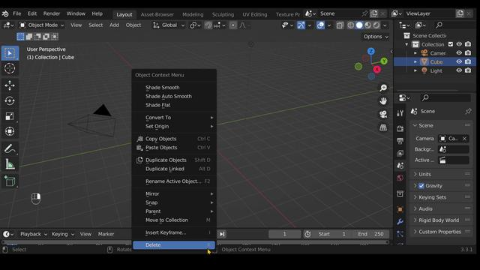
These steps are a guide through the process of displacing a plane.
These steps are a guide through the process of displacing a plane.
Out[]=
1
2
3
4
5
6
7
8
9
10
11
12
13
14
15
Hint:
The images of this guide were extracted via VideoExtractFrames from screen-recordings of sessions by the author. In the images from above sometimes objects are rotated and zoomed to deliver a better view.
The images of this guide were extracted via VideoExtractFrames from screen-recordings of sessions by the author. In the images from above sometimes objects are rotated and zoomed to deliver a better view.
Approach B:
These steps contain a description for the rest of the process used in animation Hyperbolic:
Approach B:
These steps contain a description for the rest of the process used in animation Hyperbolic:
Out[]=
1
2
3

Example 2: Mountain
Example 2: Mountain
From Plane To Mountain
From Plane To Mountain
Mankind built in a lot of different places. So one day I imagined a hidden building placed on a remote mountain. Then I remembered to have seen such a location decades ago for the first time.
In[]:=
SetDirectory["D:\\DDocs\\0-published\\woco\\ams16pub\\data"]
Out[]=
D:\DDocs\0-published\woco\ams16pub\data
In[]:=
mdata=GeoElevationData,GeoRange,GeoProjectionAutomatic,GeoZoomLevel->11;
An animation prototype:
To get enough details for the original animation in 4K the parameters ImageSize,
MaxPlotPoint & GeoZoomLevel were set accordingly. Both images were exported as exr-files.
To get enough details for the original animation in 4K the parameters ImageSize,
MaxPlotPoint & GeoZoomLevel were set accordingly. Both images were exported as exr-files.
Hidden Building on Mountain
Hidden Building on Mountain
A part from the imaginary building was imported and the extrusion simulated. Furthermore a revealing was done.
Here too the re-import of the animation was commented out to reduce file size online.
Animation - Blender
Animation - Blender
There are two approaches used in this guide:
A) A set of instructions & screenshots for one part of the animation Mountain is presented with a TabView.
B) Brief verbal descriptions of the remaining steps accompanied by thumbnails, timestamps of frames from the animation were collected in a second TabView.
A) A set of instructions & screenshots for one part of the animation Mountain is presented with a TabView.
B) Brief verbal descriptions of the remaining steps accompanied by thumbnails, timestamps of frames from the animation were collected in a second TabView.
Approach A:
These steps are a guide through the process of displacing a plane.
These steps are a guide through the process of displacing a plane.
Hint:
Again VideoExtractFrames was used to get these frames.
Again VideoExtractFrames was used to get these frames.
Remark:
The flattening of a mountain ridge and the placing of a building was just a thought-experiment!
The flattening of a mountain ridge and the placing of a building was just a thought-experiment!
Approach B:
These steps contain a description for the rest of the process used in animation Mountain:
These steps contain a description for the rest of the process used in animation Mountain:
References
References
Collections of animations
Collections of animations
The newest collection is currently # 4 (animations-04, animations-03, ...). It contains the original videos for Example 1 & 2.
References
References
Hyperbolic
Scene: Hyperbolic - Modified Planes
Trott Michael. The Mathematica GuideBook for Graphics. Accessed July 31, 2022. https://link.springer.com/book/10.1007/978-1-4419-8576-7.
Wolfram Language & System Documentation Center. July 31, 2022. https://reference.wolfram.com/language/.
Audio:
Stock Music & Sound Effects - Royalty Free Audio - Storyblocks
https://storyblocks.com/audio (accessed 2022-07-31)
Smith Patrick. Our Piece Of The World (V2). Accessed July 31, 2022. SBA-300240562.
Scene: Hyperbolic - Modified Planes
Trott Michael. The Mathematica GuideBook for Graphics. Accessed July 31, 2022. https://link.springer.com/book/10.1007/978-1-4419-8576-7.
Wolfram Language & System Documentation Center. July 31, 2022. https://reference.wolfram.com/language/.
Audio:
Stock Music & Sound Effects - Royalty Free Audio - Storyblocks
https://storyblocks.com/audio (accessed 2022-07-31)
Smith Patrick. Our Piece Of The World (V2). Accessed July 31, 2022. SBA-300240562.
Mountain
Scene: Modified Satellite Image
Wolfram Language & System Documentation Center,” July 26, 2022. https://reference.wolfram.com/language/.
Audio:
Stock Music & Sound Effects - Royalty Free Audio - Storyblocks
https://storyblocks.com/audio (accessed 2022-07-26)
Cole, Bobby. Smoky Jazz Music 15 Sec. Accessed July 26, 2022. SBA-300340500.
Scene: Modified Satellite Image
Wolfram Language & System Documentation Center,” July 26, 2022. https://reference.wolfram.com/language/.
Audio:
Stock Music & Sound Effects - Royalty Free Audio - Storyblocks
https://storyblocks.com/audio (accessed 2022-07-26)
Cole, Bobby. Smoky Jazz Music 15 Sec. Accessed July 26, 2022. SBA-300340500.