Every sound you hear in a movie, a song, or a phone call has been shaped by audio effects — filters that cut unwanted noise, reverb that simulates the acoustics of a concert hall, pitch shifts that raise or lower a voice. In this post, we'll build all of these from scratch using Wolfram Language, turning a Mathematica notebook into a mini audio workstation.
What Is an Audio Effect?
What Is an Audio Effect?
An audio effect is any transformation applied to a sound signal. At its core, every effect is a mathematical operation on a list of numbers.
Effects fall into three broad categories:
Effects fall into three broad categories:
◼
Time-domain effects — modify the signal directly (amplification, reversal, trimming)
◼
Frequency-domain effects — target specific frequencies (filters, equalization)
◼
Composite effects— combine multiple operations (reverb, noise removal)
Wolfram Language has built-in functions for all of these. Let's start simple and build up.
Setting Up
Setting Up
We'll use the built-in audio samples throughout this post. Let's load a few we'll need:
bird=ExampleData[{"Audio","Bird"}];piano=ExampleData[{"Audio","Piano"}];drums=ExampleData[{"Audio","Drums"}];
Time-Domain Effects
Time-Domain Effects
These are the simplest effects — operations applied directly to the audio signal without analyzing its frequency content.
Volume Control (Amplification)
Volume Control (Amplification)
Changing the volume is literally multiplying every sample by a number:
Double the volume
loud=AudioAmplify[bird,2]
Out[]=
Half the volume
quiet=AudioAmplify[bird,0.5]
Out[]=
Mute
silent=AudioAmplify[bird,0]
Out[]=
Reversing Audio
Reversing Audio
Playing audio backwards is as simple as reversing the list of samples:
reversed=AudioReverse[bird]
Out[]=
Trimming and Joining
Trimming and Joining
segment1=AudioTrim[bird,{0,1}]segment2=AudioTrim[piano,{0,1}]
Out[]=
Out[]=
Join them sequentially
combined=AudioJoin[segment1,segment2]
Out[]=
Fading In and Out
Fading In and Out
Abrupt starts and stops sound harsh. Fading smooths the transitions:
Fade in over the first 0.5 seconds
fadeIn=AudioFade[bird,{0.5,0}]
Out[]=
Fade out over the last 0.5 seconds
fadeOut=AudioFade[bird,{0,0.5}]
Out[]=
Fade in and out
fadeBoth=AudioFade[bird,{0.5,0.5}]
Out[]=
A fade multiplies the beginning or end of the signal by a ramp that goes from 0 (silence) to 1 (full volume), creating a smooth transition.
Pitch Shifting
Pitch Shifting
Pitch shifting changes how high or low a sound is without changing its speed.
Shift up by 4 semitones
higher=AudioPitchShift[bird,Quantity[4,"Semitones"]]
Shift down by 4 semitones
lower=AudioPitchShift[bird,Quantity[-4,"Semitones"]]
Out[]=
Out[]=
Let's visualize the effect of pitch shifting on the spectrogram
Let's visualize the effect of pitch shifting on the spectrogram
Original
Spectrogrambird,
Out[]=
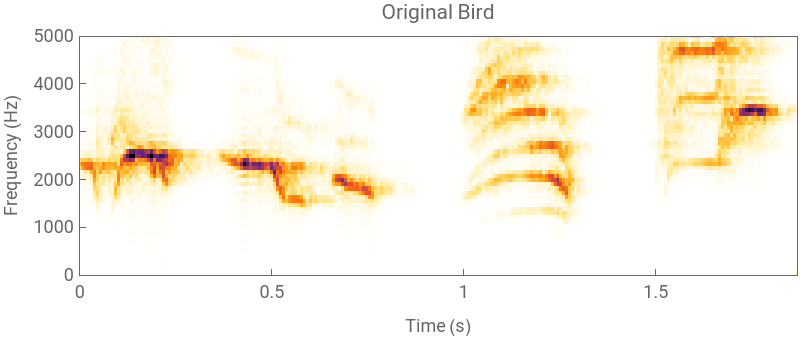
Shifted up by 7 semitones
SpectrogramAudioPitchShift[bird,Quantity[7,"Semitones"]],
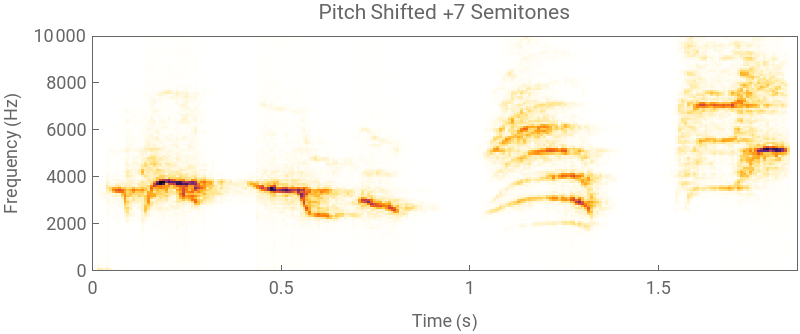
You'll see the entire spectrogram shift upward — the same shapes, but at higher frequencies.
Time Stretching
Time Stretching
Time stretching changes the duration of audio without affecting the pitch — the opposite problem of pitch shifting.
Slow down to half speed (2x duration)
slow=AudioTimeStretch[bird,2]
Out[]=
Speed up to double speed (0.5x duration)
fast=AudioTimeStretch[bird,0.5]
Out[]=
The factor works as a duration multiplier : 2 means twice as long (slower), 0.5 means half as long (faster).
This is different from simply resampling — resampling would change both speed and pitch (like playing a vinyl record at the wrong RPM). Time stretching uses phase vocoders to preserve pitch while stretching time.
Frequency Filters
Frequency Filters
Filters are the workhorses of audio processing. They let you keep some frequencies and remove others.
Lowpass Filter — Keep Only Low Frequencies
Lowpass Filter — Keep Only Low Frequencies
A lowpass filter removes everything above a cutoff frequency. It keeps the bass and removes the treble:
The spectrogram will be blank above 1000 Hz — all high-frequency content is gone. The bird chirps (which are mostly high-frequency) will be almost inaudible.
Highpass Filter — Keep Only High Frequencies
Highpass Filter — Keep Only High Frequencies
The opposite of lowpass: removes everything *below* the cutoff:
Bandpass Filter — Keep a Frequency Range
Bandpass Filter — Keep a Frequency Range
A bandpass filter keeps only frequencies between two cutoffs — useful for isolating a specific part of the spectrum:
Keep only frequencies between 1000 Hz and 4000 Hz
Bandstop (Notch) Filter — Remove a Frequency Range
Bandstop (Notch) Filter — Remove a Frequency Range
The inverse of bandpass — removes a specific range and keeps everything else:
Remove frequencies between 2000 Hz and 3000 Hz
This is commonly used to remove a specific hum or tone (like electrical hum at 50/60 Hz) without affecting the rest of the audio.
Visualizing All Filters Side by Side
Visualizing All Filters Side by Side
Let's compare what each filter does to the frequency spectrum:
Notice how each filter reshapes the frequency spectrum. The lowpass plot drops to silence (around -150 dB) after the cutoff — almost all the bird's energy is gone because bird chirps live at high frequencies. The highpass plot looks nearly identical to the original for the same reason: removing low frequencies barely affects a high-pitched bird. The bandpass shows a clear hump of energy in the 1000–4000 Hz range with sharp drop-offs on both sides — only the selected frequency band survives. The x-axis shows normalized frequency (0 to 0.5), where 0.5 corresponds to half the sample rate (22,050 Hz).
Noise Removal
Noise Removal
Real-world audio often contains unwanted noise — hiss, hum, background chatter. Wolfram Language provides a built-in noise removal function:
Using a Lowpass Filter (Remove High-Frequency Hiss)
Using a Lowpass Filter (Remove High-Frequency Hiss)
Background hiss lives in the high frequencies. A lowpass filter cuts it out:
Remove high-frequency hiss by keeping only frequencies below 4000 Hz
Using a Bandpass Filter (Isolate Speech)
Using a Bandpass Filter (Isolate Speech)
Human speech sits roughly between 300 Hz and 3400 Hz. A bandpass filter isolates just that range:
Keep only the speech frequency range
Compare Before and After
In the denoised spectrogram, the faint background noise between speech segments should be visibly reduced — the "quiet" areas become truly quiet.
Why Simple Filters Fall Short
Why Simple Filters Fall Short
The problem is fundamental: noise and speech overlap in frequency. A bandpass filter removes everything outside the speech range, but the noise inside that range — which is most of it — survives completely.
Real noise removal requires adaptive techniques that can distinguish noise from signal even when they occupy the same frequencies:
◼
Spectral subtraction — estimates the noise spectrum from silent segments and subtracts it from the entire signal
◼
Wiener filtering — uses statistical properties to optimally separate signal from noise
◼
Deep learning–based denoising — trains a neural network to learn what "clean" audio looks like and reconstruct it from noisy input
These methods analyze the pattern of the noise, not just its frequency range, which is why they work far better than a simple filter.
These methods analyze the pattern of the noise, not just its frequency range, which is why they work far better than a simple filter.
It's important to understand why the simple approach has limits — it motivates the need for more sophisticated signal processing.
Convolution Reverb — Simulating Real Spaces
Convolution Reverb — Simulating Real Spaces
Reverb is the effect of sound bouncing off walls in a room. Different rooms produce different reverb: a bathroom sounds different from a cathedral.
Convolution reverb works by using a recording of a real room's acoustic response — called an impulse response (IR). The built-in example library includes several:
Load an impulse response
Apply reverb
Compare spectrograms
In the reverb version, you'll see the energy "smear" in time — each sound event decays gradually instead of stopping abruptly, because the church walls reflect the sound for several seconds.
Let's try a few different spaces:
Listen to each one — the same bird sounds completely different in a church, a tunnel, and a 5000-year-old tomb.
Building an Effects Chain
Building an Effects Chain
In real audio production, effects are applied in sequence — one after another. Let's build a complete effects chain:
Step 4: Add church reverb
Step 5: Normalize volume
Step 6: Fade in and out
We've taken a simple bird chirp and created something that sounds like a mysterious, low-pitched call echoing through a stone church — all in 6 lines of processing.
Let's visualize the before and after:
Comparing the two spectrograms side by side, the transformation is clear: the original shows bright, high-frequency chirps spread across nearly 2 seconds, while the processed version is shorter, shifted lower in pitch, confined within the 500–5000 Hz band, and softened by reverb tails that trail each sound event.
Every audio effect you hear in music, film, or a phone call boils down to mathematical operations on a list of numbers — and as we've seen, each of those operations can be expressed in a single, readable function call, taking you from raw audio to a fully processed, reverb-soaked, pitch-shifted result in minutes.
CITE THIS NOTEBOOK
CITE THIS NOTEBOOK
Building an audio effects pipeline in Wolfram language
by Jana Rusrus
Wolfram Community, STAFF PICKS, March 13, 2026
https://community.wolfram.com/groups/-/m/t/3660024
by Jana Rusrus
Wolfram Community, STAFF PICKS, March 13, 2026
https://community.wolfram.com/groups/-/m/t/3660024