I’ve been concerned for a while that Mathematica isn’t widely used by civil or structural engineers. I wondered if this is because of the steep learning curve and lack of practical examples. So, I wrote a notebook-style book that introduces Mathematica through relevant examples.
First, we set up a calculation pad. Then, we cover units and subscripts. Next, we provide a graded set of examples covering beam design, load tracing, slope stability, groundwater flow, point cloud and Lidar data, and finite elements, among others.
The goal is to get new users up and running with Mathematica as quickly as possible. The book is available on the Notebook archive (Full book link below). It’s free and there are no restrictions on its use. I hope engineers, professors, and students find it helpful. CITATION (original book): Malcolm Woodruff, “An Introduction to Mathematica for Civil Engineers” from the Notebook Archive (2025), https://notebookarchive.org/2025-03-cx2tujb
First, we set up a calculation pad. Then, we cover units and subscripts. Next, we provide a graded set of examples covering beam design, load tracing, slope stability, groundwater flow, point cloud and Lidar data, and finite elements, among others.
The goal is to get new users up and running with Mathematica as quickly as possible. The book is available on the Notebook archive (Full book link below). It’s free and there are no restrictions on its use. I hope engineers, professors, and students find it helpful. CITATION (original book): Malcolm Woodruff, “An Introduction to Mathematica for Civil Engineers” from the Notebook Archive (2025), https://notebookarchive.org/2025-03-cx2tujb
Table of Contents
Table of Contents
◼
Preface
1
.Introduction
2
.The basics
3
.Units and special characters
4
.Setting up a calculation pad
5
.Structural examples
6
.Simply supported beams
7
.Location and Lidar data
8
.Plotting boreholes, strata and piling
9
.Plotting data
10
.Example programs
11
.Finite elements
12
.Built in data
13
.Using Mathematica
14
.Hints and tips
Preface
Preface
I have used Mathematica for the last 25 years. I bought it because I was impressed with the plotting properties and ease of use of mathematical notation. Since then, it has developed into an all-encompassing system of computation that I use every day for designing, programming, or writing reports.
However, I have found very few other civil, structural, or geotechnical engineers seem to make use of it. I think this is unfortunate, as it is ideal for engineering work, especially that which has to be presented to others, e.g. to Building Control or for external checking.
I suspect one of the main reasons for this is the name, Mathematica. This sounds too narrow for most engineers and only represents one subject on an engineering course. This has been recognised by Wolfram, who have renamed the whole system as the Wolfram Language. In this book, the terms Mathematica and Wolfram have been used interchangeably.
It also has the impression of being difficult to learn. This may have been reinforced in the early days through examples written with shorthand characters and in the underlying box structure. However, these are not necessary; the code should be readily readable. Great attempts have been made to make the language easy to learn, and there is no reason why a user should not be able to make use of it very quickly. It is a huge system, and the learning process will continue as you aspire to do different and more complex tasks. However, the help system is excellent, and many fine, free courses cover different aspects of the language. There is also the Notebook Assistant, which is like having a very knowledgeable technical support guy sitting alongside you to give help whenever it is needed.
Lastly, there is a lack, on the Wolfram website, of examples that are relevant to civil, structural, or geotechnical engineers. It is this gap that this book aims to fill. It hopes to do this in a way that makes learning Mathematica easy, interesting, and in as short a time as possible.
I hope you enjoy it.
However, I have found very few other civil, structural, or geotechnical engineers seem to make use of it. I think this is unfortunate, as it is ideal for engineering work, especially that which has to be presented to others, e.g. to Building Control or for external checking.
I suspect one of the main reasons for this is the name, Mathematica. This sounds too narrow for most engineers and only represents one subject on an engineering course. This has been recognised by Wolfram, who have renamed the whole system as the Wolfram Language. In this book, the terms Mathematica and Wolfram have been used interchangeably.
It also has the impression of being difficult to learn. This may have been reinforced in the early days through examples written with shorthand characters and in the underlying box structure. However, these are not necessary; the code should be readily readable. Great attempts have been made to make the language easy to learn, and there is no reason why a user should not be able to make use of it very quickly. It is a huge system, and the learning process will continue as you aspire to do different and more complex tasks. However, the help system is excellent, and many fine, free courses cover different aspects of the language. There is also the Notebook Assistant, which is like having a very knowledgeable technical support guy sitting alongside you to give help whenever it is needed.
Lastly, there is a lack, on the Wolfram website, of examples that are relevant to civil, structural, or geotechnical engineers. It is this gap that this book aims to fill. It hopes to do this in a way that makes learning Mathematica easy, interesting, and in as short a time as possible.
I hope you enjoy it.
Sample Chapter: 7| Location and Lidar data
Sample Chapter: 7| Location and Lidar data
Mathematica offers numerous ways to assist engineers in evaluating a site. One can begin with a 2D site or location plan, followed by a 3D relief plan or contoured plan, which may include an aerial view. Strata and boreholes can also be added. Any 3D view can be rotated or zoomed to reveal specific details. Mathematica can import and export various standard 2D and 3D formats, such as DXF, STL, and STEP.
Two common challenges in these tasks are: a) the ability to specify a location in space using different methods, such as latitude and longitude from various Earth models or a country’s national grid system; and b) the ability to handle large datasets generated from point cloud or Lidar data. Mathematica excels at both of these functions.
7.1 Geo Position and conversion to/from grid.
7.1 Geo Position and conversion to/from grid.
Position can be specified in terms of latitude and longitude using a well-known Earth model, such as the ITRF00 model, or, in many countries, a national grid system. Mathematica can handle all of these. By default, Mathematica uses the ITRF00 model for latitude and longitude, which is similar to WGS84. However, functions can be found or designed to convert between different systems.
All this requires is a projection and a reference model. Here is the conversion from British National Grid to ITFR00.
7.1.1 To convert from Lat Long. to British National grid and back.
7.1.1 To convert from Lat Long. to British National grid and back.
To convert from latitude and longitude to a grid system, you have to specify a projection. For the British National Grid, it is shown below (see link).
In[]:=
proj={"TransverseMercator","Centering"->{49.,-2.},"GridOrigin"->{400000,-100000},"CentralScaleFactor"->0.9996012717,"ReferenceModel"->"OGB7"};
To convert from National Grid to latitude and longitude given the grid coordinates
In[]:=
coords={449113,96640.2};GeoPosition[GeoGridPosition[coords,proj,"OGB7"]]
Out[]=
GeoPosition[{50.7667,-1.3035},OGB7]
To go from latitude and longitude to grid coordinates,
In[]:=
GeoGridPosition[GeoPosition[{50.7667,-1.3035}],proj]
Out[]=
GeoGridPosition[{449113.,96640.2},{TransverseMercator,Centering{49.,-2.},CentralScaleFactor0.999601,GridOrigin{400000,-100000},ReferenceModelOGB7}]
Other grid systems can be used by changing the projection and reference model. If you use the conversion a lot, then why not place it in a palette?
7.2 Location Plan
7.2 Location Plan
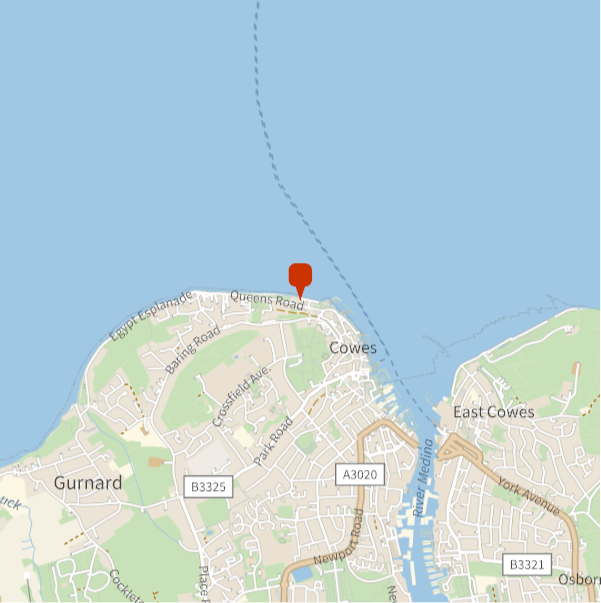
A location plan can easily be obtained using the standard GeoGraphics functions. GeoPosition can be latitude and longitude in degrees or the name of a town, country, etc. The GeoRange defines the area to be shown. There are many options, including satellite and aerial views. The help for GeoGraphics is worth consulting for alternatives and combinations.
Here is a simple location plan. The location is given as Lat and Long in decimal degrees. To go from deg. Min. Sec to decimal degrees, use the function.
In[]:=
GeoGraphics[GeoMarker[GeoPosition[{50.7667,-1.3035}]],GeoRange->2000]
Out[]=
Going in closer and giving a satellite image as background.
In[]:=
GeoGraphics[GeoMarker[GeoPosition[{50.7667,-1.3035}]],GeoBackground"Satellite",GeoRange->100]
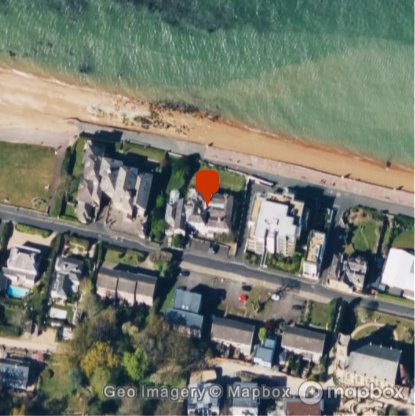
To change the size, just grab a corner and drag it. Or use the ImageSize option.
7.3 Importing large files
7.3 Importing large files
A feature of point cloud or Lidar data is that they often result in large amounts of data. Often, millions of points. The speed with which these are read depends on their format. For instance, the Lidar data used for the example below, stored in the file lidar1.dif, is saved in data interchange or DIF, format. A common format available from most spreadsheets. Importing it takes a while.
First the directory holding the file is set. Then, the Import function is wrapped in a function AbsoluteTiming, which will show the time required for the import process.
SetDirectory[NotebookDirectory[]]AbsoluteTiming[data=Import["lidar1.dif"];];
Out[]=
/Users/malcolmwoodruff/Documents/An Introduction to Mathematica for Civil Engineers copy/book

The same file, stored as a CSV file, is much quicker.
AbsoluteTiming[data=Import["lidar1.csv"];];
Out[]=
{0.163616,Null}
However, if the file is then saved as a native Mathematica format file, it is then extremely fast to reopen.
This exports the data in mx format, which is nearly instantaneous.
In[]:=
Export["lidar1.mx",data]
Out[]=
lidar1.mx
Then, timing the import of the mx file, it is found to be 10 times faster than the CSV version and 1900 times faster than the DIF version.
AbsoluteTiming[data=Import["lidar1.mx"];];
Out[]=
{0.018835,Null}
Hence, large files in this book will generally be saved in mx format. Very large files, as may occur with point cloud data, are best saved as text files if they are intended to be opened in Mathematica.
7.4 Reading point cloud data using ReadList
7.4 Reading point cloud data using ReadList
Point cloud data may be presented as an XYZ file of point files each with an RGB value to show the colour, making six values for each point. This makes for very large files. It then makes sense to reduce the file to just the area of interest, or sampling the file at every nth point. Nevertheless, the file still has to be read in to begin with. An efficient way of doing this is to use the function to read a text file. You have to specify the line length eg. 6, and the type of record eg. . Then it reads the file, splitting it into a list of those records.
Here is an example, from a drone survey, where the data consists of nearly 80 million lines of 6 items each, i.e. 4.8 billion items of data. It takes about 45 secs on my machine.
As the original file is over 3GB it may not be included with this book, or you may not wish to open it. If that is the case, go to this point where a subset can be imported so you see how it may be used to construct models and plans, etc.
However, many cases have a null value. Deleting these we have
This is a manageable number to work with. Assigning x, y and z values for convenience we have
and adjusting the colours, so that they conform to Mathematica’s format for RGB colours.
To save downloading the whole file again, save xyz and rgb
Importing these files for further work
We can then plot a 3D coloured view of the survey for the area considered.
The model could be exported directly as a step or STL model, else sections drawn through. Alternatively, a contoured plan may be drawn.
Contoured plans can be exported using DXF format for use in a CAD program. Note the use of BoxRatios in the 3D plot to give the correct ratio of height to width to length. Other ratios could be used if you needed to amplify the height ratio, for instance.
7.5 Lidar data
7.5 Lidar data
Lidar data is most often presented in a rectangular grid or array, of height values in either Asci or GeoTiff format. The x and y values being at some spacing eg. 1m, 0.5m, or 0.25m. Mathematica has some very efficient functions for interpolating and plotting such data, either in 2D or 3D.
7.5.1 Lidar data in ASCI format
7.5.1 Lidar data in ASCI format
Firstly, the Directory, which contains the data, is set. In this case, it is in the same folder as this Notebook. Then a quick look is taken at the data by importing it into Mathematica, without specifying the format it is to be imported by.
It can be seen that the first six lines of the data contain information about the dataset, whilst the remainder contains the actual height values or a value showing there is no data. In this case, it is because that point is below sea level.
The data is then read in again in two parts. Firstly, the first six lines, which are assigned to the list info, and then the remaining 2000 lines, which are assigned to the list data.
The remaining data is read in, but the first 6 lines are dropped, leaving just the height values.
Check the dimensions of the data.
Reduce the data to that for the area of interest.
Specify the range in the y and x direction of the data to be plotted to enable coordinates to be drawn on the figures. Note the use of the values of xllcorner and yllcorner and cellSize to get accurate grid coordinates.
The x y values in the grid are known to increase from left to right and from bottom to top, whilst in Mathematica, tabular data is read from top to bottom. Hence, a new table called elevation is computed by reversing the values in the vertical direction.
The aspect ratio of the data is computed to aid plotting.
Alternatively, this does the same.
Then the aspect ratio is
Where there is no data eg. the data point is over the sea, the elevation is given as -9999. To aid plotting, change all elevation values <-3 to -3. Also, find the maximum elevation so that the colour function for the height is defined over a sensible range.
The elevation data can then be used to create a contoured topographic map. The min and max elevation items are used to choose the contour range and interval. In this case, the shading is from -5 to + 55m with contours at 0.5m intervals. ContourLabels are not shown, but ToolTips show the height when the mouse hovers over the contour.
The scale shown on the axes is merely the row and column count, unless you quote the range of data being plotted. The ColourFunction “LightTerrain” has been used as a background colour.
If you do not want contours, then ReliefPlot gives a very good representation of the surface.
7.5.1 - Drawing sections from Lidar data
7.5.1 - Drawing sections from Lidar data
Here the procedure for drawing a section is shown . It uses the above data and plots for convenience, but the procedure is the same however an interpolated surface of heights has been obtained.
To draw a section from the above plot, the first operation is to define the surface as an interpolated surface passing through all the points. This will allow the height to be calculated for any position on the surface. This is simply done with the following statement.
You may get a warning stating that only linear interpolation can be used. This is okay, so ignore it .
Define the coordinates at each end of the section, then the section can be plotted as a line. Placing the semi colon at the end of the plot statement means it will not be immediately plotted.
Then, plot the section. If the scaling of the xy points and the height are not the same, then you can adjust it in the plot. In this case, the height points are at 0.5m centres. So the length of the section is:
A function is written to calculate the height at any position along the section.
Then that function is used to draw the section.
Multiple sections can be drawn and shown on the plan. If you have both DSM and DTM files, you can plot both, so you show the actual ground level as well as the surface tree or building line. The sections can be labelled on the plan using CallOuts or placing text at specific points. The code for creating sections can be rolled up into a function, which makes their creation very rapid.
If you have multiple surfaces eg. strata levels from boreholes, you can also show these on the sections or in 3D views. Lidar data from different times can be used to show ground movement.
The above code uses data in the form of text data in an ASCI format. This is fine if the data is supplied in that format or as a grid of z values from which the x and y coordinates can be calculated. However, it is common to supply the data in a GeoTIFF file. This section shows how to bring this data in and make use of it as above.
The GeoTIFF file has a number of elements. The file can be imported to show any one of these elements eg. to see a summary of the file.
Set the directory that the file is in. In this case, the same directory as this Notebook. Alternatively, use the File Path option under the Insert menu when reading the file.
Read in the file to see a summary. It will have a .tif format.
To see the available elements within the file, you can import a list of elements.
You can import any of these elements, but the important ones for our use are ElevationRange, SpatialRange, and Data.
Then define the lower, left corner to be used in defining the x and y coordinates.
Show a quick plot to see the area covered by the file. Use PlotRange to give some detail to the plot.
Take just the area interested in eg. x=448840->449200E and y=96300->96700N
Then the data can be plotted as a contoured plot, complete with an OS Grid overlay.
Note: This plot could be exported as a DXF file for use in a CAD program.
7.7 Draping an overlay on a 3d plot
7.7 Draping an overlay on a 3d plot
In this example, we will use the reduced data from the above example and drape an aerial photograph over it.
The image is imported from a file or copied and pasted, taking care that its edge coordinates match those of the data.
In this case, the image is copied and pasted into a symbol called overlay.
The image is a bit dark, so one of Mathematica’s myriad of Image Adjustment tools is used to brighten it up.
Finally, show 3D view with photo overlaid.
To show the view you want, just grab the image by clicking on it and hold the button down, then rotate the image. You can zoom in by holding the cmd key and dragging up. Alternatively, you can specify a point from which the image is viewed by using the option ViewPoint.
This shows an image with the ratio of height to horizontal depending on the spacing of the height values exaggerated. If you want to see it with the heights shown correctly then use BoxRatios->Automatic.
Postscript
Postscript
Links to more information
Links to more information
Vocabulary
Vocabulary
Functions used in this chapter
Functions used in this chapter
Options used in this chapter
Options used in this chapter
CITE THIS NOTEBOOK
CITE THIS NOTEBOOK
An introduction to Mathematica for civil and structural engineers
by Malcolm Woodruff
Wolfram Community, STAFF PICKS, April 15, 2025
https://community.wolfram.com/groups/-/m/t/3444204
by Malcolm Woodruff
Wolfram Community, STAFF PICKS, April 15, 2025
https://community.wolfram.com/groups/-/m/t/3444204