In this post I show how we can recreate the binary coded message shown on Perseverance rover’s parachute with some possibilities to tweak it for custom text and shape.
Introduction
Introduction
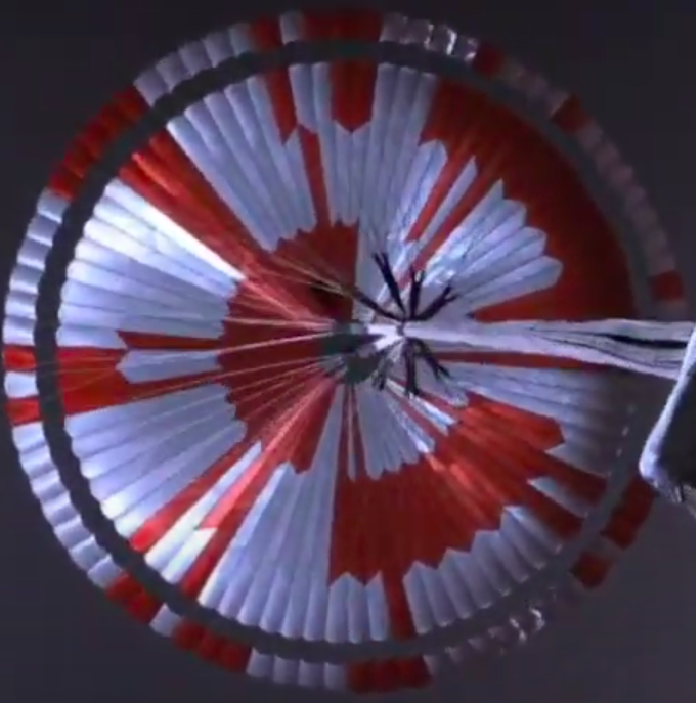
NASA recently landed a new rover “Perseverance” on Mars to look for signs of past life in certain areas on Mars. A video released by NASA showing Perseverance deploying its parachute and Mission Lead Allen Chen announced that there is a hidden message on Perseverance’s parachute, which is clearly visible in the video. Here is the video from NASA:
You can better see the message (code) in this screenshot
Idea and code developing
Idea and code developing
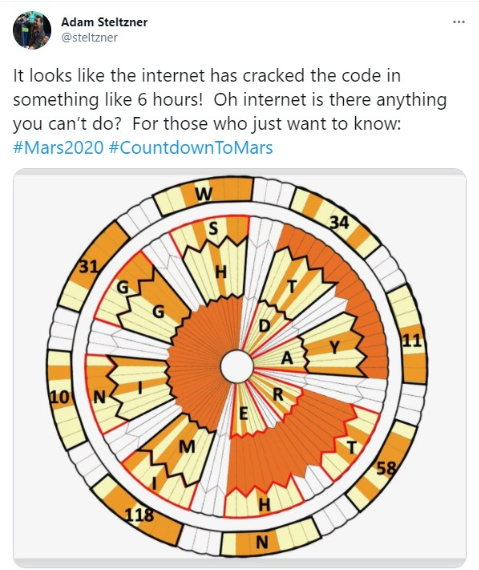
In the related articles I read, I couldn’t find exact details about the coding used, so I decided to use Wolfram Language to investigate this. Let us first have a look at detailed image of the code with the secret message revealed by Adam Steltzner, chief engineer for NASA on Twitter
and here is a sharper and larger image of the message decoded.
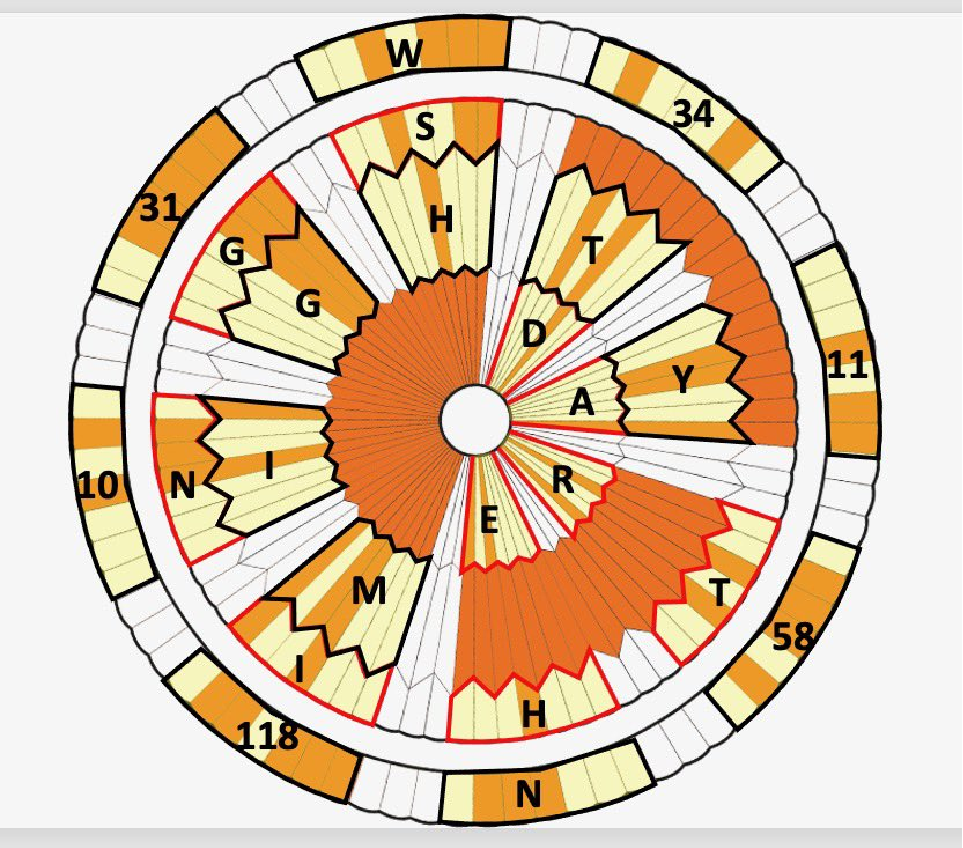
“Dare Mighty Things” was the main message which is emblazoned on the walls of Mission Control at NASA’s Jet Propulsion Laboratory. Cool!
Also the outer ring is the coordinates for the same building. Extra Cool!
When I started to get the binary presentation of the letters available here there was a difference
Also the outer ring is the coordinates for the same building. Extra Cool!
When I started to get the binary presentation of the letters available here there was a difference
In[]:=
IntegerDigits[ToCharacterCode["D"],2]
Out[]=
{{1,0,0,0,1,0,0}}
I can see that there is one different color in the letter D in the image, but in the binary code there is two 1’s. Other example for letter T
In[]:=
IntegerDigits[ToCharacterCode["T"],2]
Out[]=
{{1,0,1,0,1,0,0}}
Now the pattern starts to appear. For letters, the first number is always being changed to zero. But what about the numbers on the outer ring?
In[]:=
Dataset[<|"11"->IntegerDigits[11,2],"34"->IntegerDigits[34,2],"58"->IntegerDigits[58,2]|>]
Out[]=
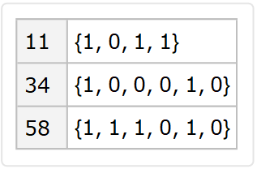
By now we realized that yellow refers to zeros and orange refers to ones, and by comparing the image and the binary numbers above, it is clear that the numbers are being padded to the left with zeros to complete total of 7 numbers. This is exactly the job of the function PadLeft
In[]:=
PadLeft[IntegerDigits[11,2],7,0]
Out[]=
{0,0,0,1,0,1,1}
I used SectorChart[ ] to create the main digram. It allows several options such as sector custom coloring, rotation, and more. The following section shows the details of the code
Code
Code
Definitions
Definitions
binary is the function that outputs the binary code for a letter or a number and it distinguishes between them
In[]:=
binary[l_?LetterQ]:=ReplacePart[First[IntegerDigits[ToCharacterCode[l],2]],10];binary[d_?DigitQ]:=PadLeft[IntegerDigits[ToExpression@d,2],7,0];
characters is a tool to help tweak Characters[ ] to work on only letters so that it doesn’t split the number 11 for example to {1,1}
In[]:=
characters[c_?LetterQ]:=Characters@ccharacters[c_?DigitQ]:=c
wordToColors transforms a string into list/sequence of colors. Rotating this list to the right or left allows ring rotation accordingly.
In[]:=
wordToColors[word_]:=PadRight[Flatten[Evaluate@Join[{2,2,2},PadRight[binary[#],10,2]&/@Flatten[characters/@StringSplit[word]]]],80,3]/.{2White,0Lighter@Yellow,1Orange,3Darker@Orange}
The rings defined from in to out, and will be joined later. It could have been made in a more compact form but this was easy to edit.
In[]:=
ring1[style_]:=SectorChart[ConstantArray[{2,4.7},80],PolarGridLinesNone,ChartElementFunction->"TriangleWaveSector",ChartStyleRotateLeft[style,60],SectorOrigin{Automatic,0.7}]
In[]:=
ring2[style_]:=SectorChart[ConstantArray[{2,6},80],PolarGridLinesNone,ChartElementFunction->"TriangleWaveSector",ChartStyleRotateLeft[style,20],SectorOrigin{Automatic,4.7}]
In[]:=
ring3[style_]:=SectorChart[ConstantArray[{2,7},80],PolarGridLinesNone,ChartElementFunction->"TriangleWaveSector",ChartStyleRotateLeft[style,40],SectorOrigin{Automatic,6}]
In[]:=
ring4[style_]:=SectorChart[ConstantArray[{2,8},80],PolarGridLinesNone,ChartStyleRotateLeft[style,60],SectorOrigin{Automatic,7}]
You can control the rotation of the rings using the second argument of RotateLeft in each of the rings definitions above.
Main result
Main result
Now join all the rings using Show[], the order inside it is important and it doesn’t behave the same way with SectorChart[ ] in versions earlier than 12.2.
Just replace the strings from out to in and you will get your own graphically-binary-coded-NASA-style message.
Just replace the strings from out to in and you will get your own graphically-binary-coded-NASA-style message.
In[]:=
Show[ring4[wordToColors["34 11 58 N 118 10 31 W"]],ring3[wordToColors["THINGS"]],ring2[wordToColors["MIGHTY"]],ring1[wordToColors["DARE"]]]
Out[]=
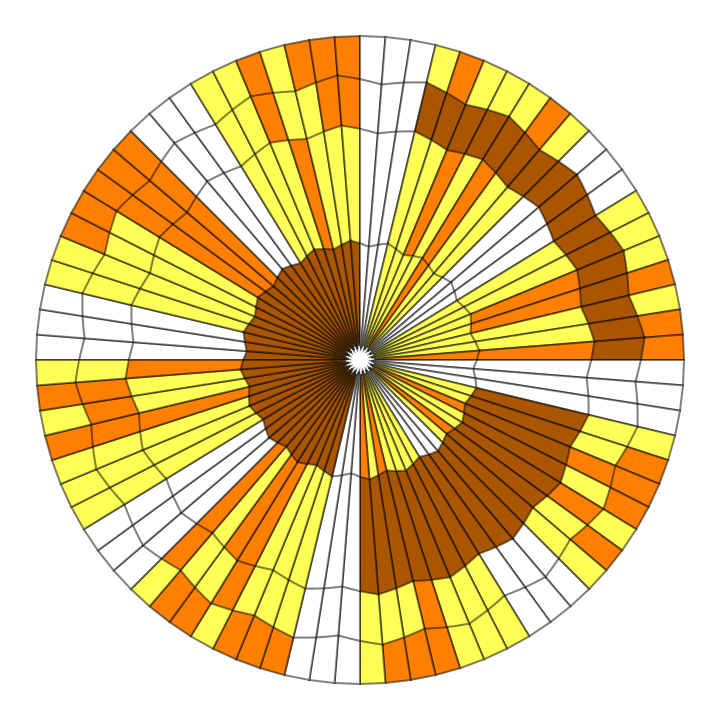
and here is the same output annotated with the corresponding letters and numbers
Future work
Future work
It is fun to decode these messages. I made the code simple to work with and modify, so the following can be done easily.
◼
Make it all one function with several options
◼
make the white spaces variable so we can make room for larger words
◼
Make the code faster to enable smooth usage of Manipulate[ ] to use it for ring rotation.