CITE THIS NOTEBOOK: Table utility interactive palette by Terry Honan. Wolfram Community DEC 22 2022.
Mathematica can paste simple tables into a document but to add styles to these grids I often end up having to press Command-Shift-E (or Control-Shift-E) to edit the raw markup code. This is very difficult. Of course, one can programmatically generate a table using Grid with any formatting you want, but this is far from what is needed when word processing.
I am sharing an interactive palette I created for adding styled tables to a document and for editing existing tables.
I am sharing an interactive palette I created for adding styled tables to a document and for editing existing tables.
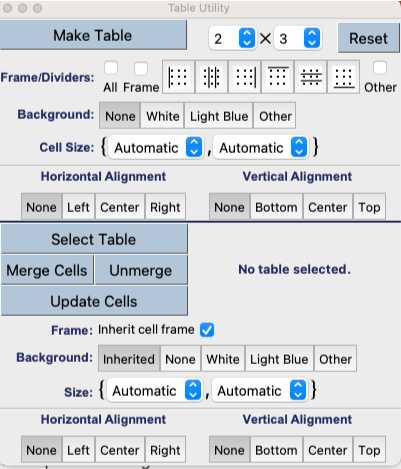
The palette and its source code can be found at http://terryhonan.net/Mathematica/. There is a Zipped File that opens to a folder that contains the two files: the palette itself, Table Utility.nb (attached below) and the source code for it, Table Palette.nb.
The top part of the palette pastes a table full of entries with the chosen options.
The bottom part of the palette edits individual cells (or blocks of cells) in an existing table. It can not change the global settings for an existing table; the GridBox options seem to be far too varied to allow such editing. However, replacing a cell with an Item allows for much customization.
With the cursor anywhere in an existing table, the “Select Table” button expands the Front End selection until it contains the entire matrix inside a GridBox. The palette then shows an array of Checkboxes that allows one to select any number of cells and then adds the chosen options to those cells. It can also easily merge and unmerge rectangular blocks in the selected table.
Note that if the palette is installed via the built-in Mathematica installation tools, you will not receive the “This file contains potentialy unsafe dynamic content” warning; this is because the \ $BaseDirectory and \$UserBaseDirectory are listed as “Trusted Directories” by default. If you receive that warning and click “Enable Dynamics”, it seems that the formatting of the palette gets skewed. The palette will render properly if properly installed or if it is opened from any “Trusted Directory”.
The top part of the palette pastes a table full of entries with the chosen options.
The bottom part of the palette edits individual cells (or blocks of cells) in an existing table. It can not change the global settings for an existing table; the GridBox options seem to be far too varied to allow such editing. However, replacing a cell with an Item allows for much customization.
With the cursor anywhere in an existing table, the “Select Table” button expands the Front End selection until it contains the entire matrix inside a GridBox. The palette then shows an array of Checkboxes that allows one to select any number of cells and then adds the chosen options to those cells. It can also easily merge and unmerge rectangular blocks in the selected table.
Note that if the palette is installed via the built-in Mathematica installation tools, you will not receive the “This file contains potentialy unsafe dynamic content” warning; this is because the \ $BaseDirectory and \$UserBaseDirectory are listed as “Trusted Directories” by default. If you receive that warning and click “Enable Dynamics”, it seems that the formatting of the palette gets skewed. The palette will render properly if properly installed or if it is opened from any “Trusted Directory”.
Code
Code
In[]:=