Introduction
Introduction
A fairly recent trend among online educators is creating programmatically generated animations and graphics to help explain challenging concepts (e.g. see Grant Sanderson’s brilliant math YouTube channel 3Blue1Brown). The goal of this project is exploring some of the basic 3D animation and graphics capabilities of Wolfram Language, and using them to animate multiway system graphs. The broader goal in mind is to incorporate the animations generated in Wolfram Language in a short YouTube video that introduces the concept of the multicomputational paradigm, as well as its relation to the Wolfram Physics Project in a concise, entertaining fashion.
3D Camera Experiments
3D Camera Experiments
Creating a basic scene
Creating a basic scene
I began by experimenting with the 3D camera. Here is a scene I made consisting of two vertically scaled up icosahedra and a 3D cow model sitting on top of an infinite plane (although it appears finite as the view is bounded by the PlotRange).
In[]:=
Clear[floor,standardCow,cow,ico1,ico2,range,scene];floor=Graphics3D@InfinitePlane[{{0,0,0},{1,1,0},{2,3,0}}];standardCow=ExampleData[{"Geometry3D","Cow"},"Region"];rawCow=GeometricTransformation[standardCow,TranslationTransform[{0,0,Last[RegionBounds[standardCow]][[2]]}]];cow=Graphics3D[{EdgeForm[],rawCow}];ico1=Graphics3D@{EdgeForm[None],GeometricTransformation[GeometricTransformation[First@PolyhedronData["Icosahedron"],ScalingTransform[{0.5,0.5,1}*0.3]],TranslationTransform[{-0.5,-0.5,0.3}]]};ico2=Graphics3D@{EdgeForm[None],GeometricTransformation[GeometricTransformation[First@PolyhedronData["Icosahedron"],ScalingTransform[{0.5,0.5,1}*0.3]],TranslationTransform[{-0.5,0.5,0.3}]]};range=With[{d=0.8},{{-d,d},{-d,d},{-d,d}}];scene={cow,floor,ico1,ico2};Show[floor,cow,ico1,ico2,PlotRange->range,Boxed->False]
Out[]=

Then, I took this scene and manipulated the 3D camera to animate some interesting camera movements. As a new Wolfram Language speaker, these were quite a challenge for me to create, especially since there were three hidden coordinate systems here at play, among other settings that had to be tweaked. It turned out that when the PlotRange is a cube centered at the origin, the ViewCenter option ranges from 0 to 1 in each dimension, while the ViewPoint ranges from -0.5 to 0.5 in each dimension, regardless of the size of the PlotRange. Besides these two coordinate systems, there was also the standard world coordinate system to keep in mind as well!
1) Zooming In / Out
1) Zooming In / Out
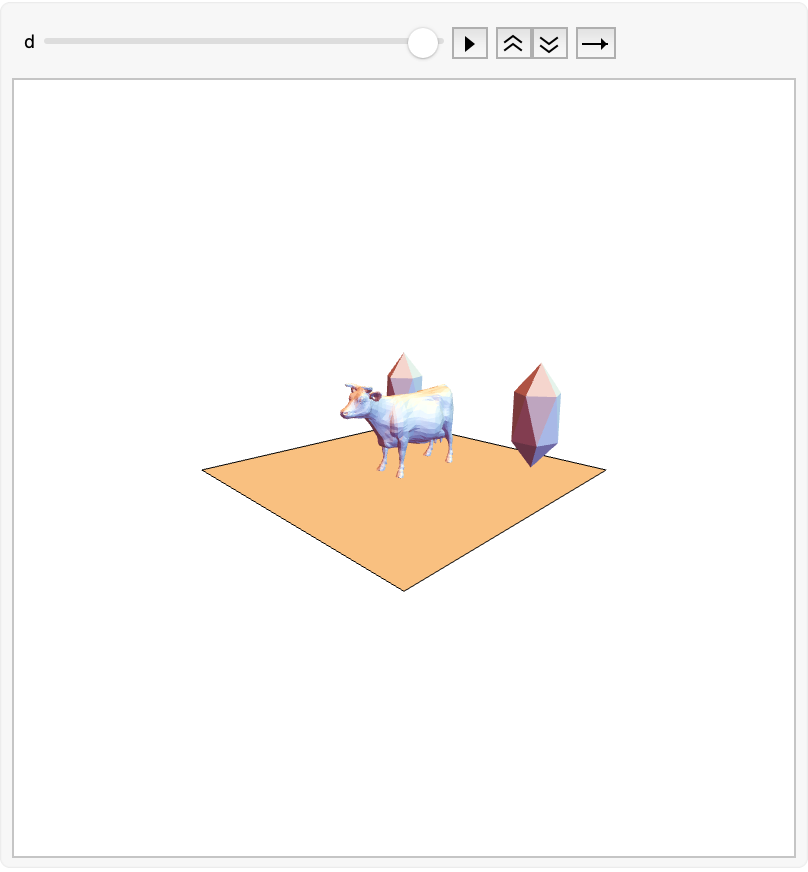
To achieve this effect, I simply manipulate the ViewAngle option of the Show command. To make the animation feel more natural, I used a quintic ease function to smooth out the motion, as I did in the rest of the examples as well.
In[]:=
Clear[maxZoom,minZoom,ease,range];maxZoom=80;minZoom=20;range=With[{d=0.8},{{-d,d},{-d,d},{-d,d}}];ease[t_,min_,max_]:=(ResourceFunction["EasingFunction"]["InOutQuint"][(t/(max-min))-(min/(max-min))]*(max-min))+min;Animate[Show[scene,PlotRange->range,ViewAngle->ease[d,minZoom,maxZoom]Degree,ViewPoint->{1,1,0.5},Boxed->False],{d,minZoom,maxZoom}]
Out[]=
2) Upwards Tilt
2) Upwards Tilt
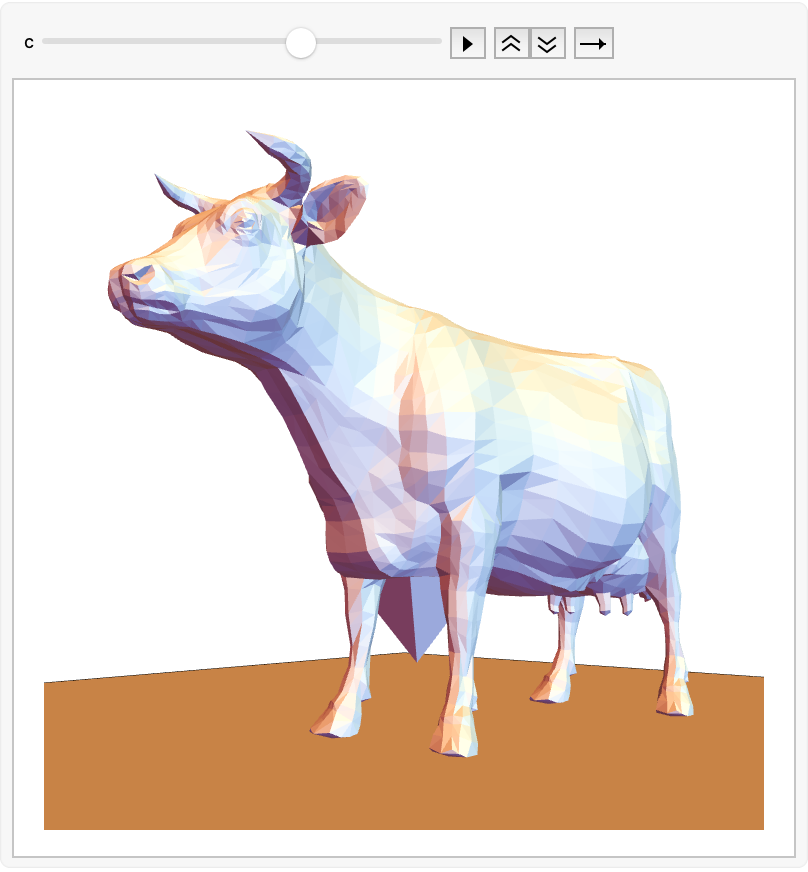
To achieve this effect, the ViewCenter is shifted vertically from the bottom of the PlotRange towards the top.
In[]:=
Clear[ease,range];range=With[{d=0.8},{{-d,d},{-d,d},{-d,d}}];ease[t_,min_,max_]:=(ResourceFunction["EasingFunction"]["InOutQuint"][(t/(max-min))-(min/(max-min))]*(max-min))+min;Animate[Show[scene,PlotRange->range,ViewAngle->40Degree,ViewPoint->{0.5,0.4,0.1},ViewCenter->{0,0,ease[c,0,0.8]},Boxed->False],{c,0,0.8}]
Out[]=
3) Sideways Pan
3) Sideways Pan
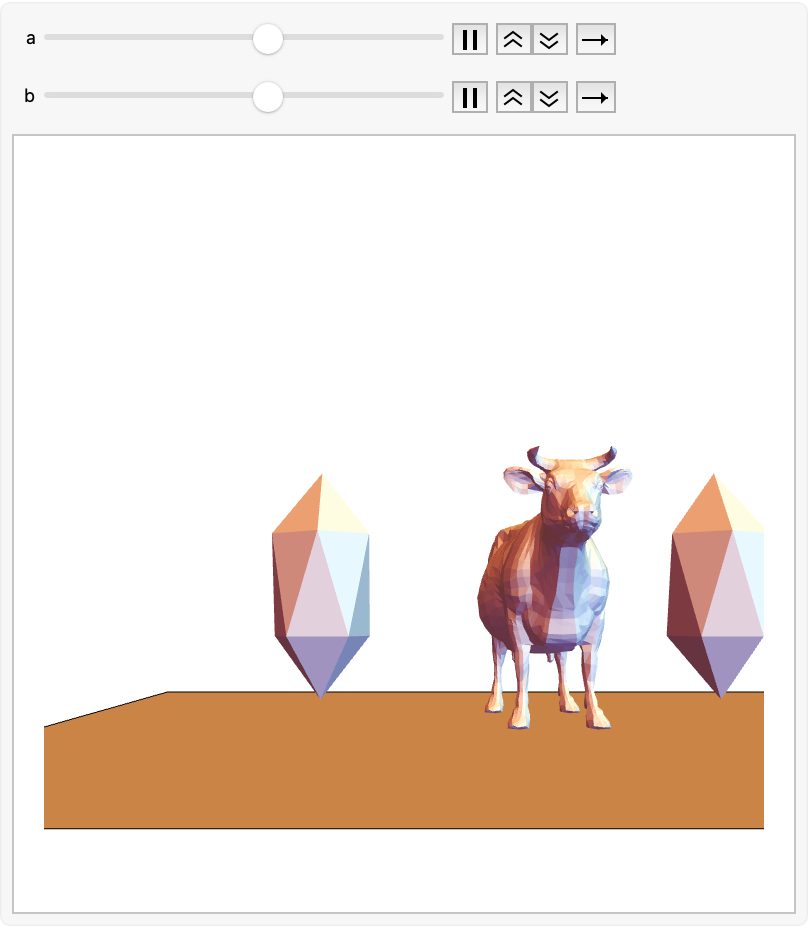
This effect was achieved by manipulating both the ViewCenter and ViewPoint in unison across the y-axis. If either were to lag behind, the camera would point in a different direction. It was necessary to perfectly match their movements in the respect coordinate systems.
In[]:=
Clear[range,ease];range=With[{d=1},{{-d,d},{-d,d},{-d,d}}];ease[t_,min_,max_]:=(ResourceFunction["EasingFunction"]["InOutQuint"][(t/(max-min))-(min/(max-min))]*(max-min))+min;(*Easenotonlygoesfrommintomaxbutalsoexpectsinputinthatrange.*)Animate[Show[scene,PlotRange->range,ViewAngle->40Degree,ViewCenter->{0.5,ease[a,1,0],0.7},ViewPoint->{1,ease[b,0.5,-0.5],0.1},Boxed->False],{a,0.75,0.25},{b,0.25,-0.25}]
Out[]=
4) Backwards Dolly
4) Backwards Dolly
This effect was achieved by simultaneously moving the Camera’s ViewCenter and ViewPoint options, as well as the cow model together along the positive x-direction. It was crucial that the ViewCenter and ViewPoint remained a fixed distance away from each other at all times during the animation to maintain the same perspective in the image.
5) Follow Corkscrew Path
5) Follow Corkscrew Path
Below, the t parameter animates the camera along a helical, corkscrew-like path that wraps around the scene many times. The α parameter, however, controls the amount the camera points along the tangent of the curve it follows. So when α is 0, the camera points entirely orthogonal to the curve’s tangent, and it points completely in the direction of the tangent when α is 1. The tangent and normal of the curve at each point were computed using the FrenetSerretSystem command. The camera’s the ViewPoint is placed on the curve, and the camera’s ViewCenter is placed on a circle of small radius surrounding the ViewPoint, with the precise location depending on the choice of α.
6) Follow Keyframed Path
6) Follow Keyframed Path
Finally, I made the camera follow along a path that interpolates between four keyframes. The interpolating path is smooth and interpolates the keyframes uniformly across time. In the first graphic below, the keyframe locations are represented by the tiny spheres the interpolating curve intersects. The second graphic is the actual camera animation through this curve, with the spheres made invisible.
Multiway Graphs & Multicomputation
Multiway Graphs & Multicomputation
Recall: Single Computation Paradigm
Recall: Single Computation Paradigm
The Multicomputational Paradigm — A Choreographed Animation
The Multicomputational Paradigm — A Choreographed Animation
Above, the red directed edges represent a multiplication by 2, while the red represents a multiplication by 4. Each node has a red and blue arrow extending out from it, indicating either rule outcome may be explored in the multiway graph at any step of the multicomputation. We see that the graph has a ladder-like structure in the limit. More sophisticated multicomputation rules produce multiway graphs of more intricate structure.
A General Multiway Graph Iterative Animation
A General Multiway Graph Iterative Animation
As you can test by entering different rules at the top of the above input cell, you’ll find that different multicomputation rules lead to wildly different limiting multiway graph structure.
Conclusion & Future Work
Conclusion & Future Work
This short exploration gave me lots of insight into the graphics and animation capabilities of Wolfram Language, and inspired me to create more animations using it. In the future, I intend to create a short YouTube video / TikTok using these animations and more to explain the concept of multicomputation and as it applies to the Wolfram Physics Project in an entertaining manner. I hope to find a more instructive way to animate between the various stages of multiway graphs than a simple interpolation, and maybe incorporate some nice camera motions to make them more understandable.
Keywords
Keywords
◼
3D Animation
◼
3D Camera Motions
◼
Multiway Systems & Multicomputation
◼
Graph Animation
Acknowledgement
Acknowledgement
I’d like to thank my mentor Robert Nachbar, as well as James Boyd for all their guidance; they were both very fun to work with. As someone who knew very little Wolfram Language coming in, their help went a long way in the completion of this phase of the project. Additionally, I’d like to thank Stephen Wolfram and all the Wolfram Research staff running the summer school for giving me this unique opportunity to spend a few weeks in Champaign to interact and engage with many motivated students and researchers from all over the globe.