Introduction
Introduction
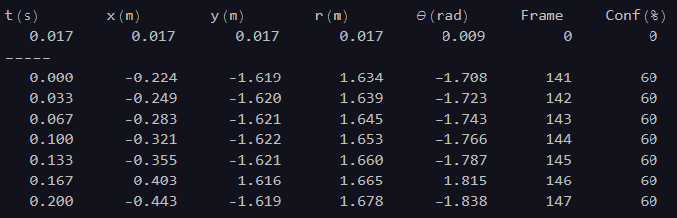
This notebook was developed for the purpose of accurately tracking a moving object in a video (mp4 or avi). At the end, position data are obtained in rectangular and polar coordinates as a function of the shooting time. This notebook is especially useful for analyzing physics experiments (kinematics, mechanics, dynamics, etc...) as it allows the use and positioning of reference and scale axes, and also estimates the uncertainties in each variable (first numerical line from the data table).
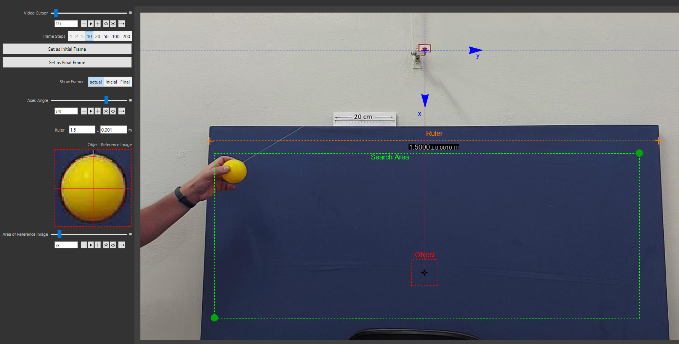
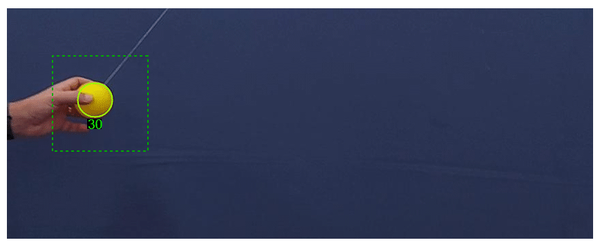
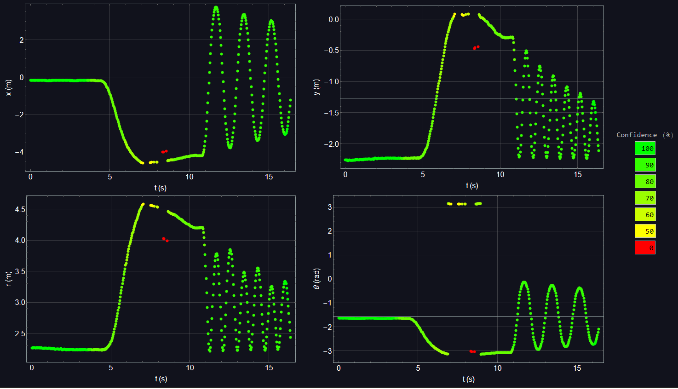
Below some examples of the outputs
Below some examples of the outputs
In[]:=
ListAnimate[animf,SaveDefinitionsTrue]
Out[]=
1- Initialization and definitions
1- Initialization and definitions
This section defines some options, variable and functions . It defines the working directory as the directory where this notebook is saved, from where it looks for and import video files (mp4 and avi) and to where it will export the final data file (txt)
>> Only execute the cell bellow
>> Only execute the cell bellow
In[]:=
Off[General::"spell1"];Off[General::"spell"];Off[General::sysffmpeg];Off[Remove::rmnsm];SetSystemOptions["VideoProcessingOptions"{"TryUsingSystemFFmpeg"False}];scrsize=AbsoluteOptions[EvaluationNotebook[],WindowSize][[1,2,1]];tam=1.5;dtam=0.001;frame=1;grand={"t (s)","x (m)","y (m)","r (m)","θ (rad)"};PointInPoly[{x_,y_},poly_List]:=Module[{i,j,c=False,npol=Length[poly]},For[i=1;j=npol,i<=npol,j=i++,If[((((poly[[i,2]]<=y)&&(y<poly[[j,2]]))||((poly[[j,2]]<=y)&&(y<poly[[i,2]])))&&(x<(poly[[j,1]]-poly[[i,1]])*(y-poly[[i,2]])/(poly[[j,2]]-poly[[i,2]])+poly[[i,1]])),c=¬c];];c]stilo={FontFamily->"Arial",16,Plain};opt=SetOptions[{ListPlot,Plot},PlotStyle{Green,PointSize[0.01]},PlotRangeAll,ImageSizescrsize/4,FrameTrue,GridLinesAutomatic,BaseStylestilo,FrameStyleDirective[stilo],LabelStylestilo];ParallelEvaluate[SetOptions[ListPlot,opt[[1]]]];ParallelEvaluate[SetOptions[Plot,opt[[2]]]];ParallelEvaluate[opt];diretorio=DirectoryName[ToFileName["FileName"/.NotebookInformation[EvaluationNotebook[]]]];$Path=Append[$Path,diretorio];Print["Working Directory = ",SetDirectory[diretorio]]file=Flatten[Join[FileNames["*.mp4"],FileNames["*.avi"]]];Print[Column[{"Video Files in the Working Directory:",Transpose[{Range[Length[file]],file}]//TableForm}]]
Working Directory = D:\work\Docencia\Disciplinas\FIS1XL\tracking-mathematica
Video Files in the Working Directory: | ||||||||||||||||||||||||||||||
|
2 - Choose video
2 - Choose video
This section serves only to choose the video file and get some properties of it
>> Choose the file from the output above and type its corresponding number (integer) for the variable “narquivo” bellow and then execute the cell (can take some seconds)
>> Choose the file from the output above and type its corresponding number (integer) for the variable “narquivo” bellow and then execute the cell (can take some seconds)
In[]:=
narquivo=6;(*chooseavideofromtheabovelistbytypingthecorrespondingnumber*)nomevideo=file[[narquivo]];video0=Video[nomevideo];info=Flatten[Information[video0,{"Duration","FrameCount","FrameRate","OriginalRasterSize"}]];{dur,num,frate,size0}={QuantityMagnitude[UnitConvert[info[[1]]]],(info[[2]]//Values)[[1]],QuantityMagnitude[(info[[3]]//Values)[[1]]]*1.0,Flatten[info[[4]]//Values]};Print[Column[{"Dados do Arquivo:",Row[{"name = ",nomevideo}],Row[{"resolution = ",size0," pixels"}],Row[{"duration = ",dur," seconds"}],Row[{"frame rate = ",frate," frames/s"}],Row[{"total frames = ",num}],Framed[Thumbnail[VideoExtractFrames[video0,1]]]}]]
Dados do Arquivo: |
name = 2021-08-30 10.17.39.mp4 |
resolution = {1280,720} pixels |
duration = 162.711 seconds |
frame rate = 30.0225 frames/s |
total frames = 4885 |
3 - Import video
3 - Import video
This section imports the chosen video, converting it into a list of frames. The resolution of the resulting frames is set in the first line of the following cell. The routine slices the video in a number of parts in order to not overflow the available system memory.
>> Choose the resolution (integer number for “size1” variable - first line) and the fraction of the available memory (real number < 1 for “usom” variable - second line), and then execute the cell (can take minutes depending on the video)
>> Choose the resolution (integer number for “size1” variable - first line) and the fraction of the available memory (real number < 1 for “usom” variable - second line), and then execute the cell (can take minutes depending on the video)
4 - Control Panel
4 - Control Panel
This section shows an dynamic output panel where some important details need to be set as: firs and last frame to analyse; position of the coordinate system; reference image (object to track); reference scale (ruler); and search area
>> Only execute the cell and interact with the controls and locators
>> Only execute the cell and interact with the controls and locators
5 - Tracking
5 - Tracking
This section execute the automatic tracking
>> Choose if all frames selected above should be analysed 1 by 1 (set step variable “passo” = 1) or should be analysed by skipping frames (“passo” = 2 or 3 .... ) and execute the cell (can take some minutes). At any time the button “STOP” can be pressed and the
>> Choose if all frames selected above should be analysed 1 by 1 (set step variable “passo” = 1) or should be analysed by skipping frames (“passo” = 2 or 3 .... ) and execute the cell (can take some minutes). At any time the button “STOP” can be pressed and the
6 - Removing bad points using confidence limit
6 - Removing bad points using confidence limit
This section allow the selection of the tracked points considering the confidence value. The confidence value (0 to 100%) is determined by the similarity of the tracked image with the reference image. There is no need to execute this section before go to the next one
>> Only execute the cell and interact with the controls. Click “Finish” before go to the next section. To undo, evaluate the cell again.
>> Only execute the cell and interact with the controls. Click “Finish” before go to the next section. To undo, evaluate the cell again.
7 - Removing bad points manually from graphs
7 - Removing bad points manually from graphs
This section allow the manual removal of the tracked points directly from the graph of the chosen variable. The locator onto the graphs are used to form a polygon that encloses the points to be removed (turns red). The “Set t = 0” button set the first tracked point to t = 0. There is no need to execute this section before go to the next one
>> Only execute the cell and interact with the controls and locators. Press “Remove” and “Set t=0” as many times as necessary. To undo, evaluate the cell again
>> Only execute the cell and interact with the controls and locators. Press “Remove” and “Set t=0” as many times as necessary. To undo, evaluate the cell again
8 - Removing bad points from the video
8 - Removing bad points from the video
This section allow the manual removal of the tracked points directly from the video, frame by frame. There is no need to execute this section before go to the next one
>> Only execute the cell and interact with the controls
>> Only execute the cell and interact with the controls
9 - Exporting data
9 - Exporting data
This section exports the resulting data to a txt file. The name of the file and the first 10 lines of the file is shown as output. The first line of the file consists on the variable and units, the second line consists on the systematic uncertainty of each variable, and the tracking data starts on the 4th line.
>> Only execute the cell
>> Only execute the cell