Organizer is open source on Github at: https://github.com/ConnorGray/Organizer
The Organizer provides a notebook-based interface for organizing personal and professional thought.
“An idea does not exist until it has been written down!”
Installation
Installation
PacletInstall[ResourceObject["ConnorGray/Organizer"]]
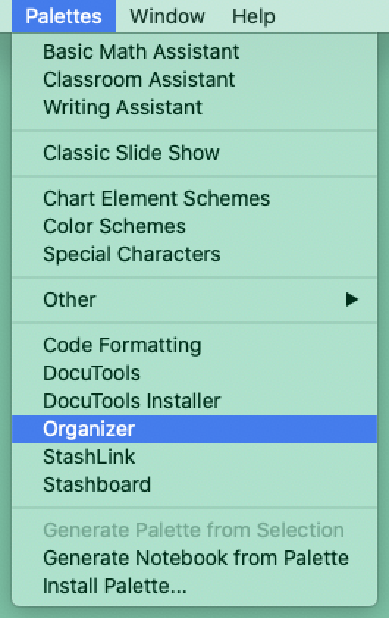
Once installed, you may open the main Organizer palette from the system Palettes menu item:
Usage
Usage
At a basic level, Organizer is an application for interacting with a loosely constructed directory structure containing Projects. The primary entry point to this application is the Organizer Palette. Projects are sorted into Workspaces and Categories, all within the Organizer root directory chosen by the user.
The first time the Organizer Palette is opened, you will be asked to pick a folder on your computer to be the Organizer Root Directory.
Every Project managed by Organizer is a directory containing a Log.nb notebook, located at a file path with the following structure:
$OrganizerRootDirectory/{Workspace}/{Category}/{Project}/Log.nb
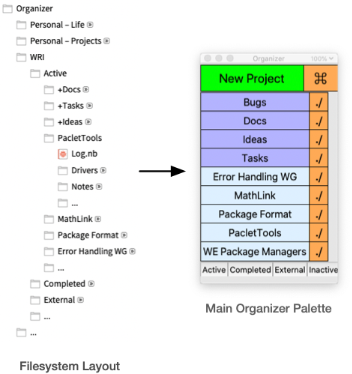
There is only one Organizer root directory, but you can have as many Workspace, Category, and Project directories as you like. Category and Project directories map onto the main palette user interface in the following way:
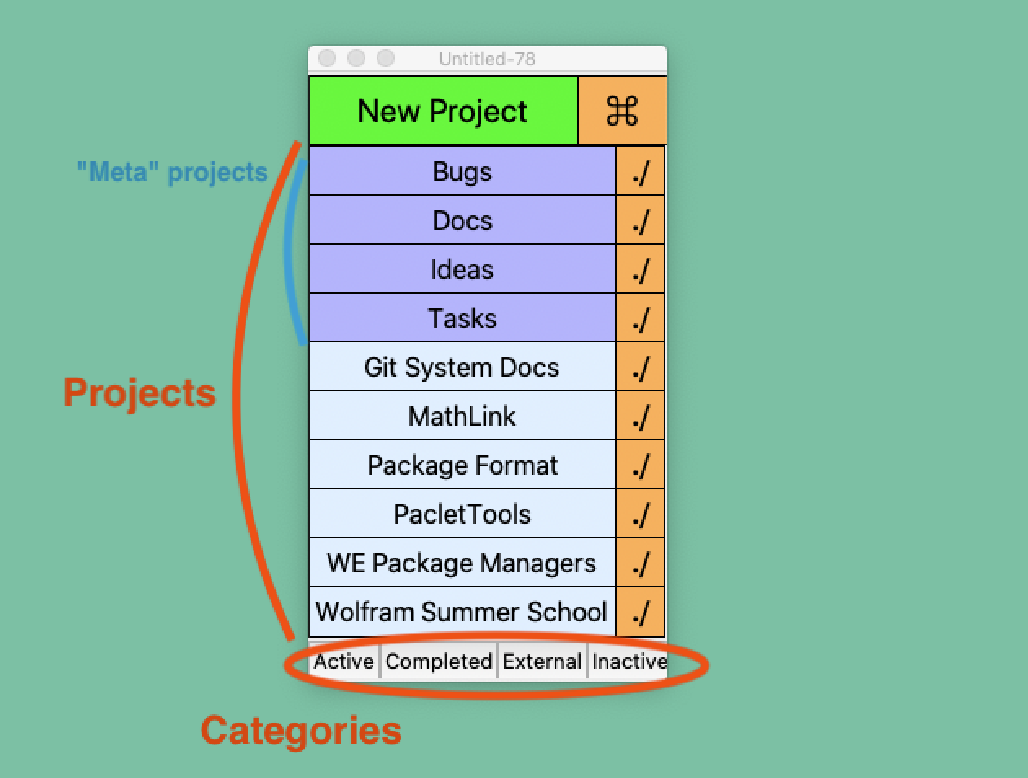
The main list of purple and blue buttons in the palette are all of the projects in the currently selected Workspace and Category. The Category buttons at the bottom of the palette act as a tab view, allowing you to switch which category of project to display in the main palette.
Clicking the orange "./" buttons to the right of each project name will open a system file browser window (Finder on macOS) within that project directory, allowing quick access to files associated with a project.
Log Notebooks
Log Notebooks
Every Organizer Project has a Log.nb notebook which is used to define the project, record notes and completed to-dos, and keep a Queue of "up next" work. A new Log.nb notebook can be generated by clicking the "New Project" button in the Organizer palette.
A newly created Log.nb contains three chapters: Context, Daily, and Queue.
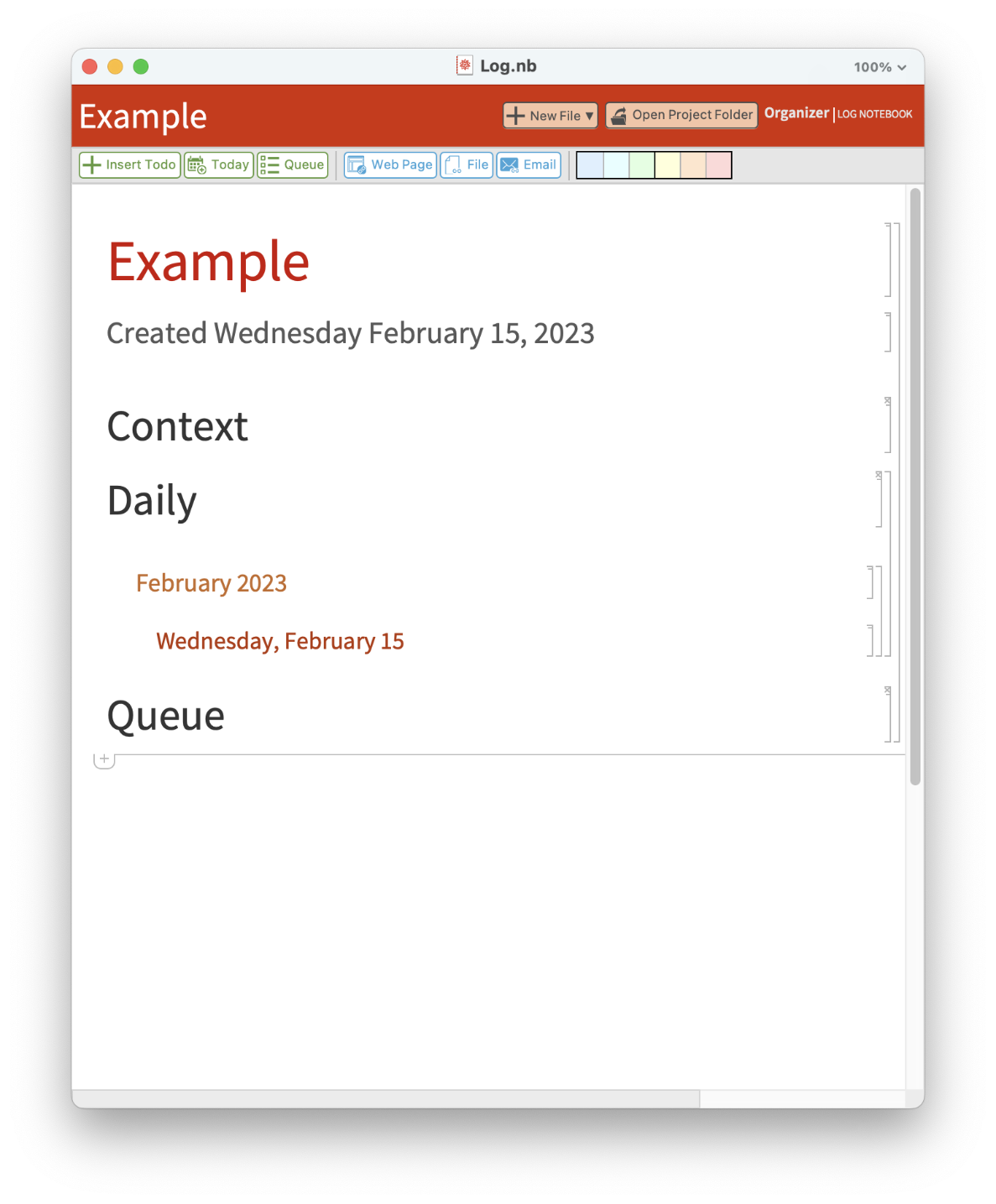
Chapters in Log Notebooks
Chapters in Log Notebooks
Context
The 'Context' chapter is for free-form description of the project and it's goals.
It can be helpful to use this section to store links to external resources which are related to the project, such as tickets, email threads, design documents, etc.
While Organizer is intended to be used only by individuals (Log.nb's are not typically meant to be shared), I recommend writing the Context chapter of your notebook as if you were writing for an audience. This can help clarify for yourself the implicit assumptions you're making about a project: what it's goals are, why (and if) it's important, who it's audience or intended users are, what external dependencies it has, etc.
Daily
The 'Daily' chapter is for notes about the day-to-day work of the project.
This primarily means to-do cells for marking completed tasks, but often also includes snippets of code, minor meeting notes, links to tickets / pull requests / notebooks, etc.
Queue
The 'Queue' chapter is for an ordered list of "up next" tasks for a project.
For smaller projects without a large number of to-dos, using the Queue chapter as the place to store all of a projects uncompleted to-dos is feasible. For larger projects, I recommend storing most to-dos in a separate chapter (conventionally called 'TODOs'), and reserving the Queue chapter for tasks which you plan to do in the immediate future. (I personally find this loose "do soon" vs "do sometime" system for categorizing minor to-dos to be easier to work with than explicit numeric priorities.)
To-dos
To-dos
The toolbar at the top of the notebook contains buttons for inserting style cells and special link types, opening the project folder, and setting the background color of cells.
"TODO"
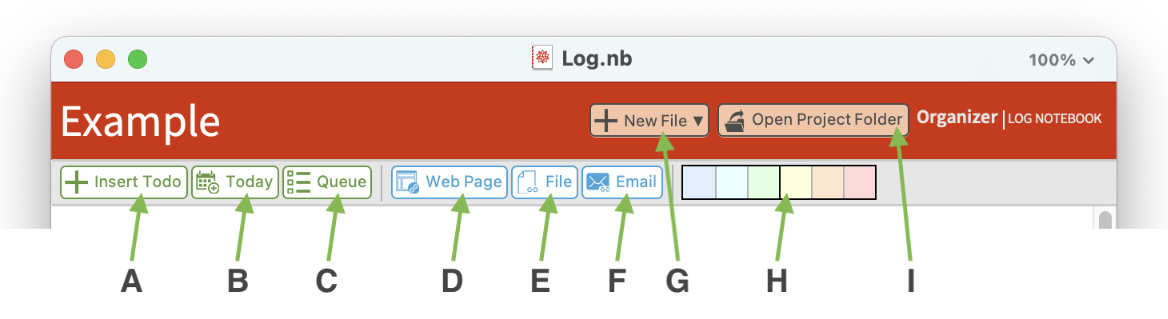
Log . nb toolbar buttons for inserting "TODO" style cells:
◼
A : Insert a “TODO” cell after the current mouse cursor position.
◼
B: Insert a “TODO” cell at the end of the Daily chapter entry for the current day.
◼
C: Insert a “TODO” cell at the top of the Queue chapter.
The first button group contains buttons for inserting "TODO" style cells. Buttons are provided to make inserting a to-do within the Daily section for the current day and at the top of the Queue as frictionless as possible.
Clicking the B button will insert a new focused "TODO" cell in the Daily section for today. The appropriate month and day section header cells will be created automatically if they do not already exist.
Clicking the C button will insert a new focused "TODO" cell at the top of the Queue.
Log.nb toolbar buttons for inserting special link types:
◼
D: Insert a link to a webpage currently open in Safari or Google Chrome.
◼
E: Insert a specially styled link to a file in the local file system.
◼
F: Insert a link to the current email message selected in the macOS Mail. app.
Clicking the D button will show a dialog containing a list of all web pages currently visible in open Safari and Google Chrome web browsers. Selecting one of the links in the dialog will cause that link to be inserted into the notebook as a "Subitem" cell.
Clicking the E button will bring up a file selection input dialog. Once a file has been chosen, a link to the selected file will be inserted into the notebook after the current mouse cursor position.
Clicking the F button will insert a link to the email message which is currently selected in the macOS Mail.app application. Clicking on the added link will open that email in Mail.app.
Log.nb toolbar buttons for inserting special link types.
◼
G: Create a new Organizer file type, e.g., Design or Tasklist.
◼
H: Set the background color of the currently selected cell.
◼
I: Open the directory for the current project in the operating system file browser application.
Clicking one of the H buttons will set the background color of any selected cells. These buttons are intended for visual categorization of cells only. They are not intended to serve as metadata indicating any particular priority/importance for the cells they annotate. The convention for what each color means will vary from user to user and notebook to notebook.
TODO Cell Styles
There are three "TODO" style cells, suitable for creating small hierarchies of related to-dos.
CITE THIS NOTEBOOK
CITE THIS NOTEBOOK
Organizer: utilising notebooks to catalogue tasks
by Connor Gray
Wolfram Community, STAFF PICKS, August 24, 2023
https://community.wolfram.com/groups/-/m/t/2997849
by Connor Gray
Wolfram Community, STAFF PICKS, August 24, 2023
https://community.wolfram.com/groups/-/m/t/2997849