On March 3, 2020, the United Stated Geological Survey (USGS) published a new data set that covers lunar geology. The data was built on an older 2013 data set, but includes data from the Lunar Reconnaissance Orbiter (LRO). The final data set is a large 214 MB ZIP file containing a SHP file and all of its support files, including labels. The data mainly covers geological ages for the Moon. The goal is to import this data and combine it with GeoGraphics functionality in the Wolfram Language.
Importing the Raw Data
Importing the Raw Data
This works best if you are running in desktop since you need to download the data file from the USGS first. Once the data file, available from the link above, is downloaded it can be placed in the same directory as the notebook and then the following can be evaluated.
In[]:=
SetDirectory[NotebookDirectory[]];
Its important to know what coordinate system is being used by the data set so that it can be properly translated for use in GeoGraphics later.
In[]:=
csi=Import["Unified_Geologic_Map_of_the_Moon_GIS_v2.zip","CoordinateSystemInformation"]
Out[]=
PROJCSMoon2000_EquidistantCylindrical_clon0,GEOGCSGCS_Moon_2000,DATUM{Moon_2000,SPHEROID{Moon_2000_IAU_IAG,1.7374×,0.}},PRIMEM{Reference_Meridian,0.},UNIT{Degree,0.0174533},PROJECTION{Equirectangular},PARAMETER{False_Easting,0.},PARAMETER{False_Northing,0.},PARAMETER{Central_Meridian,0.},PARAMETER{Standard_Parallel_1,0.},UNIT{Meter,1.}
6
10
Now that we have the information above, we want to actually import the data.
In[]:=
shpdata=Import["Unified_Geologic_Map_of_the_Moon_GIS_v2.zip","Data"];
Extracting and Preparing Relevant Data
Extracting and Preparing Relevant Data
One of the things we need to know is how to label the various geometry elements. We can do this by accessing the “LabeledData”
In[]:=
shpdata[[1,All,1]]
Out[]=
{LayerName,Geometry,Labels,LabeledData}
In[]:=
labeleddata="LabeledData"/.shpdata[[1]];
In[]:=
labeleddata[[All,1]]
Out[]=
{FIRST_Unit,FIRST_Un_1,FIRST_Un_2,Shape_Leng,Shape_Area,AREA_GEO}
By examination, we want to use “FIRST_Un_1” as the labels since they are not abbreviated.
In[]:=
types="FIRST_Un_1"/.labeleddata;
In[]:=
Union[types]
Out[]=
{Copernican,Eratosthenian,Eratosthenian-Imbrian,Imbrian,Imbrian-Nectarian,Nectarian,Pre-Nectarian}
For each label, we want to assign a specific set of styles, including color. The following colors were manually specified based on officially recognized color for the Lunar Geologic Timescale. Boundary regions such as ”Imbrian-Nectarian” are colored based on a 50% blend of the relevant colors.
In[]:=
colorrules="Pre-Nectarian"GeoStylingEdgeForm,RGBColor@@{0.8196078431372549`,0.30196078431372547`,0.3764705882352941`},Opacity[0.4`],"Nectarian"GeoStylingEdgeForm,RGBColor@@{0.8941176470588235`,0.3254901960784314`,0.07058823529411765`},Opacity[0.4`],"Imbrian-Nectarian"GeoStylingEdgeForm,Blend[{RGBColor@@{0.`,0.4784313725490196`,0.807843137254902`},RGBColor@@{0.8941176470588235`,0.3254901960784314`,0.07058823529411765`}},.5],Opacity[0.4`],"Imbrian"GeoStylingEdgeForm,RGBColor@@{0.`,0.4784313725490196`,0.807843137254902`},Opacity[0.4`],"Eratosthenian-Imbrian"GeoStylingEdgeForm,Blend[{RGBColor@@{0.23529411764705882`,0.8352941176470589`,0.7254901960784313`},RGBColor@@{0.`,0.4784313725490196`,0.807843137254902`}},.5],Opacity[0.4`],"Eratosthenian"GeoStylingEdgeForm,RGBColor@@{0.23529411764705882`,0.8352941176470589`,0.7254901960784313`},Opacity[0.4`],"Copernican"GeoStylingEdgeForm,RGBColor@@{0.4980392156862745`,0.4980392156862745`,0.4980392156862745`},Opacity[0.4`];

In[]:=
legend=SwatchLegend[colorrules[[All,2,2]],colorrules[[All,1]],LegendLayout"Row"]
Out[]=


Now that we’ve created a legend for the data, we now need to extract the geometry data itself.
In[]:=
polys="Geometry"/.shpdata[[1]];
The data contains a number of Polygon and FilledCurve primitives that need to be converted into useful coordinates system in order to be plotted in GeoGraphics. GeoGridPosition is used to convert the coordinate system from the reference model specified near the top of this document. FilledCurves are converted to Polygons.
In[]:=
convertedpolys=polys/.{Polygon[data_]Polygon[GeoPosition@GeoGridPosition[data,{"Equirectangular","ReferenceModel"1.7374`*^6},Entity["PlanetaryMoon","Moon"]]],FilledCurve[data_](data/.Line[data1_]Polygon[GeoPosition@GeoGridPosition[data1,{"Equirectangular","ReferenceModel"1.7374`*^6},Entity["PlanetaryMoon","Moon"]]])};
We can combine the polygon data with the color and style information as follows.
In[]:=
data=Reverse[Transpose[{types/.colorrules,convertedpolys}]];
Creating Maps
Creating Maps
Now that the data had been prepared, we are ready to start visualizing it. The primary tool used is GeoGraphics. As a first step, we view the entire global data set using an equirectangular projection.
In[]:=
LegendedGeoGraphics{data},GeoModel,GeoProjection"Equirectangular",GeoRangeAll,ImageSize600,Placed[legend,Below]
Out[]=
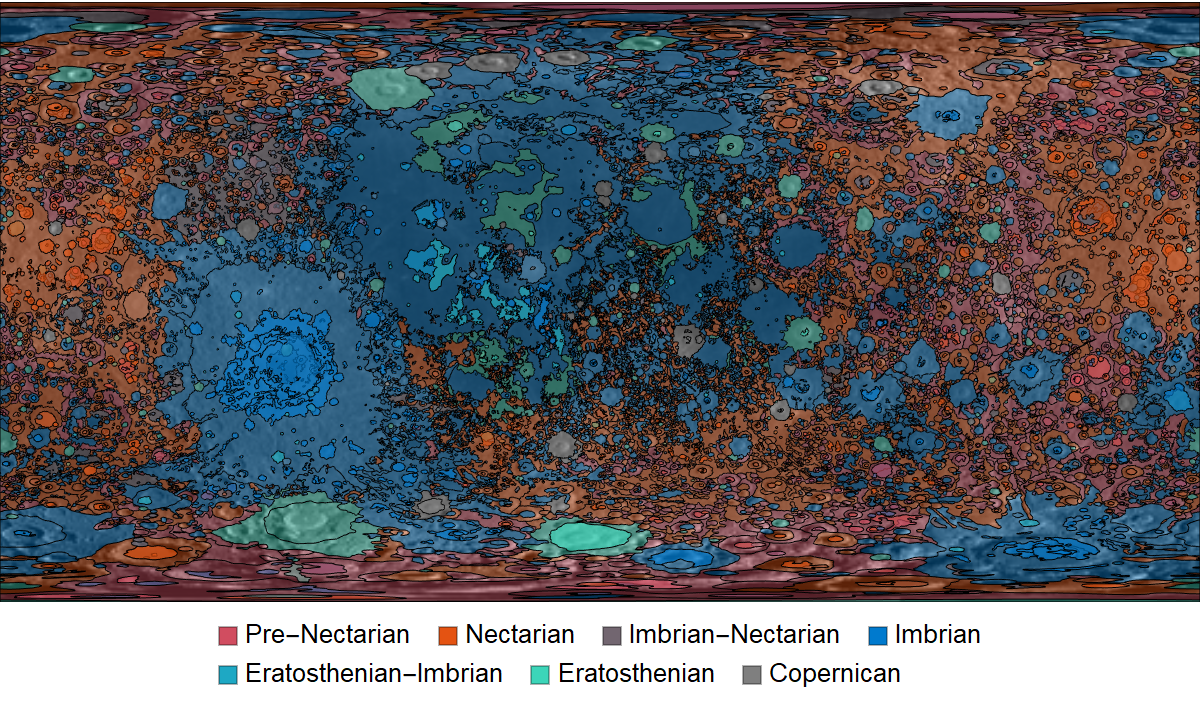
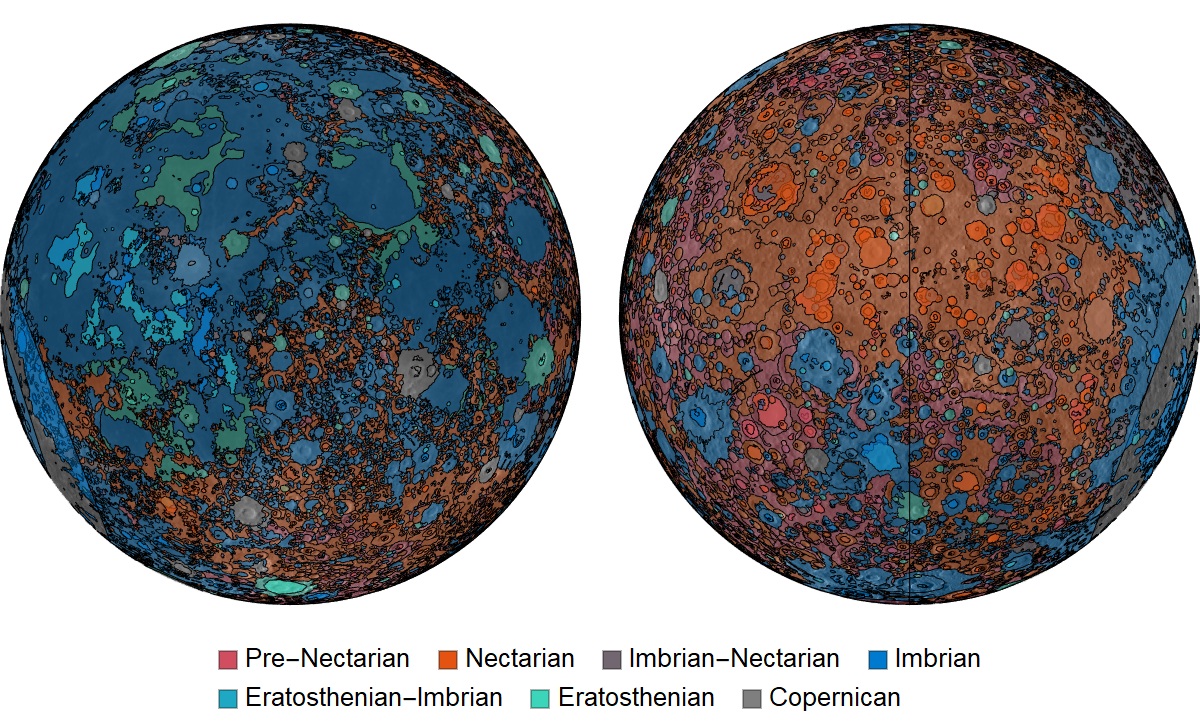
For a more natural appearance, an orthographic projection can be used to view the near-side of the Moon (left) and the far-side of the Moon (right). The far-side exposes far more older (pre-Nectarian and Nectarian) geological units than the near-side does.
In[]:=
LegendedGraphicsGridGeoGraphics{data},GeoModel,GeoRangeAll,GeoProjection{"Orthographic","Centering"#},GeoZoomLevel2&/@{GeoPosition[{0,0}],GeoPosition[{0,180}]},ImageSize600,Placed[legend,Below]
Out[]=
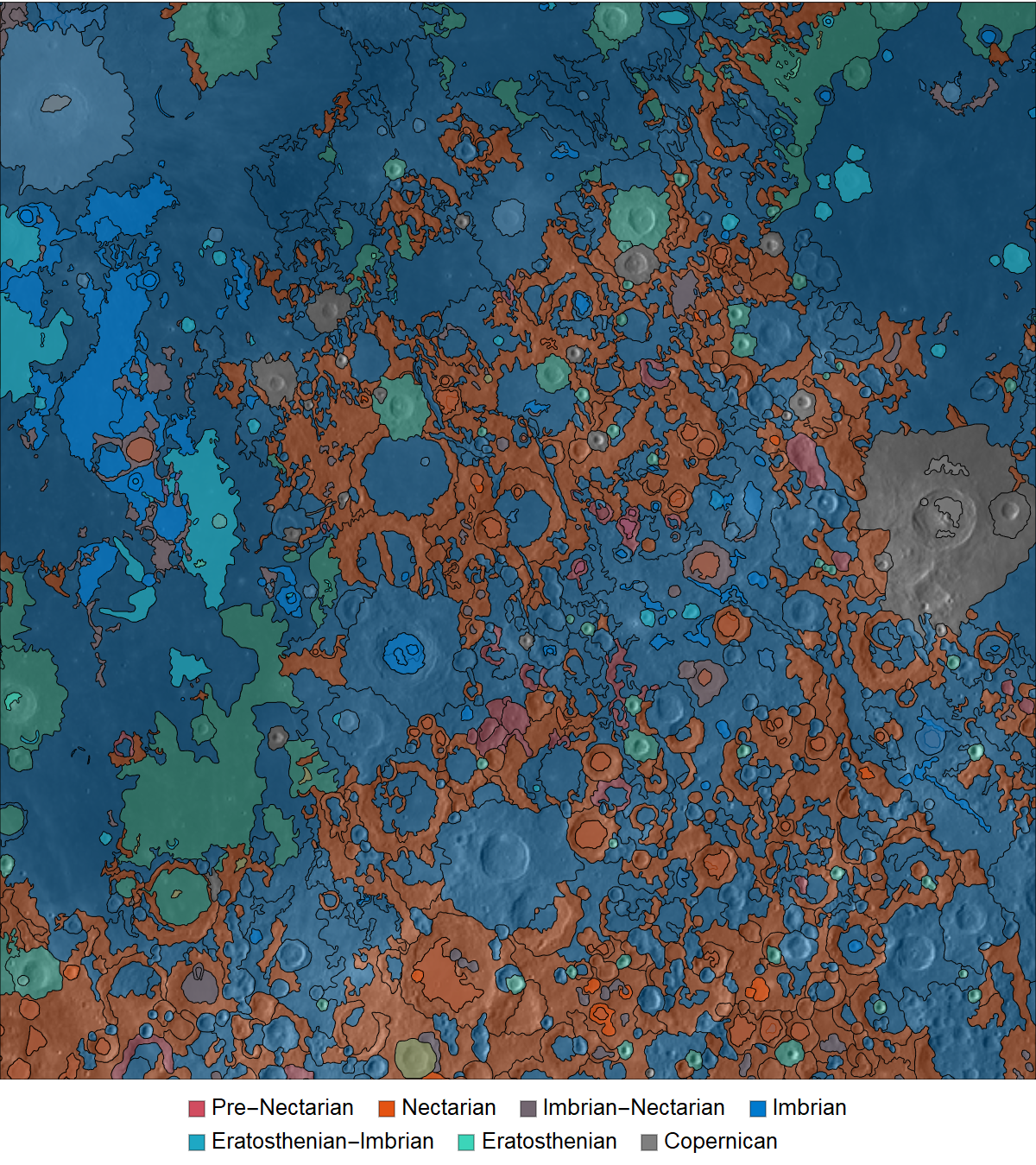
We can also zoom into a particular region to see finer detail.
In[]:=
LegendedGeoGraphics{data},GeoModel,GeoCenter,GeoRangeQuantity[500,"Miles"],GeoProjection"Mercator",ImageSize600,Placed[legend,Below]
Out[]=
Globe
Globe
With an equirectangular projection, we can construct a texture map that can be placed onto a ParametricPlot3D representation of a sphere.
Animation
Animation
Now that we have a textured globe, its a fairly easy extension to animate the 3D object by simply moving the ViewPoint around the equator of the sphere. Here, we generate a set of 600 frames where the ViewPoint is slowly rotated around the sphere.
To create the animation, there are a couple of ways to proceed. One way is to export the frames to a directory and then combine those frames later, something like the following.
Another option, available in version 12.1, is to export the frames directly to an MPEG file.
The resulting movie can be seen below.
CITE THIS NOTEBOOK
CITE THIS NOTEBOOK
Visualizing the unified geologic map of the Moon from the USGS
by Jeffrey Bryant
Wolfram Community, STAFF PICKS, July 2020
https://community.wolfram.com/groups/-/m/t/1960247
by Jeffrey Bryant
Wolfram Community, STAFF PICKS, July 2020
https://community.wolfram.com/groups/-/m/t/1960247