In the past Wolfram China Virtual Conference I talked about a simple method to simulate the out-of-focus effect in image processing way. The slideshow was brief with some overlooked issues, so I think it would be nice to refine it a bit, explain in more details and share it to the community here.
Helper functions
Helper functions
ClearAll[pipe,branch,branchSeq]pipe=RightComposition;branch=Through@*{##}&;branchSeq=pipe[branch[##],Apply@Sequence]&;
A question
A question
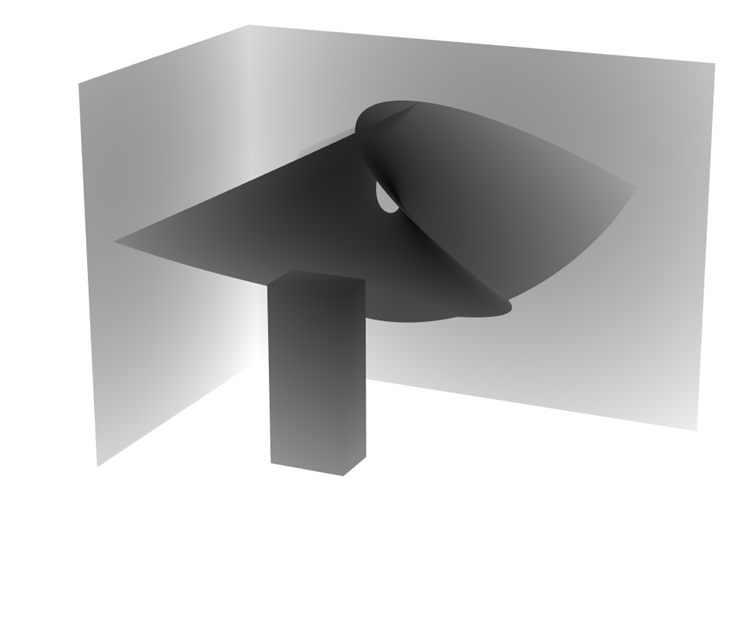
Given an everywhere clear image (Fig 1) and corresponding depth map (Fig 2), how can one compute an out-of-focus effect (like Fig 3) from them?
Out-of-focus effect, or Bokeh, usually comes from a non-zero lens pupil diameter. In computer graphics field, render engine can produce it naturally. If done in image processing way, it’s a classical spatially varying convolution. Either way it’s a compute-intensive effect. In the following text we will try realizing the effect with pure image processing functions.
Scene setup
Scene setup
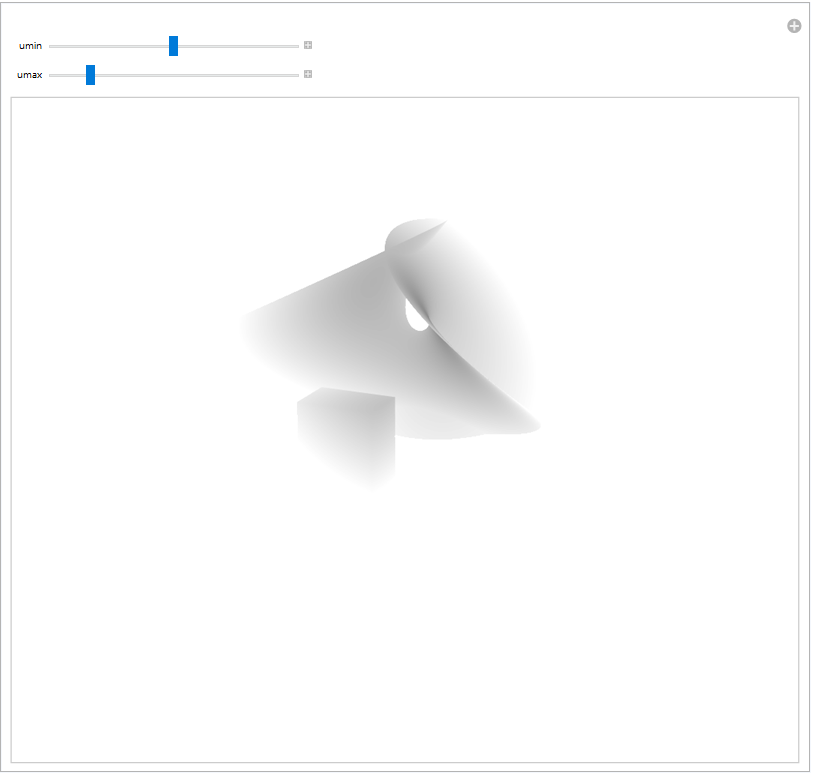
As shown in the title image, our basic scene setup includes 2 background walls, a foreground column and the Enneper’s minimal surface in the middle:
In[]:=
Inactive[ParametricPlot3D](*Enneper'sminimalsurface:*)u-+u,-v-v+,-,(*background-redwall:*),(*background-greenwall:*),(*foreground-bluecolumn:*),{u,-2,2},{v,-2,2},//Activate
3
u
3
2
v
2
u
3
v
3
2
u
2
v
Out[]=
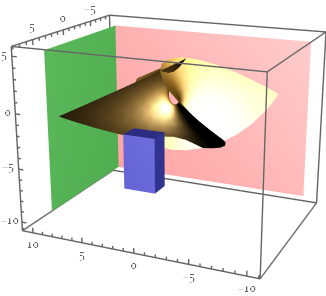
But instead of the original 3D model, we only have access to a “color photo” of it:
In[]:=
img=ImportByteArray,"PNG"//Image[#,ImageResolution120]&
Out[]=
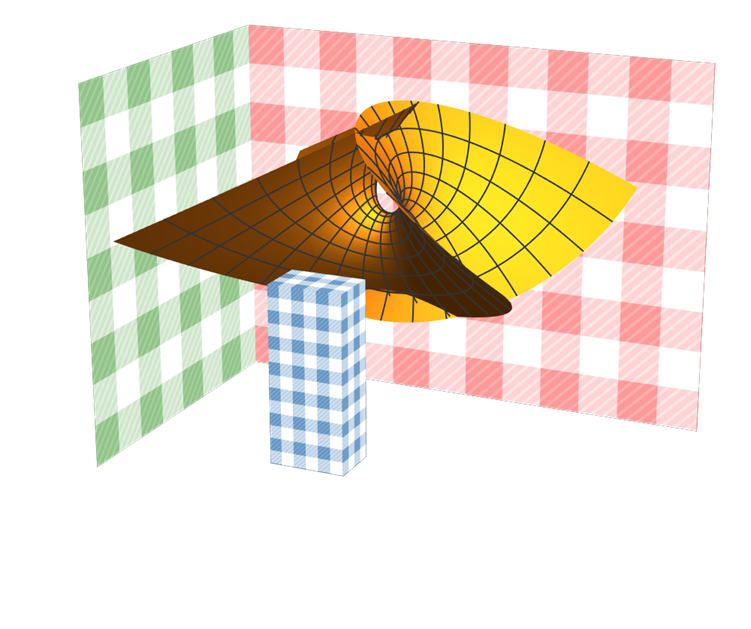
and a “depth-map photo” of it:
In[]:=
depthMask=ImportByteArray,"PNG"//Image[#,ImageResolution120]&
Out[]=
Thin lens with shallow field of view
Thin lens with shallow field of view
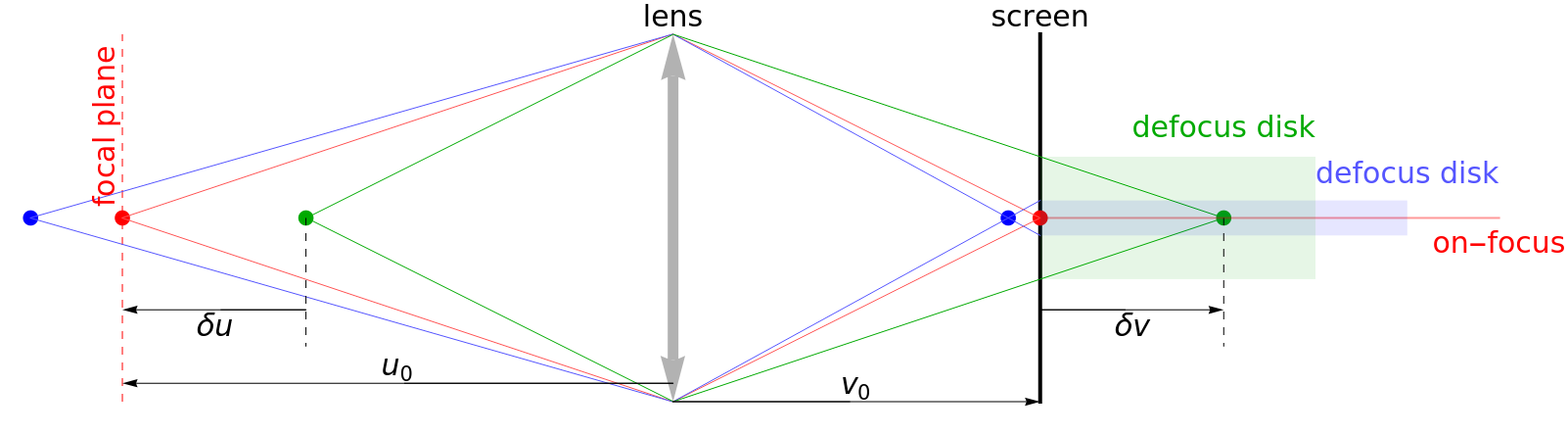
The effect comes from defocus aberration. For a perfect lens and shallow enough field of view, the size of the defocus disk () is approximately proportional to the distance from the object to the focal plane.
radius
δu
In[]:=
Graphics(*lens:*),(*objectsandimages:*),(*lightrays:*),(*defocusregions:*),(*textandmarkers:*)
Out[]=
In[]:=
+-,+-,(1-λ){0,1}+λ{v0+δv,0}-{v0,radius}//RightComposition[Flatten,Thread[#0]&,Solve[#,{v0,δv,λ,radius}]&,radius/.#&]
1
u0
1
v0
1
f
1
u0+δu
1
v0+δv
1
f
Out[]=
fδu
(f-u0)(u0+δu)
So the radius of the defocus disk is:
radius==
f(u-)
u
0
(f-)u
u
0
1-/u
u
0
1-/f
u
0
When , we have :
δu≪
u
0
radius∝δu
In[]:=
Series,{δu,0,2}
fδu
(f-u0)(u0+δu)
Out[]=
fδu
(f-u0)u0
f
2
δu
(f-u0)
2
u0
3
O[δu]
PSF scaling factor according to radius
PSF scaling factor according to radius
Now we have a depth-map, which is an image encoding the value of per-pixel -- the distance from the camera to an object point:
u
In[]:=
Manipulate[Rescale[depthMask,{0,1},{umin,umax}],{{umin,.5},0,1},{{umax,2},umin,10},ControlPlacementTop]
Out[]=
Or just compute the radius directly:
Image in Wolfram language support “overloading” some numerical functions, so we can write the following code, using the formula directly:
Group image pixels by scaling factor
Group image pixels by scaling factor
Filtering out the relevant shade levels (those correspond to non-empty regions), we can see how the scaling map groups original image img into different partitions:
Trick of blurring image with transparency
Trick of blurring image with transparency
Now we can apply different scale of blurring effect to different regions. But before that, one thing worth pointing out is functions like ImageConvolve, Blur, GaussianFilter, etc. will NOT apply the effect to the alpha channel:
One solution is re-combining the channels as a general multi-channel image before blurring filter, and converting it back afterwards:
Blurring image regions according to PSF scaling
Blurring image regions according to PSF scaling
The region-wise blurring filter is straightforward, but please do note the Padding0 option in GaussianFilter , which will play an important roll in alpha blending operation:
The trick of alpha blending
The trick of alpha blending
Readers might have noticed the blackish silhouette in our result :
That is due to Padding0 option in GaussianFilter, which effectively causes an alpha blending with black background across all channels.
For the same reason, ImageCompose won’t give correct result if we try to overlay result on top of a background image:
Note the blackish silhouette is still there.
Nor will Overlay help:
To correctly perform the overlay, we need to understand what is happening during the blurring filter:
So the correct way to overlay result on top of a white background should be:
Note we should NOT add an alpha channel to aboving result, or else we will get over-blending along the silhouette region:
The same operation can be done with any background image:
Possible improvement
Possible improvement
When computing the scaling map we used pure image processing functions, which are responsible for the artificial streaks in final result:
To reduce this kind of artifact, we can start from a finer depth map (with larger size and/or larger color bit-depth), to reduce lost of precision due to color quantization.