We create a method that will allow users to produce a video simulation of 3D Cellular Automatons. This video will guide a user along a path within the cellular automaton such that in a short amount of moves, they can gain a better understanding of the cellular automaton.
What is a Cellular Automaton?
What is a Cellular Automaton?
A cellular automaton or cellular automata (plural) is a series of cells whose existence is determined by a certain rule which has been performed a certain number of times. In Mathematica, we can make cellular automata by using the CelluarAutomation function as shown.
In[]:=
ArrayPlot3D[CellularAutomaton[{10,{2,1},{1,1,1}},{{{{1}}},0},{{{3}}}]]
Out[]=

Cellular Automata can vary in complexity, creating a need for a method to allow us to better understand them. The following figure is an example of an automata that is not as easy to understand upon first glance.
In[]:=
ArrayPlot3D[CellularAutomaton[{6,{2,1},{1,1,1}},{{{{1}}},0},{{{10}}}]]
Out[]=

How can we understand a Cellular Automata?
How can we understand a Cellular Automata?
To gain a better understanding of a cellular automata, we can “look around” it. For example, we can drag our mouse over the previous ArrayPlot3D to see the outer layers of the figure. However, it would be even more helpful to be able to see inside the figure. To do this, we can use the Graphics3D or Manipulate function.
In[]:=
cubes=Table[Cuboid[RandomReal[10,3]],40];Graphics3D[cubes,ViewPointTop,ViewVector->{{3,3,3},{6,6,6}},ViewAngle->0.3]Manipulate[Graphics3D[cubes,ViewPointTop,ViewVector->{{x+15,y+15,z+15},{a,b,c}},ViewAngle->t],{t,0.3,1.5,.01},{x,-3,3},{y,-3,3},{z,-3,3},{a,-1,1},{b,-1,1},{c,-1,1},SaveDefinitions->True]
Out[]=

Out[]=


How do we create a path within the Cellular automata?
How do we create a path within the Cellular automata?
Now that we know how to look inside a cellular automata, we need to determine what points are worth looking at and how we can create a method of viewing our figure. To do this, we need to find a path that allows us to view the most points possible.
1. Finding what points we can view at a given spot
1. Finding what points we can view at a given spot
◼
getTargetCoordinates tells us given our current location and the direction we are facing, what points are in that area.
◼
cubesSeen and cubesSeenInLine tells us given our current location, the cellular automata, and the direction we are facing, what points we can see, accounting for blocked off regions.
In[]:=
2. Creating a path out of the most helpful points
2. Creating a path out of the most helpful points
◼
generateViewVectors gives us the points for turning.
◼
generateViewPoints gives us the points for moving one unit in a direction.
◼
move tells us what our next step should be such that it will show us the most unseen points.
◼
moves tells us the entire path, it is made from combining multiple steps from move.
In[]:=
3. Putting it together
3. Putting it together
◼
Pick a cube-shaped cellular automata you want to step through.
◼
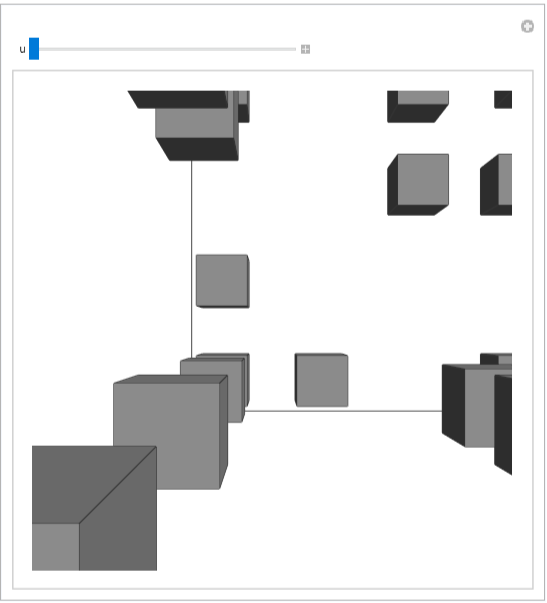
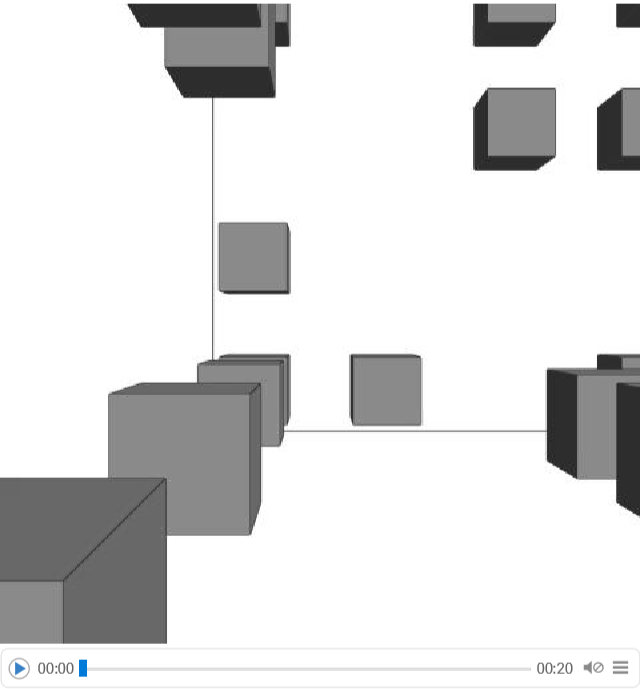
Either choose Manipulate or AnimationVideo to view the product.
In[]:=
grid=CellularAutomaton[{10,{2,1},{1,1,1}},{{{{1}}},0},{{{6}}}];ans=moves[grid];part1=ans[[1]];part2=ans[[2]];(*Manipulate[ArrayPlot3D[grid,ViewVerticalpart2[[u]],ViewVector->part1[[u]],ViewAngle->Pi/4],{u,1,Length[part1],1}]*)Manipulate[ArrayPlot3D[grid,ViewVertical{0.00001,0.000000011,0.99999},ViewVector->part1[[u]],ViewAngle->Pi/4],{u,1,Length[part1],1},SaveDefinitions->True]
Out[]=
In[]:=
AnimationVideo[ArrayPlot3D[grid,ViewVertical{0.00001,0.000000011,0.99999},ViewVector->part1[[u]],ViewAngle->Pi/4],{u,1,Length[part1],1},DefaultDuration20]
Out[]=
Next Steps
Next Steps
This project can be expanded in the following ways
◼
Using a different algorithm to determine what makes a path “good”. Currently we go in the direction that shows us the most unseen points.
◼
Making a more smooth transition when changing what direction we are viewing.