The Wolfram Summer School (WSS) started this week and Discord was this year’s choice for communication between students, mentors, lectures and staff. We’ve had a couple of bots previously for other platforms (e.g. Slack) that have helped the students and staff tremendously. This is why I wanted to write my own Discord bot for this years WSS, which I was able to do entirely in Wolfram Language.
Introduction
Introduction
I use Discord everyday but I never tried writing my own bot.
In order to learn how to do so, the first thing I tried (as in many other topics) was searching in YouTube a video tutorial.
The problem was that the vast majority of tutorials teach you how to create your own bot using Python.
In order to learn how to do so, the first thing I tried (as in many other topics) was searching in YouTube a video tutorial.
The problem was that the vast majority of tutorials teach you how to create your own bot using Python.
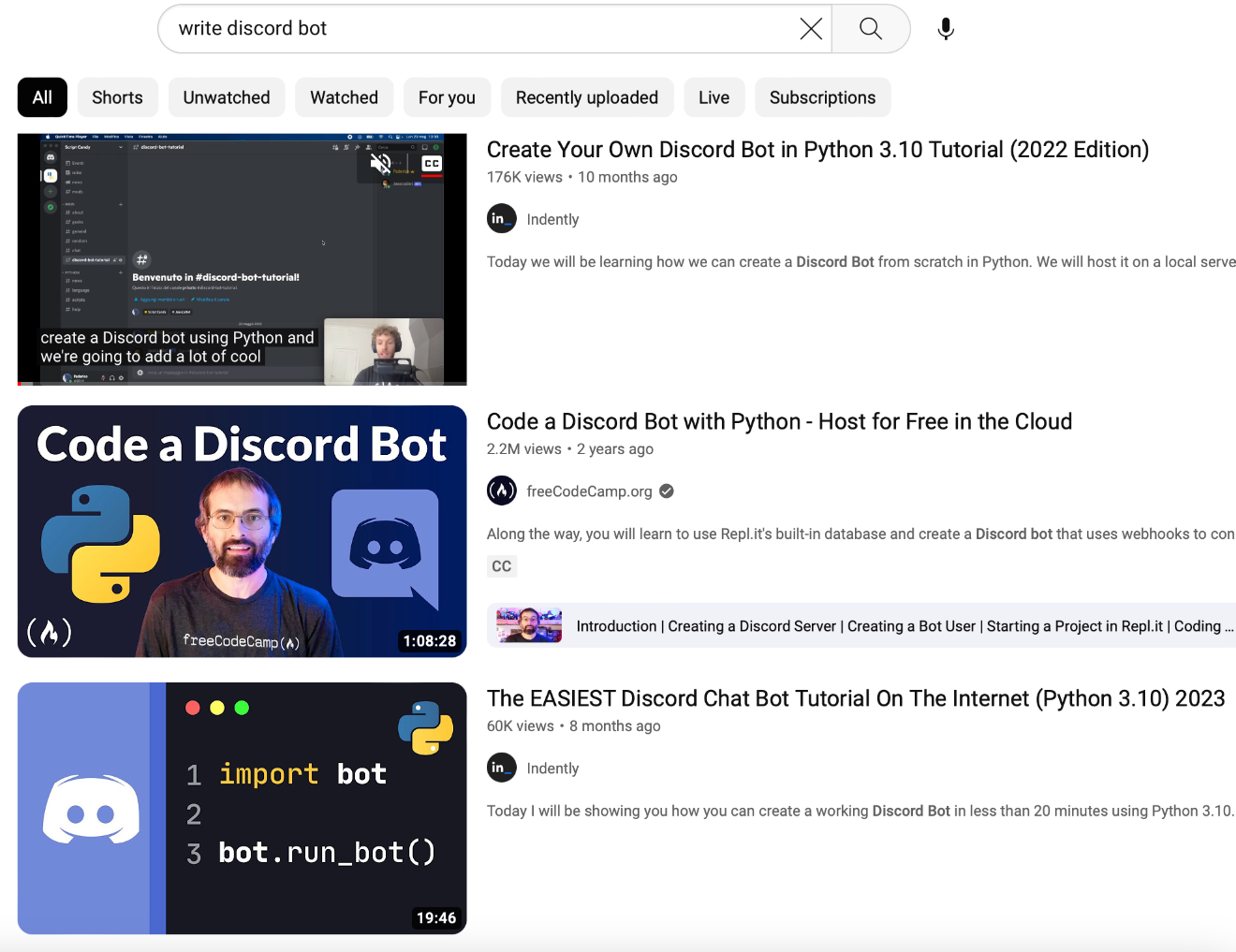
Of course, this is not wrong at all but I wanted to write a bot using Wolfram Language and from scratch.
I was confident this could work as previously I’ve helped in the implementation of a Slack bot (alongside Swastik). Fortunately, I saved the implementation as a notebook so I was able peek it to have a general idea of how a bot could be created.
I was confident this could work as previously I’ve helped in the implementation of a Slack bot (alongside Swastik). Fortunately, I saved the implementation as a notebook so I was able peek it to have a general idea of how a bot could be created.
But first, let’s understand what we want our bot to accomplish.
Slash commands
Slash commands
At the end of this tutorial you will be able to write a Discord bot that supports slash commands.
With Slash Commands, now all you have to do is type a slash “/” to bring up a list of commands that bot can do!
With Slash Commands, now all you have to do is type a slash “/” to bring up a list of commands that bot can do!
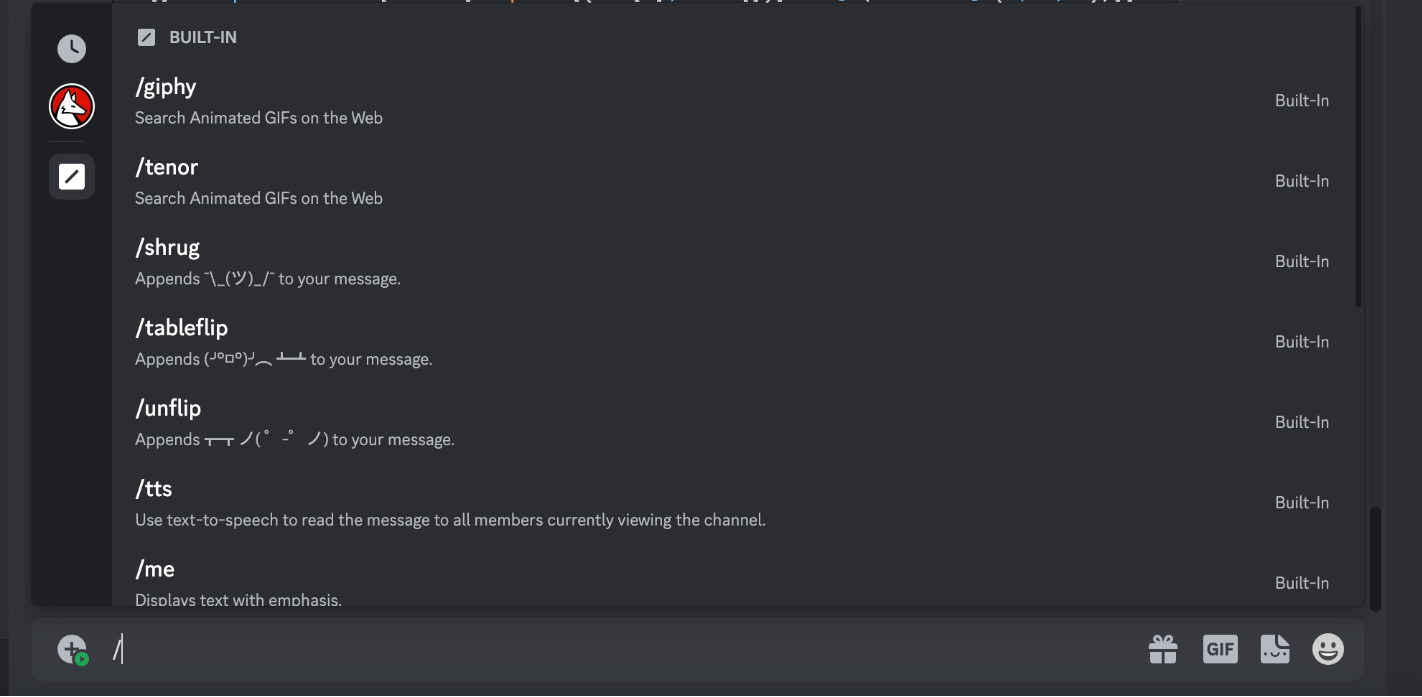
After typing slash “/”, you can either continue typing the name of the desired command or you can simply click on it to select it:

Some commands accept parameters, some commands do not, some parameters are optional, etc.
In this case, the /shrug command can work without giving it a parameter, in which case you get: “¯\_(ツ)_/¯”.
And it also supports a parameter named “message”:
In this case, the /shrug command can work without giving it a parameter, in which case you get: “¯\_(ツ)_/¯”.
And it also supports a parameter named “message”:

If you specify this message you’ll get: “Shrug it off ¯\_(ツ)_/¯”.
Ok, so now you know what slash commands are. Now let’s create a Discord bot.
Creating a Discord bot
Creating a Discord bot
There are a lot of guides that will teach you how to create your Discord bot, e.g. https://www.ionos.com/digitalguide/server/know-how/creating-discord-bot/.
I’ll give you the rundown:
I’ll give you the rundown:
1
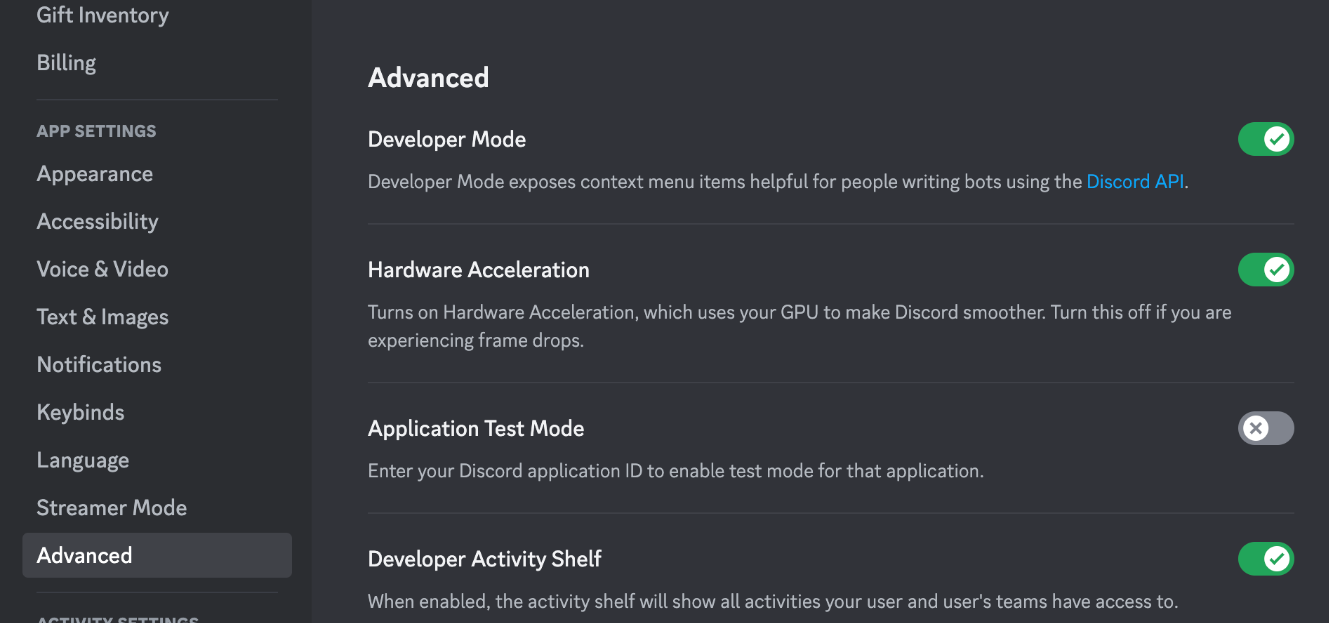
.Turn on “Developer mode” in your Discord account:
2
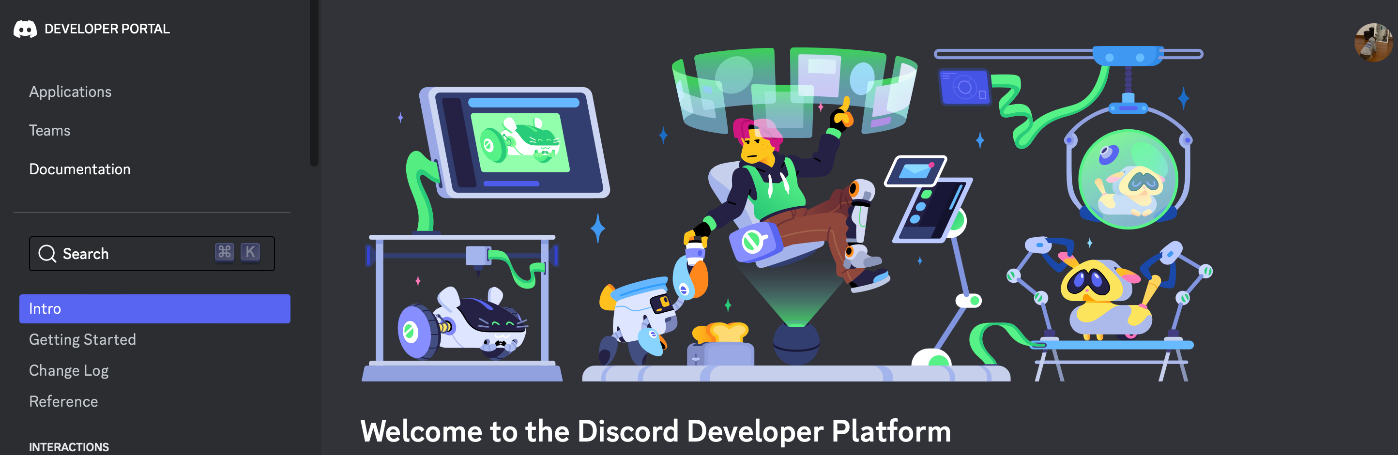
.Click on “Discord API”:
3
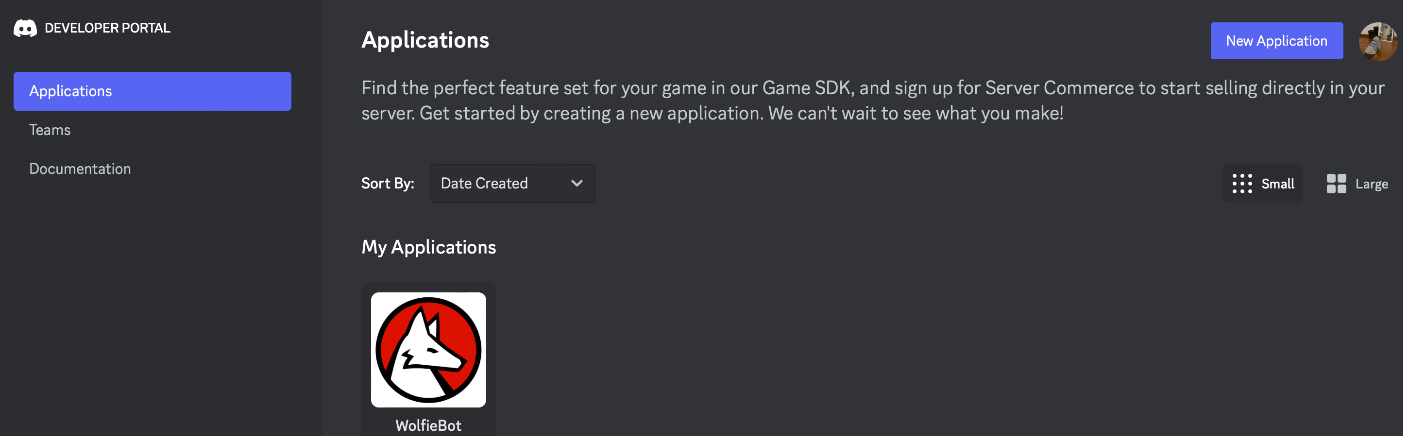
.In the Developer portal, click on “Applications”, then click on “New Application”:
4
.Name the bot and then click “Create”:
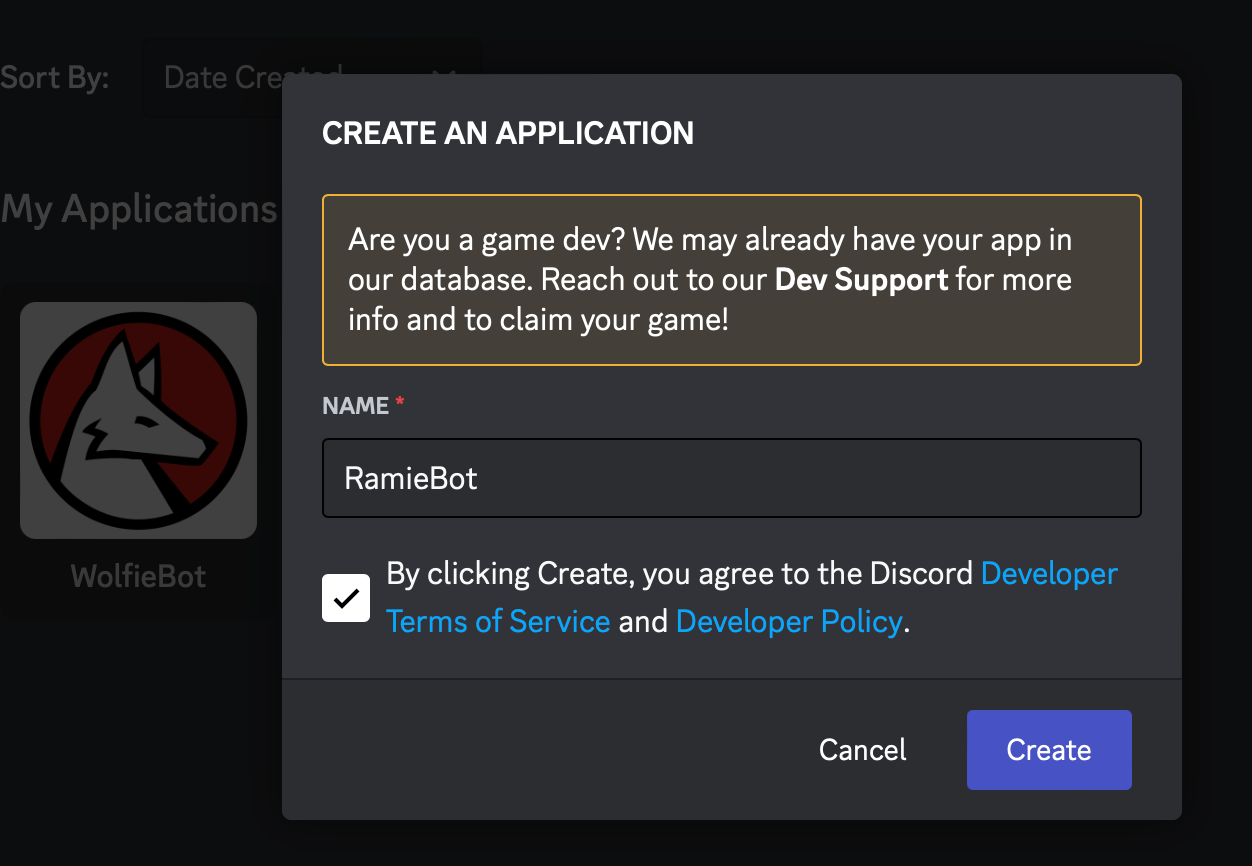
I’m going to name it RamieBot because I already have a WolfieBot.
5
.Fill the General Information section with an icon, description, tags, etc.:
Don’t forget to click on Save Changes.
6
.Click on “Bot”, then under “Build-A-Bot”, click on “Reset Token”:
Make sure to copy this token and store it somewhere. We will be using it later when we actually program the bot. If you lose the token you’ll have to regenerate a new one.
I believe this is the only token that needs to be kept secret. Don’t share it as I did here.
I believe this is the only token that needs to be kept secret. Don’t share it as I did here.
7
.Click on “OAuth2”, then “URL Generator”, set the scope to “bot”, set the permissions, and then click on “Copy”:
I’ve given the bot all text permissions there are. I admit I’m not sure what all these permissions do, but you can learn more about them in https://discord.com/developers/docs/topics/permissions#permissions.
Don’t worry, these permissions can be changed whenever, the only thing that changes is the generated URL.
8
.Use the copied URL (e.g. in a browser) to add the bot to a server you are in:
Ignore the name of the server I’m adding the bot to.
If I’m not mistaken, you need to have admin privileges in the server you are adding the bot to.
Once you authorize the bot, you will a message showing the bot was added to the server:
Once you authorize the bot, you will a message showing the bot was added to the server:
Finally we have our own Discord bot. This bot, however, is useless right now. Let’s start the fun part, programming it!
Adding functionality
Adding functionality
The first thing you will need is have the Discord Developer Platform (https://discord.com/developers/docs/intro) nearby, you will turn to it it a lot.
We will start by storing information about our bot in a variable:
Next, define the Discord base API URL which we will be using all across this tutorial (notice we are using version 10 of the API):
Managing Commands
Managing Commands
Let’s start writing some tools to add, delete and get information of our bot slash commands.
Tools
Tools
Registering commands
Registering commands
DiscordApplicationCommandInformation will return a Dataset of the registered commands of our bot.
Of course, we haven’t registered any command yet so we will get an empty Dataset:
Of course, we haven’t registered any command yet so we will get an empty Dataset:
RegisterDiscordApplicationCommand will be used to register commands to our bot.
To register a command you will also have to pass a JSON string as the body of the HTTPRequest that specifies the configuration of the command.
The parameters are specified in:
To register a command you will also have to pass a JSON string as the body of the HTTPRequest that specifies the configuration of the command.
The parameters are specified in:
Now we will have to decide what commands we want for our RamieBot.
Now you can get a dataset of the registered commands for our bot:
I should mention that if you want to change how the command is setup, simply rerun the RegisterDiscordApplicationCommand and the command will be updated ().
Let’s add one more command to our bot. A handy functionality for the WSS is a command that returns links to useful resources, e.g. a link to the Wolfram Community webpage.
These links can be stored in a variable:
These links can be stored in a variable:
And voila! If you try typing these commands in the Discord server you added the bot to you will see:
However, if you execute any of these commands:
You will get “The application did not respond”:
This is expected as you haven’t really implemented what the commands actually do, you just registered the “specs”.
Finally, if you want to delete a command, simply call UnregisterDiscordApplicationCommand (which I won’t evaluate):
The command id you wish to delete can be obtained from the “id” key in DiscordApplicationCommandInformation.
Receiving and Responding to interactions
Receiving and Responding to interactions
Receiving an interaction
Receiving an interaction
Our bot will be receiving interactions via outgoing webhook (the alternative is to do it via gateway events, but I don’t know how those work).
In order to do configure this, we need to set the “INTERACTIONS ENDPOINT URL” in the “General Information” section of the bot Developer Portal.
In order to do configure this, we need to set the “INTERACTIONS ENDPOINT URL” in the “General Information” section of the bot Developer Portal.
In order for the URL to be valid, we must be prepared for two things ahead of time:
1
.2
.If either of these are not complete, Discord won’t validate the URL and it will fail to save (in the field above).
Now, let’s setup the endpoint URL that will be receiving and responding to interactions.
We will be using a combination of CloudDeploy + Delayed for deploying our endpoint.
Let’s start with an empty endpoint that just returns a 200 response:
We will be using a combination of CloudDeploy + Delayed for deploying our endpoint.
Let’s start with an empty endpoint that just returns a 200 response:
As I mentioned above, when we attempt to save the endpoint URL, Discord will send a POST request to that URL with a PING payload.
The PING payload has a type: 1. So, to properly acknowledge the payload, the endpoint will have to return a 200 response with a payload of type: 1:
The PING payload has a type: 1. So, to properly acknowledge the payload, the endpoint will have to return a 200 response with a payload of type: 1:
Let’s try deploying this endpoint to the cloud. I’ll deploy the endpoint to the location “Projects/WriteYourOwnDiscordBot/RamieBot” in my cloud directory, but can change it:
Now copy this URL and attempt to save it in the field above:
You will get the following error message:
Ah! We are still not handling the item 2. mentioned above, properly handle signature headers, so let’s do that.
Every Interaction is sent with the following headers:
Every Interaction is sent with the following headers:
◼
“X-Signature-Ed25519” as a signature
◼
“X-Signature-Timestamp” as a timestamp
We must validate the request each time you receive an interaction using some kind of verification library. If the signature fails validation, we have to respond with a 401 error code:
But what is VerifyDiscordSignature? There are some examples in https://discord.com/developers/docs/interactions/receiving-and-responding #security-and-authorization for how to implement this in other languages.
I tried using VerifyDigitalSignature to achieve this, but couldn’t figure out how. I’ll briefly explain why: VerifyDigitalSignature requires a DigitalSignature object, which can be only created via GenerateDigitalSignature, which in turns requires a private key to function. From the documentation I saw, I didn’t know where to get this private key. However, digging deep inside the code of VerifyDigitalSignature, I found out there was a way to validate Edwards-curve Digital Signature Algorithm (EdDSA) using the body and headers of the request data and the public key of our bot:
I tried using VerifyDigitalSignature to achieve this, but couldn’t figure out how. I’ll briefly explain why: VerifyDigitalSignature requires a DigitalSignature object, which can be only created via GenerateDigitalSignature, which in turns requires a private key to function. From the documentation I saw, I didn’t know where to get this private key. However, digging deep inside the code of VerifyDigitalSignature, I found out there was a way to validate Edwards-curve Digital Signature Algorithm (EdDSA) using the body and headers of the request data and the public key of our bot:
If we now deploy our endpoint again and attempt to save it as an “INTERACTIONS ENDPOINT URL” we will see:
Success! Our endpoint is now saved and verified by discord. All that remains is actually (now for serious) implementing the commands.
Wrapping up
Wrapping up
This tutorial showed you how to create, register and program a Discord bot from scratch. This was achieved entirely in Wolfram Language without the need of any external libraries.
Hope you liked it!
Hope you liked it!
CITE THIS NOTEBOOK
CITE THIS NOTEBOOK
Write your own Discord bot
by Daniel Sanchez
Wolfram Community, STAFF PICKS, June 29, 2023
https://community.wolfram.com/groups/-/m/t/2947372
by Daniel Sanchez
Wolfram Community, STAFF PICKS, June 29, 2023
https://community.wolfram.com/groups/-/m/t/2947372