CITE THIS NOTEBOOK: TelegramBot: Telegram Bot API client for the Wolfram Language by Kirill Belov. Wolfram Community Dec 21 2022.
ORIGINAL PACLET: Kirill Belov (2022). TelegramBot: Telegram Bot API client for the Wolfram Language. Wolfram Language Paclet Repository. https://resources.wolframcloud.com/PacletRepository/resources/KirillBelov/TelegramBot/
GITHUB: https://github.com/KirillBelovTest/TelegramBot
CITE THIS NOTEBOOK: TelegramBot: Telegram Bot API client for the Wolfram Language by Kirill Belov. Wolfram Community Dec 21 2022.
ORIGINAL PACLET: Kirill Belov (2022). TelegramBot: Telegram Bot API client for the Wolfram Language. Wolfram Language Paclet Repository. https://resources.wolframcloud.com/PacletRepository/resources/KirillBelov/TelegramBot/
GITHUB: https://github.com/KirillBelovTest/TelegramBot
ORIGINAL PACLET: Kirill Belov (2022). TelegramBot: Telegram Bot API client for the Wolfram Language. Wolfram Language Paclet Repository. https://resources.wolframcloud.com/PacletRepository/resources/KirillBelov/TelegramBot/
GITHUB: https://github.com/KirillBelovTest/TelegramBot
Preamble
Preamble
Today I want to talk about a very useful (for me personally) package. It’s strange that no one has yet made a package of this type in the Wolfram Language publicly available. Although I made my package back in 2017 and kept it on GitHub, but since now we have the Wolfram Language Paclet Repository, I am gradually refactoring and moving all my projects there so that the community always has the fastest access to all packages.
In this article I will try to show an interesting example. I will show you step by step how you can create your very simple Telegram Bot, test the Bot and add features to the Bot.
Bot creating
Bot creating
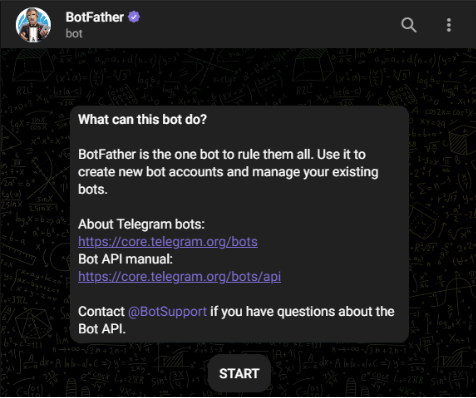
If you don’t have a single bot yet, then to create it in Telegram, you need to follow a few simple steps. To get started, start a chat with a bot whose name is @BotFather:
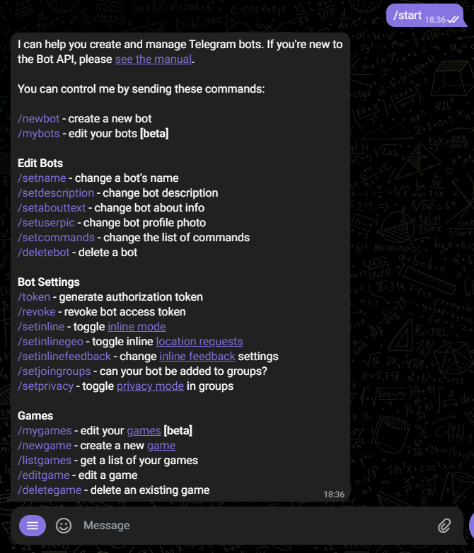
@BotFather commands below:
Just click on any command and the bot will execute it. But right now we only need one command called /newbot:
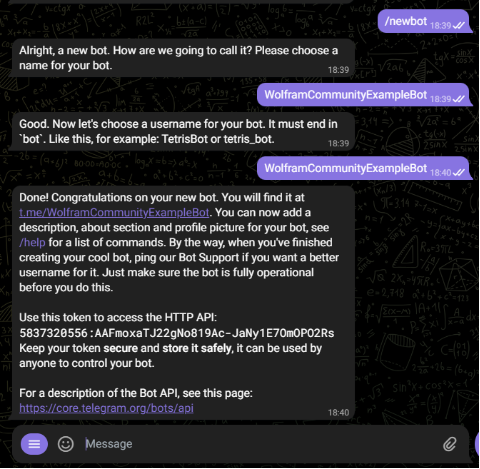
In the screenshot above, I got the API token. We will need it in the next sections. Also I set a user icon for my new bot:
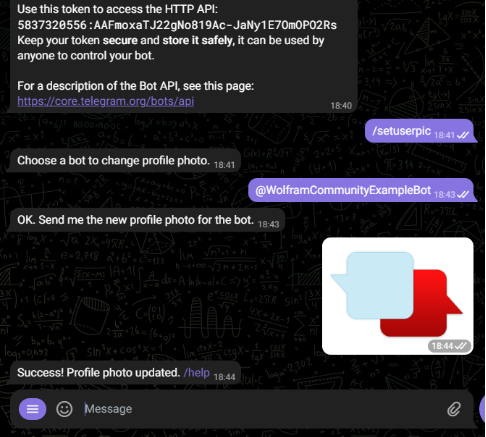
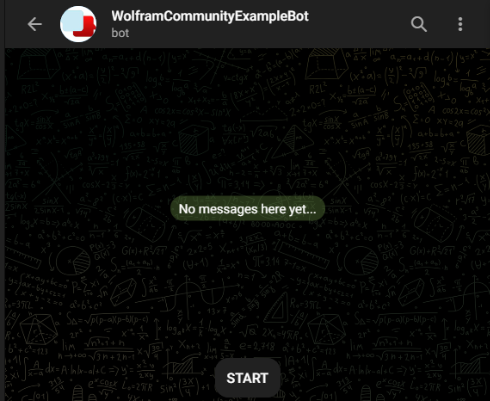
Everything is ready. It remains only to click on the start button and start adding functionality to our bot.
Preparation
Preparation
Let’s install the package first:
PacletInstall["KirillBelov/TelegramBot"]
PacletObject

And import the package into the current session:
<<KirillBelov`TelegramBot`
Let’s create an object that represents a bot in the Wolfram Language. All further actions will be performed with this bot:
bot=TelegramBot["5837320556:AAFmoxaTJ22gNo819Ac-JaNy1E7OmOPO2Rs"]
TelegramBot
Simple examples
Simple examples
Before creating some complex bot logic, let’s look at the functions that we will use. I have already started a dialogue with this bot with the /start command and the bot received one message. To get all the new messages that someone (like me) wrote to the bot, you need to run the following code:
There is only one update object. From it we can extract the received message, the name of the user who wrote it and the chat ID:
The next step is to send a message to this chat using the sendMessage function:
The result is:
In addition, we can send a photo to the chat:
Result:
For our purposes, these basic functions will suffice for now. Now let’s move on to creating the bot logic.
Evaluating code from chat
Evaluating code from chat
Yes, a very simple idea. I already made such a bot. You can even watch a video on how it works. Now I will try to repeat this for the article for greater clarity and an explanation of how it can be easily done by yourself and modified in the future.
And so, how the bot should work. Let’s create requirements. The bot must receive updates. Walk through them all. Find formatted code with a monospaced style in the body of the message. Take this code, execute it and send the result back to the chat. Everything is very simple. For debugging, I sent the following message to the bot:
Let’s see what the update object looks like with text formatted in monospaced style:
Last update:
And last message itself:
Such messages contain additional fields. Let’s create some functions to work with such messages.
The first function will check that the message contains the code:
Let’s check on the first and second messages that the bot received:
The following function should extract the code itself from the message:
Check this function:
Nice, we can complete this year very easily:
Create answer text:
Now let’s send the result back to the chat:
The result is:
Great, now everything is the same, but an image with a graph is sent in response:
The result is:
Now let’s combine all this into one function. In this case, if the result is a graphics, then we use the sendPhoto, and if the result is a string, then we send the string using the sendMessage method:
Bot task
Bot task
After we have created a function that will process each message that has come to the bots, this bot needs to be launched. The package has two functions for this. The first function runs the bot locally as a scheduled task. Here’s how to do it:
Now the bot will run every second for 15 minutes, check for updates, and if they contain code, it will execute it and send the result back to the chat. Below is an example of how I sent a few messages to the bot:
Bot in the Wolfram Cloud
Bot in the Wolfram Cloud
The second way to launch a bot is to deploy the bot to the Wolfram Cloud. The package also has a special function for this. Similarly, it needs to pass the bot itself and the function that the bot will use to process updates as parameters:
After that, in the same way, you can go to the chat with the bot and send him some code. Now he will run it in the cloud. The advantage of this method is that you do not need to keep the computer running with the session running all the time, however, there are limitations imposed by the cloud and the API (sometimes it takes a while before switching to webhook).
Conclusion
Conclusion
I am currently actively developing this package. I hope this short guide will be useful to someone. You will find more examples in the package documentation. In the future, I plan to write about several more interesting ways to use this paclet. For example, how to create a dialog system or add control using the inline keyboard. Be sure to email me if you have any questions or suggestions. Thank you all for your attention!