This project aimed to convert an image into a continuous running route mapped onto real-world streets. Using edge detection and image processing functions, an image’s meaningful features were extracted and aligned within a geographic region. I used data from OpenStreetMap to gather detailed information about a city’s streets, including nodes and ways that form its road network. The image pixels were scaled to fit within the geographic bounds of the selected region and then snapped to the nearest street nodes. By constructing a street graph and finding the shortest path between each pair of connected nodes, I generated a continuous path that mirrors the shape of the original image. The final output is a running path that visually resembles an input image, but mapped onto city streets.
Introduction
Introduction
On the popular running app Strava, people log a variety of physical activities such as running, biking, and walking. The routes they follow are recorded and displayed on a map, allowing users to visualize their workouts. Some people take advantage of this feature to create “Strava Art” by deliberately planning routes that form recognizable shapes, symbols, or words when mapped. However, manually designing routes that form specific shapes can be time-consuming and difficult, especially when trying to fit an image onto a real street network. By developing a method to process images and utilizing OpenStreetMap data, this project aims to automate the process by taking any input image and converting it into a continuous running routes.
Image Processing
Image Processing
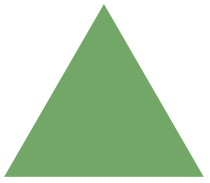
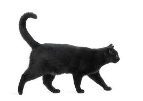
Every image can be broken down into a set of many pixels. Whether it be an image as simple as a square, or something more complex like a cat, we should decompose them into the simplest form before mapping them into street routes.
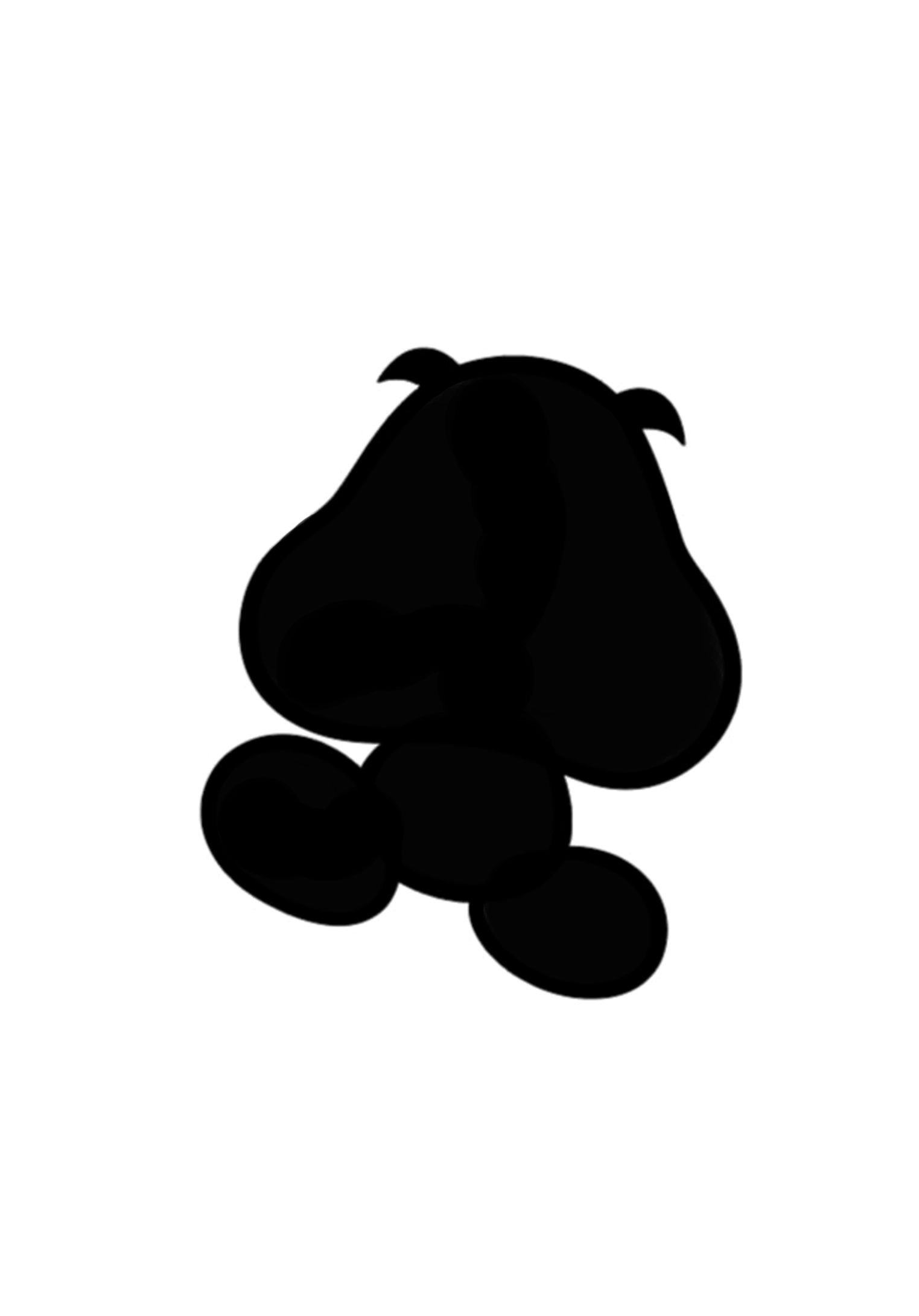
A set of images:
In[]:=
imageCollection=
,
,
,

,
,

,
;

Extracting Image Data
Extracting Image Data
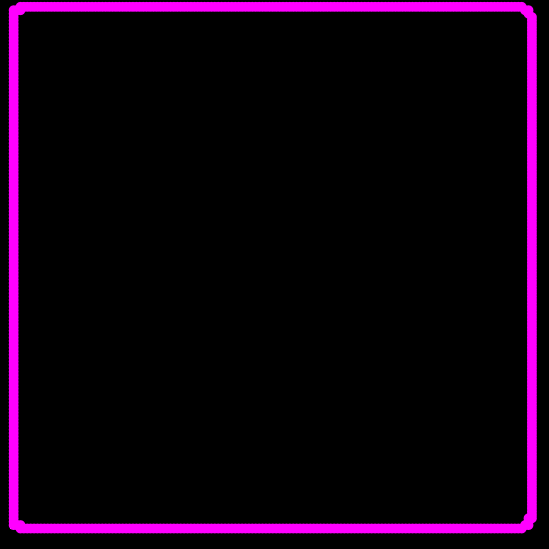
Using an image's outline produced by EdgeDetect, we can extract its most meaningful pixels . By passing these pixels into HighlightImage, the important parts of an image are highlighted in pink, giving us a clear view of an image's pixel make-up.
Outlines an image and extracts its pixel positions:
In[]:=
image=imageCollection[[1]];pixels=PixelValuePositions[EdgeDetect[image],1];HighlightImage[EdgeDetect[image],pixels]
Out[]=
Creating a Graph
Creating a Graph
Now that we have a set of pixels, we need to organize them into a meaningful order. On their own, the pixels are just scattered points along the image’s edges and don’t carry any information about how to move from one to the next. To eventually turn these into a continuous path, we need to determine which pixels are connected, and in what order. To do this, we can treat the pixels as nodes in a graph and connect each pixel to its nearest neighbors.
Finds each pixel’s two closest neighbors and connects them with undirected edges:
In[]:=
(edges=DeleteDuplicates[Sort/@Flatten[Function[point,Module[{neighbors=Rest[Nearest[pixels,point,3]]},UndirectedEdge[point,#]&/@neighbors]]/@pixels]])//Short
Out[]//Short=
{{6,159}{7,159},{6,158}{6,159},{7,159}{8,159},{8,159}{9,159},601,{150,6}{151,6},{151,6}{152,6},{152,6}{153,6},{153,6}{154,7}}
With a list of edges, we can trace a continuous path through the image. Each edge represents a connection between two nearby pixels, allowing us to follow the structure of the original shape by generating a cycle where each pixel is visited once.
Provides a Hamiltonian cycle that outlines the image:
In[]:=
(cycle=Flatten[FindHamiltonianCycle[edges]])//Short
Out[]//Short=
{{6,159}{7,159},{7,159}{8,159},{8,159}{9,159},{9,159}{10,159},599,{4,157}{4,158},{4,158}{5,158},{5,158}{6,158},{6,158}{6,159}}
This cycle can then be used to determine the correct order of the pixels, which is important since running routes follow single, continuous lines.
Returns all the coordinates of pixels in order:
In[]:=
(coordinatesInOrder=#[[2]]&/@cycle)//Short
Out[]//Short=
{{7,159},{8,159},{9,159},{10,159},{11,159},{12,159},{13,159},{14,159},591,{4,154},{4,155},{4,156},{4,157},{4,158},{5,158},{6,158},{6,159}}
Visualizes the correct order of the pixels, generating a path along the outline:
In[]:=
Manipulate[With[{pt=coordinatesInOrder〚Draw〛},Show[HighlightImage[image,pt],Graphics[{Blue,Point[pt],Orange,Text[Style[ToString[pt],10],pt+{0,10}]}],ImageSizeMedium]],{Draw,1,Length[coordinatesInOrder],1},SaveDefinitions->True]
Out[]=



Map Regions and OSM Data
Map Regions and OSM Data
Map Regions
Map Regions
To generate an accurate running path, we have to choose an area with a lot of streets. For this project, Mesa, Arizona, was the place of choice because of its dense, grid like street layout.
Region of Mesa, Arizona bounded by coordinates from GeoBoundingBox:
In[]:=
city=;cityCoords=GeoBoundsRegion[{GeoBoundingBox[city][[All,1]][[All,1]],GeoBoundingBox[city][[All,1]][[All,2]]}];GeoGraphics[cityCoords]//Rasterize
Out[]=
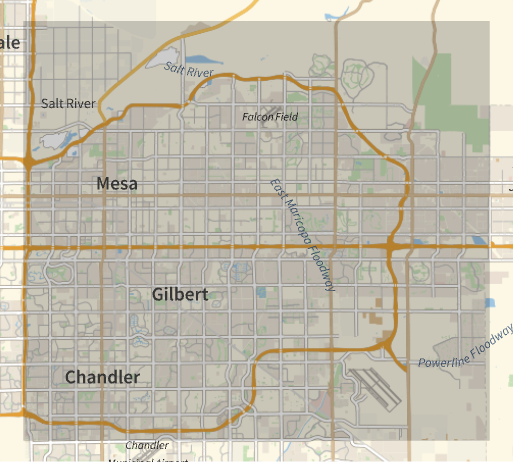
Since this region is relatively large, we have to split it up into smaller regions before importing OSM data due to limitations of the OSMImport resource function.
Function to partition a GeoBoundsRegion region:
In[]:=
regionPartition[region_]:=Module[{latrange,lonrange,regionCount},latrange=cityCoords[[1,1,2]]-cityCoords[[1,1,1]];lonrange=cityCoords[[1,2,2]]-cityCoords[[1,2,1]];regionCount=Ceiling[Mean[{latrange,lonrange}]/0.02];Flatten[Table[ GeoBoundsRegion[{ {region[[1]][[1,1]]+(latrange/regionCount)*(j-1),region[[1]][[1,1]]+(latrange/regionCount)*j}, {region[[1]][[2,1]]+(lonrange/regionCount)*(i-1),region[[1]][[2,1]]+(lonrange/regionCount)*i} }], {i,regionCount},{j,regionCount}]]]
The regionPartition function takes a region and splits it into smaller rectangular subregions. It first calculates the latitude and longitude span of the area and decides how many chunks to create based on the average size. Then, it iterates over the region, generating individual rectangles for each grid cell. Each of these is wrapped in a GeoBoundsRegion, and the function returns a list of all the resulting subregions.
Visualizing the regions using GeoListPlot:
We can now import the OSM data for each of these subregions using OSMImport. However, the resource function sometimes fails if it’s called too many times in a short period. To combat this, let’s downscale again to a smaller region.
A 3x3 region:
Utilizing OSM Data
Utilizing OSM Data
Importing the Data
Importing the Data
The resource function OSMImport can be used to extract Open Street Map data in each of these regions. It returns a structured dataset containing nodes, ways, and associated metadata such as road types or tags. Due to the long run time and size of the OSMImport data, it was uploaded to the cloud for easy access.
Importing OSM data:
This data contains a list of associations for each subregion, with each association holding both node and way data. Each “way” is a collection of nodes that define its shape and path, along with tags that describe what the way represents. The nodes themselves store geographic coordinates and may also carry additional tags. We can use this data to visualize and reconstruct the street layout of each region.
Visualizing all the ways with tag “highway” in downScaledRegion:
Not every street can be used in a running route, so we have to do some filtering to extract ways that only have certain tags, such as “sidewalk,” “crosswalk,” and “living_street.”
Filtering ways to include only paths suitable for running:
Extracting Necessary Data
Extracting Necessary Data
In the OSM data, nodes can represent buildings, streetlamps, landmarks, and other things. Since we’re generating running routes, we only care about nodes that are part of the street network from ways. That means we have to filter the data and only keep those that make up ways, as these define the actual roads that can be followed during a run.
Lists of Node Keys that are on Ways in each subregion:
Lists of GeoPositions from Nodes on Ways in each subregion of downScaledRegion:
Association of node IDs to GeoPositions:
Now we have all the nodes that are on the Ways, along with an association mapping each node ID to its corresponding GeoPosition. This association will be useful later on when we need to convert a path of connected node IDs into geographic coordinates.
Generating a Path
Generating a Path
Generating a Graph of the Region
Generating a Graph of the Region
Before turning an image into a route, we need to be able to find valid paths between two points in a geographic region. We start by generating a graph of the region using the OSM data. For each way, we will partition it and create undirected edges between every pair of consecutive nodes, effectively turning each way into a path in the graph. Since ways have nodes in common, this process will eventually create a connected street graph where nodes represents points on a street.
Creates a graph of street data from the whole downScaledRegion:
The city graph is obviously too big to visualize, so let’s see how this graph looks for a small sample of nodes. Some of the nodes may appear disconnected because this graph is built from only a small part of the data. Since not all streets or connections are included, certain nodes may lack the edges from osmData that normally link them to the rest of the network.
Visualizing a graph from a small sample of all Nodes:
Mapping Image Corners Onto a Region
Mapping Image Corners Onto a Region
Now that we have image pixel data, along with map regions and OSM data, we need a way to connect the two. The goal is to map the image pixel positions onto a real-world map. To do this, the geoConversion function uses the image size and the region’s latitude and longitude bounds to scales each pixel in relation to each other. The output is a set of latitude-longitude pairs that follow the shape of the image.
Converts pixel coordinates to GeoPositions:
Finding the image size and GeoRange:
All pixels mapped onto the map as GeoPositions:
Finding Nearest Nodes
Finding Nearest Nodes
With all the image pixels mapped onto the region, we now need to “snap” each of these GeoPositions to the nearest node in the OSM street graph. This is important because the raw geographic coordinates from the image may not align exactly with real streets. By finding the closest valid street node for each pixel GeoPosition, we ensure that the final path stays on the actual road network. We can do this by using the keysToGeoAssociation and the Nearest function. Each time a GeoPosition is passed in, it is compared to all nodes in the street graph, and the key of the nearest node is returned.
Mapping and visualizing every GeoMarker to the nearest street node:
When dealing with higher resolution pictures (like a Goomba), one issue encountered is long run time due to the large number of street nodes and image pixels. To address this, we can trade some image accuracy for faster performance by working with a subset of the pixel markers. We can obtain a subset that still preserves the overall shape of the image by evenly sampling along the path.
Mapping and visualizing every fifth GeoMarker to the nearest street node:
Connecting The Nodes
Connecting The Nodes
Now that the pixels are snapped to the nearest street nodes, we can connect them to form a continuous path. Since the pixels were previously arranged in the correct order, the GeoPositions are already sequenced to follow the shape of the image. Using this, we can step through each pair of consecutive nodes and find the shortest path between them on the street graph.
Creates edges between consecutive image pixels:
For each edge of the image, the FindShortestPath function will return a sequence of node IDs that that represent the shortest route between the two connected points.
Finds the shortest path for the two points in a graph:
The pathsToLines function converts a list of paths into sequences of GeoPositions. For each path, it checks if the path is empty or unusually long (more than 20 nodes) . If so, it uses only the start and end points of the corresponding edge from the imageGraph. Otherwise, it maps every node in the path to its corresponding GeoPosition using the keysToGeoAssociations association . The result is a list of GeoPositions that are ready to be drawn on the map as lines.
Finally, we can use Line to create line segments from each list of GeoPositions. These line segments are all connected in sequence, forming our one continuous running path!
Connecting all nodes:
Limitations and Conclusion
Limitations and Conclusion
There was a lot of experimentation with image processing functions due to inaccuracies in various edge detection methods and challenges in preserving the overall shape. One limitation of the current approach is that the input image must consist of a single outer outline, without any internal lines or details. The inner details present the challenge of creating a continuous route that may require backtracking, necessitating more advanced pathfinding logic. Additionally, generating paths using OSM data proves to be a little challenging, as import regions have to be small. This leads to more inaccuracies in an image as a smaller pool of nodes can lead to paths where they deviates completely from an image’s outline. Nevertheless, I was able to successfully generate running routes from select images through a lot of experimentation, tuning, and iteration.
Future Directions
Future Directions
In the future, I would like to expand to more complex images through exploring different image processing methods and path-finding algorithms. I would also like to experiment with other ways to build a city’s graph and find better ways to traverse it. By optimizing these graphs, along with using more OSM data, route accuracy can be improved. Other features would include a distance parameter, where the images would into a route with the distance as close to the specified value as possible. This could be done by testing different regions of the world, and with more accurate street data extraction and filtering. A user interface would also be practical, in order to let people turn any image they want into a route. Lastly, it would be nice to develop a metric to quantitatively determine how well the generated path matches the original image.
References
References
◼
OpenStreetMap Wiki. (n.d.). Wiki.openstreetmap.org. https://wiki.openstreetmap.org/
◼
Wolfram Function Repository. (n.d.). OSMImport. https://resources.wolframcloud.com/FunctionRepository/resources/OSMImport/
◼
[WSRP24] Generating running routes with cycle algorithms - Online Technical Discussion Groups—Wolfram Community. (2025). Wolfram.com. https://community.wolfram.com/groups/-/m/t/3216366
Acknowledgements
Acknowledgements
First, I would like to give a huge thanks to my mentor Tate Allen for guiding me and dealing with me for nearly 7 hours a day. Additionally, I’d like to thank Zoya Brahimzadeh for bestowing her knowledge onto me, along with Annie Zhu and other TAs for keeping me company. I thank Stephen, Rory, Eryn, and Megan for creating an opportunity that was not only mentally stimulating, but also fun and memorable. Special thanks to my brother for making this trip possible, and to the sole barista at Starbucks for the countless Strawberry Açaís.
CITE THIS NOTEBOOK
CITE THIS NOTEBOOK
Generating running routes from image outlines
by Bryan Chen
Wolfram Community, STAFF PICKS, July 10, 2025
https://community.wolfram.com/groups/-/m/t/3502334
by Bryan Chen
Wolfram Community, STAFF PICKS, July 10, 2025
https://community.wolfram.com/groups/-/m/t/3502334