Introduction
Introduction
Many people use the Wolfram Language to create plots. If you want to go beyond that, whether to further enhance a visualization or create something entirely new, it’s good to have an understanding of some of the lower-level features of the graphics language.
◼
Axes and Frames
◼
PlotRange and Padding
◼
ImageSize and AspectRatio
◼
Coordinate Systems and Units
Axes and Frames
Axes and Frames
There are two, independent, ways of adding scales to a graphic: axes and frames:
Graphics[{},Axes->True,Ticks->{Range[-1,1,0.25],Range[-1,1,1]},AxesLabel->{"",""},AxesStyle->16]
Out[]=
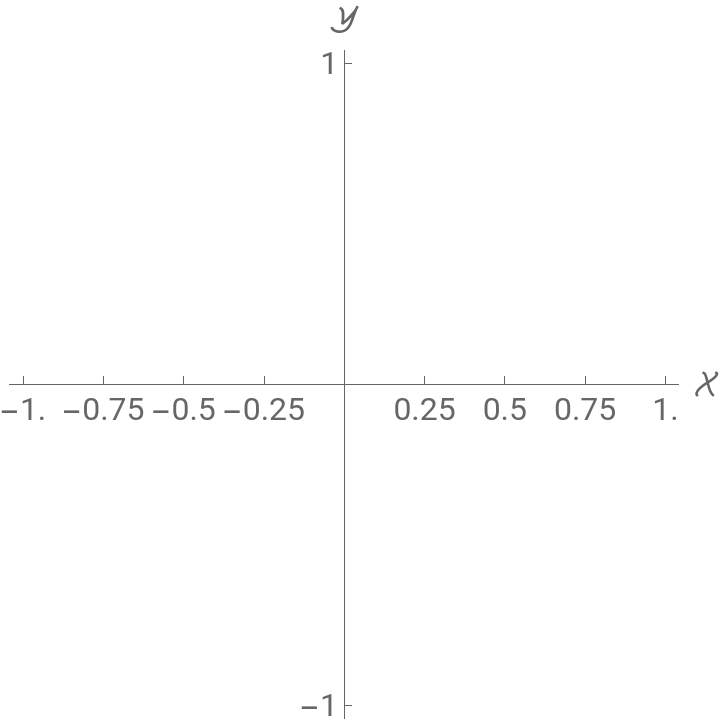
Graphics[{},Frame->True,FrameTicks->{{Range[-1,1,0.25],Range[-1,1,1]},{None,Range[-1,1,0.5]}},FrameLabel->{{"ℒ","ℛ"},{"ℬ",""}},FrameStyle->16,RotateLabel->False]
Out[]=
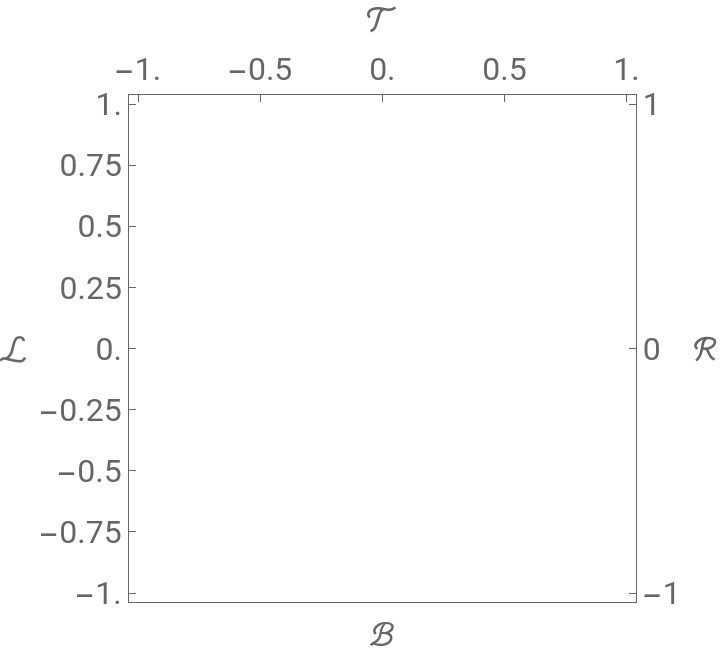
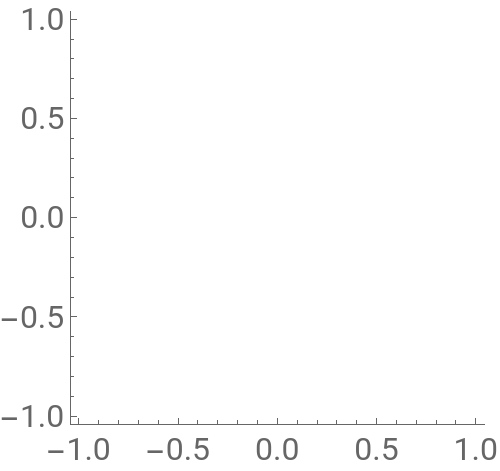
It may not always be obvious which system is being used:
In[]:=
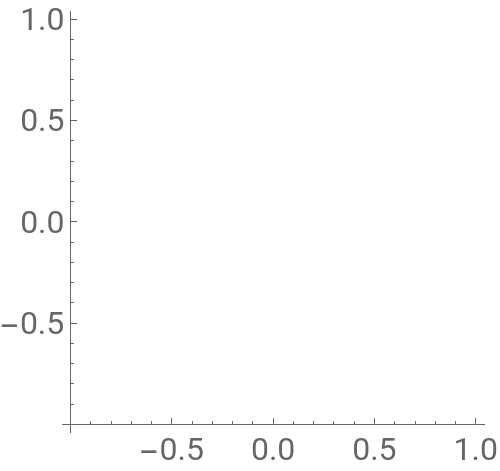
{Graphics[{},Axes->True,AxesOrigin->{-1,-1},AxesStyle->16,ImageSize->250],Graphics[{},Frame->{{True,False},{True,False}},FrameStyle->16,ImageSize->250]}
Out[]=
,
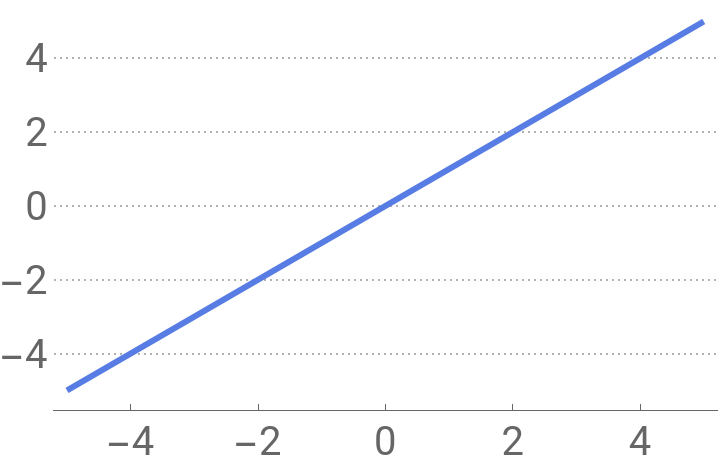
Several themes use frames to force the coordinate scales to be on the edges, regardless of the plot range:
In[]:=
Plot[x,{x,-5,5},PlotTheme->"Business",LabelStyle->20]
Out[]=
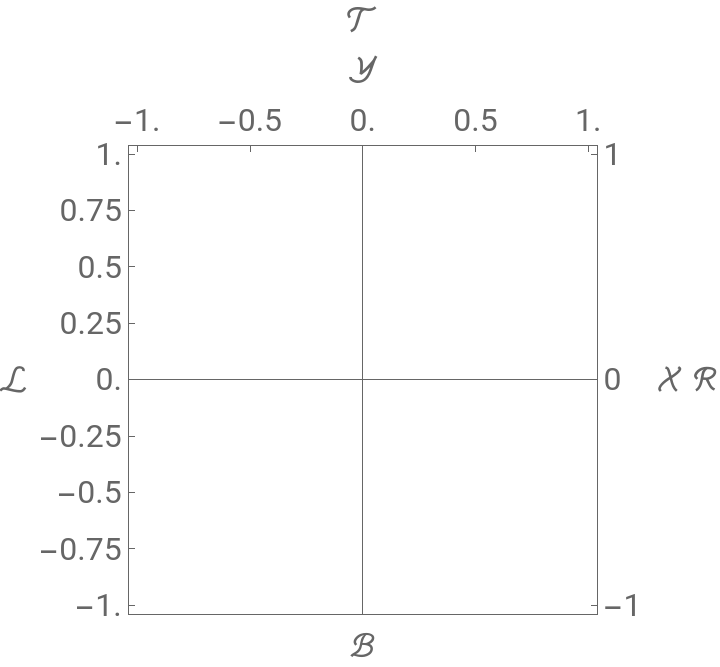
You can use frames and axes together, but the axes won’t have tick marks:
In[]:=
Graphics[{},Axes->True,Ticks->{Range[-1,1,0.25],Range[-1,1,1]},AxesLabel->{"",""},AxesStyle->16,Frame->True,FrameTicks->{{Range[-1,1,0.25],Range[-1,1,1]},{None,Range[-1,1,0.5]}},FrameLabel->{{"ℒ","ℛ"},{"ℬ",""}},FrameStyle->16,RotateLabel->False]
Out[]=
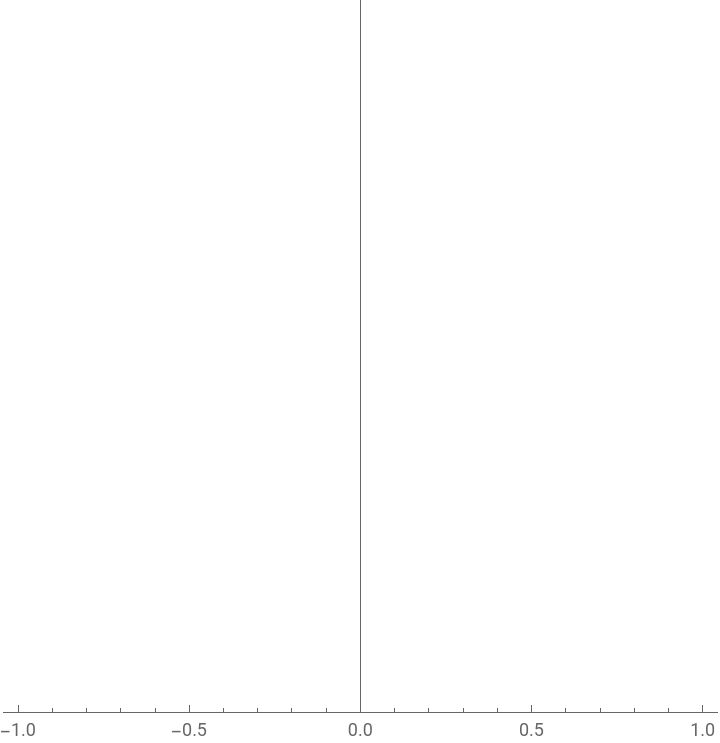
Ever:
In[]:=
Graphics[{},Axes->{False,True},Ticks->True,Frame->{{False,False},{True,False}}]
Out[]=
Definition
Definition
There are two main regions of a graphic that you need to know about: the plot range and the image range.
Generally, any content you create will be inside the plot range, and the image range will be used for labels of one form or another.
ImageSize and AspectRatio
ImageSize and AspectRatio
◼
By default in generic graphics, the aspect ratio (height/width) is such that one unit in the x direction has the same length as one unit in the y direction:
◼
AspectRatio controls the shape of the plot range, not the overall image. All the green rectangles below have the same height/width ratio, even though the total widths of the graphics are changing.
◼
Lets look at how big the named image sizes can be:
◼
We can see what the maximum width for ImageSize->Small is:
◼
And the same for the maximum height:
Maximal widths and heights for the named image sizes:
◼
Wait! Why was Automatic so small in that list? ImageSizeAutomatic usually gets smaller inside lists and other objects:
◼
Automatically sized graphics are half-height and -width inside lists, and quarter sized inside arbitrary heads:
◼
You can use ImageSizeMultipliers to change that. Note that it’s being set outside the graphic.
◼
You can make graphics have a certain width:
◼
Or a specific height:
◼
If you set the width and the height, there will be padding around it to fill the space:
◼
You can use UpTo to specify the maximal size of the graphic, but without needing to pad.
◼
You can also use AspectRatioFull to fill the image size:
PlotRange and PlotRangePadding
PlotRange and PlotRangePadding
Let’s look at where the plot range and the image range come from.
The plot range is determined by two options: PlotRange and PlotRangePadding. The default settings for them in Graphics are PlotRangeAll and PlotRangePaddingAutomatic.
The default setting PlotRangeAll means that the all finite primitives (point, line, polygon, disk, etc...) will be shown in their entirety.
The default setting PlotRangePaddingAutomatic means that there will be 2% padding on each side.
PlotRangePaddingAutomatic doesn’t pad explicit ranges:
ImagePadding
ImagePadding
◼
With the default setting ImagePaddingAll enough space is left to show labels and such that are outside of the plot range:
◼
Turning off the padding will clip anything outside the plot range, including tick labels:
◼
You can specify how much padding to include, in absolute sizes (the same units as ImageSize):
◼
Changing the size of the graphic doesn’t change the visually padded space:
◼
By default primitives that extend past the plot range will draw in the image range:
◼
PlotRangeClipping can be used to limit primitives to the given plot range. (This is used by many visualization functions).
Axes and frames are the most common contributors to image range padding:
◼
It’s possible for the plot range and image range to be the same:
Simple(ish) Coordinate Systems
Simple(ish) Coordinate Systems
There are several coordinate systems available when constructing a graphic.
It’s useful to start with a relatively simple graphic:
The Scaled and ImageScaled coordinate systems apply whether we have frames, axes, or neither:
◼
When the image and plot ranges coincide, so do the ImageScaled and Scaled coordinate systems:
Complex Coordinate Systems
Complex Coordinate Systems
There are several ways to specify coordinates relative to another point:
These constructs can be combined! If you need a point halfway across the plot range, and 50 points up, you could do:
◼
The point is in the same relative location regardless of the image size or the plot range:
CITE THIS NOTEBOOK
CITE THIS NOTEBOOK
Wolfram R&D LIVE: Understanding Graphics
by Brett Champion
Wolfram Community, STAFF PICKS, December 14, 2023
https://community.wolfram.com/groups/-/m/t/3084291
by Brett Champion
Wolfram Community, STAFF PICKS, December 14, 2023
https://community.wolfram.com/groups/-/m/t/3084291