Written by Anthropics’s Claude Code with woflram sccript - hardly any instructions needed.
What you're looking at
What you're looking at
The European Space Agency's Gaia mission has, since 2013, been building the most complete map of the Milky Way ever made. Data Release 3 (DR3, June 2022) gives positions, parallaxes and proper motions for roughly 1.8 billion stars; colour photometry for about 1.5 billion; radial velocities for 33 million; and spectroscopic or astrophysical parameters for tens of millions more. The catalogue is served publicly over a TAP (Table Access Protocol) endpoint that speaks ADQL — a spatial dialect of SQL.
This notebook is a Wolfram-Language client for that catalogue, built as seven self-contained packages. You can run cone searches, resolve object names through SIMBAD, write custom ADQL, take a seven-region “sky tour”, render 38 ready-made science charts, drop the result into a 3D viewer, and pull colour thumbnails from the CDS HiPS2FITS service — all inside one Wolfram notebook, using nothing but stock Wolfram Language 13+.
The rest of this post walks through what each piece does, what the code actually looks like in Wolfram, and how you can change it. Every code cell below is an evaluatable Input cell: click into it and press Shift+Enter to run.
(The GAIAData repository also carries a separate browser-based front-end that talks to its own Python server; this notebook does not depend on it, and the rest of the post is entirely about the Wolfram implementation.)
Why Wolfram Language for this
Why Wolfram Language for this
Gaia analysis usually means stitching three layers together: a query client, a plotting / analysis library, and some UI to tie them together. In Wolfram Language the three collapse into one expression tree.
• The query returns a Wolfram object. An ADQL result is a JSON ByteArray that we turn into a Dataset. That single object can then be filtered (ds[Select[#parallax > 10 &]]), grouped (ds[GroupBy[Round @ #"bp_rp" &]]), or piped into any plot. You never re-encode the data. Note the #"bp_rp" form: when a column name contains an underscore, use the explicit string-slot #"name" rather than #name, because the bare-token slot only accepts alphanumeric identifiers.
• Charts are symbolic. Every plot in this notebook is a Graphics or Graphics3D expression. That means the HR diagram is not a PNG: it's Graphics[{points, axes, …}] that you can Show together with another one, pass through Rasterize, drop into Manipulate, or mutate with ReplaceAll. The moment a chart stops being an image it becomes programmable.
• Reactivity is a library primitive. DynamicModule declares a set of variables whose mutations automatically re-render any Dynamic cell that references them. The whole search UI — four search modes, five result tabs, sliders, an InputField for ADQL, result Dataset, chart picker, 3D view, sky-image preview — fits in a single StarCatalogue`UI` sub-package (well under three hundred lines), with no DOM and no callbacks to wire up.
A minute of background on Gaia
A minute of background on Gaia
If you've never touched Gaia data before, these are the columns we use throughout the notebook:
Column | Meaning | Units |
ra, dec | Right ascension / declination (ICRS) | deg |
parallax | Trigonometric parallax → distance = 1000/parallax | mas / pc |
parallax_over_error | SNR of parallax; ≥ 5 is the usual quality cut | dimensionless |
pmra, pmdec | Proper motion in RA/Dec (tangential velocity on the sky) | mas/yr |
phot_g_mean_mag | G-band magnitude (broad optical, Gaia's main band) | mag |
bp_rp | BP–RP colour (blue minus red); proxy for temperature | mag |
ruwe | Renormalised unit weight error; > 1.4 suggests binarity | dimensionless |
radial_velocity | Line-of-sight velocity from spectroscopy (DR3 subset) | km/s |
l, b | Galactic coordinates (longitude, latitude) | deg |
Parallax is the single most important quantity: it is the apparent shift of a star against the distant background as Gaia orbits the Sun. DR3 reaches tens-of-microarcsecond precision for bright stars and roughly a hundred microarcseconds for faint ones, which is good for percent-level distances out to a few hundred parsecs and useful but increasingly noisy distances across the inner Galactic disc. Every distance-dependent chart (absolute-magnitude HR, distance histograms, 3D viewer) derives from this one column.
The architecture of the port
The architecture of the port
Inside the single-file bundle, the code is organized as seven sub-packages, each focused on a single concern. They live one after another in GAIAStarCatalogue.wl, separated by section headers ((* === Cache.wl =====================... *), and so on). Search for a section name to jump to it; this table is your map:
Section | Context | What it does |
Stars | StarCatalogue`Stars` | A small cross-match table of famous stars, used for labelling the HR diagram (yellow named-star highlights) and the 3D view. |
Cache | StarCatalogue`Cache` | A SQLite-backed (with PersistentSymbol fallback) TTL cache for query results. |
TAP | StarCatalogue`TAP` | Clients for the Gaia TAP endpoints, the SIMBAD name resolver, and the CDS HiPS2FITS image service. Includes ADQL builders. |
Charts | StarCatalogue`Charts` | 38 chart functions registered in a list of Associations; one RenderChart[id, data] dispatcher. |
Server | StarCatalogue`Server` | A SocketListen-based HTTP server that exposes /api/query, /api/sky-image and friends over plain JSON. |
UI | StarCatalogue`UI` | The DynamicModule front-end: search forms, result tabs, chart picker, 3D view, sky-image preview. |
StarCatalogue | StarCatalogue` | Top-level wrapper; re-exports StartServer / StopServer / OpenExplorer for short-form access. |
This post ships as two files: this notebook (GAIACommunityPost.nb) and one Wolfram Language source file (GAIAStarCatalogue.wl, about 74 kB) carrying the entire port. Drop them into the same folder and run the cell below. Every later cell assumes the package is in memory.
pkg=FileNameJoin[{NotebookDirectory[],"GAIAStarCatalogue.wl"}];If[!FileExistsQ[pkg],Print["ERROR: GAIAStarCatalogue.wl must sit next to this notebook. Download both files into the same folder, or edit `pkg` to an absolute path."];Abort[]];Print["Loading ",pkg];Get[pkg];
Quick start: three ways to get star data
Quick start: three ways to get star data
Before we dig into the architecture, here are three ways to pull data out of Gaia and put it on the screen. Pick whichever feels closest to how you like to work; you can come back to the rest of the post afterwards.
Each path produces a Wolfram Dataset — a spreadsheet-like object that the rest of the notebook treats as the universal currency. Once you have one, every chart, every filter, every aggregation in the rest of the post applies.
1. Click, don't type
1. Click, don't type
The fastest no-code route is the interactive explorer that ships with the port. Evaluate the cell below to drop a search panel directly into the notebook, then point-and-click your way to a query: pick a mode (cone search by coordinates, by object name, by ADQL, or a pre-canned sky tour), edit the inputs, press Search. The result populates five tabs (Data Table, Summary, Charts, 3D View, Sky Image). The full visual tour with screenshots is in section The interactive explorer further down.
StarCatalogue`UI`ExplorerPanel[]
2. Search by object name (no coordinates needed)
2. Search by object name (no coordinates needed)
If you know the name of a famous star, cluster, nebula or galaxy, you can hand it straight to the port. BuildObjectAdql calls the SIMBAD name resolver behind the scenes, gets back the RA/Dec, and wraps them into a cone-search ADQL string. You never see the SQL.
Step 1 — resolve the name and build the query (no network ADQL fired yet, just SIMBAD):
(*BuildObjectAdql[name,radiusArcmin]returnsanAssociationwiththreekeys:*)(*"ra","dec"--theresolvedcoordinatesfromSIMBAD*)(*"query"--theADQLstringtorun*)spec=StarCatalogue`TAP`BuildObjectAdql["Pleiades",60];{spec["ra"],spec["dec"]}
Step 2 — run the query. GaiaQueryAsDataset sends the ADQL to ESA's TAP service, decodes the JSON response, and returns a Dataset:
pleiades=StarCatalogue`TAP`GaiaQueryAsDataset[spec["query"]];Length[pleiades](*rowcountoftheresult*)
Step 3 — the Dataset is now in memory. Drop it into any of the 38 built-in charts:
StarCatalogue`Charts`RenderChart["hr",pleiades]
That is the entire end-to-end pattern: name → Dataset → chart, three lines of code, no SQL anywhere. Try it with other targets: "M13" (a globular cluster), "NGC 6791" (a famous open cluster), "Orion Nebula", or any name SIMBAD recognises.
3. Search by coordinates (when you know where to look)
3. Search by coordinates (when you know where to look)
If you already have a target's coordinates — from a paper, a finding chart, or a previous query — you can skip the name resolver. BuildConeAdql takes RA, Dec and a radius and returns the ADQL string directly:
(*Arguments:RA(deg),Dec(deg),radius(arcmin),rowlimit,extraWHEREclause.*)(*Hyadesopencluster,centredon(67deg,16deg),30-arcmincone.*)(*ThefifthargumentisappendedtothequeryasanextraANDcondition;here*)(*weaskforstarswhoseparallaxismeasuredtobetterthan20%(SNR>=5).*)hyadesQuery=StarCatalogue`TAP`BuildConeAdql[67.0,16.0,30,500,"parallax_over_error >= 5"];hyades=StarCatalogue`TAP`GaiaQueryAsDataset[hyadesQuery];Length[hyades]
Same Dataset shape, same chart catalogue:
StarCatalogue`Charts`RenderChart["absHr",hyades]
With those three patterns in your pocket you can already explore Gaia interactively. The rest of the post explains what is happening behind BuildConeAdql (and why ADQL has its own section), how the cache speeds up repeated queries, what the chart catalogue contains, how the explorer GUI is built out of DynamicModule, and how to extend or repurpose any of these pieces.
Querying the sky with ADQL (the TAP section)
Querying the sky with ADQL (the TAP section)
This section is a deep dive. If you only want to retrieve and plot Gaia data, the Quick start above is enough — you never have to touch the SQL string yourself. What follows explains how BuildConeAdql constructs that string, what TAP and ADQL actually are, and how to write your own queries from scratch when the built-in helpers are not enough.
Gaia's TAP server accepts ADQL, which is SQL plus spherical-geometry helpers: POINT, CIRCLE, CONTAINS, INTERSECTS, BOX. A typical cone search looks like this:
SELECTTOP500source_id,ra,dec,parallax,parallax_over_error,pmra,pmdec,phot_g_mean_mag,…(18columnstotal)FROMgaiadr3.gaia_sourceWHERE1=CONTAINS(POINT('ICRS',ra,dec),CIRCLE('ICRS',83.822,-5.391,0.1))ANDparallax_over_error>=5ORDERBYphot_g_mean_mag
The port builds a query of this shape with BuildConeAdql. The first two arguments are RA and Dec, the third is the cone radius in arcminutes (the function divides by 60 before substituting into the ADQL CIRCLE call, which expects degrees), the fourth is the row limit, and the last is a free-form extra WHERE clause that the UI uses to append parallax-quality cuts. The full column list lives in $defaultColumns inside the StarCatalogue`TAP` section and includes the BP/RP photometry, the BP−G and G−RP colours, RUWE, the variability flag, the (DR3-subset) radial velocity, and galactic coordinates l / b. The DR2 extinction columns a_g_val / e_bp_min_rp_val were dropped in DR3 — their replacements ag_gspphot / ebpminrp_gspphot live in gaiadr3.astrophysical_parameters. The “Extending the code” section below shows the JOIN you need if you want either of them. Evaluate the next cell to see the actual ADQL string for a 6-arcminute cone around Betelgeuse:
Sending that string to the server is a plain POST:
The public function StarCatalogue`TAP`GaiaTapSync[adql] wraps that call: it consults the cache first, and on a cache miss it walks GaiaTapEndpoints[] (ESAC, then the Heidelberg mirror) until one of them returns an HTTPResponse. Note that the fallback only kicks in for connection-level failures — an HTTP error response is returned to the caller as-is. The result is a small Association <|"status" -> _, "body" -> ByteArray[…], "contentType" -> _, "cacheHit" -> _|>. For almost all interactive use you don't need the raw call — the higher-level convenience is GaiaQueryAsDataset, which runs the query and converts the JSON body straight into a Dataset:
Once ds is in memory, the full Wolfram data-wrangling surface is available: Normal[ds] for a list of associations, Keys[ds[1]] for the column names, ds[Select[#parallax > 10 &]] to keep only nearby stars, ds[All, {"ra", "dec"}] to slice columns. Try:
Caching queries (the Cache section)
Caching queries (the Cache section)
A single Gaia query takes 1–15 seconds round-trip. Running the same query twice within a notebook session is wasteful, so the package keeps a one-hour SQLite-backed result cache. The implementation is deliberately small:
The key design choices worth noting:
• Hashing the query. We don't try to normalise ADQL — two queries that differ only in whitespace get two cache entries, and that's fine. The SHA-256 hash of query <> "|" <> fmt is a stable 32-character key.
• TTL, not invalidation. Cache entries expire after an hour (GAIA_CACHE_TTL env var overrides). One hour is a reasonable default for an interactive tool where you may tweak queries frequently and want stale results to expire on their own; if you are doing batch work against a single stable query, set GAIA_CACHE_TTL to something larger.
• A Pure-Wolfram fallback. When DatabaseLink` isn't available (rare, but happens on restricted installations) we fall back to a PersistentSymbol in Local scope. Same API, no JDBC.
You can see what's cached right now:
Representing star data as a Dataset
Representing star data as a Dataset
A Dataset in Wolfram Language is a spreadsheet that knows its own schema. Given a list of associations (one per row), you get named column access, automatic hierarchical slicing, and idiomatic aggregation. Examples, all running against the ds from earlier:
Select rows
Select rows
Derive a column
Derive a column
Aggregate
Aggregate
Histogram directly
Histogram directly
The upshot: once the query has landed you never have to write glue code. Normal gives you native lists, Dataset gives you a spreadsheet view, and every plotting function consumes both shapes.
The chart catalogue (the Charts section)
The chart catalogue (the Charts section)
The Charts section bundles 38 ready-made visualisations. They live in one List of Associations, then get dispatched by a single function. Here is the registry shape, abridged but using the real symbol names:
Every chart function takes the same thing — the Dataset returned by GaiaQueryAsDataset — and returns a Graphics / Graphics3D expression. Rendering any chart is one call:
Two more to try:
The complete list of IDs (for when you'd rather type than scroll):
Sky thumbnails from HiPS2FITS
Sky thumbnails from HiPS2FITS
HiPS (Hierarchical Progressive Surveys) is the tiling scheme that powers Aladin and CDS's image services. HiPS2FITS is the cut-out endpoint: give it a survey name, a centre, a field-of-view, and a size in pixels, and it returns a JPEG / PNG / FITS. The Wolfram wrapper is three calls wide:
The package wraps that as SkyImage[ra, dec, "Survey" -> "CDS/P/DSS2/color", "FoV" -> 1.5]. The survey list is whatever HiPS carries; some useful choices: CDS/P/DSS2/color, CDS/P/2MASS/color, CDS/P/allWISE/color, CDS/P/PanSTARRS/DR1/color-z-zg-g, CDS/P/SDSS9/color.
Every sky image you see in this notebook was produced by running exactly this function — not by curl, not by the browser, but by URLRead and ImportByteArray inside the port itself. Reproduce any of them in one line:
The interactive explorer (the UI section)
The interactive explorer (the UI section)
So far we have called the package by hand. For day-to-day use, the port also ships a point-and-click GUI built directly on top of the same query layer and the same chart catalogue. It is a pure Wolfram-Language widget — no DOM, no JavaScript, no second process — launched with a single function call:
Evaluating that cell drops a self-contained search panel directly into the notebook. The panel has four search modes (cone, object name, custom ADQL, seven-region sky tour), a result area with five tabs, and live Dynamic bindings throughout, so every change you make on the left is reflected immediately on the right. The next few images give a tour.
The search bar
The search bar
A mode selector across the top, a small set of inputs underneath, and a teal Search button. The status line on the right shows the row count once the query returns:
The Data Table tab
The Data Table tab
The first result tab is the Dataset itself. Wolfram's native Dataset widget gives you sortable columns, scrollable rows, and click-to-copy on every cell — for free, because the result IS a Dataset.
The Summary tab
The Summary tab
A per-column statistics table (min / max / mean / median / std on every numeric column) plus a friendly RUWE > 1.4 “binary candidate” indicator. Useful for sanity-checking a query before committing to a chart.
The Charts tab
The Charts tab
A drop-down listing every one of the 38 charts (split into a Standard group and a Stunning group), and a live preview underneath. Pick another chart from the menu and the preview re-renders without re-querying the catalogue, because the underlying data variable has not changed.
The 3D View tab
The 3D View tab
Drops the result into a Graphics3D plotted in (RA, Dec, distance-from-parallax) space, coloured by stellar type. A toggle adds proper-motion vectors as small arrows. Drag to rotate.
The Sky Image tab
The Sky Image tab
A drop-down with six pre-wired surveys (DSS2 colour, DSS2 red, 2MASS J, 2MASS K, PanSTARRS, WISE W1), an FoV input, and a Fetch image button. The thumbnail is centred on the mean RA/Dec of the current Dataset.
How it works internally
How it works internally
The panel is one DynamicModule with nineteen state variables: the four cone-search parameters, the three object-search parameters, the ADQL textarea, the sky-tour region, the parallax-quality flag, the current Dataset, the chart ID, the sky-survey / FoV / image, the proper-motion-arrow toggle, the last query string, and the status-message string. Every input widget is bound to one of those variables with Dynamic[var], and every output that depends on a state variable is wrapped in Dynamic[…]. When you click a button or type in an InputField, the corresponding state variable updates, and every Dynamic that references it automatically re-renders. You never write event handlers.
A distilled example of the pattern:
That 10-line module already has three inputs, a live Dataset, and a chart that re-renders whenever data changes. The full explorer follows the same pattern, just with a SetterBar for the mode switch, a TabView for the result, and a PopupMenu listing every chart ID.
If you would rather have the panel in its own window than inline in the notebook, StarCatalogue`OpenExplorer[] calls CreateDocument around the same DynamicModule.
The HTTP server (the Server section), in one paragraph
The HTTP server (the Server section), in one paragraph
Not everyone wants to view Gaia through a notebook. The package also ships an HTTP proxy, StartServer[], built on SocketListen. It exposes /api/gaia/query, /api/simbad/resolve and /api/sky-image over plain JSON, so any external tool — a script, a web page, another notebook — can reach the same query layer and the same cache. Two lines to start and stop it:
Extending the code
Extending the code
All four concerns – queries, cache, charts, UI – are built around small extension points. Three example modifications you can try right now.
1. Change which Gaia columns come back
1. Change which Gaia columns come back
The column list lives in $defaultColumns inside the StarCatalogue`TAP` section of the bundle. If you want spectroscopic temperatures (teff_gspphot) or extinctions (ag_gspphot) from the Gaia astrophysical-parameters sub-table, just cross-match to gaiadr3.astrophysical_parameters in your own ADQL:
Now plot temperature against colour – a hands-on check that bp_rp really is a temperature indicator:
2. Use a different sky survey
2. Use a different sky survey
The image service accepts any HiPS identifier CDS carries. SDSS instead of DSS2:
PanSTARRS:
In the explorer's Sky Image tab there's a drop-down with six surveys pre-wired; adding more is one line in the StarCatalogue`UI` section where the PopupMenu is built.
3. Add a new chart
3. Add a new chart
A chart is a function Dataset -> Graphics plus a catalogue entry. Say you want a histogram of RUWE (the Renormalised Unit Weight Error, a poor-man's binarity flag). Define it, register it, render it:
Re-evaluate StarCatalogue`UI`ExplorerPanel[] (or run a new search inside an existing panel): “RUWE histogram” will now appear in the chart drop-down, rendered against whatever query you run. To persist the addition, add the four-key Association to $ChartCatalog in the StarCatalogue`Charts` section of the bundle and reload the file.
4. Async queries for large jobs
4. Async queries for large jobs
Synchronous TAP is fine for the few-hundred-row queries we have used so far, but it can time out under load and ESAC's sync endpoint will reject very large result sets. For long-running jobs (full open clusters, all-sky subsamples, multi-million-row joins) the port also exposes GaiaTapAsyncSubmit and GaiaTapAsyncStatus, which use the UWS (Universal Worker Service) protocol – submit, poll for phase, fetch the result. A minimal pattern:
Where to go from here
Where to go from here
A few directions we've found fruitful once the basic tool is in place:
• Cluster membership. Query a known open cluster centre (e.g. NGC 6791 at RA 290.22, Dec 37.77), apply FindClusters to the (pmra, pmdec, parallax) triple, and colour points by cluster membership in the HR diagram. Gaia's proper motions are precise enough that background stars separate cleanly from member stars.
• Moving-group searches. Cross-match a cone search with a proper-motion window using ADQL: AND pmra BETWEEN … AND pmdec BETWEEN …. The PM-space density chart ("pmDensity") is a quick way to eyeball whether a proposed moving group stands out against the field.
• 3D structure. Feed the result into the "hr3d" or "terrain" charts – each one maps (RA, Dec, distance-from-parallax) into a Graphics3D you can rotate. The Orion complex (centre RA 85, Dec -2, radius 200 arcmin) is a dramatic example: you can see the front and back layers of the OB association separate by tens of parsecs.
Acknowledgements
Acknowledgements
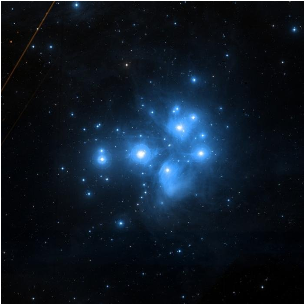
Digitized Sky Survey 2 (Pleiades, Orion Nebula, Betelgeuse). The Digitized Sky Surveys were produced at the Space Telescope Science Institute under U.S. Government grant NAG W-2166. The images are based on photographic data obtained using the Oschin Schmidt Telescope on Palomar Mountain and the UK Schmidt Telescope. The plates were processed into the present compressed digital form with the permission of these institutions.
2MASS (Andromeda, M31). This publication makes use of data products from the Two Micron All Sky Survey, which is a joint project of the University of Massachusetts and the Infrared Processing and Analysis Center / California Institute of Technology, funded by the National Aeronautics and Space Administration and the National Science Foundation.
allWISE (Galactic Centre). This publication makes use of data products from the Wide-field Infrared Survey Explorer, which is a joint project of the University of California, Los Angeles, and the Jet Propulsion Laboratory / California Institute of Technology, funded by the National Aeronautics and Space Administration.
CDS / HiPS2FITS. This research has made use of the HiPS2FITS image cutout service and of the VizieR catalogue access tool, operated at CDS, Strasbourg, France (DOI: 10.26093/cds/vizier). The original description of the VizieR service was published in 2000, A&AS 143, 23. Every thumbnail in this notebook was cut out from a public HiPS all-sky survey served by CDS.
SIMBAD. Object-name resolution in this notebook uses the SIMBAD database, operated at CDS, Strasbourg, France (2000, A&AS 143, 9, "The SIMBAD astronomical database", Wenger et al.).
ESA Gaia / DPAC. This work has made use of data from the European Space Agency (ESA) mission Gaia (https://www.cosmos.esa.int/gaia), processed by the Gaia Data Processing and Analysis Consortium (DPAC, https://www.cosmos.esa.int/web/gaia/dpac/consortium). Funding for the DPAC has been provided by national institutions, in particular the institutions participating in the Gaia Multilateral Agreement.
Code and licence
Code and licence
Everything in the port is pure Wolfram Language 13+. No paclets, no external binaries. Tested against Wolfram Language 14.3.
Happy star-hunting. ★
CITE THIS NOTEBOOK
CITE THIS NOTEBOOK
European Space Agency's Gaia mission data release 3: TAP client, 38 science charts, and dynamic GUI
by Marco Thiel
Wolfram Community, STAFF PICKS, April 28, 2026
https://community.wolfram.com/groups/-/m/t/3707090
by Marco Thiel
Wolfram Community, STAFF PICKS, April 28, 2026
https://community.wolfram.com/groups/-/m/t/3707090