Background
Background
Recently there are may good articles on the community about coronavirus. They demonstrated the importance of the multiparadigm data science in both research and application, for instance, the combination of bioinformatics and geospatial and time series of pandemic outbreak. The article is another such interesting example in energy industry.
If you need to drive around town or on highway to catch up work or meet friends, you probably would see most gas stations with three buttons with regular, plus and premium, based on the additives and R+M/octane rating. I remember the first time I saw the E85 sign and moved the nozzle away from the dispenser. I smelled it and wondered why one could buy cheap liquor at pump.
WebImageSearch["e85 gas station",MaxItems2]
Out[]=
,
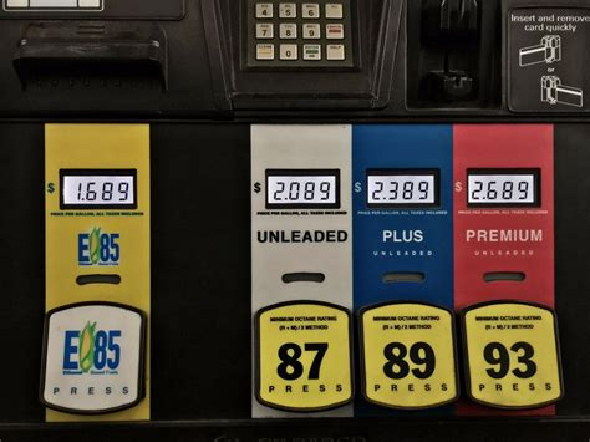
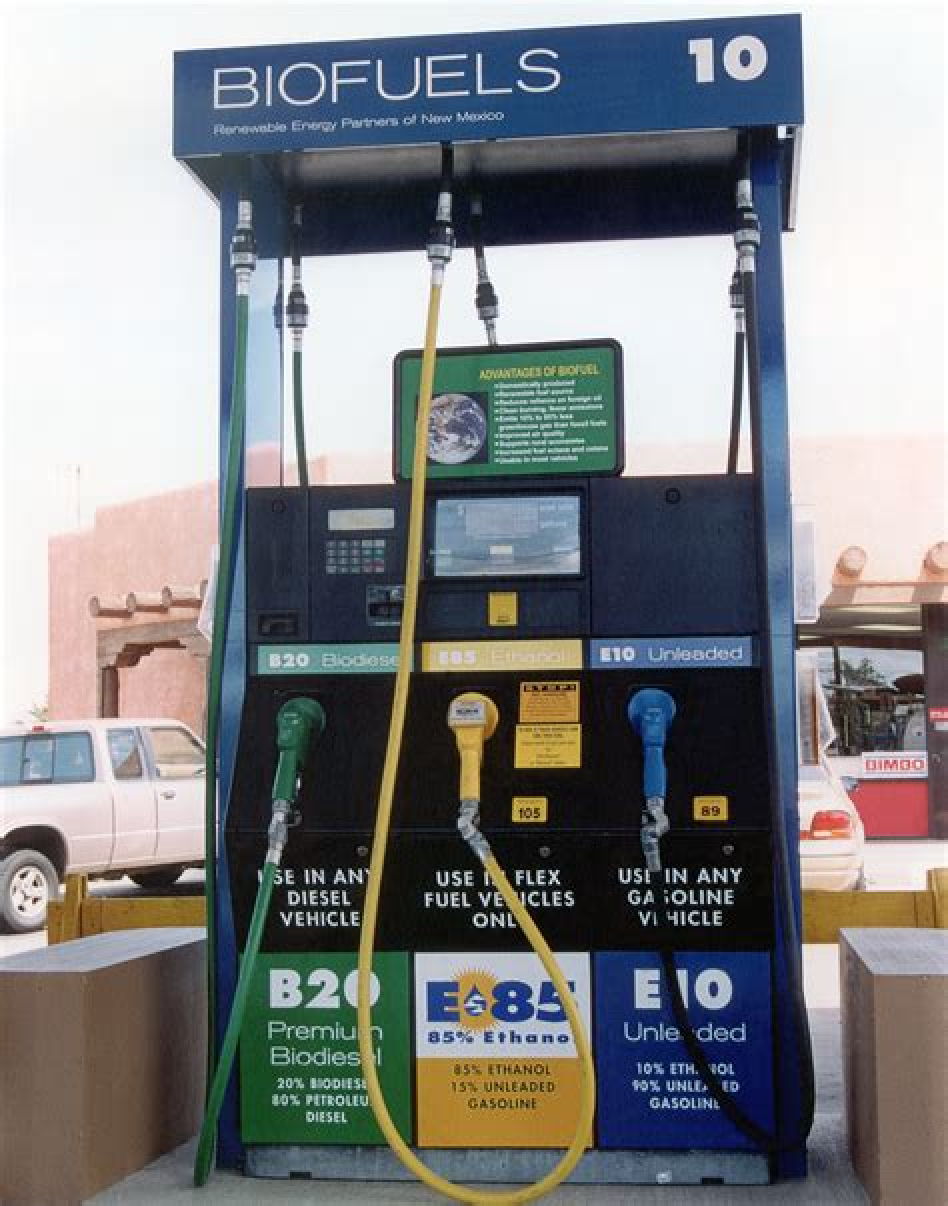
Then I learned that because the ethanol content in the fuel is so high that it not longer has a distinct gasoline pungency, leaving a sharp alcohol smell.
Most gas stations in IL have a label say the regular unleaded gas may contain up to 10%, meanwhile E85’s ethanol content is significantly higher. To use this type of fuel, in general, you need a vehicle specifically designed for Flexible-Fuel in US.
Most gas stations in IL have a label say the regular unleaded gas may contain up to 10%, meanwhile E85’s ethanol content is significantly higher. To use this type of fuel, in general, you need a vehicle specifically designed for Flexible-Fuel in US.
MoleculePlot@
Out[]=
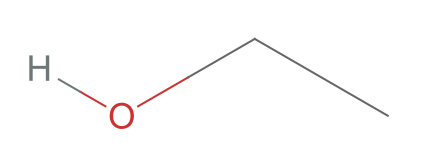
Wikipedia page says the actual percentage may vary across different countries. Ethanol’s low heating value is also problematic in cold climates. You will see some fun facts from the data analysis below.
Style[TextSentences[WikipediaData["e85"],5]//Column,FontFamily"Lucida Grande"]
Out[]=
E85 is an abbreviation typically referring to an ethanol fuel blend of 85% ethanol fuel and 15% gasoline or other hydrocarbon by volume. |
In the United States, the exact ratio of fuel ethanol to hydrocarbon may vary according to ASTM 5798 that specifies the allowable ethanol content in E85 as ranging from 51% to 83%. |
This is due to the lower heating value of neat ethanol making it difficult to crank engines in relatively cold climates without pre-heating air intake, faster cranking, or mixing varying fractions of gasoline according to climate. |
Cold cranking in cold climates is the primary reason ethanol fuel is blended with any gasoline fraction. |
In Brazil, ethanol fuel is neat at the pumps, hence flexible-fuel vehicles (FFV) including trucks, tractors, motorbikes and mopeds run on E100. |
Dataset
Dataset
Initially, I would like to point out the data source (Last access: )
In[]:=
ds=;
Though you do not have to retrieve the data, I would like to quickly mention how to do it. Click the link for TransAtlas above and choose the data you are interested on the page from
◦
Select and Query Data
then choose
◦
Data Layers: Alternative Fuel Stations
You can download E85 Stations data across the country from there. Note that some layers are not supported offline for nationwide coverage due to special license limit on the site. Assuming you have the data at hand, you can use the SementicImport function with some customized conversion rule. In most cases you do not need them, SementicImport occasionally converts entries to something I don’t want.
ds=SemanticImport["D:\\station_e85_equipments_mv.csv",<|"st_prv_code"Automatic,"latitude""Real","longitude""Real"|>];
The association in SemanticImport doesn’t change the order of the columns of the dataset imported, so you want to check latitude and longitude in the right order before moving into GeoPosition function. Also
The raw dataset contains many columns like zip code, address and so on, you may find them useful in your own analysis. Here I just keep the GeoPosition and state name for quick processing.
ds[1]
Out[]=
Nationwide Visualization
Nationwide Visualization
Use GeoHistogram to visualize the tallied dispensers with default geographic resolution. The data points on the map come with Tooltips. Just hover mouse over the map and you can compare the readings with the color bar/ legend on the right hand side of the plot.
GeoHistogramGeoPosition[Values[ds[All,{"latitude","longitude"}]]//Normal],GeoRange,PlotLegendsAutomatic
Out[]=
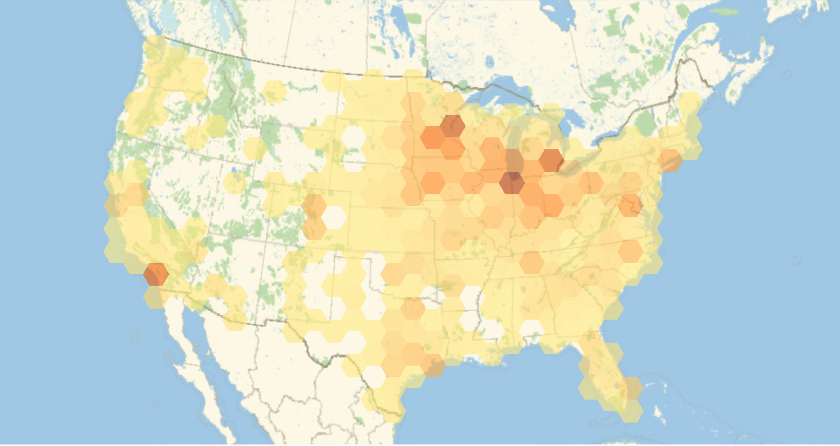

We can also group the location of E85 dispensers by state. Simply pass GroupBy into Dataset
In[]:=
dataPerState=ds[GroupBy["st_prv_code"]];
Extract the state object using the Keys function. This is step is not necessary for textual analysis, but it is handy to have this list to generate BarChart ticks later
In[]:=
states=Keys[dataPerState]//Normal;
Usually we would like to show intermediate result for debugging, meanwhile we do not want the result takes too much space on space. Shallow with as the seconde argument, according to the document, goes into the 5th step into depth and keeps only five items. This is very beautiful way to partially print a long list of formatted objects.
{5,5}
Shallow[states,{5,5}]
Out[]//Shallow=
,,,,,41
Let’s count the number of dispensers per state. We can use
In[]:=
e85PerState=Map[Length,dataPerState//Normal];
We can use Shallow again to see the actual value of this variable. Note that we first convert the variable to List and use depth 6 because Rule add extra layer. The values are interpreted as 100 dispensers in Nebraska and so on.
In[]:=
Shallow[Normal@e85PerState,{6,4}]
Out[]//Shallow=
100,83,302,112,42
Add up all numbers of dispensers in each state:
e85Total=N[Values[e85PerState]//Total]
Out[]=
3874.
Use the variable above and convert our entities to abbreviations in String . These values are used as neat labels for the following charts:
states
In[]:=
abbr=AssociationThreadstates->EntityValuestates,;
Shallow[Normal@abbr,{6,5}]
Out[]//Shallow=
NE,SD,IA,MO,IL,41
KeyMap maps not only functions but also associations onto the Key of each items. This is a useful feature to unify different entry point targeting the same data structure.
BarChart[KeyMap[abbr,Sort[e85PerState,Greater]],ChartLabelsCallout[Automatic,Above],AspectRatio1/3,BarSpacing0.2]
Out[]=
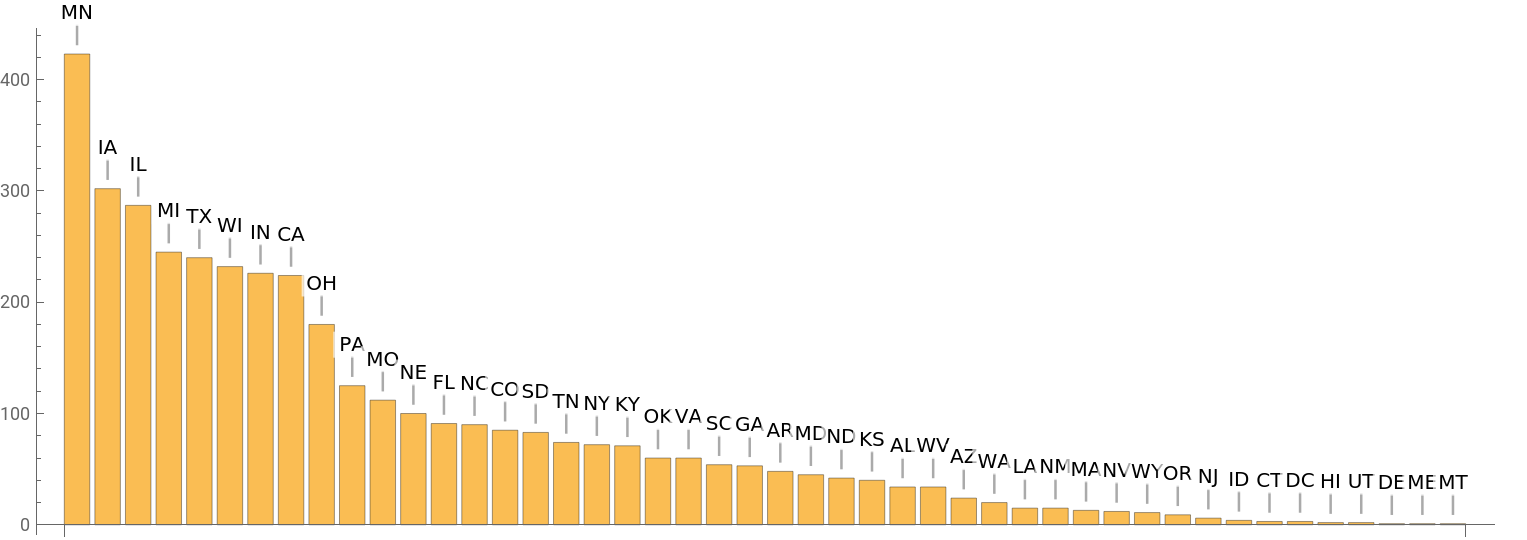
We can apply the same routine in a bar chart representation. If we try to add all labels to the sections below, it would be very messy for the states with only tiny fraction of the number of dispensers. We can add a branch cut that we skip the data points less than 5 thousandth. But we still can find the readings by hovering the mouse over the chart.
In[]:=
sorted=KeyMap[abbr,Sort[e85PerState]];
With[{data=sorted/e85Total},PieChart[KeyValueMap[If[#2>5/1000,Labeled[#2,Style[Row[{#1,": ",PercentForm[#2,2]}],10,Italic],"RadialCallout"],#2]&,data],SectorSpacing{0.09,0},ImagePadding{{35,20},{5,10}},ImageSize700]]
Statewide Visualization
Statewide Visualization
Lets focus on the continental USA because we do not want our geographics image to include too much oceanic area. We can safely remove one key-value pair for now.
We can put the information as the second argument in GeoHistogram. Therefore we have customized bins that automatically match the size of each state. We also spot that Mississippi is absent from the TransData’s curation.
For example in Illinois
In Texas
Eventually we can wrap up the heat map for each state into a nice dynamic object. Use the pull down menu to select the state and display the map. The items in the pull down menu are sorted by descending order in terms of number of dispensers.
Summary
Summary
◼
Use Association and Dataset to store processed GIS data
◼
Use strong binding to group and sorting functions of Association and Dataset
◼
Use GeoHistogram to generate discrete heat map
◼
Use *Chart function to visualize the
Alternative fuel and renewable energy are intricate topics with profound impact on public policy making and our future. Of course we only scranched the surface of alternative fuel and renewable energy in this short post. I am happy to see more and more Wolfram language users use the technology to explore this field and give insight into the development.