Large Language Models (LLMs) excel at prediction and planning, making them powerful for programming tasks. However, they struggle with precise algorithm execution. This project leverages LLMs’ strengths to enhance Machine Learning (ML) model development and deployment. While LLMs can understand ML model architecture, they usually have a hard time at directly implementing them. Our approach enables LLMs to manipulate ML models, effectively combining the strengths of both technologies. By doing so, we create a powerful synergy that can tackle complex tasks which neither LLMs nor traditional ML models could solve independently.
How does it work?
How does it work?
LLM-Powered ML Pipeline Generator consist of four parts: Task Creation, Document Retrieve, Tools Calling, and Content Generation.
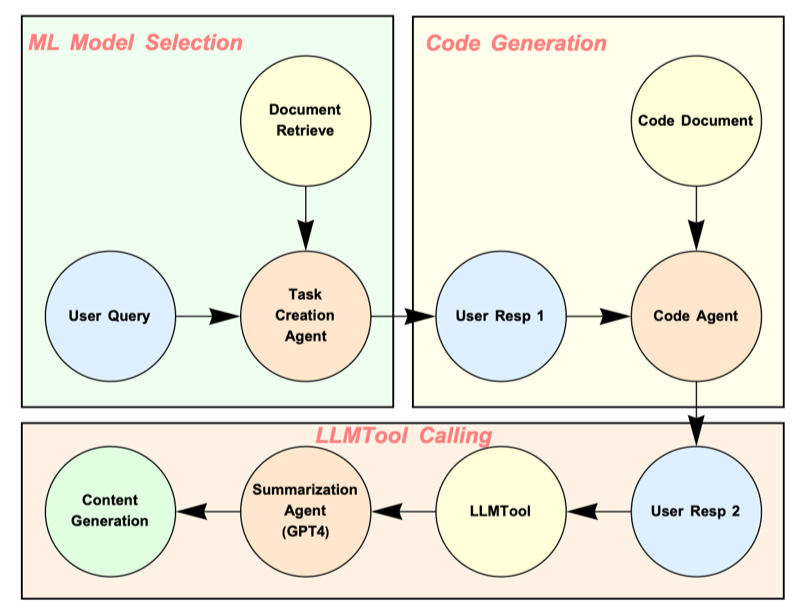
This pipeline can build a ML tool in three rounds conversion. We can roughly break it into three stages: ML Model Selection, Code Generation and LLMTool Calling.
ML Model Selection
ML Model Selection
Prompting User Question
Prompting User Question
We need to identify the user’s question to decide which model is the best option to start. We are using web scraping to get basic model information from the Wolfram Neural Net Repository.
First, we want to handle user’s question then let Task Creation Agent to search the best top 3 ML models for this work.
In[]:=
question = "Given an image and multiple text descriptions, find the text that better describes the image";promptTemplate = StringTemplate[ StringJoin[ "# You are an expert on Machine Learning and Deep Learning.", "\n\n", "## Your main task is choose best model for user's task", "\n\n", "Here are top three infomation about ML models that closed to user's case, you have to read it first. Then you will choose the best fit model my case if there is not best fit for user request you need to find close one with explanation why you choose it. Your must explain why this model is good for user case.", "\n\n", "### Models Info\n", "~~~~~~\nStart of Search Results\n~~~~~~\n`modelRetrieve`\n~~~~~~\nEnd of of Search Result\n~~~~~~", "\n\n", "## User's Request\n", "~~~~~~\nStart of User's Query\n~~~~~~\n`userQuery`\n~~~~~~\nEnd of of User's Query\n~~~~~~"]];
Create a RAG system (Optional Reading)
Create a RAG system (Optional Reading)
We have two RAG systems to build in this pipeline. They are Model Description Doc and Model Documentation Doc:
◼
Model Description Document: Web scraping from Wolfram Neural Network List, which contains pure text information about available models. Each embedding cell is each single model info. This is for Task Creation Agent to select the best fit for user’s task.
◼
Model Documentation Document: Documentation of each model details, which is consist of code example that LLM can directly use and text description of this model. Each embedding cell is each single model info. This is for Code Generation Agent to retrieve the document of choosing model.
Model Description Document RAG
Model Description Document RAG
In[]:=
mdContent = ;sections = StringSplit[mdContent,"---"];processedSections=StringTrim/@sections;Length[processedSections](*Get access to OpenAI's embedding model*)(*This is the optional! Only use for the first time embeding*)(*embeddings = Map[ServiceExecute["OpenAI", "Embedding", {"Input" -> #, "Model" -> "text-embedding-3-small"}]&,processedSections];*)(*Export the embedding model*)(*Export["/Users/tzz/Documents/WSS2024/wss24_project_embeddings.wl",embeddings]*)(*This is importing embedded model*)embeddings=;embeddingsToText = MapThread[Rule[#1,#2]&,{embeddings[[All,"data",1,"embedding"]],processedSections}];nfunction = Nearest[embeddingsToText, DistanceFunction->CosineDistance];getEmbedding[text_String]:=ServiceExecute["OpenAI","Embedding",{"Input" -> text, "Model" -> "text-embedding-3-small"}][["data",1,"embedding"]];
Out[]=
158
Check if the function work
In[]:=
(*Function for calling retrieve info*)nfunction[getEmbedding["CLIP image and text pair or descrption"],1]
Model Documentation Document RAG
Model Documentation Document RAG
In[]:=
mdContent = ;sectionsDoc = StringSplit[mdContent,"---"];processedSectionsDoc=StringTrim/@sectionsDoc;Length[processedSectionsDoc](*Get access to OpenAI's embedding model*)(*This is the optional! Only use for the first time embeding*)(*embeddingsDoc = Map[ServiceExecute["OpenAI", "Embedding", {"Input" -> #, "Model" -> "text-embedding-3-small"}]&,processedSectionsDoc];*)(*Export the embedding model*)(*Export["/Users/tzz/Documents/WSS2024/wss24_project_embeddingsDoc.wl",embeddings]*)(*This is importing embedded model*)embeddingsDoc=;embeddingsToTextDoc = MapThread[Rule[#1,#2]&,{embeddingsDoc[[All,"data",1,"embedding"]],processedSectionsDoc}];nfunctionDoc = Nearest[embeddingsToTextDoc, DistanceFunction->CosineDistance];getEmbedding[text_String]:=ServiceExecute["OpenAI","Embedding",{"Input" -> text, "Model" -> "text-embedding-3-small"}][["data",1,"embedding"]];
Check if the function work
Task Creation Agent Respond
Task Creation Agent Respond
Then, the Task Creation Agent will use Retrieval-Augmented Generation(RAG) that we defined to filter the best model for us.
Now, we will send user’s first query to the Model Description Doc RAG to get the best three option models
Great! It looks like LLM choose the best fitting model for us from the three models that from our model database.
Note for Readers
Note for Readers
To save on token costs, our pipeline will not pass every single output from the LLM to the next step, but it will still function normally and handle everything effectively.
Code Generation
Code Generation
After we get the agent’s response, we will know the best ML model for our task. The next step the user needs to do is to confirm if this is the model they want to use. Then, we will start to get the target model’s documentation and generate the appropriate code to get it ready to run.
Create a new prompt template for Code generation
Create a new prompt template for Code generation
Now let’s setup this document agent to work
NOTE: If your Mathematica is 14.0 and under it, the LLMFunction will not work for sending code snippet. We have to custom a new function to make it work.
Now we are ready to get the model document from Document RAG
For v14.1 +
For under v14.1
Now let’s check second output from Code Generation Agent
It looks perfect except for not having set the input data correctly. This requires information from the user. The next step is to ask the user to provide the required input so we can run the code.
LLMTool Calling
LLMTool Calling
In order to minimize errors when calling the ML model, we are using LLMTool to handle the ML model so it can be controlled by LLM. In our tests, we found that we need at least 20+ lines of code to make the ML model work, but LLMTool only requires 3 lines of code, which can be easily handled by LLM.
Now let’s define a prompt template for passing user’s data to LLM so that it can generate correct code that can run directly
Until this step, we are ready to accept user’s dataset and task request!
Here we pack up the description, images, and target Image into User’s Data
Combine with user’s query and data, we can send these to our Summarization Agent to run the code and generate result.
Great, the code is ready to run! We can see that every parameter has been set correctly. Let’s run it!
Boom! That’s what we wanted! We uploaded a “B9588-2” lamp model, and it returned the correct information for this image! It perfectly matches the user’s request without any coding required.
(Optional Reading) Calling Model’s LLMTool Manually
(Optional Reading) Calling Model’s LLMTool Manually
If users have a very basic programming background, they can run the tools manually.
Usage+Demo
Usage+Demo
Concluding Remarks
Concluding Remarks
This ambitious pipeline allows users to build the correct model for their specific task using natural language. One exciting feature is the inclusion of “pockets” that can accept new LLMTools to support various tasks. The pipeline has two main advantages:
◼
For users, it requires no coding and simply follows a workflow to provide the needed data;
◼
For developers, it ensures a very low error rate and allows LLMTools to operate independently without risking system stability.
We will publish this pipeline for anyone who wants to contribute, aiming to create a powerful community that uses natural language to launch ML models for personal tasks.
Acknowledgments
Acknowledgments
I would like to express my gratitude to the following individuals for their invaluable assistance with this project:
◼
Matteo Salvarezza, for his help with the Machine Learning model.
◼
Jofre Espigule, for his support with the LLM.
◼
Charistopher Wolfram, for his guidance with LLMTool.
Thank you for your contributions and support.
References
References
1
.A. Espigule-Pons (2024), “BabyAGI à la Wolfram: a task-driven autonomous agent using Wolfram Language”, Wolfram Community, STAFF PICKS. https://community.wolfram.com/groups/-/m/t/3135678
See Full Code
See Full Code
This is my Github repository, feel free to check every detail you want to know here! @Tu-Zhenzhao
Cite This Notebook
Cite This Notebook