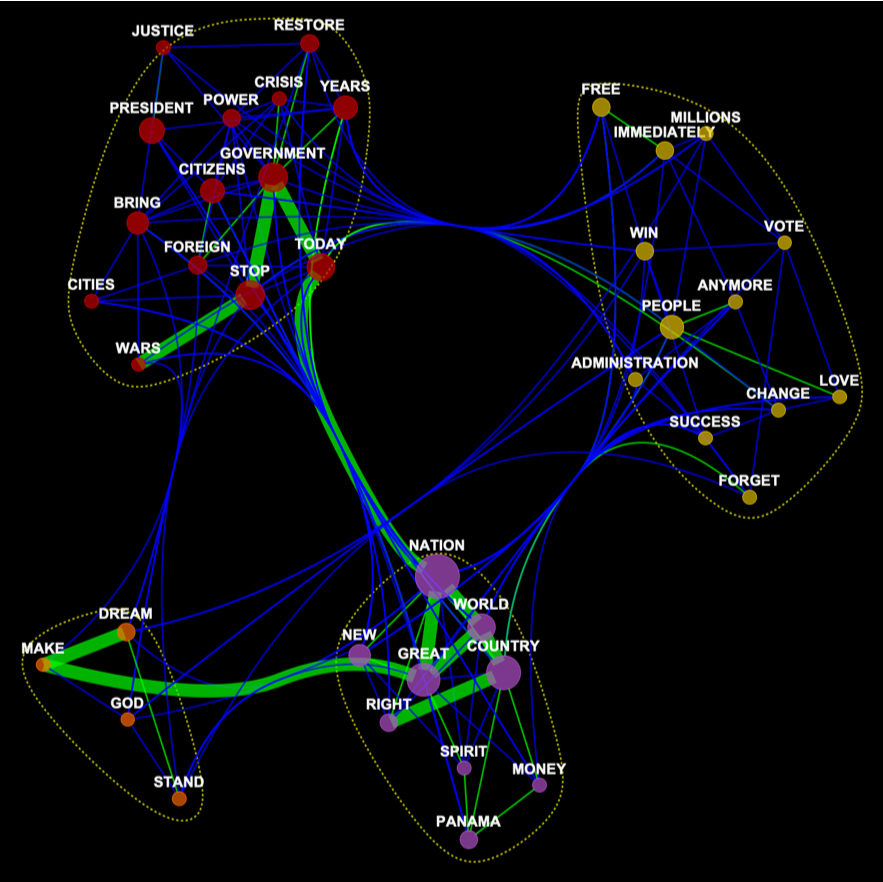
Language is inherently linear—our minds process it word by word, restricted by sequence and memory. Yet meaning is not linear; ideas interconnect and recur across a text. Turning text into a network captures this non-linear nature. Philosophically, it echoes structuralism—examining relationships, not isolated parts. Scientifically, it’s akin to graph theory, mapping nodes (keywords) and edges (connections) to reveal hidden patterns. The result isn’t a summary but a shift: from words to a web of meaning. The backbone is the architecture of meaning. It highlights dominant relationships—the structural “spine” supporting clusters of ideas. Strong edges (green) mark the most significant links, showing how core concepts bind communities. Beyond structure, it captures emphasis: which words anchor the speaker’s message. This approach bridges linguistics and systems science, distilling speech into a visible, quantifiable “signature.”
Importing the raw text data
Importing the raw text data
Set the working directory to the directory containing the current notebook:
In[]:=
SetDirectory[NotebookDirectory[]]
Import the text of Donald Trump’s 2025 inaugural address from a file. Count the number of words in the imported text.
trump=Import["2025_Trump_inaugural_address.txt"];Length[TextWords[trump]]
Out[]=
2860
Setting up styles for visualization
Setting up styles for visualization
First I define a typical set style options I use while working with this type of graphs:
In[]:=
styles={VertexLabels->Placed[Automatic,Above],VertexLabelStyleDirective[White,25,Bold,Opacity[.95]],EdgeStyleOpacity[.7],VertexStyleOpacity[.7],GraphStyle"Prototype",BackgroundBlack,AspectRatio->1,ImageSize->1500};
Experimenting with key ideas in the text
Experimenting with key ideas in the text
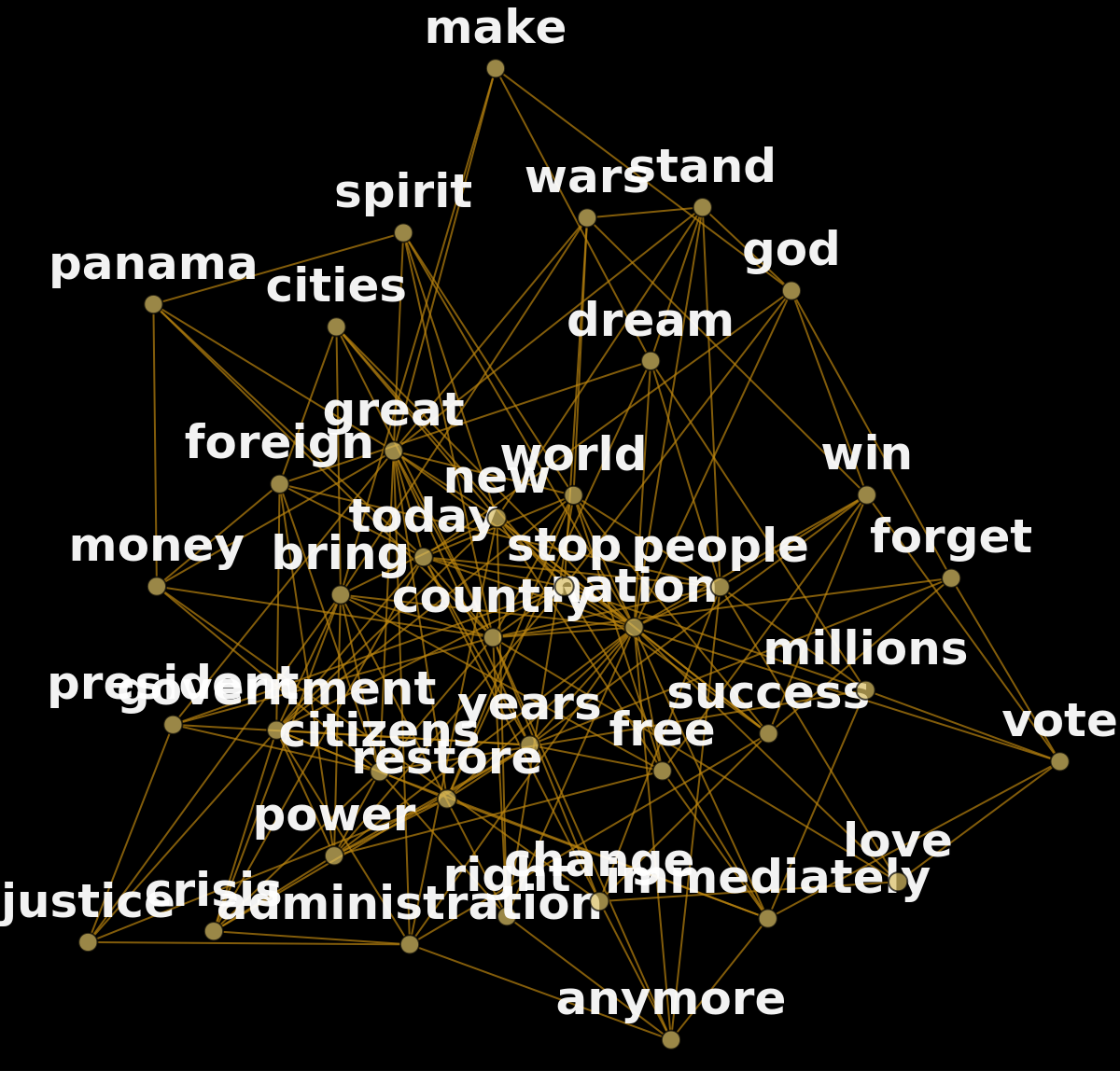
The KeywordsGraph function is published in the Wolfram Function Repository and removes stop-words by default. However, the text may still include generic or low-meaning words, such as the overloaded “America” or frequent but insignificant terms like “way” or “work.” By experimenting with the KeywordsGraph output, one can identify such generic words and create a list to exclude them. Similarly, words with similar meanings, such as singular and plural forms, can be consolidated into a single term (e.g., renaming or capitalizing selected terms). After refining the text, the graph can be built. A practical “phenomenological” criterion for selecting the number of keywords is when a specific frequency (e.g., 3) contains more unique keywords than all higher frequencies combined. I also prefer styling vertices and edges differently from the default settings. Finally, we use CommunityGraphPlot to identify clusters and generate the visualization.
Building the graph
Building the graph
STPE 1: experiment and find words to remove or merge
STPE 1: experiment and find words to remove or merge
In[]:=
similar={"longer"->"anymore","year"->"years","greatest"->"great","end"->"stop","national"->"nation"};generic={"american","america’s","americans","states","america","ago","united","’s","thank","like","going","day"};
STPE 2: build new graph data structure keeping most frequent keywords
STPE 2: build new graph data structure keeping most frequent keywords
In[]:=
trumpG=[trump,39,generic,similar,styles];Show[trumpG,ImageSize->600]
Out[]=
STPE 3: compute its EdgeWeight and VertexWeight
STPE 3: compute its EdgeWeight and VertexWeight
In[]:=
ew=Rescale[AnnotationValue[trumpG,EdgeWeight]];vw=Rescale[AnnotationValue[trumpG,VertexWeight]];
STPE 4: style vertices and edges
STPE 4: style vertices and edges
◼
The larger the vertex the more frequent is the word. Actual size is scaled to make all vertices visible.
◼
If edge weight is less than mean weight it is blue, otherwise it is green
◼
If edge weight is more than 4 times the mean weight it appears much thicker. I call them backbone.
In[]:=
trumpGw=Annotate[trumpG,{VertexSize->Thread[VertexList[trumpG]->.3+vw^.7/1.5],EdgeStyle->Thread[EdgeList[trumpG]->(Directive[If[#<=Mean[4ew],Thickness[.002],Thickness[.015]],If[#<Mean[ew],Blue,Green]]&/@ew)]}];
STEP 5: use CommunityGraphPlot to find and visualize clusters of related words
STEP 5: use CommunityGraphPlot to find and visualize clusters of related words
In[]:=
sartreNet=CommunityGraphPlot[trumpGw,CommunityBoundaryStyleDirective[Yellow,Dashed,Thickness[.002],Opacity[.7]]]/.x_String:>ToUpperCase[x];Magnify[Rasterize[sartreNet,RasterSize->1500],.4]
Out[]=
Asking AI for insight into clusters
Asking AI for insight into clusters
Find graph communities in the graph:
trumpGw
In[]:=
Framed/@FindGraphCommunities[trumpGw]//Column
Out[]=
Generate single-word labels for each of the four groups of words identified as graph communities in the graph.
trumpGw
In[]:=
LLMSynthesize[{"Give 1-word labels to each of these 4 groups of words: ",ToString@FindGraphCommunities[trumpGw]}]
Out[]=
1. Governance 2. Empowerment 3. Patriotism 4. Aspirations
Some key properties of the resulting graph data structures
Some key properties of the resulting graph data structures
Because graphs are data structures they are computable -- we can find various properties. First define a convenient visualization function
Now let's see what actual counts in the text we have for our keywords and also their various graph centralities such as “Counts”, ”Degree”, ”Closeness”, ”PageRank”:
Summary
Summary
In any text or speech, the data have a particular structure—being delivered not all at once but continuously over time. Usually, one must listen to or read everything before a specific moment to fully comprehend and appreciate what is being said. KeywordsGraph transforms this into a time-independent visualization that can be grasped at a glance. It allows one to observe structure and relations in the text that are hard to notice while reading or listening due to the sequential format and cognitive limitations in processing large volumes of data. The algorithm transforms this structure into a weighted graph connecting frequently used sequential keywords, visualizing the flow and clustering of ideas. The semantic backbone represents the most significant connections between keywords, highlighting the core structure and relationships within the text. It serves as a concise summary of the key ideas driving the narrative. Because such keywords and their clustering are unique to a specific text, this visualization and its network structure can be considered a “fingerprint” of the text.
This guide demonstrates how clustered networks (graph communities) can be used to identify and highlight key ideas within a text. Clusters represent frequently co-occurring ideas, while edge thickness illustrates the strength of their connections. This method is particularly useful for comparative analyses of texts. Using Donald Trump’s 2025 inaugural address as a case study, I apply the KeywordsGraph function from the Wolfram Function Repository, which I specifically developed for this purpose. This tool transforms extensive textual data into a concise, time-independent visualization by “compressing” many pages of content into a graph of the most significant non-generic keywords. The resulting visualization not only highlights the core themes but also reveals the semantic backbone of the text, offering a unique fingerprint of its structure.
CITE THIS NOTEBOOK
CITE THIS NOTEBOOK
Text as network: keywords clusters and semantic backbone in Donald Trump inaugural address 2025
by Vitaliy Kaurov
Wolfram Community, STAFF PICKS, January 21, 2025
https://community.wolfram.com/groups/-/m/t/3361192
by Vitaliy Kaurov
Wolfram Community, STAFF PICKS, January 21, 2025
https://community.wolfram.com/groups/-/m/t/3361192