What does a bird chirp look like? How is a piano note different from a drum beat when you see them? In this post, we'll explore how Wolfram Language can turn sound into vivid, interactive visualizations — revealing structure in audio that your ears alone can't perceive.
Sound as Data
Sound as Data
Before we write a single line of code, let's think about what audio actually is.
When you hear a sound, what's really happening is air pressure fluctuating rapidly around you. A microphone captures those fluctuations and converts them into a long sequence of numbers — one number per moment in time, each representing the pressure at that instant. This sequence is called a digital audio signal.
Two properties define any digital audio signal:
Sample rate — how many measurements are taken per second. CD quality audio uses 44,100 samples per second (44,100 Hz).
Amplitude — the value of each measurement, representing the loudness of the signal at that moment.
So at its core, audio is just a very long list of numbers. Everything in this post — waveforms, spectrograms, frequency spectra — is simply different ways of looking at that list.
When you hear a sound, what's really happening is air pressure fluctuating rapidly around you. A microphone captures those fluctuations and converts them into a long sequence of numbers — one number per moment in time, each representing the pressure at that instant. This sequence is called a digital audio signal.
Two properties define any digital audio signal:
Sample rate — how many measurements are taken per second. CD quality audio uses 44,100 samples per second (44,100 Hz).
Amplitude — the value of each measurement, representing the loudness of the signal at that moment.
So at its core, audio is just a very long list of numbers. Everything in this post — waveforms, spectrograms, frequency spectra — is simply different ways of looking at that list.
Loading Audio
Loading Audio
Wolfram Language offers three ways to get audio into your notebook.
From a file on disk:
In[]:=
audio=Import["example.wav"]
From the built-in example library (no files needed):
In[]:=
audio=ExampleData[{"Audio","Bird"}]
Out[]=
Directly from your microphone:
In[]:=
audio=AudioCapture[]
Inspecting the Signal
Inspecting the Signal
Before visualizing, let's get a feel for what we're working with. AudioMeasurements gives us the key properties of the signal in one call:
In[]:=
audio=ExampleData[{"Audio","Bird"}];AudioMeasurements[audio,{"Duration","SampleRate","RMSAmplitude","Power"}]
Out[]=
Duration1.86746,SampleRate44100,RMSAmplitude0.0369286,Power0.00136372
The Waveform: Amplitude Over Time
The Waveform: Amplitude Over Time
The simplest way to visualize audio is the waveform — a plot of amplitude (y-axis) against time (x-axis). It answers the question: how does the loudness of the signal change over time?
AudioPlot produces a waveform with a single function call:
AudioPlot[audio]
Out[]=
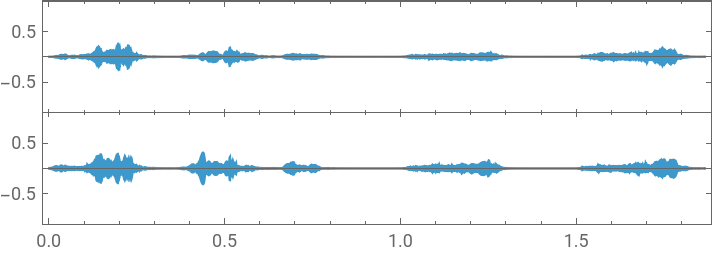
Let's customize the plot with a color and axis labels:
In[]:=
AudioPlotaudio,
Out[]=
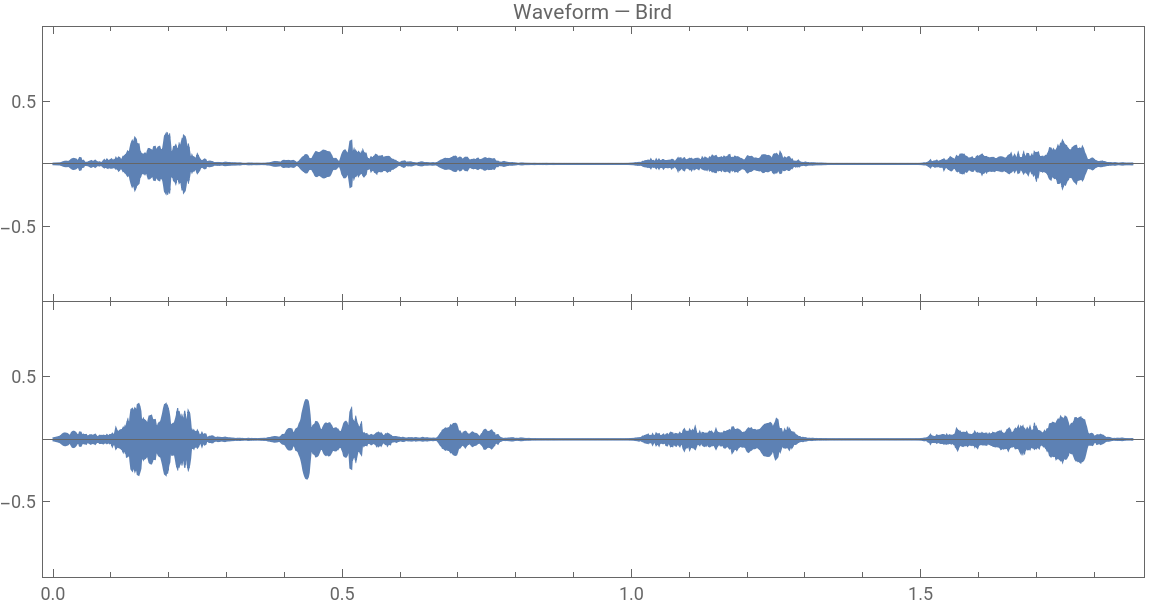
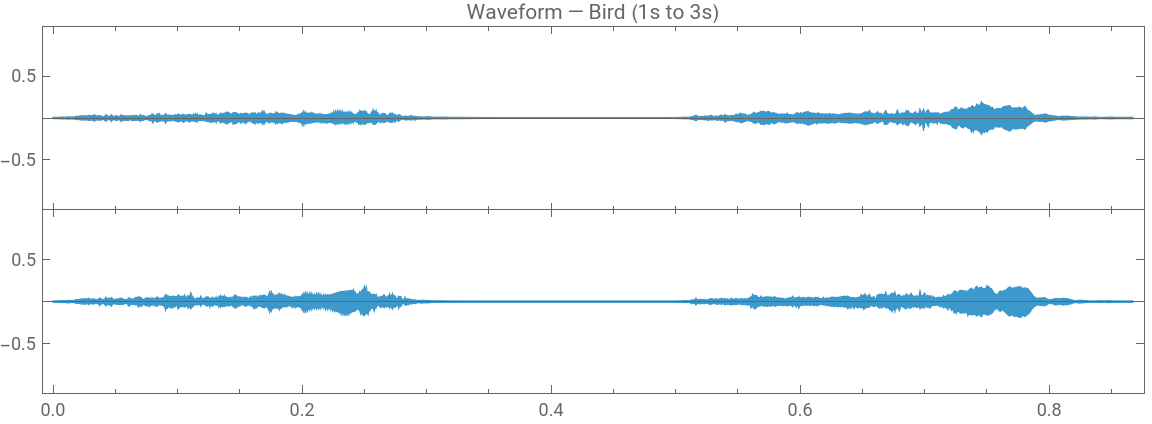
To zoom into a specific time range, use AudioTrim:
AudioPlotAudioTrim[audio,{1.0,3.0}],
Out[]=
The Spectrogram: Frequency Over Time
The Spectrogram: Frequency Over Time
The waveform tells us when loud things happen, but not what kind of sound is happening. A waveform can't distinguish a flute from a drum — both might have the same amplitude at a given moment.
The spectrogram solves this. It breaks the audio into short overlapping windows and computes the frequency content of each window using the Fast Fourier Transform (FFT). The result is a 2D heatmap:
The spectrogram solves this. It breaks the audio into short overlapping windows and computes the frequency content of each window using the Fast Fourier Transform (FFT). The result is a 2D heatmap:
X-axis — time (seconds)
Y-axis — frequency (Hz), from low (bass) at the bottom to high (treble) at the top
Color — intensity (how loud that frequency is at that moment)
Y-axis — frequency (Hz), from low (bass) at the bottom to high (treble) at the top
Color — intensity (how loud that frequency is at that moment)
Spectrogramaudio,
Out[]=
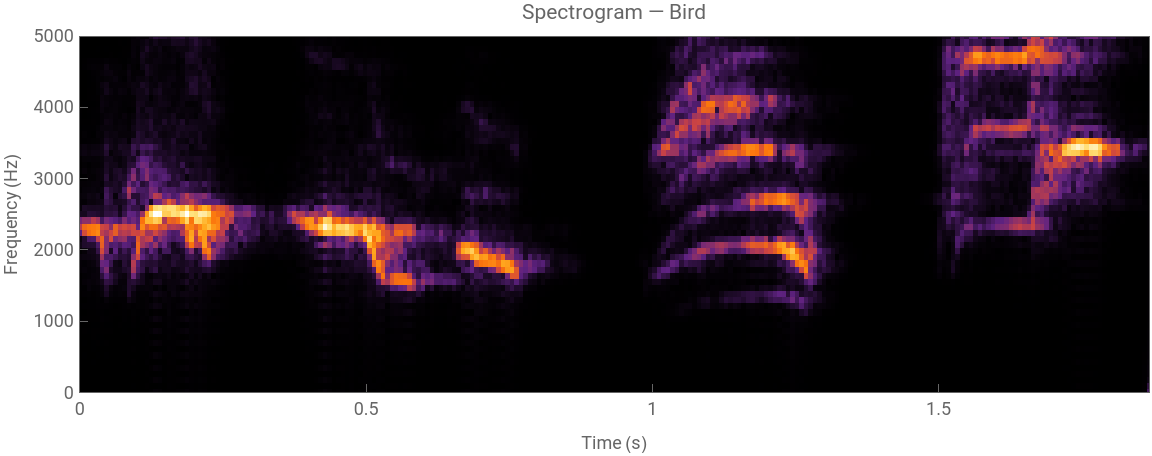
For a bird chirp, you'll see bright diagonal sweeps at high frequencies — because birds slide up and down in pitch as they chirp. For a piano note, you'll see bright horizontal stripes — a sustained frequency held over time.
The Time-Frequency Trade-off
The Time-Frequency Trade-off
The spectrogram has one important parameter: the window size. This controls how many samples are analyzed at once to compute each frequency slice.
In[]:=
(*Shortwindow—sharpintime,blurryinfrequency*)Spectrogram[audio,256,PlotLabel"Short Window - 256 Samples ",FrameLabel{"Time (s)","Frequency (Hz)"}]
Out[]=
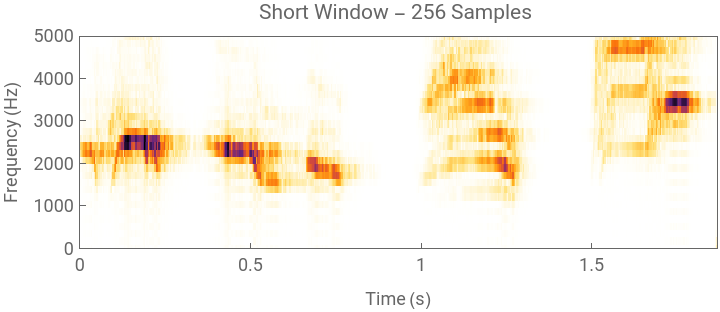
In[]:=
(*Longwindow—blurryintime,sharpinfrequency*)Spectrogram[audio,4096,PlotLabel"Long Window - 4096 Samples ",FrameLabel{"Time (s)","Frequency (Hz)"}]
Out[]=
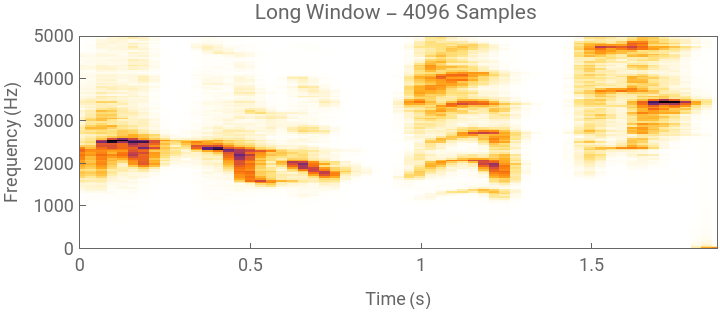
The Periodogram: The Overall Frequency Profile
The Periodogram: The Overall Frequency Profile
While the spectrogram shows frequency content changing over time, the periodogram collapses the time axis entirely and shows the overall frequency profile of the signal — which frequencies are present on average, across the whole audio clip.
PeriodogramAudioData[audio][[1]],
Out[]=
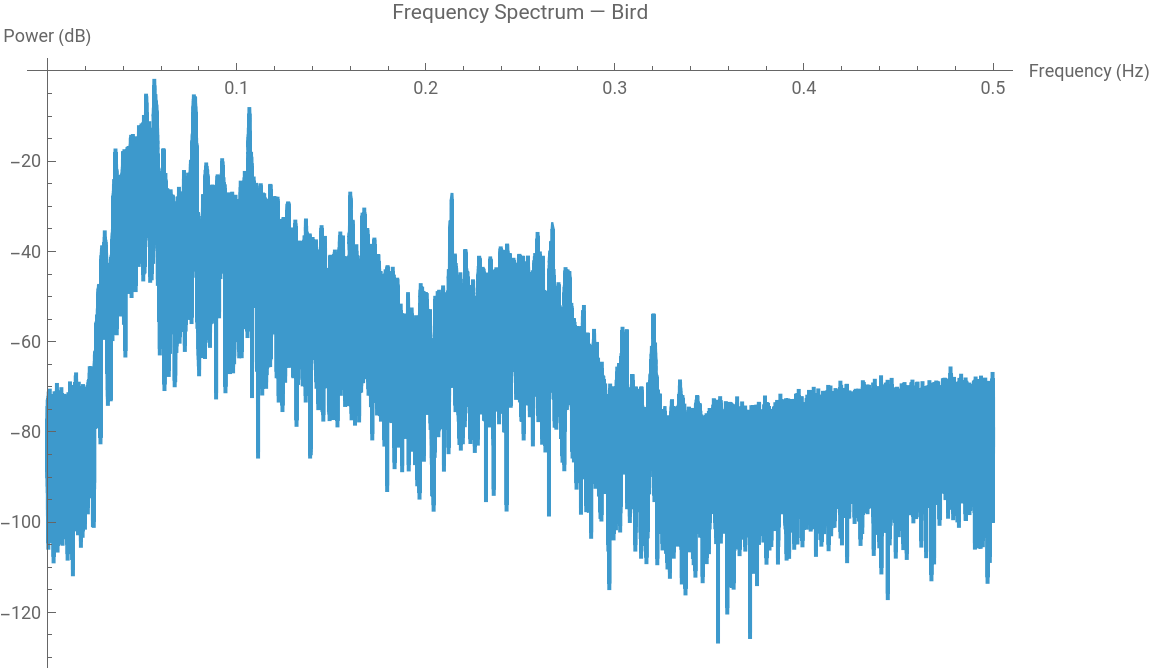
The periodogram is most useful for comparing audio sources. Let's look at a bird and a piano side by side
In[]:=
bird=ExampleData[{"Audio","Bird"}];piano=ExampleData[{"Audio","Piano"}];
GraphicsRow[{Periodogram[AudioData[bird][[1]],PlotLabel"Bird",AxesLabel{"Frequency (Hz)","Power"}],Periodogram[AudioData[piano][[1]],PlotLabel"Piano",AxesLabel{"Frequency (Hz)","Power"}]},ImageSizeLarge]
The bird concentrates energy in high frequencies (sharp, chirpy sounds). The piano shows distinct spikes at the fundamental frequency and its harmonics — multiples of the base note that give the piano its characteristic rich tone.
An Interactive Explorer
An Interactive Explorer
One of Wolfram Language's most distinctive features is Manipulate — a function that instantly turns any computation into an interactive UI. Let's wrap our visualizer in Manipulate to create a live audio explorer with dropdowns and sliders:
The key insight is that all three visualizations look at the same underlying data — a list of numbers — from different angles. The waveform is the time domain view. The periodogram is the frequency domain view. The spectrogram is both at once, at the cost of some resolution in each.
CITE THIS NOTEBOOK
CITE THIS NOTEBOOK
Visualizing sound: audio analysis with Wolfram
by Jana Rusrus
Wolfram Community, STAFF PICKS, February 28, 2026
https://community.wolfram.com/groups/-/m/t/3646965
by Jana Rusrus
Wolfram Community, STAFF PICKS, February 28, 2026
https://community.wolfram.com/groups/-/m/t/3646965