What if you could see inside the math that powers every audio app on your phone? In this post, we'll build a spectrogram from scratch using the Short-Time Fourier Transform, then use that foundation to build a spectral subtraction noise remover — solving the problem that simple filters couldn't handle in the earlier post.
Why Simple Filters Fail
Why Simple Filters Fail
In the previous project, we tried removing noise from audio using a bandpass filter. The problem: noise isn't confined to a neat frequency range. White noise spreads across all frequencies, including the same frequencies as the signal. A bandpass filter that removes the noise frequencies also removes the signal.
The solution requires working in the frequency domain — looking at each frequency individually and deciding how much of it is noise versus signal. That's what spectral subtraction does. But first, we need to understand the tool that gets us into the frequency domain: the Short-Time Fourier Transform.
The Fourier Transform: From Time to Frequency
The Fourier Transform: From Time to Frequency
The Fourier Transform decomposes a signal into its constituent frequencies. Given a signal in the time domain (amplitude over time), it produces a representation in the frequency domain (amplitude at each frequency).
Think of it like a prism splitting white light into a rainbow — the light was always made of many colors; the prism just separates them so you can see each one.
(*Generateasignalwithtwoknownfrequencies*)sampleRate=8000;duration=1;t=N[Range[0,duration-1/sampleRate,1/sampleRate]];signal=Sin[2Pi440t]+0.5Sin[2Pi1000t];
This creates a 1-second signal that is the sum of two sine waves: 440 Hz (concert A) and 1000 Hz. Let's look at it in the time domain:
ListLinePlotsignal[[1;;200]],
Out[]=
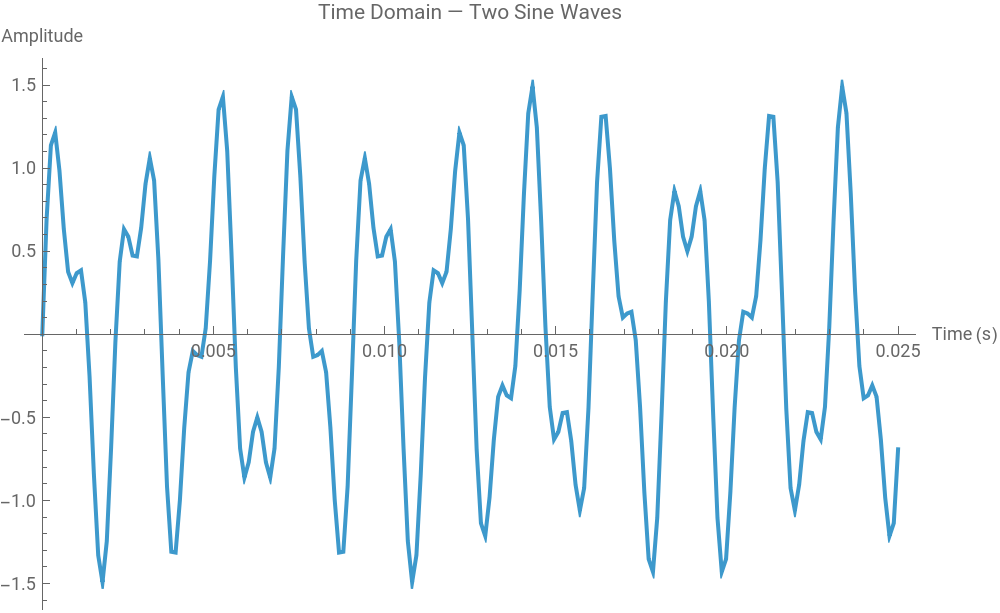
You see a complex-looking wave, but it's impossible to tell from the waveform alone that it's made of exactly two frequencies. Now let's apply the Fourier Transform:
ft=Abs[Fourier[signal]];frequencies=N[Range[0,Length[ft]-1]*sampleRate/Length[ft]];
ListLinePlotTranspose[{frequencies[[1;;Length[ft]/2]],ft[[1;;Length[ft]/2]]}],
Out[]=
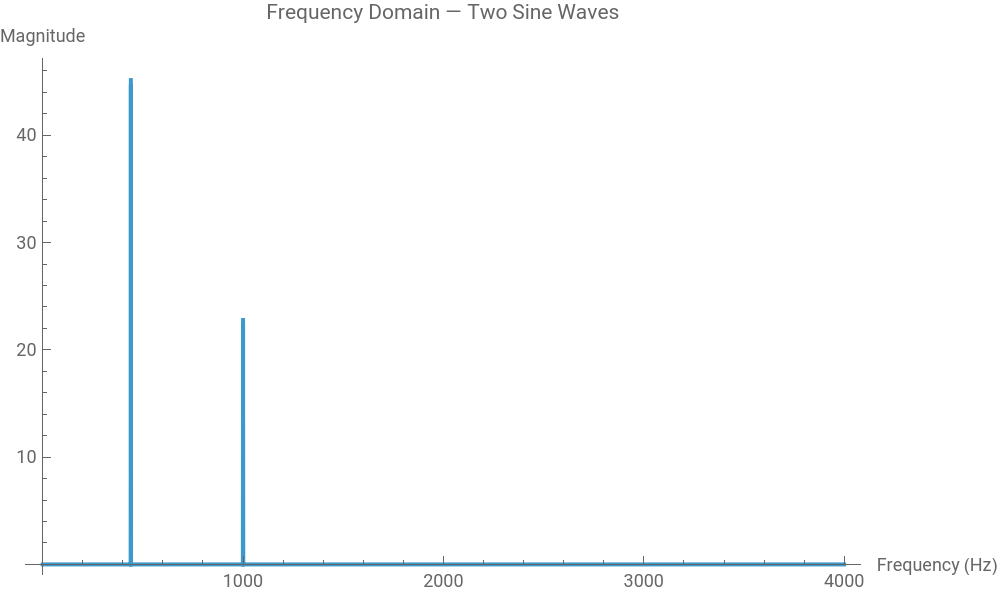
Two sharp spikes appear — one at 440 Hz and one at 1000 Hz. The Fourier Transform has separated the two components that were tangled together in the time domain.
The Problem with a Single FFT
The Problem with a Single FFT
The regular Fourier Transform gives you the overall frequency content of the entire signal — but it tells you nothing about when those frequencies occur. If a bird chirps at 0.5 seconds and a drum hits at 1.5 seconds, a single FFT shows both frequencies but can't tell you which came first.
This is the same time-frequency trade-off we saw with the spectrogram before. The solution is the Short-Time Fourier Transform (STFT) — apply the FFT to small overlapping windows of the signal, one at a time.
Building the STFT from Scratch
Building the STFT from Scratch
Let's build it step by step.
Step 1: Load Audio and Extract Samples
Step 1: Load Audio and Extract Samples
audio=ExampleData[{"Audio","Bird"}];data=AudioData[audio][[1]];sr=AudioSampleRate[audio];
Step 2: Define Parameters
Step 2: Define Parameters
windowSize=1024;hopSize=256;nWindows=Floor[(Length[data]-windowSize)/hopSize]+1;
Step 3: Apply Window Function and Compute FFTs
Step 3: Apply Window Function and Compute FFTs
windowFunc=HannWindow[Range[-0.5,0.5,1/(windowSize-1)]];
The Hann window is a bell-shaped curve that tapers to zero at the edges. Multiplying each chunk by this window prevents sharp cutoff artifacts at the chunk boundaries. Without it, the FFT sees artificial discontinuities at the edges and produces spurious frequencies (called spectral leakage).
stftMatrix=Table[Module[{chunk,windowed,ft},chunk=data[[i*hopSize+1;;i*hopSize+windowSize]];windowed=chunk*windowFunc;ft=Abs[Fourier[windowed]];ft[[1;;windowSize/2]]],{i,0,nWindows-1}];
Step 4: Display as a Spectrogram
Step 4: Display as a Spectrogram
ArrayPlotTranspose[Log10[stftMatrix+0.001]],
Out[]=
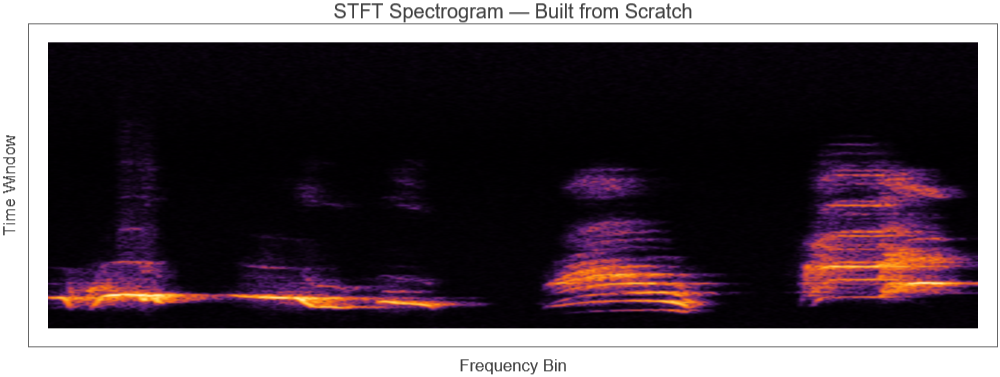
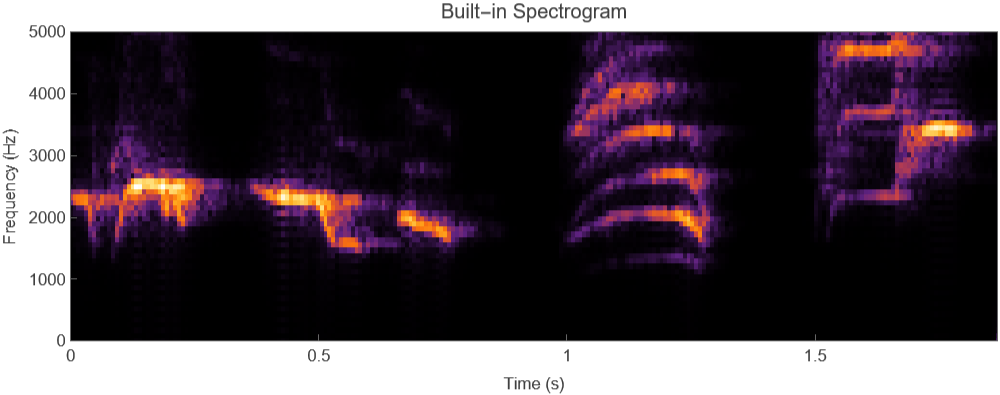
Compare with the Built-in Spectrogram
Compare with the Built-in Spectrogram
Spectrogramaudio,
Out[]=
Spectral Subtraction: Removing Noise Properly
Spectral Subtraction: Removing Noise Properly
Now that we can decompose audio into time-frequency components, we can do something simple but powerful: estimate the noise spectrum, then subtract it from each frame.
This works because noise has a roughly constant frequency profile over time — it's statistically stationary. The signal (a bird chirp, a voice) changes over time. By subtracting the constant noise floor, you keep the changing signal.
Step 1: Create a Noisy Signal
Step 1: Create a Noisy Signal
bird=ExampleData[{"Audio","Bird"}];birdData=AudioData[bird][[1]];sr=QuantityMagnitude[AudioSampleRate[audio]];
(*Addwhitenoise*)noise=RandomReal[{-0.05,0.05},Length[birdData]];noisyData=birdData+noise;noisyAudio=Audio[{noisyData},SampleRatesr];
(*Listentothenoisyversion*)noisyAudio
Out[]=
Step 2: Estimate the Noise Profile
Step 2: Estimate the Noise Profile
We need a segment that contains only noise. The first 0.2 seconds of many recordings are silence (or near-silence), which is exactly what we need.
noiseSamples=Round[0.2*sr];noiseSegment=noisyData[[1;;noiseSamples]];
Now compute the average spectrum of this noise-only segment using the same STFT approach:
windowSize=1024;hopSize=256;windowFunc=HannWindow[Range[-0.5,0.5,1/(windowSize-1)]];
noiseProfile is now a single vector representing the average strength of each frequency in the noise. This is our estimate of what the noise "looks like" in the frequency domain.
Step 3: Subtract Noise from Each Frame
Step 3: Subtract Noise from Each Frame
Step 4: Overlap-Add Reconstruction
Step 4: Overlap-Add Reconstruction
The final step reassembles the cleaned frames back into a continuous signal using overlap-add: each frame is placed at its original position, and where frames overlap, their values are summed.
The division by `windowSum` is crucial — without it, the overlapping regions would be too loud. The Hann window's special property is that overlapping Hann windows sum to a constant, so this normalization produces a smooth result.
Step 5: Compare Results
Step 5: Compare Results
The cleaned waveform should look closer to the original than the noisy version — the background noise floor is reduced, while the bird chirps remain.
Spectrogram Comparison
Spectrogram Comparison
In the noisy spectrogram, you'll see a uniform haze across all frequencies — that's the noise. In the cleaned spectrogram, the haze is reduced and the bird chirp patterns stand out more clearly.
CITE THIS NOTEBOOK
CITE THIS NOTEBOOK
Build your own spectrogram and noise remover from scratch
by Jana Rusrus
Wolfram Community, STAFF PICKS, April 4, 2026
https://community.wolfram.com/groups/-/m/t/3674222
by Jana Rusrus
Wolfram Community, STAFF PICKS, April 4, 2026
https://community.wolfram.com/groups/-/m/t/3674222