Version 0.9
Anton Antonov
MathematicaForPrediction at WordPress
RakuForPrediction at WordPress
RakuForPrediction-book at GitHub
November 2023
MathematicaForPrediction at WordPress
RakuForPrediction at WordPress
RakuForPrediction-book at GitHub
November 2023
Introduction
Introduction
The model "gpt-4-vision-preview" represents a significant enhancement to the GPT-4 model, providing developers and AI enthusiasts with a more versatile tool capable of interpreting and narrating images alongside text. This development opens up new possibilities for creative and practical applications of AI in various fields.
For example, consider the following Raku-developer-centric applications:
◼
Narration of UML diagrams
◼
Code generation from narrated (and suitably tweaked) narrations of architecture diagrams and charts
◼
Generating presentation content draft from slide images
◼
Extracting information from technical plots
◼
etc.
A more diverse set of the applications would be:
◼
Dental X-ray images narration
◼
Security or baby camera footage narration
◼
How many people or cars are seen, etc.
◼
Transportation trucks content descriptions
◼
Wood logs, alligators, boxes, etc.
◼
Web page visible elements descriptions
◼
Top menu, biggest image seen, etc.
◼
Creation of recommender systems for image collections
◼
Based on both image features and image descriptions
◼
etc.
As a first concrete example, consider the following image that fable-dramatizes the release of Raku's 2023.11 version (https://i.imgur.com/UcRYl9Yl.jpg):
Out[]=
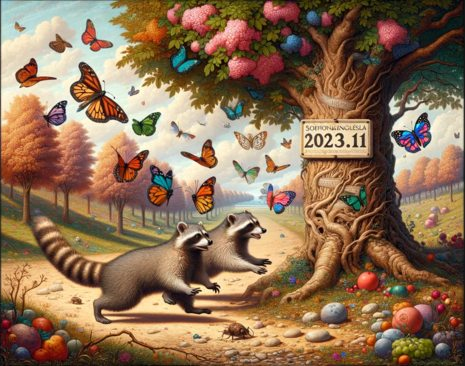
Here is its narration:
In[]:=
openai-playground --images=https://i.imgur.com/UcRYl9Yl.jpg Very concisely describe the image
The image shows two raccoons near a large tree with a face, surrounded by colorful butterflies, fruits scattered on the ground, and a forest backdrop indicating autumn.
Ways to use with Raku
Ways to use with Raku
There are five ways to utilize image interpretation (or vision) services in Raku:
◼
◼
◼
◼
◼
Any combinations of the above
In this document are demonstrated the first three and the fifth. The fourth one is still "under design and consideration."
Remark: Document's structure reflects the list of the "five ways" above.
Remark: The model "gpt-4-vision-preview" is given as a "chat completion model" , therefore, in this document we consider it to be a Large Language Model (LLM).
Remark: This document was prepared as Jupyter chatbook, [AAp3], and then it was converted to Markdown and Mathematica / Wolfram Language notebook.
Packages
Packages
Here are the Raku packages (namespaces) used below, [AAp1, AAp2, AAp3]:
In[]:=
use WWW::OpenAI;
use WWW::OpenAI::ChatCompletions;
use WWW::MermaidInk;
use Lingua::Translation::DeepL;
use Data::Translators;
use LLM::Functions;
use Mathematica::Serializer;
use WWW::OpenAI::ChatCompletions;
use WWW::MermaidInk;
use Lingua::Translation::DeepL;
use Data::Translators;
use LLM::Functions;
use Mathematica::Serializer;
Out[]=
(Any)
Remark: The Jupypter kernel of "Jupyter::Chatbook", [AAp3], automatically loads the packages "Data::Translators" and "LLM::Functions". The functionalities of the packages "WWW::OpenAI" and "WWW::MermaidInk" are available in chatbooks through dedicated cells, [AAv1, AAv3]. The package is "Mathematica::Serializer" is useful when Raku is used in a Mathematica -- or Wolfram Language (WL) -- notebook.
Images
Images
Here are the links to all images used in this document:
Out[]//TableForm=
Name | Link |
Raccoons chasing butterflies | |
LLM functionalities mind-map | |
Single sightseer | |
Three hunters | |
Raku Jupyter Chatbook solution | |
Cyber Week Spending Set to Hit New Highs in 2023 |
CLI
CLI
The simplest way to use the OpenAI's vision service is through the CLI script of "WWW::OpenAI", [AAp1]. (Already demoed in the introduction.)
Here is an image that summarizes how Jupyter Chatbooks work (see [AAp3, AAv1, AAv2]):
In[]:=
Import[URL["https://imgur.com/22lXXks.jpg"]]
Out[]=
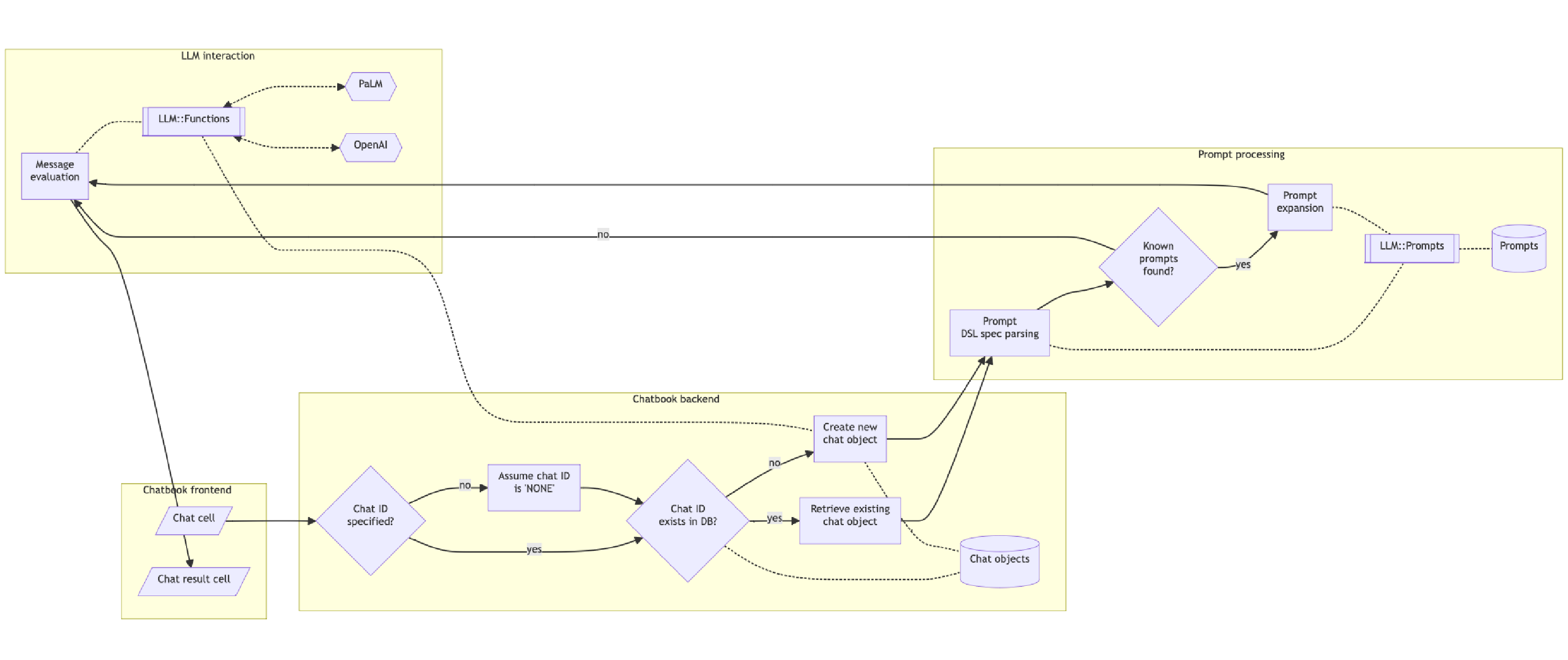
Here is a CLI shell command that requests the image above to be described (using at most 900 tokens):
In[]:=
openai-playground --images=https://i.imgur.com/22lXXks.jpg --max-tokens=900 Describe the image
The image appears to be a flowchart or system architecture diagram, likely representing the logic or process flow for a software application related to chat or messaging. The diagram is divided into three main sections or components, each with a different background color, indicating different subsystems or processes. Here's a description of each part:
1. Message evaluation (left side, yellow background):
- There is a process labeled "LLM interaction" that connects to three functionalities: "LLM::Functions," "PaLM," and "OpenAI."
- There is a flow from "Message evaluation" to "Chatbook frontend," which then leads to a decision point asking, "Chat ID specified?"
- Depending on whether a chat ID is specified or not, the flow splits. If no, it assumes 'NONE' as the chat ID.
2. Chatbook backend (center, yellow background):
- If the chat ID is specified, there is a decision point asking, "Chat ID exists in DB?" If yes, it retrieves an existing chat object; if no, it creates a new chat object.
- The database or storage for chat objects is represented by a cylinder icon labeled "Chat objects."
Shell workflow pipelines can be constructed with commands using CLI scripts of the packages loaded above. For example, here is a pipeline that translates the obtained image description from English to Bulgarian using the package "Lingua::Translation::DeepL", [AAp5]:
In[]:=
source ~/.zshrc &&
openai-playground --images=https://i.imgur.com/22lXXks.jpg --max-tokens=900 'Very concisely describe the image' | deepl-translation -t=Bulgarian
openai-playground --images=https://i.imgur.com/22lXXks.jpg --max-tokens=900 'Very concisely describe the image' | deepl-translation -t=Bulgarian
Of course, we can just request OpenAI's vision to give the image description in whatever language we want (say, by using emojis):
In[]:=
source ~/.zshrc &&
openai-playground --images=https://i.imgur.com/22lXXks.jpg --max-tokens=900 Very concisely describe the image in 🇷🇺
openai-playground --images=https://i.imgur.com/22lXXks.jpg --max-tokens=900 Very concisely describe the image in 🇷🇺
Web API functions
Web API functions
Within a Raku script or REPL session OpenAI's vision service can be accessed with the functions openai-completion or openai-playground .
Remark: The function openai-playground is an umbrella function that redirects to various "specialized" functions for interacting with different OpenAI services. openai-completion is one of them. Other specialized functions are those for moderation, vector embeddings, and audio transcription and processing; see [AAp1].
If the function openai-completion is given a list of images, a textual result corresponding to those images is returned. The argument "images" is a list of image URLs, image file names, or image Base64 representations. (Any combination of those element types can be specified.)
Before demonstrating the vision functionality below we first obtain and show a couple of images.
Images
Images
Here is a URL of an image: (https://i.imgur.com/LEGfCeql.jpg). Here is the image itself:
Next, we demonstrate how to display the second image by using the file path and the encode-image function from the WWW::OpenAI::ChatCompletions namespace. The encode-image function converts image files into Base64 image strings, which are a type of text representation of the image.
When we use the openai-completion function and provide a file name under the "images" argument, the encode-image function is automatically applied to that file.
Here is an example of how we apply encode-image to the image from a given file path (`$*HOME ~ '/Downloads/ThreeHunters.jpg'`):
In[]:=
my $img3 = WWW::OpenAI::ChatCompletions::encode-image($*HOME ~ '/Downloads/ThreeHunters.jpg');
$img3.chars
$img3.chars
Image narration
Image narration
Here is an image narration example with the two images above, again, one specified with a URL, the other with a file path:
my $url1 = 'https://i.imgur.com/LEGfCeql.jpg';
my $fname2 = $*HOME ~ '/Downloads/ThreeHunters.jpg';
my @images = [$url1, $fname2];
openai-completion("Give concise descriptions of the images.", :@images, max-tokens => 900, format => 'values', :$api-key);
my $fname2 = $*HOME ~ '/Downloads/ThreeHunters.jpg';
my @images = [$url1, $fname2];
openai-completion("Give concise descriptions of the images.", :@images, max-tokens => 900, format => 'values', :$api-key);
Description of a mind-map
Description of a mind-map
Here is an application that should be more appealing to Raku-developers -- getting a description of a technical diagram or flowchart. Well, in this case, it is a mind-map from [AA2]:
Here are get the vision model description of the mind-map above (and place the output in Markdown format):
In[]:=
#% markdown
my $mm-descr =
openai-completion(
"How many branches this mind-map has? Describe each branch separately. Use relevant emoji prefixes.",
images => 'https://imgur.com/kcUcWnq.jpeg',
max-tokens => 1024,
format => 'values',
:$api-key
);
$mm-descr
my $mm-descr =
openai-completion(
"How many branches this mind-map has? Describe each branch separately. Use relevant emoji prefixes.",
images => 'https://imgur.com/kcUcWnq.jpeg',
max-tokens => 1024,
format => 'values',
:$api-key
);
$mm-descr
Here from the obtained description we request a (new) Mermaid-JS diagram to be generated:
Here is a diagram made with Mermaid-JS spec obtained above using a function of "WWW::MermaidInk", [AAp4]:
#% markdown
#mermaid-ink($mmd-chart, format=>'b64_json')
#mermaid-ink($mmd-chart, format=>'b64_json')
Here we visualize the Mermaid-JS diagram directly with WL using the Wolfram Function Repository (WFR) function "MermaidInk":
Remark: In a Jupyter chatbook, [AAp3], Mermaid-JS diagrams can be "directly" visualized with notebook cells that have the magic mermaid . Below is given an instance of one of the better LLM results for making a Mermaid-JS diagram over the "vision-derived" mind-map description.
In[]:=
#% markdown
mermaid-ink('
graph TB
A[LLM services access] --> B[DALL-E]
A --> C[ChatGPT]
A --> D[PaLM]
A --> E[LLM chat objects]
A --> F[Chatbooks]
B -->|related to| G[DALL-E AI system]
C -->|associated with| H[ChatGPT]
D -->|related to| I[PaLM model]
E -->|part of| J[chat-related objects/functionalities]
F -->|implies| K[Feature or application related to chatbooks]
', format => 'b64_json') ==> my $mmd-mind-map;
$mmd-mind-map.chars
mermaid-ink('
graph TB
A[LLM services access] --> B[DALL-E]
A --> C[ChatGPT]
A --> D[PaLM]
A --> E[LLM chat objects]
A --> F[Chatbooks]
B -->|related to| G[DALL-E AI system]
C -->|associated with| H[ChatGPT]
D -->|related to| I[PaLM model]
E -->|part of| J[chat-related objects/functionalities]
F -->|implies| K[Feature or application related to chatbooks]
', format => 'b64_json') ==> my $mmd-mind-map;
$mmd-mind-map.chars
Here is an example of code generation based on the "vision derived" mind-map description above:
In[]:=
llm-synthesize([
"Generate Raku code -- using Markdown markings -- with an object oriented hierarchy corresponding to the description:
",
$mm-descr],
e=>llm-configuration('ChatGPT', :$api-key))
"Generate Raku code -- using Markdown markings -- with an object oriented hierarchy corresponding to the description:
",
$mm-descr],
e=>llm-configuration('ChatGPT', :$api-key))
Out[]=
"# Raku code with object-oriented hierarchy for LLM Services
```raku
class LLM {
has DALLE $.dalle;
has ChatGPT $.chatgpt;
has LLMFunctionalities $.functionalities;
has Chatbooks $.chatbooks;
method new() {
my $dalle = DALLE.new;
my $chatgpt = ChatGPT.new;
my $functionalities = LLMFunctionalities.new;
my $chatbooks = Chatbooks.new;
self.bless(:$dalle, :$chatgpt, :$functionalities, :$chatbooks);
}
}
class DALLE {
method new() {
self.bless();
}
}
class ChatGPT {
method new() {
self.bless();
}
}
class LLMFunctionalities {
has LLMPrompts $.prompts;
has LLMChatObjects $.chat_objects;
has LLMFunctions $.functions;
method new() {
my $prompts = LLMPrompts.new;
my $chat_objects = LLMChatObjects.new;
my $functions = LLMFunctions.new;
self.bless(:$prompts, :$chat_objects, :$functions);
}
}
class LLMPrompts {
method new() {
self.bless();
}
}
class LLMChatObjects {
method new() {
self.b
"
```raku
class LLM {
has DALLE $.dalle;
has ChatGPT $.chatgpt;
has LLMFunctionalities $.functionalities;
has Chatbooks $.chatbooks;
method new() {
my $dalle = DALLE.new;
my $chatgpt = ChatGPT.new;
my $functionalities = LLMFunctionalities.new;
my $chatbooks = Chatbooks.new;
self.bless(:$dalle, :$chatgpt, :$functionalities, :$chatbooks);
}
}
class DALLE {
method new() {
self.bless();
}
}
class ChatGPT {
method new() {
self.bless();
}
}
class LLMFunctionalities {
has LLMPrompts $.prompts;
has LLMChatObjects $.chat_objects;
has LLMFunctions $.functions;
method new() {
my $prompts = LLMPrompts.new;
my $chat_objects = LLMChatObjects.new;
my $functions = LLMFunctions.new;
self.bless(:$prompts, :$chat_objects, :$functions);
}
}
class LLMPrompts {
method new() {
self.bless();
}
}
class LLMChatObjects {
method new() {
self.b
"
LLM Functions
LLM Functions
Let us show programmatic utilizations of the vision capabilities.
Here is the workflow we consider:
1
.Ingest an image file and encode it into a Base64 string
2
.Make an LLM configuration with that image string (and a suitable model)
3
.Synthesize a response to a basic request (like, image description)
◼
Using llm-synthesize
4
.Make an LLM function for asking different questions over image
◼
Using llm-function
5
.Ask questions and verify results
◼
⚠️ Answers to "hard" numerical questions are often wrong.
Image ingestion and encoding
Image ingestion and encoding
Here we ingest an image and display it:
In[]:=
#%markdown
my $imgBarChart = WWW::OpenAI::ChatCompletions::encode-image($*HOME ~ '/Downloads/Cyber-Week-Spending-Set-to-Hit-New-Highs-in-2023-small.jpeg');
$imgBarChart.chars
my $imgBarChart = WWW::OpenAI::ChatCompletions::encode-image($*HOME ~ '/Downloads/Cyber-Week-Spending-Set-to-Hit-New-Highs-in-2023-small.jpeg');
$imgBarChart.chars
Configuration and synthesis
Configuration and synthesis
Here we make a suitable LLM configuration with the image:
In[]:=
my $confImg = llm-configuration("ChatGPT", model => 'gpt-4-vision-preview', images => $imgBarChart, temperature => 0.2, :$api-key);
$confImg.WHAT
$confImg.WHAT
Here we synthesize a response of a image description request:
In[]:=
llm-synthesize("Describe the image.", e=> $confImg)
Repeated questioning
Repeated questioning
Here we define an LLM function that allows the multiple question request invocations over the image:
In[]:=
my &fst = llm-function({"For the given image answer the question: $_ . Be as concise as possible in your answers."}, e => $confImg);
In[]:=
&fst('How many years are presented in that image?')
In[]:=
&fst('Which year has the highest value? What is that value?')
Remark: Numerical value readings over technical plots or charts seem to be often wrong. OpenAI's vision model warns about this in the responses often enough.
Dedicated notebook cells
Dedicated notebook cells
In the context of the "recently-established" notebook solution "Jupyter::Chatbook", [AAp3], I am contemplating an extension to integrate OpenAI's vision service.
The main challenges here include determining how users will specify images in the notebook, such as through URLs, file names, or Base64 strings, each with unique considerations. Additionally, I am exploring how best to enable users to input prompts or requests for image processing by the AI/LLM service.
This integration, while valuable, it is not my immediate focus as there are programmatic ways to access OpenAI's vision service already. (See the previous section.)
Combinations (fairytale generation)
Combinations (fairytale generation)
Consider the following computational workflow for making fairytales:
1
.Draw or LLM-generate a few images that characterize parts of a story.
2
.Narrate the images using the LLM "vision" functionality.
3
.Use an LLM to generate a story over the narrations.
Remark: Multi-modal LLM / AI systems already combine steps 2 and 3.
Remark: The workflow above (after it is programmed) can be executed multiple times until satisfactory results are obtained.
Here are image generations using DALL-E for four different requests with the same illustrator name in them:
In[]:=
my @story-images = [
"a girl gets a basket with wine and food for her grandma.",
"a big bear meets a girl carrying a basket in the forest.",
"a girl that gives food from a basket to a big bear.",
"a big bear builds a new house for girl's grandma."
].map({ openai-create-image( 'Painting in the style of John Bauer of ' ~ $_, response-format => 'b64_json', format => 'values', :$api-key) });
@story-images.elems
"a girl gets a basket with wine and food for her grandma.",
"a big bear meets a girl carrying a basket in the forest.",
"a girl that gives food from a basket to a big bear.",
"a big bear builds a new house for girl's grandma."
].map({ openai-create-image( 'Painting in the style of John Bauer of ' ~ $_, response-format => 'b64_json', format => 'values', :$api-key) });
@story-images.elems
Here we display the images:
#@story-images.map({ '' }).join(' ' x 5)
Here we get the image narrations (via the OpenAI's "vision service"):
In[]:=
my $story-images-descriptions =
openai-completion("Consisely describe the images.",
images => @story-images.map({ 'data:image/jpeg;base64,' ~ $_ ~ '' }).List,
max-tokens => 900,
format => 'values',
:$api-key
);
$story-images-descriptions
openai-completion("Consisely describe the images.",
images => @story-images.map({ 'data:image/jpeg;base64,' ~ $_ ~ '' }).List,
max-tokens => 900,
format => 'values',
:$api-key
);
$story-images-descriptions
Here we extract the descriptions into a list:
In[]:=
#% markdown
my @descr = $story-images-descriptions.split("\n", :skip-empty).grep({ $_ ~~ / ^ \d /});
.say for @descr
my @descr = $story-images-descriptions.split("\n", :skip-empty).grep({ $_ ~~ / ^ \d /});
.say for @descr
Here we generate the story from the descriptions above (using OpenAI's ChatGPT):
References
References
Articles
Articles
[AA2] Anton Antonov, "Re-programming to Python of LLM- and Chatbook packages" , (2023), RakuForPrediction at WordPress .
[OAIb1] OpenAI team, "New models and developer products announced at DevDay" , (2023), OpenAI/blog .
Packages
Packages
Videos
Videos
[AAv2] Anton Antonov, "Jupyter Chatbook multi cell LLM chats teaser (Raku)" (2023), YouTube/@AAA4Prediction .
Setup
Setup
In[]:=
source ~/.zshrc