Abstract
Abstract
Image feature recognition, also known as feature detection or keypoint detection, refers to the process of identifying distinctive points or regions within an image that can be used to describe its content. These features are typically areas of an image that are unique or informative, such as corners, edges, or blobs, which stand out against the background or other parts of the image.
Introduction
Introduction
In the dynamic field of computer vision, the identification and analysis of keypoints within images are essential for various applications, including object recognition, image stitching, and 3D reconstruction. This computational essay delves into the process of splitting images into randomly created puzzle pieces and uniform tiles alike, each containing a recognizable feature or keypoint, by employing a range of advanced algorithms. Then logic to check if tiles contain keypoints is created to then iteratively discover the most amount of tiles/smallest tile size in which all tiles have a recognizable feature. Complementing this technical analysis, a graphical user interface (GUI) is created that transforms the tiled images into an interactive jigsaw puzzle where each puzzle piece contains a recognizable feature.
Gathering Data for Testing
Gathering Data for Testing
To gather the data, I aimed to collect a variety of images with distinctive features and essential background information to enhance feature detection analysis.
I chose not to use the CIFAR-100 dataset because its low-resolution images would hinder the detection of recognizable features.
After exploring Wolfram’s Data Repository, I selected a set of four distinct images.
I chose not to use the CIFAR-100 dataset because its low-resolution images would hinder the detection of recognizable features.
After exploring Wolfram’s Data Repository, I selected a set of four distinct images.
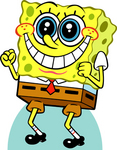
Retrieves an image of Spongebob:
In[]:=
spongebob =
Out[]=
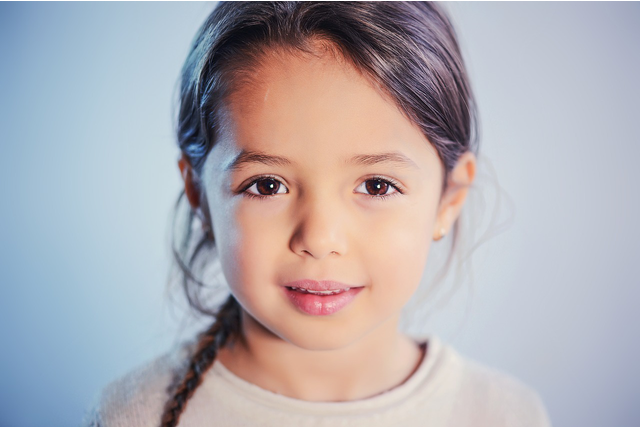
Retrieves an image of a girl:
In[]:=
girl = ResourceData["Sample Image: Girl on a Blue Background"]
Out[]=
Retrieves an image of a dog:
In[]:=
dog =
Out[]=
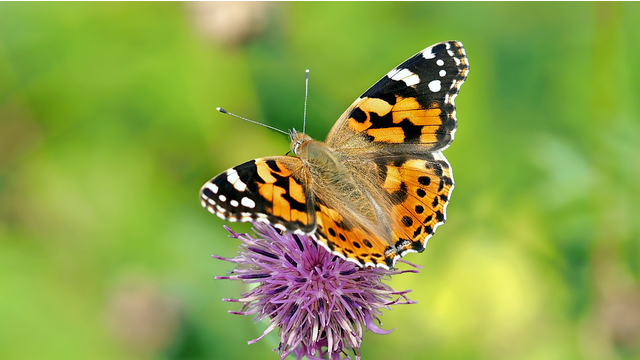
Retrieves an image of a butterfly:
In[]:=
butterfly = ResourceData["Sample Image: Orange Butterfly on a Purple Flower"]
Out[]=
Generating Keypoints for recognizable features
Generating Keypoints for recognizable features
Simple Feature Recognition
Simple Feature Recognition
We can utilize the ImageKeypoint function to generate keypoints in an image, which represent locations with recognizable features.
The ImageKeypoints function supports a variety of algorithms for detecting these keypoints, allowing for flexibility in analysis.
The default algorithm employed by the ImageKeypoint function is the SURF (Speeded-Up Robust Features) method, known for its efficiency and robustness in feature detection.
By leveraging these capabilities, we can achieve more precise and reliable identification of significant features within an image.
The ImageKeypoints function supports a variety of algorithms for detecting these keypoints, allowing for flexibility in analysis.
The default algorithm employed by the ImageKeypoint function is the SURF (Speeded-Up Robust Features) method, known for its efficiency and robustness in feature detection.
By leveraging these capabilities, we can achieve more precise and reliable identification of significant features within an image.
Gets the keypoints of the Spongebob image:
In[]:=
ImageKeypoints[spongebob]
Out[]=
{{43.0067,12.2167},{69.1984,120.236},{87.4614,50.4817},{50.6235,118.033},{42.1554,117.126},{76.0716,119.266},{92.4948,43.352},{93.8969,52.4511},{47.8365,88.4004},{100.756,89.7187},{58.9213,87.2115},{38.9812,92.9303},{103.889,123.207},{18.9027,54.7251},{70.7697,58.8332},{52.0205,69.6096},{77.3011,97.0409},{30.3757,63.0149},{86.4843,81.2501},{30.3252,120.089},{28.2577,82.6462},{30.2884,138.308},{68.3806,69.7339},{66.5192,129.877},{36.8322,73.1417},{70.3086,77.4973},{61.9948,53.5372},{77.1132,103.517},{77.9859,51.947},{62.3567,99.9679},{71.0464,20.2241},{36.3875,79.3508},{37.7994,57.1495},{66.4059,37.106},{82.4231,44.1451},{62.3747,15.7269},{28.3572,89.4106},{34.0755,23.3289},{24.9007,19.9122},{27.8392,19.7194},{12.3855,105.698},{22.0573,125.813},{87.7084,93.7009},{34.4039,45.408},{19.5952,83.8265},{22.8105,97.8392},{41.0648,29.0019},{76.1345,41.2467},{63.1133,92.6298},{45.9115,47.2198},{70.0078,41.9105},{12.9383,77.9702},{58.5406,72.8165},{97.6104,103.444},{24.7097,90.5955},{24.6726,34.9152},{14.5846,127.702},{22.4039,113.514},{36.8718,109.649},{62.382,64.4856},{101.505,71.3364},{38.9925,51.6151},{89.68,108.69},{90.9366,71.8945},{70.8198,95.2603},{88.7204,17.663},{57.1062,48.0435},{20.4761,33.2417},{90.6178,30.7696},{92.2825,23.2502},{18.682,29.3801},{26.8567,109.202},{16.5125,20.6682},{16.7008,24.9303}}
Each entry in the list denotes a keypoint within the image, specified in pixel coordinates.
We can further enhance our understanding by visualizing these keypoints directly on the original Spongebob image.
Using ImageCompose, I created a Point Graphic for each keypoint, precisely positioned at its designated location.
We can further enhance our understanding by visualizing these keypoints directly on the original Spongebob image.
Using ImageCompose, I created a Point Graphic for each keypoint, precisely positioned at its designated location.
Adds keypoints on original Spongebob image:
In[]:=
ImageCompose[spongebob,Graphics[{Red,PointSize[Large],Point[ImageKeypoints[spongebob]]}]]
Out[]=
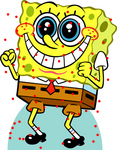
As you can see the keypoints are generally accurate on defining the features of Spongebob, but we can see the other algorithms of feature recognition too.
The default method for ImageKeypoints is the SURF method (Speeded Up Robust Features)
The default method for ImageKeypoints is the SURF method (Speeded Up Robust Features)
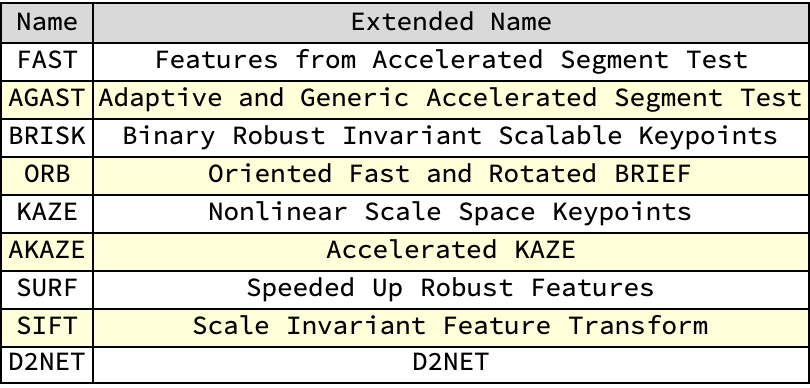
Algorithms Simplified
Algorithms Simplified
Visualizing the Different Feature Recognition Algorithms
Visualizing the Different Feature Recognition Algorithms
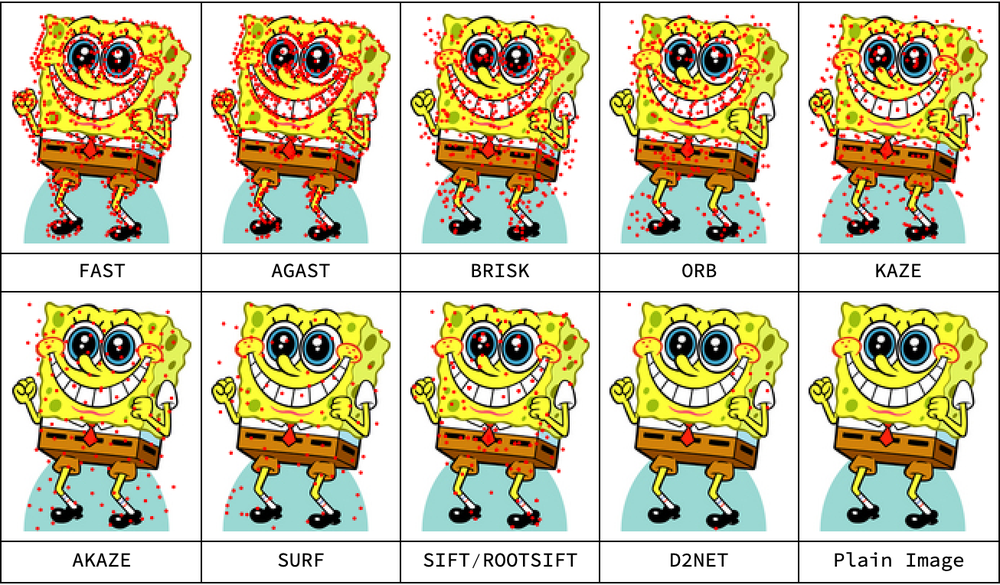
I can apply different feature recognition methods to the same image and compare their results side by side.
This way, I can see how well each method works at finding key features in the image.
By doing this, I can figure out which algorithms are better for certain conditions or types of images, helping me choose the best feature recognition techniques.
This way, I can see how well each method works at finding key features in the image.
By doing this, I can figure out which algorithms are better for certain conditions or types of images, helping me choose the best feature recognition techniques.
Creates keypoints from original Spongebob image using various algorithms as noted above and maps them on the original Spongebob image:
In[]:=
FAST=ImageCompose[spongebob,Graphics[{Red,PointSize[Large],Point[ImageKeypoints[spongebob,Method->"FAST"]]}]];AGAST=ImageCompose[spongebob,Graphics[{Red,PointSize[Large],Point[ImageKeypoints[spongebob,Method->"AGAST"]]}]];BRISK=ImageCompose[spongebob,Graphics[{Red,PointSize[Large],Point[ImageKeypoints[spongebob,Method->"BRISK"]]}]];ORB=ImageCompose[spongebob,Graphics[{Red,PointSize[Large],Point[ImageKeypoints[spongebob,Method->"ORB"]]}]];KAZE=ImageCompose[spongebob,Graphics[{Red,PointSize[Large],Point[ImageKeypoints[spongebob,Method->"KAZE"]]}]];AKAZE=ImageCompose[spongebob,Graphics[{Red,PointSize[Large],Point[ImageKeypoints[spongebob,Method->"AKAZE"]]}]];SURF=ImageCompose[spongebob,Graphics[{Red,PointSize[Large],Point[ImageKeypoints[spongebob,Method->"SURF"]]}]];SIFT=ImageCompose[spongebob,Graphics[{Red,PointSize[Large],Point[ImageKeypoints[spongebob,Method->"SIFT"]]}]];D2NET=ImageCompose[spongebob,Graphics[{Red,PointSize[Large],Point[ImageKeypoints[spongebob,Method->"D2NET"]]}]];
In[]:=
ImageResize[Grid[{{FAST,AGAST,BRISK,ORB,KAZE},{"FAST","AGAST","BRISK","ORB","KAZE"},{AKAZE,SURF,SIFT,D2NET,spongebob},{"AKAZE","SURF","SIFT/ROOTSIFT","D2NET","Plain Image"}},Frame->All,Spacings->{1,1}]//Rasterize,1000]
Out[]=
The exact same process, but with the girl image:
The exact same process, but with the dog image:
The exact same process, but with the butterfly image:
In all the analyzed images, the D2NET method consistently outputs a minimal number of keypoints, making it challenging to discern the image’s actual recognizable features. When compared with the dog images, the disparity in algorithm performance becomes evident. Many algorithms exhibit a random scattering of keypoints, despite the presence of a clearly defined dog with recognizable features. Notably, the FAsT and AGAST algorithms excel in this context, accurately pinpointing the keypoints of the dog with only a few outliers.
Conversely, the performance of these algorithms varies with the image of the girl. While the FAST and AGAST algorithms demonstrate some errors, with keypoints around the eyes slightly shifted, they still perform adequately. The BRISK, ORB, KAZE, and AKAZE algorithms, however, show remarkable precision. They effectively concentrate keypoints on the eyes, hair, mouth, and nose, demonstrating a high degree of accuracy.
In the case of the butterfly image, several algorithms perform exceptionally well, with keypoints densely concentrated on the butterfly. The blurred background simplifies keypoint identification for algorithms that rely on pixel intensity variations, further enhancing their accuracy.
For the Spongebob image, many algorithms yield decent results, but the AGAST and FAST methods stand out for their dominance and precision. They accurately focus keypoints on the eyes, teeth, and the outline of Spongebob’s body. Despite the general efficacy of all these algorithms, the AGAST method proves to be the most consistent and accurate across various images. Therefore, I will employ the AGAST method for keypoint identification, given its superior performance in defining keypoints and recognizing features across diverse images.
In all the analyzed images, the D2NET method consistently outputs a minimal number of keypoints, making it challenging to discern the image’s actual recognizable features. When compared with the dog images, the disparity in algorithm performance becomes evident. Many algorithms exhibit a random scattering of keypoints, despite the presence of a clearly defined dog with recognizable features. Notably, the FAsT and AGAST algorithms excel in this context, accurately pinpointing the keypoints of the dog with only a few outliers.
Conversely, the performance of these algorithms varies with the image of the girl. While the FAST and AGAST algorithms demonstrate some errors, with keypoints around the eyes slightly shifted, they still perform adequately. The BRISK, ORB, KAZE, and AKAZE algorithms, however, show remarkable precision. They effectively concentrate keypoints on the eyes, hair, mouth, and nose, demonstrating a high degree of accuracy.
In the case of the butterfly image, several algorithms perform exceptionally well, with keypoints densely concentrated on the butterfly. The blurred background simplifies keypoint identification for algorithms that rely on pixel intensity variations, further enhancing their accuracy.
For the Spongebob image, many algorithms yield decent results, but the AGAST and FAST methods stand out for their dominance and precision. They accurately focus keypoints on the eyes, teeth, and the outline of Spongebob’s body. Despite the general efficacy of all these algorithms, the AGAST method proves to be the most consistent and accurate across various images. Therefore, I will employ the AGAST method for keypoint identification, given its superior performance in defining keypoints and recognizing features across diverse images.
Developing a Function to Map Keypoints onto the Original Image
Developing a Function to Map Keypoints onto the Original Image
We can develop a function to apply keypoints to an image using ImageCompose, where each keypoint is represented as a Point Graphic, as shown previously.
To ensure accurate detection of keypoints in subsequent steps, I opted for a smaller PointSize.
Among the methods available, AGAST appears most promising due to its ability to detect a high number of keypoints, particularly on facial features, where significant features are concentrated.
To ensure accurate detection of keypoints in subsequent steps, I opted for a smaller PointSize.
Among the methods available, AGAST appears most promising due to its ability to detect a high number of keypoints, particularly on facial features, where significant features are concentrated.
Creating the function for mapping keypoints:
While there are a few keypoints not located on dog itself, the algorithm demonstrates notable accuracy, primarily focusing on keypoints situated on the dog’s face, legs, and tail—key areas that define the dog’s features.
Splitting the Image into Equal Sized Tiles
Splitting the Image into Equal Sized Tiles
Defining the ImageSplit Function
Defining the ImageSplit Function
To achieve a grid of tiles that is n x n tiles wide and long, we utilize the ImagePartition function.
This function allows us to specify the dimensions of each tile in pixels.
By dividing the total number of pixels horizontally and vertically by n, we determine the size of each tile.
These dimensions are then used as parameters in a list to partition the image into a grid of tiles with the desired dimensions.
This function allows us to specify the dimensions of each tile in pixels.
By dividing the total number of pixels horizontally and vertically by n, we determine the size of each tile.
These dimensions are then used as parameters in a list to partition the image into a grid of tiles with the desired dimensions.
Creates function that splits Stephen into n x n tiles:
Testing ImageSplit Function with Sample Data
Testing ImageSplit Function with Sample Data
Using our Spongebob, girl, dog, and butterfly image, we can split our images into n x n tiles
Testing ImageSplit with Spongebob:
Creating Puzzle Piece Shapes
Creating Puzzle Piece Shapes
Here a function is defined that creates a jigsaw puzzle-like edge between two points. It starts by measuring the distance between the points. If the distance is too short, it draws a straight line. If the points are on the same vertical or horizontal line, it also draws a straight line to avoid edges on the borders. Then, it finds the midpoint and sorts the points to identify the lower and upper points. Using a normal vector to the line, it creates a circular arc to form the jigsaw edge. Finally, it returns a Bezier curve that looks like a jigsaw puzzle edge between the two points.
Now we need a function that generates jigsaw puzzle-like edges for the sides of a polygon. It starts by extracting the vertices of the polygon and appending the first vertex to the end of the list, effectively closing the polygon loop. This ensures that the last edge of the polygon connects back to the first vertex. The function then partitions this list of points into pairs of consecutive points, each representing a side of the polygon. For each pair of points, it applies the jigsawSide function, which creates a jigsaw puzzle-like edge between them. The result is a set of Bezier curves that form jigsaw puzzle-like edges around the entire polygon.
The meshToPolygs function turns a MeshRegion into a polygon. First, it extracts the points from the mesh. Then, it finds the shortest path that connects these points using FindShortestTour. Finally, it creates a polygon with these points in the shortest tour order.
Now to wrap it all up, I wanted a function that returned a list of textured polygons with and without Keypoints/recognizable features. Here, the splitImageJigsaw function divides an input image into jigsaw puzzle pieces. It begins by creating a grid of points across the image with a specified spacing (delta), then perturbs each point slightly to introduce randomness (relDelta). Using these perturbed points, it constructs a Voronoi mesh (a tessellation), which divides the image into polygonal regions representing the puzzle pieces. Each polygonal region is then transformed into a jigsaw puzzle piece using a custom function (mkJigsawPiece) that generates realistic jigsaw-like edges. These pieces are converted into polygons and textured: jigsawPolygs uses the original image as its texture, while jigsawPolygsKP applies the modified image highlighting keypoints or features. The function ultimately returns two lists: jigsawPolygs containing puzzle pieces with the original image texture and jigsawPolygsKP with keypoints highlighted.
Detecting if a Tile has a Keypoint
Detecting if a Tile has a Keypoint
We can detect if tiles have keypoints by simply checking if a difference exists between a particular tile before and after applying keypoints to the image.
The ImageDistance function provides a difference measure from two images based on their pixel values.
The ImageDistance function provides a difference measure from two images based on their pixel values.
Sample output of ImageDistance function:
If there is no difference in the sample images/graphics the function will return 0.
Comparing same tile before and after adding keypoints to it:
As you can see when the tiles are different, a non zero number is returned.
Creating a Function to Detect if Images are the same
Creating a Function to Detect if Images are the same
If ImageDistance returns 0, it indicates that the images are identical, and should return True.
Otherwise, we should return False.
To implement this, I used the equals function to check if ImageDistance equals 0 and then return the appropriate result based on this condition.
Otherwise, we should return False.
To implement this, I used the equals function to check if ImageDistance equals 0 and then return the appropriate result based on this condition.
Defining SameTile Function:
Testing SameTile Function
Testing SameTile Function
Testing SameTile with Spongebob:
Testing if two identical tiles are the same:
Testing SameTile with Girl Image:
It is hard to see, but the girl image has some keypoints on its shoulder and chin, and the SameTile function verified it.
Checking if each tile of an image has a KeyPoint
Checking if each tile of an image has a KeyPoint
Our goal is to iterate through each tile, employing the SameTile function to determine whether the tile remains identical before and after keypoints are added.
To facilitate this comparison, I will format the data into n pairs of tiles, where each pair consists of a tile in its original state and the same tile after keypoints have been added.
This structure will allow me to systematically compare and evaluate the impact of adding keypoints on each of the n tiles.
To facilitate this comparison, I will format the data into n pairs of tiles, where each pair consists of a tile in its original state and the same tile after keypoints have been added.
This structure will allow me to systematically compare and evaluate the impact of adding keypoints on each of the n tiles.
Simulating the process detailed above with the Spongebob image and creates 2 lists of puzzle piece tiles, one for the puzzle pieces with keypoints and without:
Now that we have both lists we can easily transform it into our desired format by using the Transpose function which takes one element from each list to make a new list inside of a bigger list
Combines the two lists:
Now we can easily compare tiles before and after adding key points.
Checks if each pair of puzzle pieces are the same:
Creating a Function that Checks if All Puzzle Pieces have a Keypoint
Creating a Function that Checks if All Puzzle Pieces have a Keypoint
Checks if the list from using SameTile on each element of the list, each element being a pair of tiles, contains True using MemberQ. If it there is a True that means not all tiles of the image contain a keypoint.
Creating logic for testing if all puzzle pieces have a keypoint:
I can simply put this logic inside of a module with local variables and assign it to a function which takes in an image and number of tiles in horizontal dimension.
Creating allTilesHaveKP function:
Testing allTilesHaveKP Function
Testing allTilesHaveKP Function
Testing the allTilesHaveKP function with Spongebob image:
As you can see each tile has some red dots which represent recognize feature keypoints and the allTilesHaveKP function returned True
Here the bottom right-most and bottom left-most tile don’t have a recognizable feature represented by the red dots and the allTilesHaveKP verified it by returning False when splitting the image by 5 tiles in the horizontal axis.
Testing the allTilesHaveKP function with the butterfly image:
As we can observe from these test cases, the allTilesHaveKP function performs as expected. It correctly returns True if every tile contains at least one keypoint, and False if any tile lacks a keypoint. Furthermore, the split images for which allTilesHaveKP returns True appear to be very solvable as actual puzzles. This is because each tile possesses a unique, defining feature of the overall image, making it easier to piece together the complete picture. This functionality highlights the robustness of the allTilesHaveKP function in ensuring that each tile is distinct and contributes meaningfully to the total image, which is crucial for the integrity of the puzzle-solving process.
Assembling it All Together
Assembling it All Together
In order to find the most amount of puzzle pieces and smallest tile size with at least one keypoint/recognizable feature we can iterate through the process of checking if each tile in an image has a recognizable feature with different # of tiles. If n=2, the function will automatically set n=3 as when n=2 there will only be one puzzle piece which is useless.
Creating Jigsaw Function:
Testing the Jigsaw Function
Testing the Jigsaw Function
Testing with city image
Randomizing Interactive Jigsaw
Randomizing Interactive Jigsaw
This function defines an affine transformation matrix that can apply translation and rotation to geometric objects. The AffineTransform function is used to construct the matrix based on parameters provided: trx and try specify the translation in the x and y directions, respectively. Additionally, an optional rotation angle rot can be specified (defaulting to 0 if not provided), which rotates objects counterclockwise around their origin. The matrix itself is structured to first apply the rotation using cosine and sine components ({{Cos[rot], Sin[rot]}, {-Sin[rot], Cos[rot]}}) followed by the translation specified by {trx, try}. This allows for flexible transformations of shapes or images, such as rotating and moving puzzle pieces within a coordinate system.
Creating random positions for each tile:
Extensions
Extensions
Creating a UI
Creating a UI
Initially, the image is divided into smaller tiles, the number of which is determined by the JigSaw Function above.
These tiles are then rearranged into a flat list for easier handling. To simulate the shuffling of a jigsaw puzzle, the positions of these tiles are randomized.
The code also generates random initial positions for each tile within a predefined plotting area.
An interactive interface is then set up, where each tile is represented by a locator that can be moved around by the user.
As these locators are adjusted, the display dynamically updates to reflect the new positions of the tiles. T
his allows the user to manipulate and try to solve the puzzle by arranging the tiles back into their correct positions.
The overall experience mimics the process of solving a physical jigsaw puzzle, but in a digital and interactive format.
However, running this interactive interface on the cloud might introduce some lag.
When users move tiles around, the interface needs to update the positions in real-time, which can be delayed by network latency.
These tiles are then rearranged into a flat list for easier handling. To simulate the shuffling of a jigsaw puzzle, the positions of these tiles are randomized.
The code also generates random initial positions for each tile within a predefined plotting area.
An interactive interface is then set up, where each tile is represented by a locator that can be moved around by the user.
As these locators are adjusted, the display dynamically updates to reflect the new positions of the tiles. T
his allows the user to manipulate and try to solve the puzzle by arranging the tiles back into their correct positions.
The overall experience mimics the process of solving a physical jigsaw puzzle, but in a digital and interactive format.
However, running this interactive interface on the cloud might introduce some lag.
When users move tiles around, the interface needs to update the positions in real-time, which can be delayed by network latency.
Creates interface for dragging rectangle puzzle piece tiles together:
Conclusion
Conclusion
In this project, I devised and created an effective method on how to create jigsaw puzzles where each piece has a recognizable feature. This involved developing a custom algorithm that ensures each puzzle piece retains distinct and identifiable characteristics from the original image, making the puzzle more engaging and intuitive. Additionally, I implemented a geometric transformation system to manipulate the pieces, allowing for interlocking edges of the puzzle pieces that fit together seamlessly.
Applications
Applications
Interactive jigsaw puzzles can be great for learning because they make education fun and hands-on. Teachers can use puzzles to help students learn geography by piecing together maps of different countries or regions, which helps with understanding and remembering locations. Similarly, puzzles showing parts of the human body can help students learn anatomy by putting together organs and systems. This method makes learning interesting and helps students understand complex topics better. By adding keypoints and important features to the puzzle pieces, teachers can highlight essential parts of the subject, making learning more interactive and visual.
Digital jigsaw puzzles can also be helpful in therapy, especially for improving cognitive and motor skills. For people recovering from strokes or other neurological conditions, solving puzzles can improve hand-eye coordination and fine motor skills. The act of fitting pieces together requires focus and dexterity, aiding in the recovery of motor functions. Additionally, the mental challenge of identifying and assembling pieces based on visual clues can stimulate brain activity and improve cognitive functions. These benefits make jigsaw puzzles a valuable tool in rehabilitation programs, offering a fun and engaging way for patients to work on their recovery.
Digital jigsaw puzzles can also be helpful in therapy, especially for improving cognitive and motor skills. For people recovering from strokes or other neurological conditions, solving puzzles can improve hand-eye coordination and fine motor skills. The act of fitting pieces together requires focus and dexterity, aiding in the recovery of motor functions. Additionally, the mental challenge of identifying and assembling pieces based on visual clues can stimulate brain activity and improve cognitive functions. These benefits make jigsaw puzzles a valuable tool in rehabilitation programs, offering a fun and engaging way for patients to work on their recovery.
Further Additions
Further Additions
Ideally, the interactive GUI would use puzzle pieces with interlocking edges rather than equal-sized tiles to enhance the user experience. Shaped puzzle pieces, with their unique interlocking edges, would make the puzzle-solving process more engaging and closer to the experience of solving a real jigsaw puzzle. This would involve more complex algorithms to generate and handle the irregular shapes, ensuring they fit together correctly within the GUI. Unfortunately, due to the scope of the project and the limited timeframe of just 1.5 weeks, implementing these shaped puzzle pieces in the interactive GUI wasn’t feasible.
Another promising future addition to the project is integrating machine learning algorithms to enhance its intelligence and functionality. Machine learning can be used to automatically detect and highlight not just keypoints, but the core identifiable features within the image, making it easier to identify important elements. This would improve the process of creating puzzle pieces with recognizable features, ensuring that each piece contains a more significant part of the image. Integrating these advanced algorithms would significantly elevate the application’s capabilities, providing a smarter and more interactive puzzle-solving experience.
Another promising future addition to the project is integrating machine learning algorithms to enhance its intelligence and functionality. Machine learning can be used to automatically detect and highlight not just keypoints, but the core identifiable features within the image, making it easier to identify important elements. This would improve the process of creating puzzle pieces with recognizable features, ensuring that each piece contains a more significant part of the image. Integrating these advanced algorithms would significantly elevate the application’s capabilities, providing a smarter and more interactive puzzle-solving experience.
Acknowledgments
Acknowledgments
Thank you to my mentor Mariel for helping me complete this project.
References
References
1
.Jigsaw Puzzle - Online Technical Discussion Groups—Wolfram Community. (n.d.). https://community.wolfram.com/groups/-/m/t/3207860
2
.Wolfram Blog: News, Views and Insights from Wolfram. (2012, June 28). https://blog.wolfram.com/2012/06/28/designing-jigsaw-puzzles-with-mathematica/
3
.OpenCV: FAST Algorithm for corner Detection. (n.d.). https://docs.opencv.org/3.4/df/d0c/tutorial_py_fast.html
4
.AGAST Corner Detector « Robotics and Embedded Systems. (n.d.). https://archive.air.in.tum.de/Main/ResearchAgast.html
5
.BRISK: Binary Robust invariant scalable keypoints. (2011, November 1). IEEE Conference Publication | IEEE Xplore. https://ieeexplore.ieee.org/document/6126542
6
.OpenCV: ORB (Oriented FAST and Rotated BRIEF). (n.d.). https://docs.opencv.org/4.x/d1/d89/tutorial_py_orb.html
7
.Fernández Alcantarilla, P., 1, Bartoli, A., 1, Davison, A. J., 2, ISIT-UMR 6284 CNRS, Université d’Auvergne, Clermont Ferrand, France, & Department of Computing, Imperial College London, UK. (2012). KAZE features. In ECCV 2012, Part VI, LNCS 7577 (pp. 214–227). https://www.doc.ic.ac.uk/~ajd/Publications/alcantarilla_etal_eccv2012.pdf
8
.Tyagi, D. (2023, October 23). Introduction to SURF (Speeded-Up Robust Features) - Deepanshu Tyagi - Medium. Medium. https://medium.com/@deepanshut041/introduction-to-surf-speeded-up-robust-features-c7396d6e7c4e
9
.Tyagi, D. (2023a, October 23). Introduction to SIFT( Scale Invariant Feature Transform). Medium. https://medium.com/@deepanshut041/introduction-to-sift-scale-invariant-feature-transform-65d7f3a72d4
CITE THIS NOTEBOOK
CITE THIS NOTEBOOK
Creating jigsaw puzzles based on recognizable features
by Jason Yap
Wolfram Community, STAFF PICKS, July 11, 2024
https://community.wolfram.com/groups/-/m/t/3214617
by Jason Yap
Wolfram Community, STAFF PICKS, July 11, 2024
https://community.wolfram.com/groups/-/m/t/3214617